
To get PS4 live TV, you need to download streaming services with live TV available on PlayStation Store. You can also screen mirror live TV from other devices to your PS4 console screen. To learn more about the details, read this article at the end.
![How to Watch Live TV on PS4 [Updated 2022]](https://techthanos.com/wp-content/uploads/2022/07/How-to-Watch-Live-TV-on-PS4-Updated-2022.jpg)
In this article, you can learn about,
- PS4 live TV apps on PlayStation Store.
- Steps to install apps on PS4
- Screen mirror other device screens to the PS4 console screen.
- Information on the apps with Live TV.
Table of Contents
How to Watch Live TV on PS4?
You can watch Live on PS4 by downloading accessible apps for the PlayStation Store. The apps that can be downloaded on PS4 and have Live TV are,
- Hulu + Live TV
- YouTube TV
- Pluto TV
- Tubi TV
- Peacock TV
It is also possible to cast live tv apps from other devices to your PS4 device.
How to Watch Live TV Using Apps available on PS4?
To watch Live on your PS4 then, you have to download the streaming apps that offer live tv, such as,
- Hulu + Live TV
- YouTube TV
- Pluto TV
- Tubi TV
- Peacock TV
How to Get PS4 Live TV apps?
You can download your favourite app from the PlayStation App Store. To download the Apps with Live on PS4, the steps to be followed are,
- Go to the PS4 home screen.
- Now open the AppStore and select the Search icon.
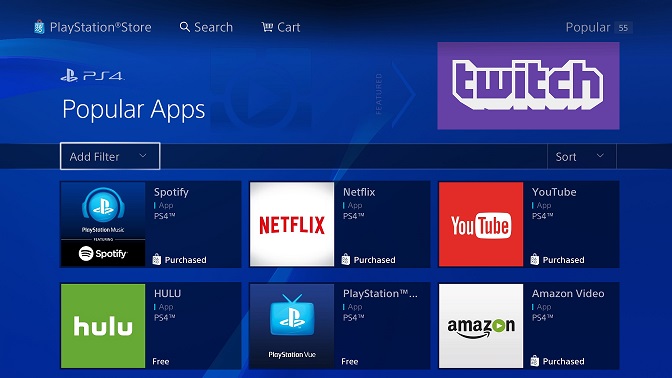
- Type the app name in the text box
- After the search ends, select the app.
- Tap on “Download” to install the app on your device.
With the following steps, you can download any app on your PS4 device.
Alternative Methods to Get Live TV on PS4:
If you want to watch Live on PS4 with the apps that are not available on App Store, then you can use screencast that app from other devices like your Android phone or Apple IPhone to your PS4 device-connected screen.
To do this, you have to download the respective apps on your smartphone from your respective app stores. You can screencast your device to PS4 by using the screen Mirroring app and connecting your smartphone and PS4 to the same WiFi network.
Downlaod Screen Mirroring app on Your Smartphone:
To download the Screen Mirroring app on your smartphone, follow the steps given below without skipping,
- Switch on your Smartphone.
- Open the respective App Store.

- For Andrioid devices – Google Play Store
- For iOS devcies – Apple App Store
- Tap on the Search tab or the search icon and type the name of the app, and press search.
- From the results, select the app to go into its information page.
- Now select the respective option to download or install the app.
- After the download is complete open the app and logs in with your credentials.
Using this method, you can download any app on your smartphone. Using this, download the PS4 Second Screen and other live TV apps on your smartphone.
Screencast Live app from Smartphone to PS4 using the Screen Mirroring App:
When you have downloaded the screen Mirroring app on your smartphone and connected it to your home WiFi network, same as your PS4 device, follow the steps to screencast the Live app to your PS4Screenn.
- On your PS4, go to the library.
- Select the Applications option and go to Internet Explorer
- On the URL tab, type https://tvee.app.

- On your, Smartphone launch the screen Mirroring app.
- Check the boxes and tap on scan to scan the QR code on your PS4Screenn.
- After scanning the code, tap on Start Broadcast.
You can see now that your smartphone screen has been mirrored to your PS4Screenn.
About the Different PS4 Live TV Apps:
The apps that can be directly downloaded to your PS4 from the PlayStation store are,
- Hulu + Live TV
- YouTube TV
Hulu + Live TV:

As of from 3rd of March 2020, Hulu + Live TV has been made available for PS4. You can watch real-time sports events, news, award shows and more. You can watch the content you want on PS4 with 1080p/60fps quality.
To stream Hulu Live TV on PS4, you need to have the following,
- A Hulu + Live TV subscription account.
- Connected to a good WiFi network.
- Having the app and firmware up to date.
The Live TV subscription plans offered by Hulu + Live TV are,
- Hulu (With Ads) + Live TV along with Disney+ and ESPN+ costs $69.99 per month.
- Hulu (no Ads) + Live TV along with Disney+ and ESPN+ costs $75.99 per month.
YouTube TV:

You can watch Live TV on PS4 without any cables by downloading the YouTube TV app from PlayStation Store. With a subscription plan for $64.99 per month, you can have access to,
- 85+ networks
- DVR storage on Cloud to watch offline.
- Access up-to six accounts.
- Cancel subscription any time.
- Seven days free trial.
To create a YouTube TV account to access it on your PS4, the steps to be followed are,
- On any device with a Google browser, go to your YouTube TV home page.
- Tap on Try it for free.
- If you have a Google Account enter those credentials.
- Now enter your payment details for the subscription plan.
You have now successfully created an account on YouTube TV. You can use these credentials to access the app on any device.
About The Live TV Apps that you can cast to PS4:
The live TV apps that you can cast to your PS4 screen from Andorid devices are,
- Pluto TV
- Tubi TV
- Peacock TV
Pluto TV:

With Pluto TV, you can get access to content like
TV Shows:
Where you can watch all the old shows like
- Melrose Place
- MacGyver
- Dear or No Deal
- Becker
- Party of Five
and more along with reality shows and on-demand content like
- Four Weddings
- Kitchen Nightmare
- Fear Factor
- American Pickers
- I Love New York
Movies:
Featured movies from studios and on streaming channels can be watched on Pluto TV. Some of the best Pluto TV offered movies are,
- The Artist
- Super 8
- Minority Report
- Snowpiercer
- The Truman Show
The different genres available at Pluto TV are,
- Action
- Comedy
- Drama
- Romance
- Western
- Horror
- Documentary
Kids:
You can watch cartoons for kids like
- Street Sharks
- Banana in Pyjamas
- Garfield Specials
- Street Sharks
Tubi TV:

On Tubi TV, you can watch content from FOX, FOX Soul, Bloomberg TV, NBC News NOW, People TV, CBC, Weather Nation, fubo sports and Black News Channel. You can watch free, premium and on-demand videos with this app, along with more than 4000 movies, shows and others from its large library.
Peacock:

With Peacock TV on your PS4, you can have access to live TV shows and movies along with other on-demand streaming services. The live TV channels that can be watched on Peacock TV are,
- Laugh Here
- In It To Win It
- Peacock Reality
- Fallon Tonight
- Food52
- People Are Awesome
- NatureVision TV
- Saved by the Bell
- D&D Live
- Fail Army
- Kiss Me Deadly
- Hell’s Kitchen
- Seth Meyers Now
- NBC Sports on Peacock
- Olympic Channel
- NBC NEWS NOW
And more other live TV channels.
You may also like to read about,
How to Install Crunchyroll on PS4?
Frequently Asked Questions:
How to Watch Live TV on PS4?
You can watch Live TV on PS4 by downloading accessible apps for the PlayStation Store. The apps that can be downloaded on PS4 and have Live TV are,
- Pluto TV
- Peacock TV
- Tubi TV
- Hulu + Live TV
- YouTube TV
The End
You can now watch live TV on your PS4 console with the help of the methods and steps mentioned in this article. If you find that any of the methods are difficult and are not working, you can ask me through the comment section.
Thank You