
![How to Get Google Chrome on PS5 [3 Methods]](https://techthanos.com/wp-content/uploads/2022/12/How-to-Get-Google-Chrome-on-PS5-3-Methods.jpg)
Google Chrome, developed by Google, is the most used web browser in the world. You can get Google Chrome on PC, Mac, Android Phones, Tablets, and iOS Phones. Once you have connected your Google account o Chrome, you can access all the Google Apps on this web browser. Eventhough Google Chrome is available for most devices, it does not mean it is on all devices. If you are curious about getting Google Chrome on PS5, continue to read this article.
Table of Contents
Is Google Chrome on PS5?

No, You cannot use Google Chrome on PS5. Since PS5 does not integrate with google products, it is impossible to get Googel Chrome. But there are certain tricks you can use to access the Google Search Engine on your web browser on PS5. Know them by reading this article.
How to Get Google Chrome on PS5?

As you know, Google Chrome on PS5 is impossible. To access the Google Search engine on your PS5, you need to tweak some settings on your PS5 console. This might not be similar to using Google Chrome, but it can show you results from Google’s database. There are default web browsers available on your PlayStation console for you to browse the internet. This inbuilt web browser is good for texts but not for images and videos. The simple tricks you can use to get a browser like Chrome on PS5 are as follows,
Google Chrome using PS5 Messages:
Using the Quick Messaging feature of PS5, you can enter the URL for Google and access Chrome on PS5. If you have never used Messaging on PS5, follow the steps and get a Google search engine on your PlayStation console.
- Connect your PS5 console to a WiFi network.
- Go to Game Base and choose any friend from the list.
- Now tap on Messaging option and select the Quick Message option.
- Type in https://www.google.com in the text space and send it.
- After that, select the link to open the Google search engine on the PS5 console.
This might not be similar to using the Google Chrome web browser on other devices, but either way, you can use Google Search Engine on your PS5 console.
Google Chrome using PS5 Settings:
In this method, you can change the DNS settings to access the Google Chrome browser on your PS5 console. To use this method, you need to follow the simple steps provided below here.
- Make your way to PS5 console settings.
- Choose the Network option and select Settings.
- Now select the Set Up Internet Connection option and go to Advanced Settings.
- Change the DNS Setting to Manual and enter primary and secondary codes here.
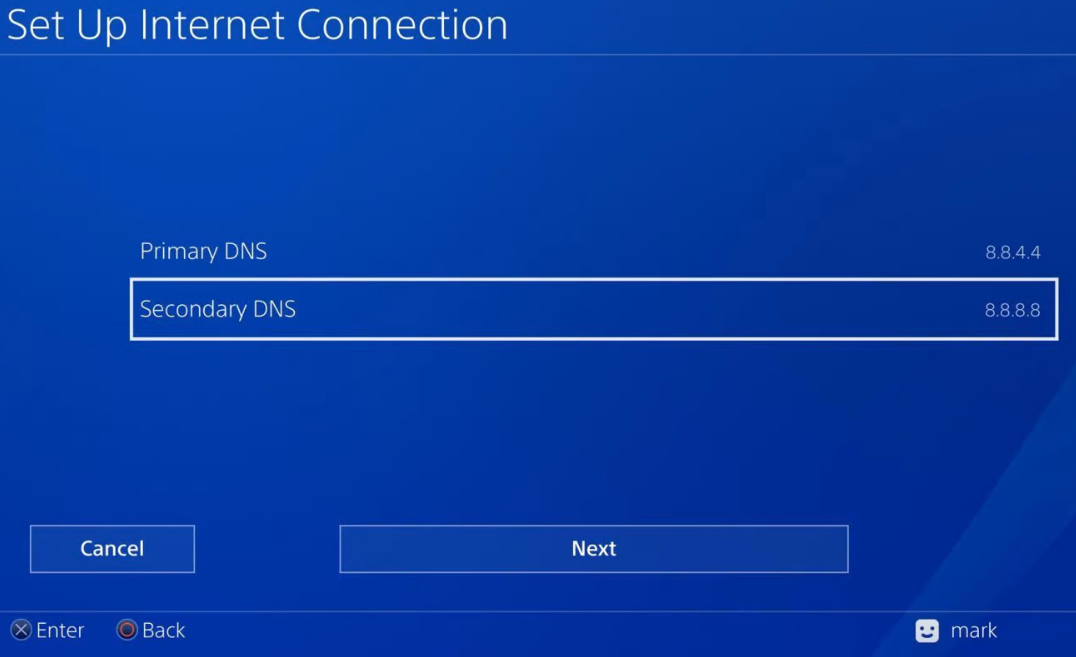
NOTE: Check other sources for Primary and Seconday DNS of Google for PS5 console.
- When you see the “PlayStation Network Failed” status, move to the PS5 Setting and select User’s Guide.
- Select the User’s Guide once again and choose the Yes option.
- Use the URL https://www.google.com and Submit it.
This will take you to the Chrome web browser on your PS5 console. After this change, the DNS Setting to Automatic.
Alternate Ways to Get Google Chrome on PS5:
By using the two methods provided above, you can see difficulties in accessing images and videos. The best way to use the Chrome browser without any limitation on your PS5 would be by screen mirroring the Google Chrome app from other devices. This can be achieved by using the Screen Mirroring app and the Google Chrome app on your Smartphone. Before starting, make sure your Smartphone and PS5 console is connected to the same WiFi network. The steps to be followed are as follows,
NOTE: Since, most of the smartphone have Google Chrome browser defaultly installed in them you can move to the steps to start screen mirroring.

Get Screen Mirroring on PS5:
- Go to your PS5 Game Hub and select a Frind to do Quick Messaging.
- Type the URL https://tvee.app and send it.
- Now tap on the link to open the Screen Mirroring QR code on your Console Screen.
Screen Mirror Chrome to PS5:
- Download and Install Screen Mirroring app on your Smartphone and Launch it.
- Tap on Scan and move your Smartphone to scan the code on PS5.
- Now select Screen Mirror and choose the Start Broadcast option.
- Your Smartphone screen is mirrored to the PS5 Console screen.
- Open the Google Chrome app on your Smartphone and start browsing any content and watch it on your PS5 console.
This method can be used to get any app that is not available at the PlayStation store from your SmartPhone.
THE END
Choose any method you want to get Google Chrome on PS5. Screen Mirroring Google Chrome to your PlayStation console screen seems to be the best option to access all the features of Google Chrome. If you have found any other method that can be used to get Chrome on PS5, you can share them in the comment section. Happy Surfing with Google on PS5.
Frequently Asked Questions:
Is Google Chrome on Xbox?
Yes, Googel Chrome is on Xbox. You can head on to the Xbox app store and search for the Googel Chrome application. Then install it on your Xbox console and start using the web browser.
What are the Accounts you can link with PS5?
You can link social media streaming service accounts to your PS5 console. They are Apple ID, Spotify, Twitter, Twitch, and YouTube.