
Google Chrome is one of the best web browsers around the world. You can access Google Chrome on Phones, Tablets, and PC. But there have been no records of using Google Chrome on Smart TVs. You can try accessing Google Chrome Browser on Google TV, with the help of this article. You can learn different screencasting methods and Sideloading methods to get Google Chrome on your Google TV / Android TV.
Table of Contents
Is Google Chrome Browser Available on Google TV?
No, you cannot access the Chrome Web Browser app on your Google TV. But you can cast Chrome Web Browser screen from your Smartphone, Tablet, and PC to your Google TV screen. If you really need a web browser on Google TV, you will have to get Google Chrome Browser APK through third-party developers by enabling developer options.

How to Get Google Chrome Web Browser on Google TV?
The best way to get Google Chrome Browser on Google TV would be by screencasting. There are different methods you can use to get a browser on your TV. The methods that can be used are
- Cast Web Page directly from Chrome Brower from phone, tablet, or PC to Google TV.
- Use Google Home to cast the Google Chrome Browser app from a Phone or Tablet to TV.
- Connect PC with Chrome Browser to GoogleTV with HDMI cable.
Cast Google Chrome Browser to Google TV Directly
- Open Chrome Web browser on your device.
- Get your TV and device with Chrome Browser to the same WiFi network.
- Select the three vertical dots icon

- Tap on Cast and wait for your Google TV to show up.
- Choose your Google TV and select Allow at the prompts on your TV screen.
- Your Web Page from your Browser is now cast to your Google TV.
You can use your device to control the browser and watch it on your Google TV.
Use Google Home to Cast Google Chrome Web Browser to Google TV

- Get Chrome Web Browser and Google Home app on your Android Phone or iPhone.
- Connect your Phone and Google TV to the same WiFi network.
- On the Google Home app go to the Devices section.
- Select Add and choose the New Device option, select a home, and press Next.
- Now choose your Google TV and follow the prompts to set it up.
- From the Google Home apps Home page, select your Google TV.
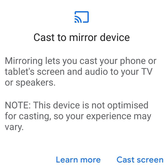
- Tap on Cast and select Cast Screen to get your Phone screen on Google TV.
- Now use Google Chrome Web Browser on your Phone and watch it on your GoogleTV.
Want to airplay Google Chrome from iPhone, check out How to use AirPlay on Google TV?
Google Chrome from PC to Google TV
Do you have a HDMI cable? Then you can easily get your PC screen n your Google TV by connecting them with an HDMI cable. Using an HDMI cable can provide you with the best browsing experience on Google TV, than using screencasting methods. To steps to get Chrome Browser from PC to GoogleTV are as follows,
- Use an HDMI cable to connect your PC and Google TV.
- Turn on your PC and Google TV.
- Select the HDMI port with the PC on your Google TV.
- Your PC screen is now visible on your Google TV screen.
- Open Chrome Browser on your PC and watch it on your GoogleTV.
Using a wireless keyboard and mouse can help you navigate the Google Chrome browser from a distance. You can either duplicate your PC screen or use Google TV as your Main Screen. All you have to do is go to display settings no PC and change it to your preference.
How to Install Google Chrome Browser on Google TV?
Since Sideloading is the only method to get the Google Chrome app on GoogleTV. A link that directs to the Chrome Browser APK file is required. I would strongly recommend you not sideload Chrome Browser on your GoogleTV. Because mod apps can spread malware and steal your personal data. With the help of the Downloader app and Google Chrome APK file, you can get a web browser on your Google TV.

Install Downloader on Google TV
- Open Google Play Store on your Google TV
- Search for the Downloader app.
- Go to the Downloader app information page and select Install.
- Downloader is installed on Google TV
Turn On Developer Mode on Google TV
- Take off your Google TV controller and go to the Google TV settings on your device.
- On the list of Google TV settings, you have to select and tap the System option from the list.
- Now, we have to move with the About option on your System settings.
- On the About screen, you have to scroll down the screen and tap consistently on the Android TV OS Build option. Until you get the, You are now a developer word on your appeared screen.
- We have enabled the Developer option on your Google TV device.
Install Google Chrome on Google TV
- Open Downloader app on Google TV
- Select Allow on the permissions asked by the Downloader app.
- Go to its home page and type Google Chrome APK file ULR.

- Press Go and wait for Google Chrome APK to get Downloaded.
- After downloading, select Install from the pop-up screen.
- Once Google Chrome is installed, select Done.
- You will be prompted to delete the APK file, so, select the delete option twice.
You can now find the Google Chrome app in the Apps & Games section on your GoogleTV. Am not sure whether the app will work well with your Google TV. Even if it works, it will be difficult to work with your Google TV remote.
Have a look at the best web browsers for your Google TV, from Best Browser for Google TV.
What are the Features of Google Chrome?
Google Chrome was a massive web browsing network. And it had a lot of benefits and features on its site. The benefits and the highlights of the Google Chrome Browser were mentioned in the below space on this topic.
- Tabs > Easy access and organized tabs are available on the Google Chrome web browser app.
- Search > You can browse anything you gather from the internet.
- Search History > It allows us to check the history of your searched contents.
- Downloads > You can check your download history in the download option in the easy method.
- Bookmark > It permits us to bookmark the tab you want to save on your streaming device.
- Google Account > Your active and using account was given in the separate section on the Google Chrome page.
- Install > It permits us to install unknown apps that are not applicable on the respective App Store on your streaming device.
These are the few benefits and features we have mentioned for you on this topic. Not only are these given list of benefits but also you have more in the mobile app. So, install it on your available Android streaming device and learn more benefits and features of the Google Chrome Browser.
Our Last Notes
We have stepped into the last portion of this How to Install Chrome Browser on GoogleTV article. I hope you people are enjoying the installation portion and you have installed it on your Google TV now. Get the installation procedure we have given in this article.
The fact is, the Google Chrome browser was not available on the Google Chromecast device in-built App Store. So, we have used the Sideloading method on your Google TV device to install and use the Google Chrome app on your Chromecast TV screen. You can ask any questions related to this article in the comment section. We will clarify everything you asked in the comment box.