
How to Change Family Manager on PS4: The Play Station 4 is an online video gaming console which is developed by Sony Computer Entertainment. After the succession of PS3, they introduced the Play Station 4 in 2013 February. This console was launched in North America in 2013 November. Later in Europe, Australia, South America, as well as Japan. It is an eighth-generation console and competes with Microsofts Xbox One, Switch, and Nintendo Wii U.
You can connect it to compatible devices to stream videos as well as play games. It gives more fun and entertainment to the users, and they can play on even online with their friends using the internet supply. Play Station has developed and introduced many updated versions such as PS3, PS4, PS5, and PS series X|S.

Table of Contents
How to Change Family Manager on PS4?
You can change many things in the Family Manager on the PS4 console. I have listed the Family Manager settings in the following section. They are:
- Add Family Member.
- Parental Controls.
- Appointing a Guardian/ Parent.
- Reset Password.
- Remove from Your Family.
You can do these five things on the Family Manager on PS4. In the following section, I have given the instructions to learn How to Change the Family Manager on PS4.
1). Add Family Member:
You can add up to five users to your PlayStation 4 user account. Want to Know How to Add Users on the Family Member? Follow the steps given below:
- First, click the Face Button on your PS4 Controller.

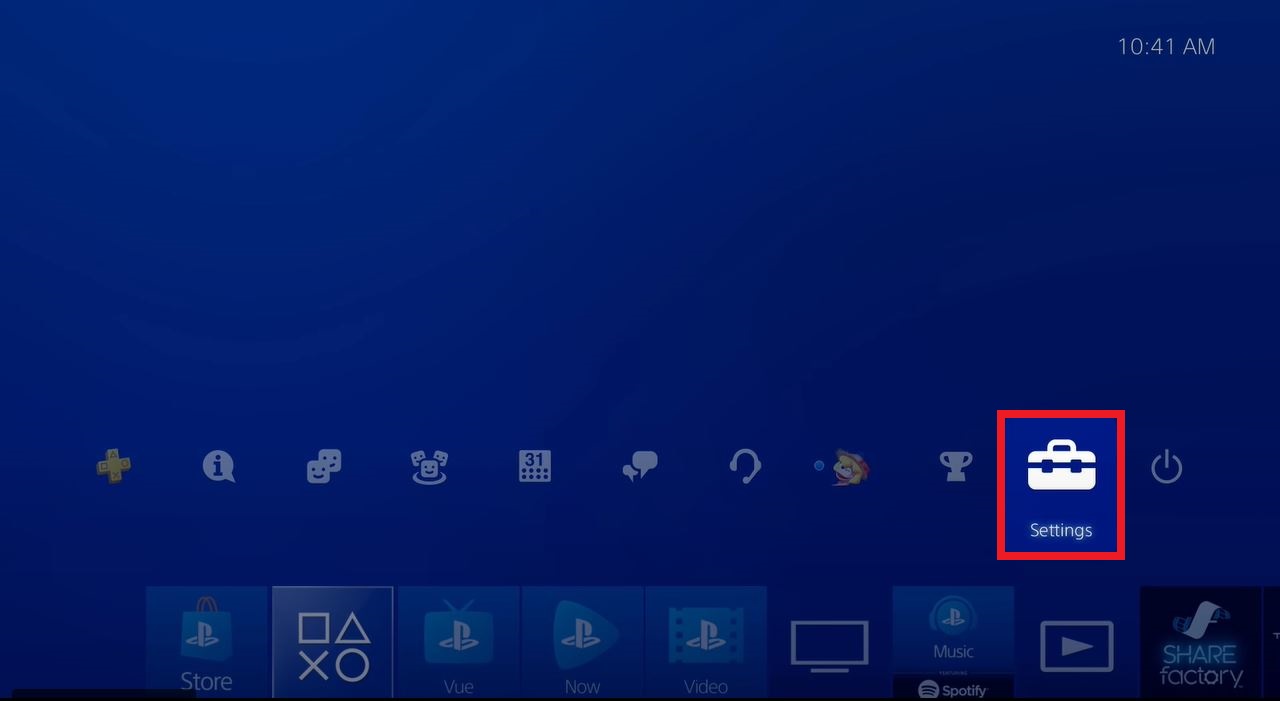
- On the PlayStation home screen, click the Settings icon.
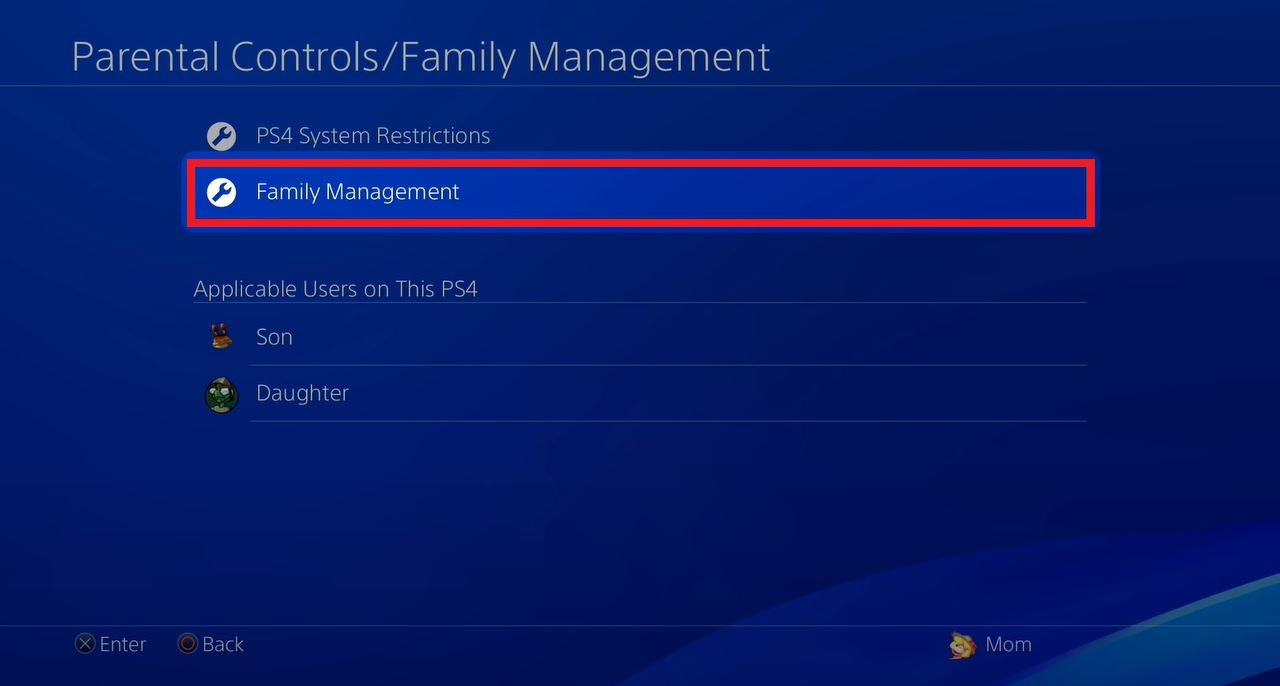
- Then, click on Parent Control/ Family Management on PS4.

- Next, tap on the Family Management tab on the page.
- Head towards the Create User option from the list.

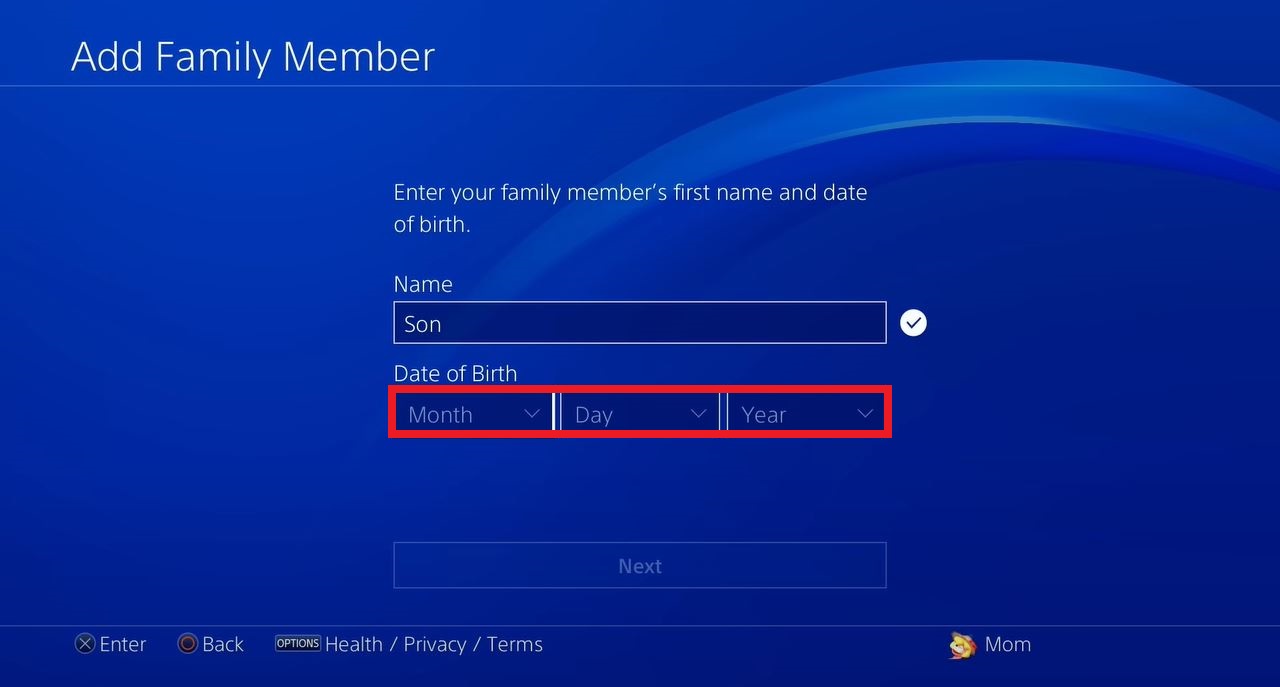
- Enter the User Name in the required box.

- Next, Provide your Date of Birth along with the month and year.
- Click Next after providing the information.

- Select the Confirm tab to make sure the user adds.

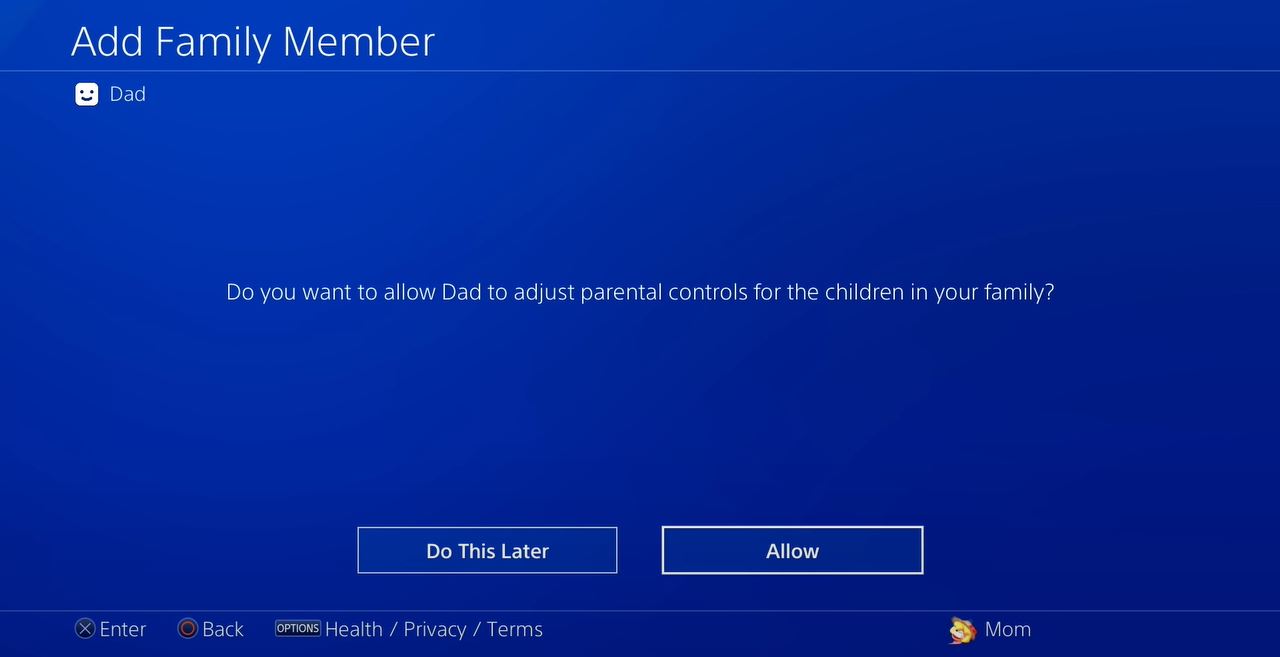
- Tap Allow to add the user on the Play Station Family Manager.

- Then, click the Next button.

Now, you have added the New User to the Family Manager. If you want to set Parental Controls on the users, check out the Next section:
2). Parental Control:
Parental Control is commonly enabled to the children protected from unwanted content. So, follow the instructions given below:
- Locate the PlayStation Settings using the controller.
- Select the Parental Control/ Family Management option from the menu.
- Following that, Click on the Family Management option.
- Now, you have to Re-Enter your PlayStation Account Password in the required space.
- There, Select the Child Account which you want to enable Parental Control.
- Select the Parent Control option and enable it on the child user account.
Now, all the protected contents are only shown on your child’s user account. Restricted contents are all not allowed for this user. Next, we move into the next settings. I hope these two topics will let you know How to Change the Family Manager on PS4.
3). Appointing a Guardian/ Parent:
You can change the use to Parent or a Guardian. To do this process, follow the instructions which are listed below:
- Move to the Settings option on a PlayStation home screen.
- Then, go to the Parental Controls/ Family Management on the menu page.
- Following that, click on the Family Management option.
- Now, you have to Select the Adult Family Member user account.

- Click on the Parent/ Guardian option given on the screen.

- Select and click on the Checkbox to turn the user into Parent/ Guardian.
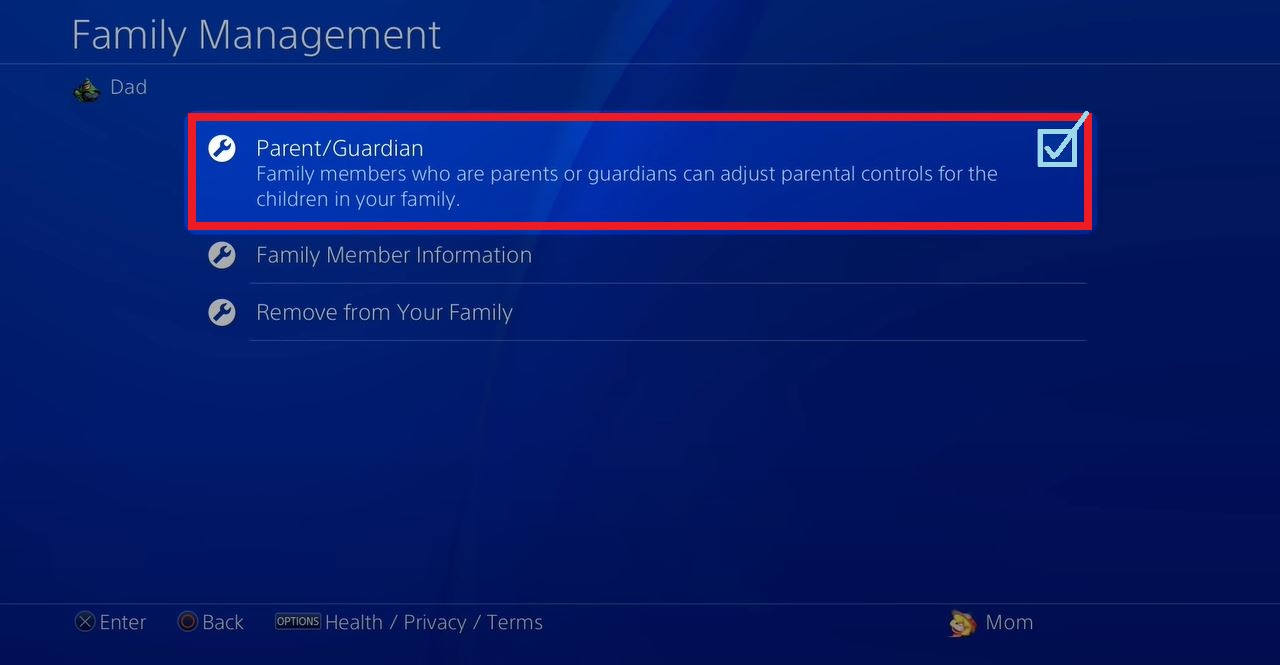
Now, the selected user is a Parent/ Guardian on the PlayStation User account. Next, move to the next setting on the Family Manager on PS4.
4). Reset Password on PS4:
Next, If you would thinking of resetting th PlayStation user account password, Please come back with the guidelines mentioned below.
- Select the Local User on the Family Management page.
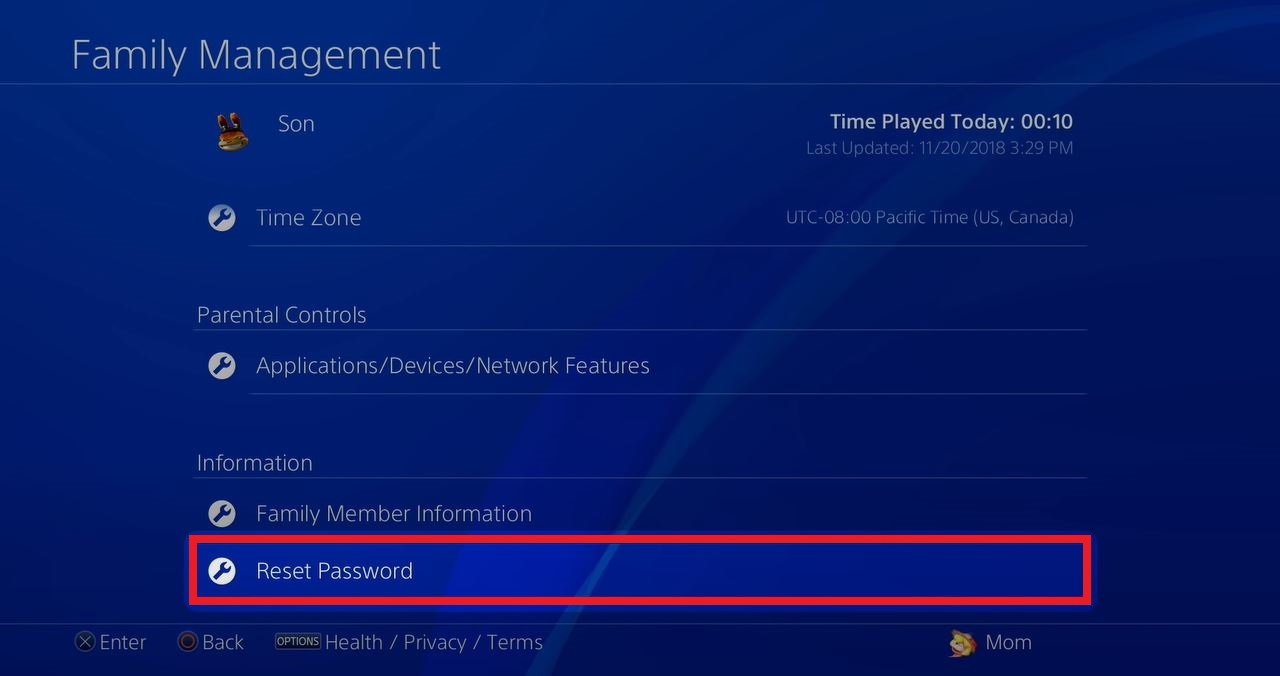
- Then, click the Reset Password option given in the following.
There, you can change or Reset the Play Station 4 console. Proceed to the next topic to learn How to Change Family Manager Settings on your PlayStation 4 console.
5). How to Change Family Manager Settings | Remove from your Family |:
Move to the usual first three steps from reaching the Family Management option on your PlayStation settings. After that, the procedure is mentioned below:
- Select the Adult Family Member account on the Family Management page.
- Then, click on Remove from your Family tab from the list.
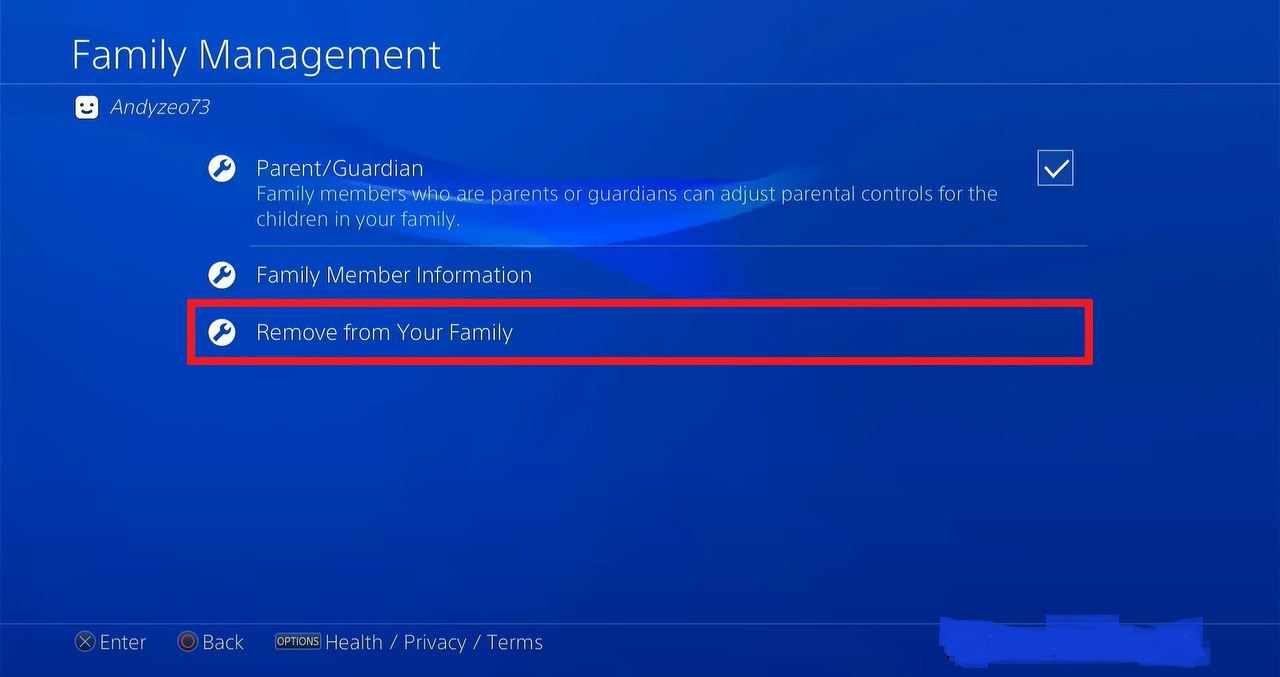
- Next, select and click the OK tab to confirm the removal process.

After selecting the remove option, the user can remove it, and if you selected the parental control for that person, that option also is removed.
Wrapping Up:
From this article, we give more information on how to change the family manager on your Play Station 4, disabling the family manager on play station4 as well as its features. So if you have any doubts regarding this article, let me know in the comment section. Suppose you have any trouble changing your family manager on ps4, mention them in the comment section.
FAQs:
1). Can I get rid of the Family Manager on PS4?
Yes, you can do that by entering the settings option and choosing the manage family option. Then tap the name of the person whom you want to remove from the family. That’s it.
2). Can I Change the Family manager?
To change the family manager, you must delete the child’s account and the whole family group instead of changing the family manager.
SIMILAR POST:
How to Change Messenger Password?
How to Change YouTube TV Password?
Change the Yahoo Password on the Android
How to Change the Time on Fitbit Versa