

Do you want to know How to Change YouTube TV Password? Continue reading this article to know more info. From this guide, you may get answers to all your questions.

Table of Contents
What is Youtube TV?
Google company owns the YouTube TV streaming service. And it allows their users to watch their beloved Videos, Live TV channels, Films, TV Shows, and many contents like this. And more than 85 broadcast, regional, cable, and sports networks.
This service provides various subscription plans, and you can access over six accounts from one subscription. They offer various programs such as Live Sports, Movies, Comedies, Series, and popular shows.
Also, it has no limit to storing your desired movies or shows on DVR space for playback. Users can stream from devices such as Android, Tablet, smart TV, desktops, Youtube TV, etc. Also provides YouTube TV Originals and popular videos from Youtube.
How to Change YouTube TV password?
To Change YouTube TV Password, you have three methods to change it. Check out the list I have given on this topic to know the three methods.
- Change YouTube TV Password through (Android Devices).
- Using iPhone, iPad, or any iOS Devices.
- Change YouTube TV Password using Computer.
In a similar post, YouTube TV On PS5
1). Change YouTube Password via Android?
First, we choose an Android device to Change YouTube TV Password. Follow the steps to change it.
- First, visit the webpage myaccount.google.com and then sign in to your credentials.
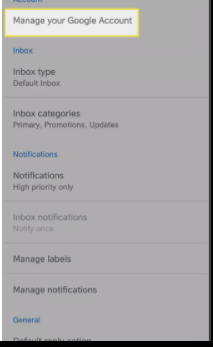
- Select the Google Account on the page and click on the Manage your Google Account.
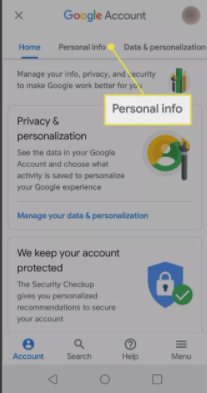
- Go to the Personal Info option, which is given on the left upper side of the screen.
- Then, tap on the Password option given under the Personal Info page.
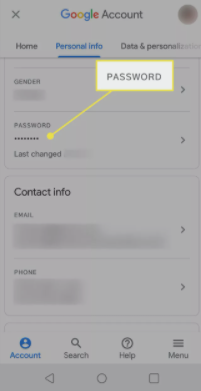
- Or you can also select and click on the Security and then Password.
- Now, your Google account asks you to Sign In with the credentials.
- Enter the current password in the given space.

- Type a New Password on the appeared page on your Android streaming device.
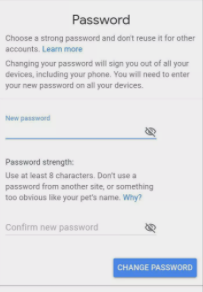
After entering the new password in the given two boxes, click on the Change Password button to Change YouTube TV Password using the Android device.
2). Change YouTube TV Password on iOS or iPad?
Changing your Youtube TV password is simply easy, and it may take some steps to follow.
Follow the below steps.
Gmail app -> Select your Account-> Manage your Google Account
- Go to the website myaccount.google.com using the web browser app.
- Then log in to your Google credentials.
- Go to the Specify Security and tap to Password option or Choose Personal info.
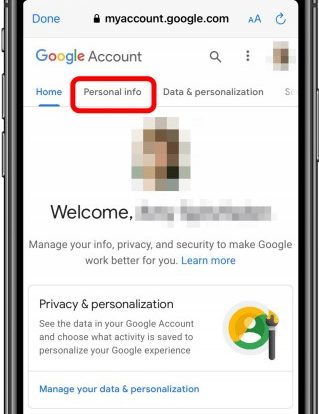
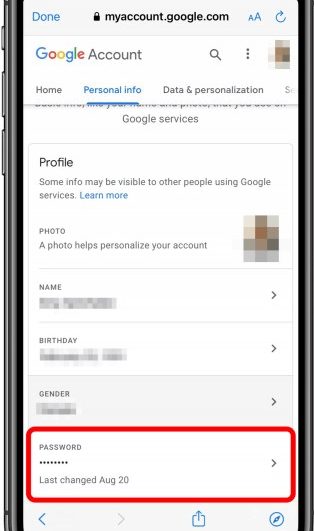
- And press the Password option key.
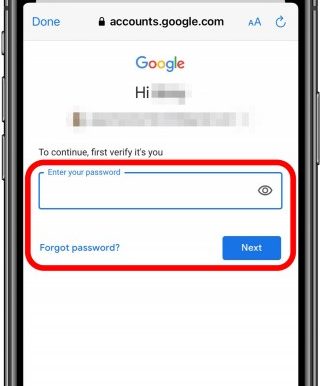
- Whether it asks for a sign-in or present password, then choose an option.
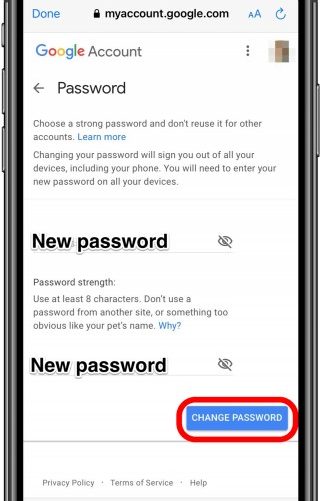
- Enter the new password, and re-enter it again for confirmation of the new password.
- And then Click on the Change Password option below on the page.
- Finally, your Youtube TV and Google account password changed successfully.
You have completed teh second method to Change YouTube TV Password using your iPhone, iPad, or any other iOS device.
Might you like How to activate the YouTube TV
3). Change Youtube TV Password on Computer / Laptop:
Changing your Google account or Youtube TV is very easy by following some steps, which are given below.
- Visit the website myaccount.google.com given here to change your password on using Google.
- In case they are asked to log in, then tap to log in with your email and Google account current password.
- Go to the Security icon and tap the password option.
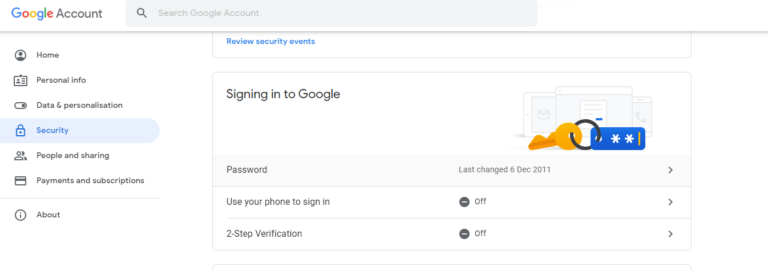
- Again you need to Sign-in or enter your current password for confirmation and choose any option from it.
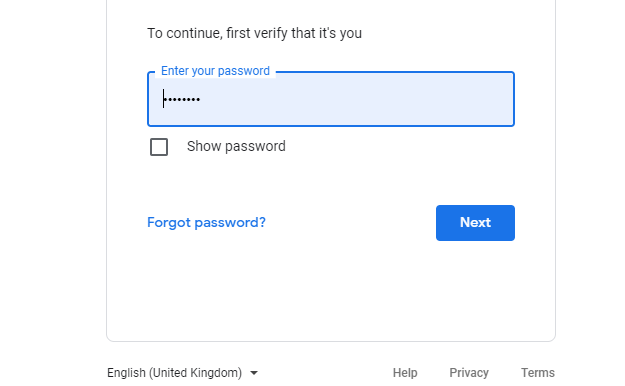
- Enter the new password and re-enter the new password in the following box, and tap to change password option.

- Finally, you have changed your Youtube TV password successfully.
That’s all you have completed the final possible method to Change YouTube TV Password using your Computer or Laptop device.
Read also How to Install YouTube TV On PS5
How to Reset Youtube TV Password?
Follow the below procedures to reset the password from your google account or Youtube TV.
- Visit myaccount.google.com/signin/recovery using Web Browser.
- Enter your email or mobile number, which is connected to your Google account, then tap to Next button.
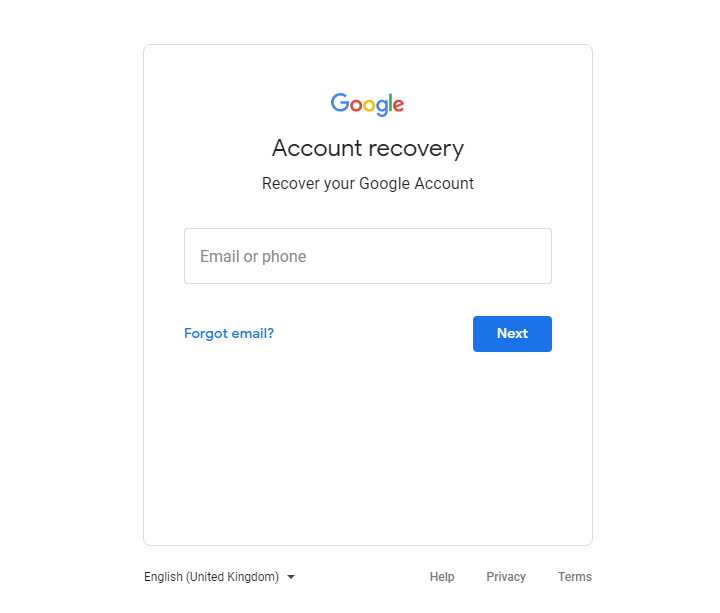
- In case they ask for your old password for this account, then enter it and go to the 15th step.
- If you don’t know the old password, then click on to Try another way option.
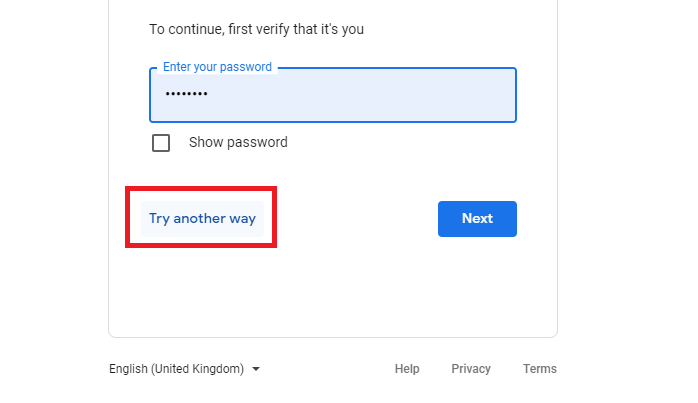
- You may see the recovery items from your account.
- If you linked any recovery details like an email address or mobile number, then enter it.
- Then tap to Reset link, and it will be sent to your email or mobile number. If you have one, then go to step 15.
- In case you registered any recovery mobile number, you’ll get a verification code. Register it and go for the 15th step.
- Suppose you don’t have mentioned any recovery contact info. Or email address.
- Click to Try another way, and also, you need to proceed with Security Questions when you answer on creating your account.
- Once you answered, go to the 15th step.
- Again you didn’t remind the answer, then click Try another way.
- It’ll escort you to wait until 12 hours after that, look over your email address. A verification mail will be sent to your email Id.
- After that, you will get a reset link for the password. Utilize the link to reset your password.
- Set up your new password and re-enter again for confirmation. Then your password will be reset instantly.
- Finally, your Google Account or Youtube TV password reset successfully.
Conclusion:
As we discussed early, How do you change your password on Youtube TV? Here we briefly explained it, and this guide will help you to reset your Youtube Password as well. If you have any issues with changing the password on Youtube TV (Google account), comment below.
FAQ:
Is YouTube TV Password the same as Google password?
Yes, the YouTube TV app is running with the help of Google account credentials. So, the YouTube TV password and Google password are the same.
How to Manage YouTube TV Account?
Visit tv.youtube.com > Profile Picture > Settings > Membership > Checkmark > Agree. Follow this steps to manage YouTube TV account.