
If you face an issue on your Playstation the LAN cable is not connected properly. Suppose connect the cable to the PlayStation screen showing some error. If you are struggling to fix the error. Don’t worry we will help you to make the error and give it back to your console more safely and securely with the help of some technical tricks and methods. Let’s Start reading on How to Fix PS5 LAN Cable Not Connected.

Table of Contents
How to Fix PS5 LAN Cable Not Connected?
PS5 is a gaming Console If it is not connected to the LAN cable. Then you have to do some tricks to fix that error. There are multiple solutions are available to fix the PlayStation error. Here we will share some fixing methods. I hope it will help you to fix a PS5 LAN cable Not Connected issue.
Power Cycle your Router
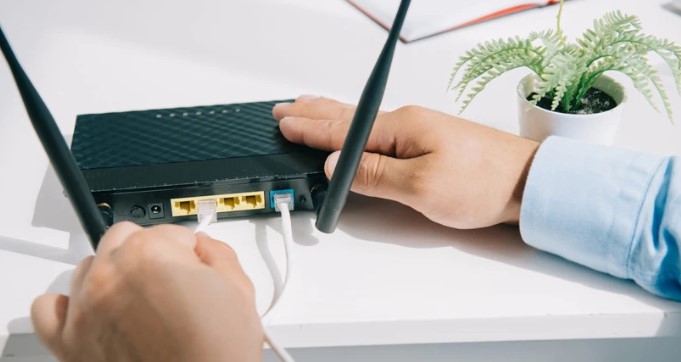
This is a common issue that will happen on your console. Sometimes you face an issue related to the Router then you have to power cycle your Router and get back your console to a better condition.
The Steps are:
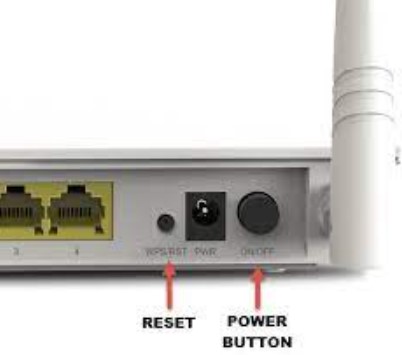
- Switch off your Router and click the Power Switch button.
- Disconnect your Router from the power cable.
- Then Wait for a minute and the router is removed from the Power.
- Switch your Router and back into the Power.
- Again you have to switch your router and click the Power switch or button and wait for it to initialize.
The Following process will prompt your router to re-initialize your home network it is connected to the internet and it will reduce the Connectivity issues and it will be resolved automatically.
Also, Read How to Install and Watch All 4 on PS5
Power Cycle your PS5
This is an issue that will appear on your Internet connection. This is an easy and direct process to solve your issue within 5 -10 minutes. Here you can get to know the steps for fixing a power Cycle on Your PS5 console.
The Steps are:
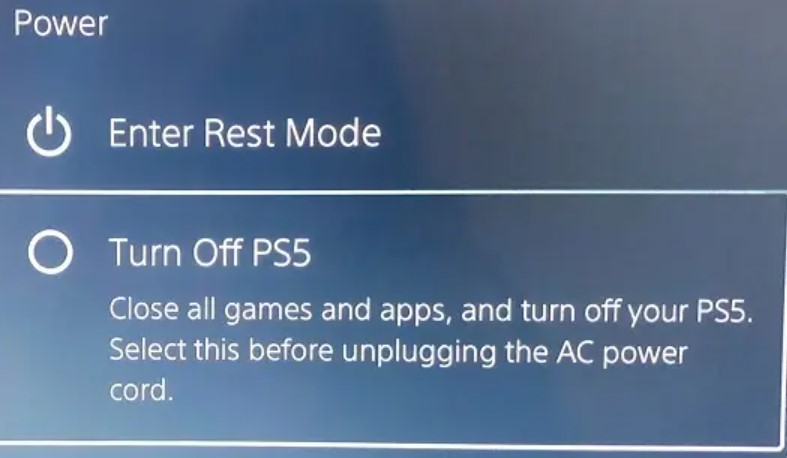
- Click and hold the power button on your PS5 until the console is powered down completely. And it is indicated that the light going off.
- Disconnect your PS5 from the power.
- Wait for 1-2 minutes and then reconnect the PS5 to the Power.
- Click the power button on your PS5 and switch it to on.
While doing this process it will resolve your console hardware and Software components of your PS5. Try out the steps to solve your PS5 Lan Cable Not Connected issues.
Check the Ethernet Cable connection
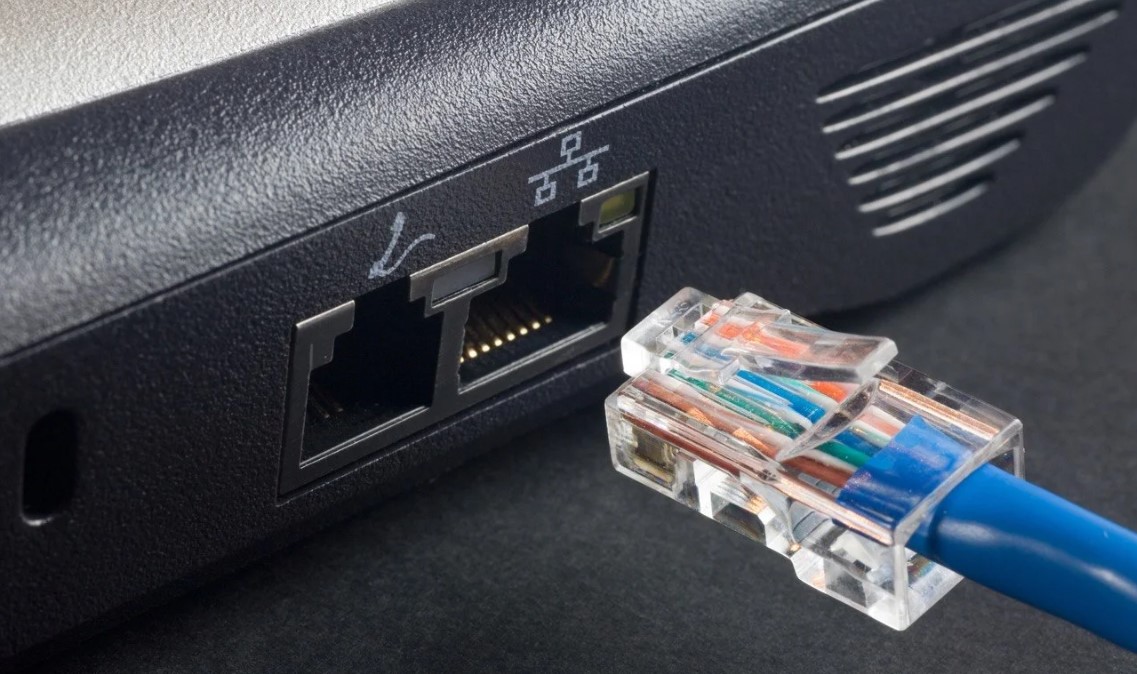
If you are having any issues with the Ethernet Cable. So that you will receive the error such as PS5 Lan Cable is not connected. Then you can follow this upcoming solution.
Initially, remove the ethernet cable from the PS5 router and reconnect the cable if it allows the Link between the Two consoles. Once you connect the cable properly you will not face this type of error on your console.
Check the Post: How to Install Now TV on PS5
Fix the Ethernet Cable to Another LAN Port
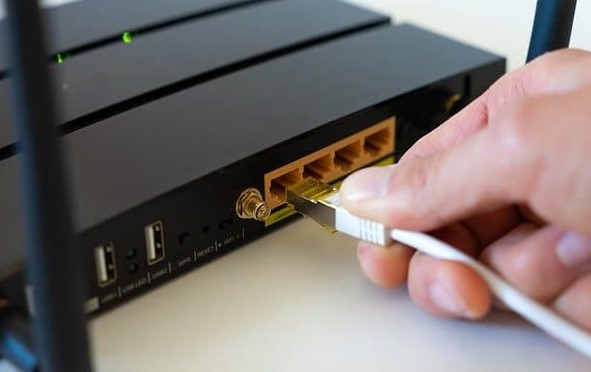
The LAN Port on the Router can easily fix internet Connectivity issues if you facing PS5. If you already connect the LAN Cable to one port but it is not working properly. Then you have to Plug the LAN cable into another LAN Port.
Most of the consoles contain one more LAN Cable Port. Suppose your PS5 console has only one Port then you have to Carefully unplug the ethernet Cable from the LAN port plug it Back into your console and see now the PS5 LAN Cable Disconnected error is Fixed.
Fix the internet connection
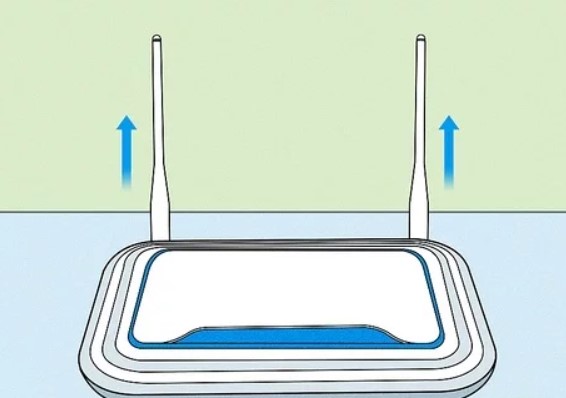
Sometimes the Internet connection doesn’t connect to the console properly. So, you have to fix the connection for a better experience. Here we mention the steps to fix the Internet connection issues.
The Steps are:
- Launch the PS5 dashboard by long pressing the PS5 button.
- Move to the setting option and click the Cog icon at the top-right of the screen.
- Direct to the network Section.
- Move to the setting section from the left pane.
- Select the Setup Internet connection option.
- Click the Forget option from the Dropwon menu and click the OK button.
- Then select the Set up Wired Lan Option from the network by clicking the OK option.
Enable the UPNP or DMZ setting
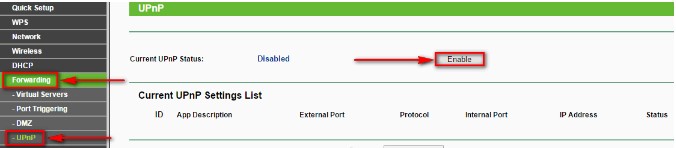
These are the same purpose to work for the console. It will allow your Playstation to open any port it needs for the connection server. We hope it will resolve the connectivity problem on your console.
In the UPnP process, it will be a little vary across the different routers and it is easy to find the setting by Logging into the router’s Interface.
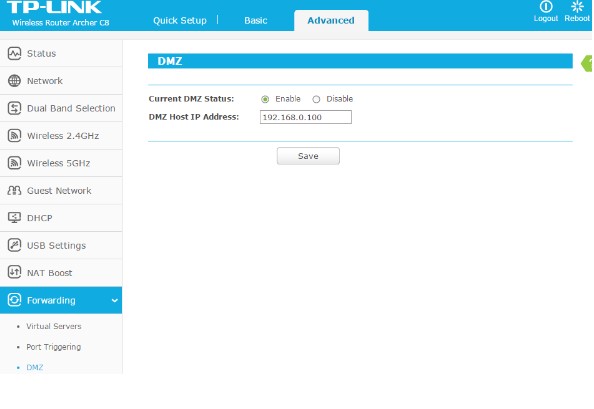
Apart from that, the DMZ is enabled on the PS5 and it will be required to search the DMZ setting in your Router. And it will show the defined Local IP address on your PS5.
The UPnP allows the console on the Network and it will open the Ports but the DMZ will launch the Port automatically. We suggest you enable the UPnP and DMZ at your own risk. It has Features that can give security risks to your Home Network.
Additional Info, How to Install MLB App on PS5
Manually Fix a Static Local IP and DNS Server to your PS5
If your PS5 isn’t able to receive the Local IP address from your Router. Then your console will be affected by the error of DHCP. This is another method to prevent your PS5 from the initial connection with the Router. It leads to a LAN Cable Not Connected with the error.
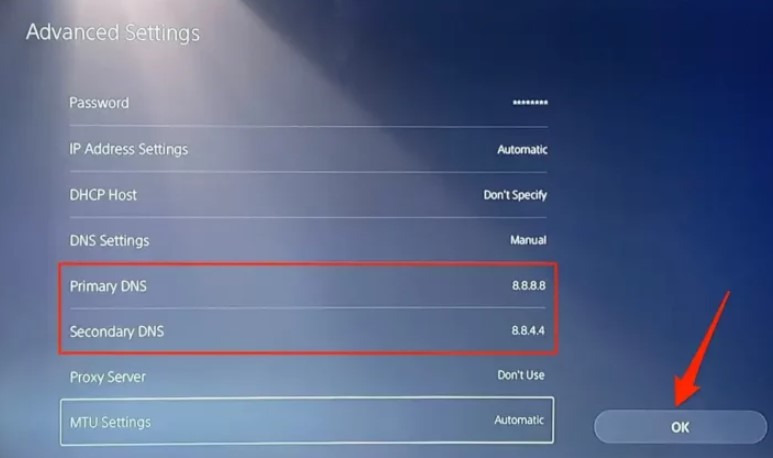
The Steps are:
- Launch the PS5 Dashboard and click the Long pressing Playstation button.
- Move to the setting option and click the Cog icon it is available at the top-right corner of the screen.
- Move to the network section.
- Again Go to the setting section through the left Pane.
- Click the Wired connection from the registered Network section and select the Advanced setting option from the dropdown menu.
- Select the IP address setting option and select the Manual from the dropdown menu.
- At last you have to input the IPV4 address, Subnet Mask, Default Gateway, Primary DNS, and secondary DNS.
Clear Cache
If your console has unwanted storage. So that your console is not working on your console. If you face any buffering error then you have to clear the Cache on your console. It will Clear all the bugs and glitches on your console.
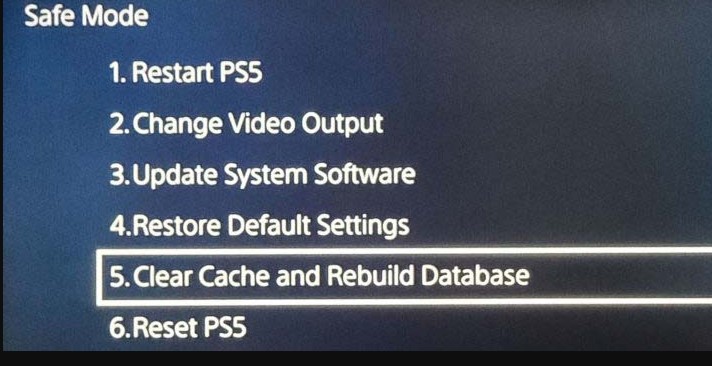
The Steps are:
- Switch off your PS5 by clicking and Holding the Power button.
- Once the power is off you have to put your PS5 into the safe mode.
- Again click the Power button until you hear the Second beep sound. It will appear within 7 seconds after getting the First beep.
- Again connect the controller to your PS5 by using PS5 with a USB cable.
- Click the PlayStation button on the controller.
- Tap the PlayStation button on the controller.
- Move to the clear cache option and rebuild the database option.
- Click the “Clear System Software Cache” Option.
- Least confirm by clicking the OK option.
Restore your PS5 Default Setting
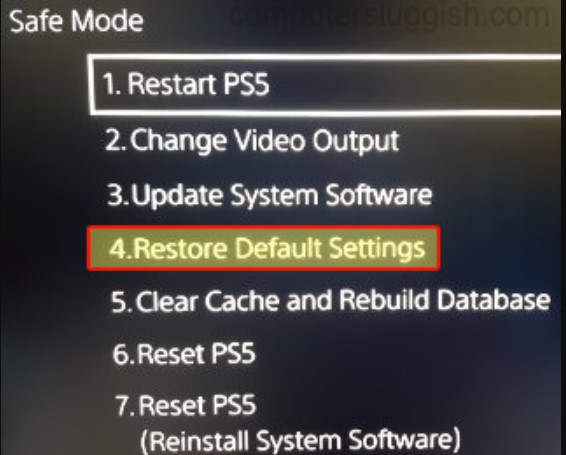
If you have an issue with PS5 LAN Cable Disconnected. Then you have to try out the steps to restore your PS5 in the Default setting. You have to boot Your console into safe mode.
The Steps are:
- Switch off your PS5 gaming console, Click and Hold the Power button until you hear the Secon beep sound.
- Then fix the controller to the console by using the USB cable.
- Now, press the Restore default settings option to confirm to do the process.
Update your PS5 Software
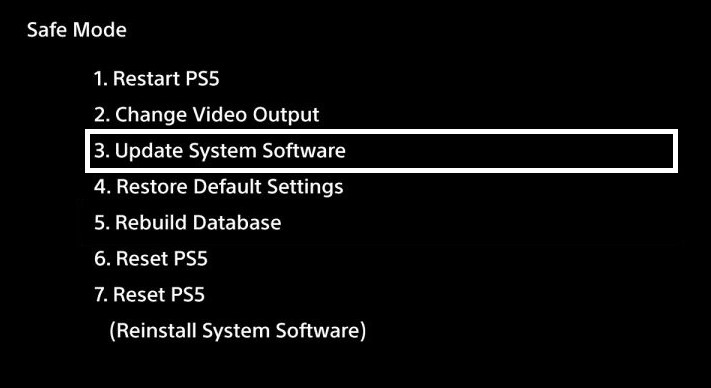
If you have to console with the oldest version then you have to update their software to the Current trend version then you can’t face the issue like PS5 LAN Cable Disconnected. Here are the steps to Update the PS5 Software.
The Steps are:
- First of all, you have to Power off your PS5 console by clicking the Power button.
- Further, Click and hold the Power button don’t release it until you hear a Secon beep sound.
- Fix your DualSense controller by using a USB C to A cable and click the PS.
- Now your console is safe mode menu, Move to click the Update system software option and select the Update using the Internet.
- At last, the message appears on the screen that your PS5 is starting restarting its console. Then click the Update option to continue the process.
What are the Best LAN cables for PS5?
If you try all these above methods, but still the error is not fixed. then you have to replace the LAN Cable for PS5. There are many best LAN cables available for PlayStation 5 in the market. You choose any of the best LAN cables from the list and try to connect with your Device. Here we will share some Top and best LAN cables for PS5. Cat5e, Cat6, and Cat6a. These are the best Cable and it is compatible with the PS5.
The Ending Words
Since we conclude this article here, We have mentioned the top ten solutions to fix the PS5 LAN Cable that is Not connected. Due to some technical error, this issue appears on your console. So you can refer to the above guidelines and try out the methods based on your error and fix it by yourself.