
How to Get Tidal on Apple TV? Tidal is a Music Streaming service and it is available in the United States. It has a variety of Music, Albums, Songs, and more. Nearly, 90 million songs and 450,000 music videos are available on this Tidal application.
Furthermore, you can listen to music in the best audio condition. Moreover, it is a subscription Service. Whereas, now the Tidal application is compatible with the Apple TV. You can download the app on your Apple TV. In addition, You can easily get in on the New and the latest version, But the older version of Tidal is not available. So need an Alternative way. Read this article. Scroll down the page to learn more information.
Table of Contents
How to Get Tidal on Apple TV?
If you have an Apple TV with the 4th and latest models then you can get the Tidal app from the App Store. You can obtain the app in a direct way.
The Steps are:
- Make a Strong internet Connection to your Apple TV.

- Move to the App Store from the Home page.
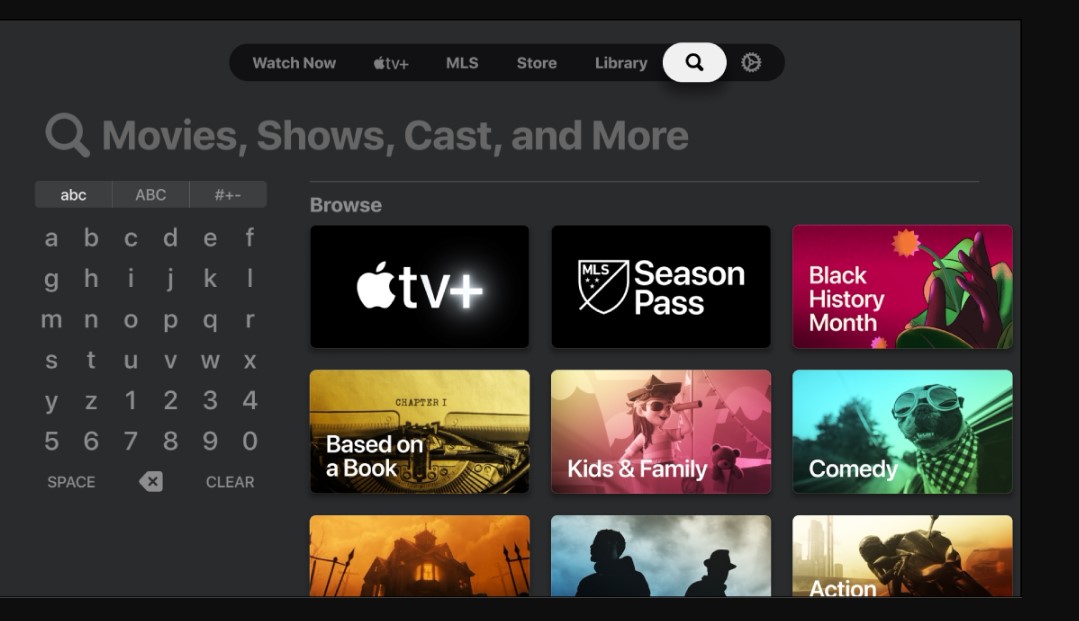
- Press the Search bar option and Type the keyword “Tidal App”.

- Find and Click GET. Once the app is installed activate your account to Play all your favorite music and Songs.
Check the post: How to Get TruTV on Apple TV
How to Activate Tidal on Apple TV?
Once you download the application you must activate your account to access its content on your Device. While doing this process, you have to enter the Activation code.
The Steps are:
- Launch the Tidal Application on your Apple TV.
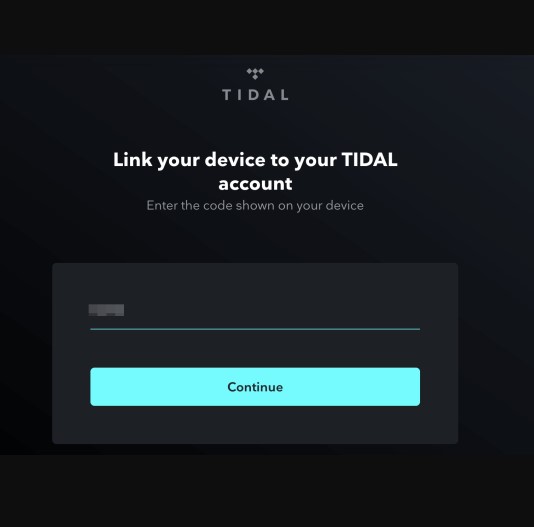
- Then It will show you the Activation code on the Screen.
- Use a Browser on another device like a smartphone or PC.
- Visit the Tidal Activation Website.
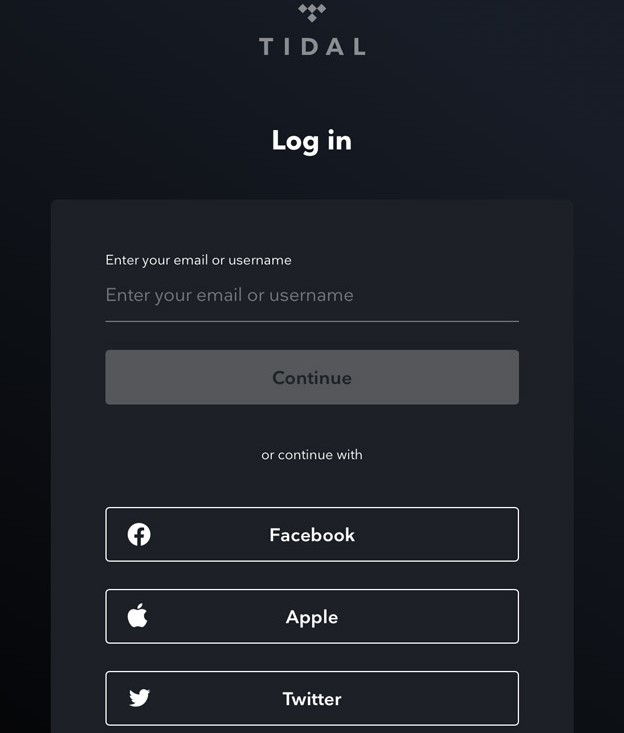
- Log in to the Tidal Account or Sign up with the New Account.
- Now you have to enter the Activation on the field.
- Press the Submit Button.
- Once the process is done you can reopen the application to Play its content on your Apple TV.
How to Get the Tidal Music app on Apple TV?
There is an Alternative for getting a Tidal on Apple TV. Simply said, this method is helpful for users who have a 1st, 2nd, and 3rd generation of Apple TV. Because the Older version of Apple TV doesn’t contain the Tidal application on that App Store. Other than that, also accessible on the Apple TV 4th generation or the latest Version.
For this process, you must connect your devices to the same internet/Wi-Fi connection.
The Steps are:
- Download the Tidal App on your iPhone/ iPad from the App Store.
- After that, Log in with your account.
- Now play the music from the App.

- Click the Airplay icon. It will be available at the Bottom of the Display.
- Choose your Apple TV from the suggested device list.
- Once the devices get Connected you can play all your favorite Music from the Tidal App.
Also, Read How to Get Peacock TV on Apple TV
How to sign in for Tidal on Apple TV?
Sign-in is the process of entering your username and password to watch its content on your Apple TV. Whereas Signing in is the only thing to protect your Account. Without any permission, others can’t access your Account.
Here are the steps are:
- Open the Tidal Application and click the Signup Button.
- Must enter the information They asked for.
- After that, press the Submit button.
- If the process is done then you can access its content.
Subscription for Tidal
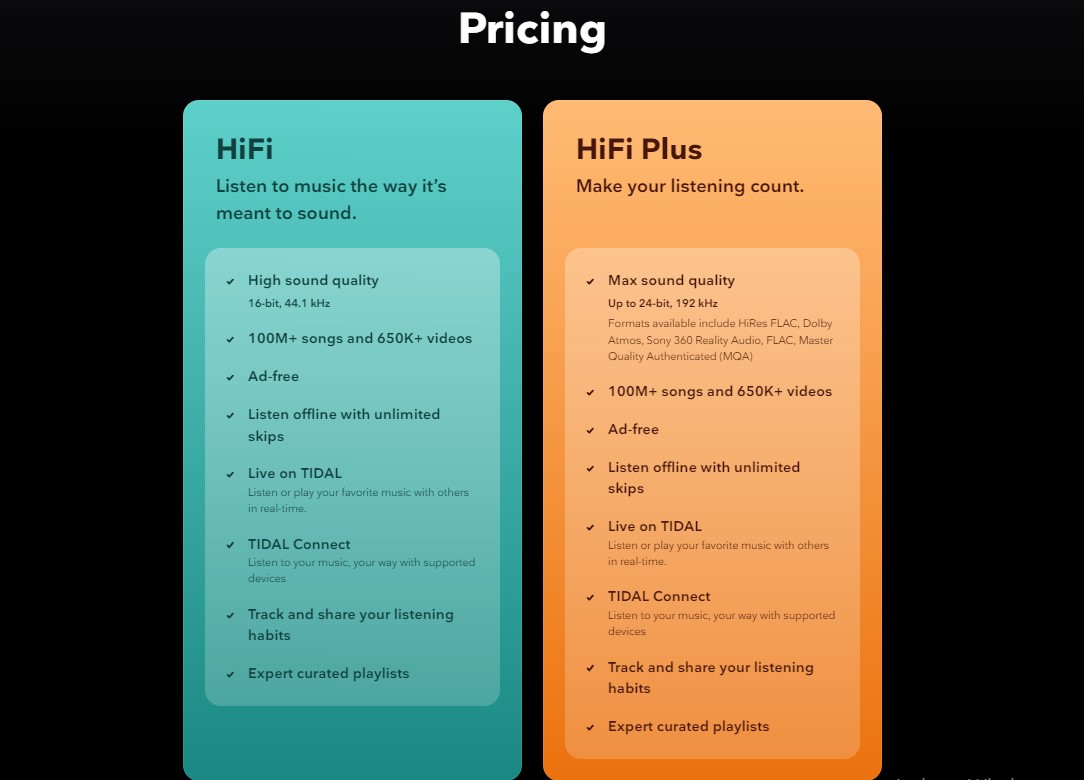
Tidal is a Music streaming application, However, it is a paid Service. It has two different types of subscriptions. The Subscription comes with lots of features and facilities for the users. Here we attach the image for the subscription but the image does show you the cost of the page. Here we explain the rate for both packages.
How to Subscribe to the Tidal App?
Previously you know the cost of the Tidal application. Here we are going to share the steps to subscribe to the Tidal app through its official site. Easy to subscribe to it. In addition, it offers a Free Trial for 30 days. So you can initially try out the trial if you are satisfied with the application then you can continue with the Subscription.
Here are the steps:
- See the Tidal.com site or download the Tidal Music App from your Mobile App store.

- Then press the Start Free trial option.
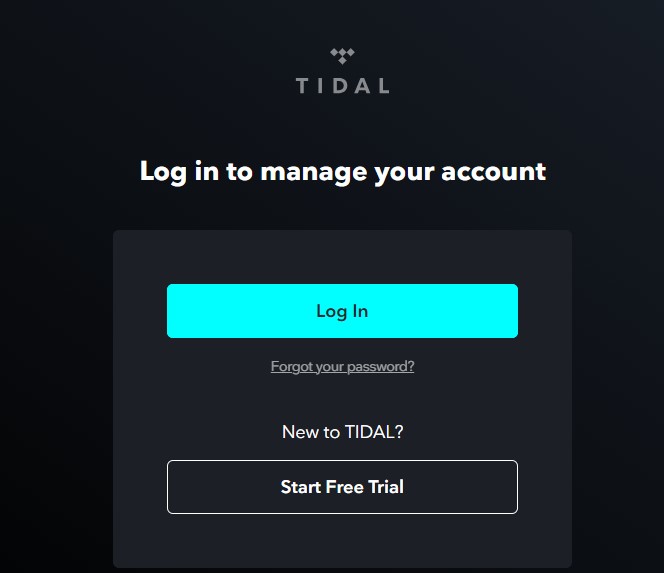
- Further, click the Sign in option if you have a Tidal mobile application.
- next, enter the Email address.
- If you are an exciting user then you can sign in with the Account. Otherwise, Create a new Account.
- Now Choose the plan, to which you need to subscribe.
- Done the payment process.
- You can use any of these accounts to enter a credit card or PayPal.
Once the 30-day Free trial days are over then it will automatically start with the subscription. Suppose you are feeling not well while using this Tidal App then you can quit before the start of the Subscription days.
Check the Post: How to Watch Funimation on Apple TV
How to Get Tidal Music for Free?
There is a Way to get Tidal Music for free to access on your Apple TV. Here we share the tricks for the users who are Canceling the Tidal Subscription or Uninstalling the App. Still, you can access it. For this process, you need to use a third-party Tidal Music Converter. It will help to get Tidal music for the free cost. Here we are going to the Tidabie Music Converter. This is the professional music Converter for this Tidal Music App.
Steps to use the Tidal Music Converters:
- First of all, You can install the Tidal Songs/ playlist/ Albums.
- Then convert the tracks to AAC/ MP3/ FLAC/ ALAC.
- You have to maintain the Audio Quality and ID3 tags.
- Fix that 10x Download Speed and Batch Download for the multiple playlists.
- It offers Tools of Format Converter, Tag Edit, and more…
- Now you can enjoy your Tidal music on WMP and other Music players.
That’s all, Now you can download your favorite music from the Tidal App forever after the Subscription ends.
Closing Off
In short, we conclude this article here. From this guide, you learn How to Get Tidal on Apple TV. Whereas Tidal is a music streaming application. You can get a variety of Music in different categories. We have mentioned the Subscription for the Tidal application. In addition, if you want to play the music without subscription tricks are available in the above article. Read the Guide, In case, you have some doubts. Drop a comment in the comment section.