
With HDMI-CEC on TV, you can control all the connected devices to your Smart TV. Reading this article will help you learn more about CEC
and its function on different devices.
![What is CEC on TV [Enabling Methods & Features, Discussed Here]](https://techthanos.com/wp-content/uploads/2022/05/What-is-CEC-on-TV-Enabling-Methods-Features-Discussed-Here.jpg)
This article discusses the essential topics like CEC on TV, the function, different commands and features used on CEC, the different names used by different devices, and the steps to enable HDMI-CEC on TVs mentioned in this article. Reading this article without skipping any details to the end can give you the complete picture of “What is CEC on TV?”.
Table of Contents
What is CEC on TV?
HDMI-CEC (Consumer Electronics Control) supports the users by controlling all the HDMI connected devices using one remote controller. You can control up to 15 devices without any disturbances. Devices can control and command all other devices within them.
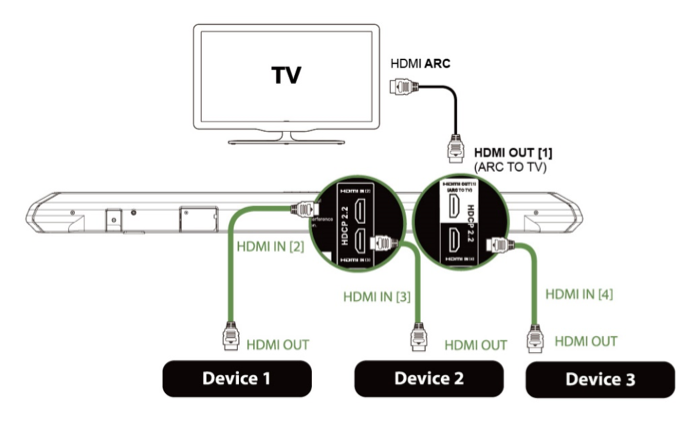
You can give commands to the devices connected to the system using a single remote. You cant access all the functions of the connected device, and sometimes using a remote other than the device remote can make your CEC function crash.
Functions of CEC on TV?
The main functions of CEC on TV get discussed in the below-given steps,
- It gives you limited control over the devices using other devices.
- Allows Audio-Video devices to communicate through HDMI.
- Let’s you share commands between the devices connected to an HDMI connection.
- Without switching the remote, you can control the functions of different devices.
What is the Name of CEC on Different TVs?
Different devices have their name for CEC, which are,
- Anynet+ (Samsung)
- BRAVIA Link and BRAVIA Sync (Sony)
- SimpLink (LG)
- VIERA Link (Panasonic)
- EasyLink (Philips)
- Aquos Link (Sharp)
- 1-Touch Play (Roku)
- CE-Link, Regza Link (Toshiba)
- E-link (AOC)
- HDMI-CEC (Hitachi)
- CEC (Vizio)
You may also like to read, How to Watch The Chosen on Smart TV?
What are the Features of CEC on TV?
Some of the commonly used HDMI-CEC commands are,
One-Touch Record:
Users can record the content watched on an HDTV screen on a selected recording device.
One-Touch Play:
Can make your TV switch to an active source when playback starts.
System Standby:
It allows the user to switch between devices to stand mode by pressing one button on the remote.
System Information:
Allows you to check the bus address and configuration of the components available.
Preset Transfer:
The user can transfer the tuned channel setup to another TV.
Deck Control:
You can control the Playback component with operations like Play, pause, rewind, etc.
Tuner Control:
Allows you to control the tuner of another content from a control component.
Routing Control:
It helps you control the switching of signal sources.
OSD Display:
Make your on-screen display (OSD) display text on the TV set.
Device Menu Control:
Using UI commands, you can control the menu system of another component from one component.
Remote Control Pass Control:
Within the system, you can pass commands through other devices.
System Audio Control:
With suitable devices, you can use a remote to control the volume of the AV receiver, integrated amplifier or preamplifier.
Device OSD Name Transfer:
You can transfer the device names within TV sets.
Timer Programming:
You can change the timer on recording devices using the electronic program guides (EPGs), which are present in many HDTVs and set-top-boxes.
You may also like to read, How to Watch YouTube on Smart TV
How to Turn On or Off HDMI-CEC on TV?
Samsung TV:
To enable Anynet+ on your Samsung TV, follow the instructions given below carefully,
- On the TV remote, press the “Home” Button.
- Navigate to and open “Settings.”
- Select “General”
- Now open “External Device Manager.”
- Scroll to the option “Anynet+ (HDMI-CEC).”
- Now toggle it to Turn On
LG TV:
To enable SimpLink on your LG TV, follow the instructions given below carefully,
- On the TV remote, press the “Home” Button.
- Navigate to and open “Settings.”
- Select “General”
- Now select “SimpLink” and select “Activate the SimpLink” to turn on HDMI-CEC.
- You might as well enable “Auto Power Sync.”
Sony TV:
To enable Bravia Sync on your Sony Smart TV, follow the instructions given below carefully,
- On the TV remote, press the “Home” Button.
- Navigate to and open “External Inputs” present in the top-right corner.
- Go to HDMI Set-up and select “Control for HDMI.”
- Toggle to turn on.
For standard Sony TV,
- Select “Settings”
- Choose “System setting” and go to “Setup.”
- Now go to “Bravia Sync Settings.”
- Select “HDMI Device Selection” and toggle it to turn it on.
Roku TV:
To enable 1-Touch Play on your Roku TV, follow the instructions given below carefully,
- On your Roku TV, open “Settings”.
- Navigate to “System” and select “Control Other Devices (CEC).”
- Scroll and highlight the “System audio control” and enable
- Similarly, highlight “1-Touch Play” and check the box to enable it.
Sharp TV:
To enable Aquos Link on your Sharp Smart TV, follow the instructions given below carefully,
- Tap on the “Menu” button on the remote.
- Select “System Options” and go to “Aquos Link Setup.”
- Now turn on the “Aquos Link Control”.
Fire TV:
To enable HDMI CEC on your Fire TV, follow the instructions given below carefully,
- On your FireTV, go to “Settings.”
- Select the “Display and Sounds” option.
- Scroll and select the “HDMI CEC Device Control” and Turn On
Philips TV:
To enable EasyLink on your Philips TV, follow the instructions given below carefully,
- On the TV remote, press the “Home” Button.
- Now navigate to “Setup” and go to “TV Settings.”
- Select “Installation” and navigate to “Preferences.”
- Tap on “Easy Link” and toggle all the three options “Auto TV”, “Master EasyLink”, and “RC Key Forwarding.”
Panasonic TV:
To enable Viera Link on your Panasonic TV, follow the instructions given below carefully,
- On the TV remote, press the “Home” Button.
- Go to “Setup” and open “TV Settings.”
- Move on to “HDMI Control” and then open “CEC.”
- Toggle the option to turn it on.
Vizio TV:
Among all the TVs, Vizio TV has the simplest way to turn on the HDMI-CEC function, that is,
- On the TV remote, press the “Menu” button.
- Now move on to “System” and select “CEC.”
- Tap the “Enable” option.
What to do if CEC on TV is Not Working?
There are some quick fixes which you can use to resolve the CEC on TV not working issues.
- Reboot all the devices connected to the system.
- Update all the devices on your TV to their latest firmware and version. Updating can remove the bugs and make work smooth.
- Make sure all your devices support CEC.
- Try different HDMI ports on your TV.
If you have trouble even after following these steps, then there is a possibility that the error is due to hardware. Contact the manufacturer to solve this issue.
You may also like to read, How to Watch OKLiveTV on Smart TV? [Step by Step in 2022]
Frequently Asked Question:
How does CEC on TV work?
On all TVs, the HDMI-CEC feature works by connecting all the devices to the TV’s HDMI port and using the TV remote to control the connected devices. The TV remote sends a signal to the TV, and the HDMI-CEC signal from the TV gets sent to the device; the device receives the signal and runs the command given through the TV remote.
How to Control Audio Device using CEC on TV?
Connect your Audi Device to the HDMI port of the TV. Enable the HDMI-CEC function on your TV and use your remote to send the command to the Audio Devie through HDMI-CEC. You can now change the volume and other functions available on the Audio Device.
Conclusion:
With this article, try CEC on TV by connecting different devices to your TV and controlling them by giving commands using a single remote. Using the HDMI-CEC function, you can also control the Blu-Ray player and Audio device. Know the different features and commands available at the CEC function, which you can use to control the connected device.
Knowing about CEC might be difficult; if you have any doubts regarding the contents of this article, don’t be shy and ask your doubts right away using the comment section given at the end of the page. Thank you for reading and spending your precious time on this article.