
Hulu is a popular Live TV Channel and On-Demand Streaming service. It takes place in most of the Official App Stores. Today we going to check the availability of Hulu on Hisense Smart TV and How to Install it. If it is officially available, you can download the Hulu app directly.

If the Hulu Streaming service is not available on Hisense TV, you have to go for the Alternative methods to Stream the Hulu app on Hisense Smart TV. Or, go with the Alternative Apps which are available officially on Hisense Smart TV. Let us check…
Table of Contents
About Hulu Plus Live TV:
Hulu is a Popular American Pay Television Streaming Service. The Walt Disney Company along with Comcast NBC Universal has owned Hulu Plus Live TV. The Hulu streaming service gained positivity from its users in broadcasting Live TV Channels. And the Hulu app is a type of OTT Video Streaming Site.

Initially, Hulu TV broadcast only the Series and Shows of its Joint Ventures of Walt Disney, NBC Universal, News Corporation, and Providence Equity Partners. Joe Earley is the president and the Key Person of Hulu Plus Live TV. Also, it is an Advertising Streaming service. If you want to watch the videos without ads, you have to purchase the Subscription with no ads.
The Area serves Hulu Plus Live TV in the United States of America and Japan. You can get the Hulu app directly on such devices as,macOS, PC, Apple iOS Devices, Android, Chromecast, Echo Show, Firestick, LG TV, Samsung TV, and more devices like this. So, now, we want to know How to Install and Stream Hulu on Hisense Smart TV. Also, the Hulu on Sharp Smart TV. If you have Sharp Smart TV, install the Hulu Streaming service with the guidelines given in the linked article.
Is Hulu on Hisense Smart TV?
Yes. The Hulu app is available on Hisense Roku TV, Hisense Vidaa, Hisense Fire TV, and Hisense Google TV. On these four Hisense Smart TV brands, you can install the Hulu Plus Live TV directly from the official App Store. So, go straight to the next topic to know more about installing Hulu on Hisense Smart TV.
How to Get Hulu on Hisense Smart TV?
So, Hisense TV has many Operating System Software In-built Smart TVs. All the brands have the most popular apps on their official app store. Hulu also takes place in that list. But the installation procedure for each Smart TV is different. Let us discuss the installation process one by one in the following.
How to Install Hulu on Hisense Roku TV?
Other Smart TV users can use the Roku stick separately to access the Roku OS on their Smart TV. But, the Hisense Smart TV has Roku Operating System on-built on its system. All the functions and controls between Roku Stick and Hisense Roku TV are similar. Now, coming to the point. The Hulu app is officially available on Hisense Roku TV. So,
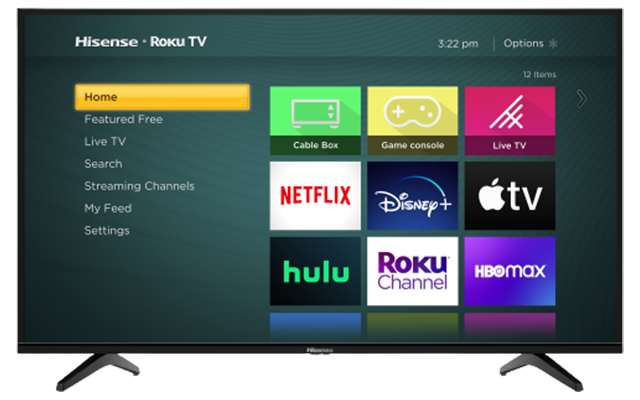
Let us Install Hulu on Hisense Smart TV:
- Switch On the Hisense Roku TV.
- Connect it to the high-speed Wi-Fi Network.
- Then, tap on the Home button on Hisense Roku TV remote.
- Now, go to the Menu section.
- Select the Streaming Channels from the menu.
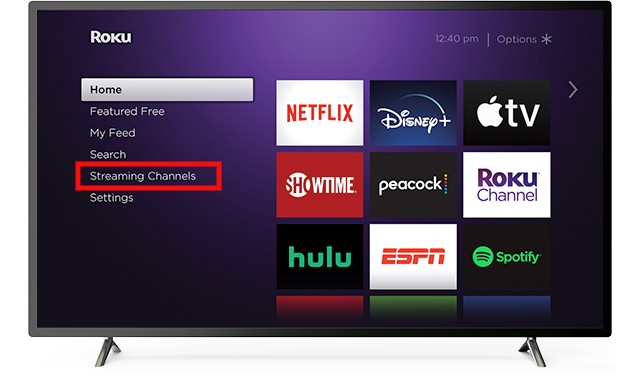
- Navigate to the search icon and tap on it.
- Type “Hulu TV” in the search panel.

- Dig out the Hulu Plus Live TV and highlight it on the TV.
- Click Add Channel button to get the app.
- Once, the Hulu app is installed on Hisense TV,
- Launch it and log in with the valid credentials.

Then, Visit the content library and choose your fav on-demand videos or you can switch to the live channels and watch Hulu on Hisense Smart TV. Samsung Smart TV is also a popular TV brand. And it supports popular Streaming services and you can download Hulu on Samsung Smart TV.
How to Install Hulu on Hisense Vidaa TV?
If you have the Hisense Vidaa TV? Then, the Hulu Plus Live TV app is Natively on Hisense Vidaa TV. You do not need to Install it from the app store. The Hulu app came in-built on Hisense Vidaa TV. You have to do just;
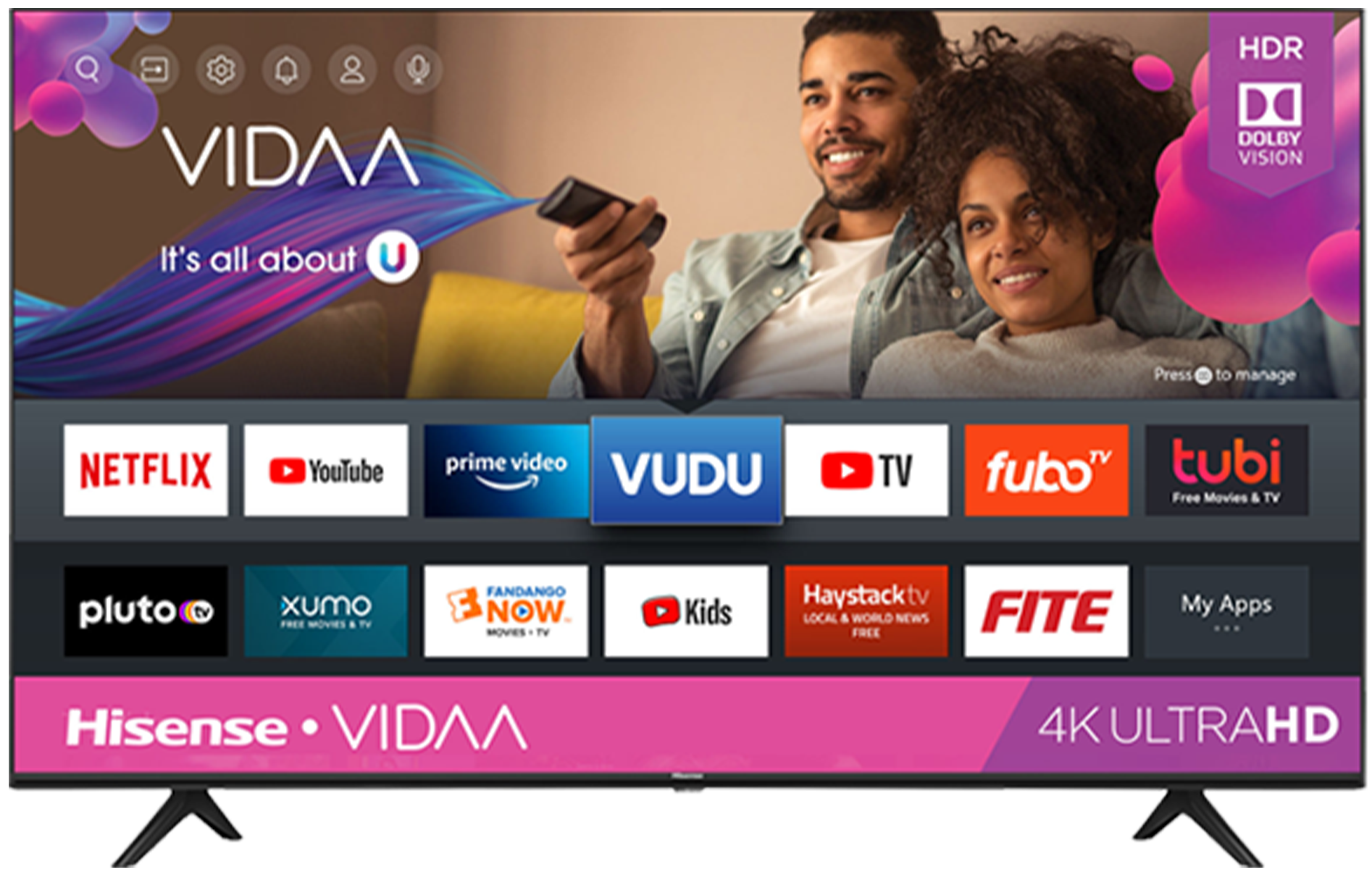
- Switch On Hisenese Vidaa TV.
- Go to the Home Screen.
- And launch the Apps page.
- Select the Search bar on the Apps page.
- Find the Hulu App on the Screen.
- Select the Hulu streaming service.
- Log in or Activate the Hulu app.
Start enjoying streaming your favorite content from Hulu on Hisense Smart TV.
How to Install Hulu on Hisense Google TV?
I hope you know what is Google TV and about its operating system. The easiest OS to navigate is Google. So, Check out the Steps to Install and Stream the
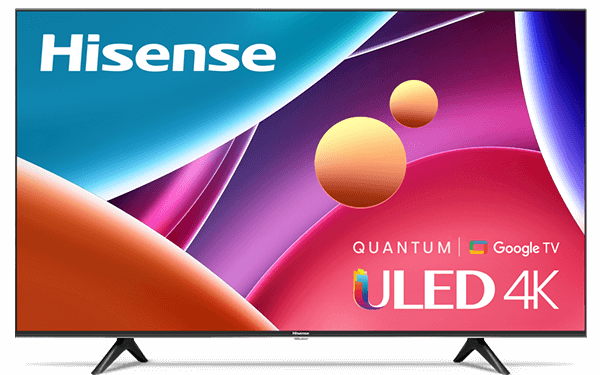
Hulu on Hisense Smart TV:
- Power On the Hisense Google TV.
- Visit the Home page.
- Launch the Google Play Store.
- Search “Hulu App” on the Play Store.
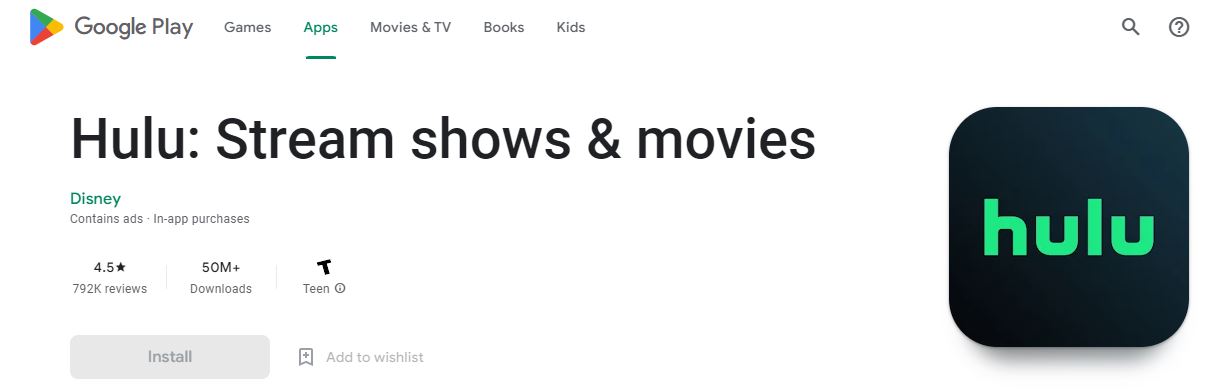
- Highlight the Official Hulu app from the Search result.
- Click the Install button to get the app.
- Open it after Hulu has been installed.
- Sign In or Sign Up with Hulu.
Do not forget to purchase the Hulu Plus Live TV streaming service Subscription package to watch Live TV channels and On-Demand-Videos on Hulu. Do you want to know How to Install and Stream Hulu on Philips Smart TV? just single-click on this link and get the step-by-step guide.
How to Install Hulu on Hisense Fire TV?
Firestick is also a popular external streaming device. But, here there is no work for the Fire Stick. Because the Firestick OS is in-built into the Hisense Smart TV. So, let us;
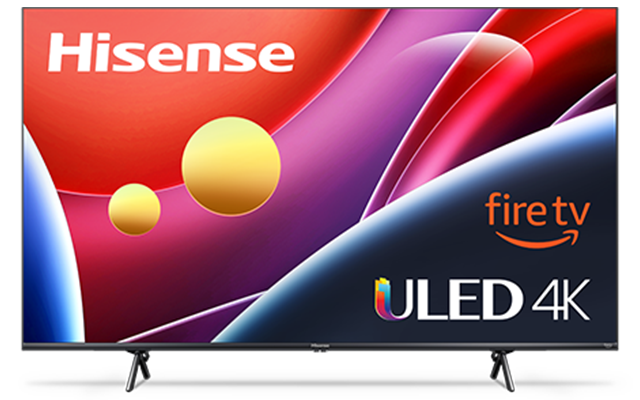
Download Hulu on Hisense Smart TV;
- Boot up the Hisense Fire TV.
- Associate your home Wi-Fi with Hisense Fire TV.
- Visit the Hisense Fire TV Home Screen.
- And, click the Find button from the menu.

- Type, “Hulu” in the search board.

- Pick the app from the search result.
- Tap on the Download button.
- Launch it and Sign In with Hulu.
As usual, you can start watching the exclusive content on Hulu Plus Live TV Streaming service. The active Hulu Subscription user can only watch some premium tv channels and on-demand videos as well as the Hulu Originals. Instead of the Smart TV, you can watch the Hulu app on your Laptop or Computer. The Firestick device is helpful at that time. Install Hulu on Firestick.
Activate Hulu on Hisense Smart TV:
If you are an Existing Hulu streaming service user, you have a user account with Hulu Plus Live TV. You can use the same credentials to Activate the app with your Hisense Smart TV. Follow the;
Instructions to Activate Hulu on Hisense Smart TV:
- Go to the Apps page on Hisense TV.
- Search for the Installed Hulu App.
- Launch the Hulu Plus Live TV on Hisense TV.
- Select the Login page.
- Enter your account credentials and Login.
- Then, select the Activate on a TV button.
- Now, the Activation Code has appeared on the Screen.
- Open the Web Browser on Smart Devices like mobiles or anything.
- Search for http://www.hulu.com/activate.
- Paste the link in the search panel.
- There, you have to Enter the Activation Code in the required box.
- Click Activate tab.
Now, move to the Hisense Smart TV and see the Hulu Plus Live TV Streaming service has been activated. Enjoy Streaming…
Sign Up with Hulu on Hisense Smart TV
If this is the first time you have installed the Hulu Plus Live TV app on your Hisense Smart TV, you have to Sign Up with the Hulu app. In the following space, you can see the Hulu Sign Up process via the Web. Follow them;
- Open the Web Browser on your Smartphone.
- Or, use any device with a browser app.
- Find Hulu on the browser page.
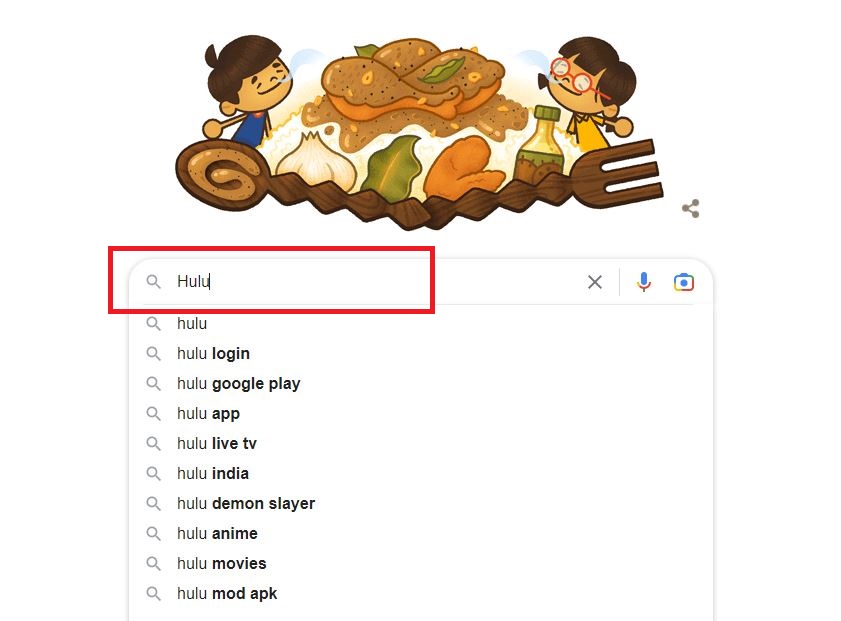
- Select the Hulu Official Website from the search suggestion.
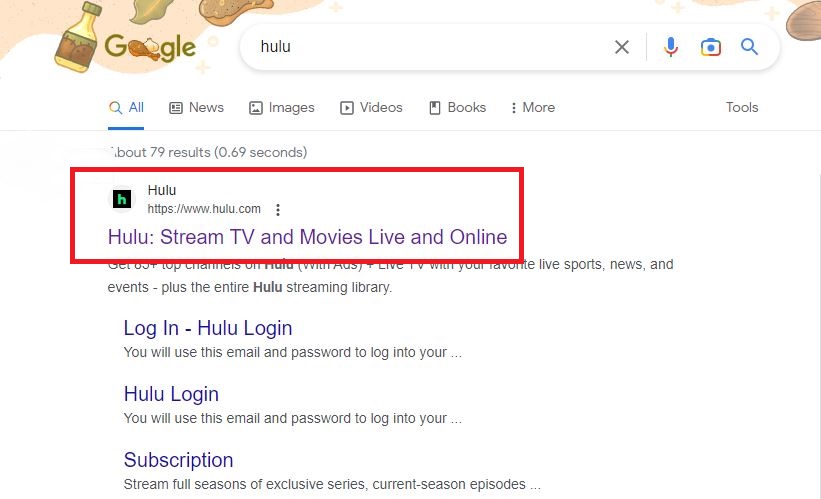
- Click the Login button in the top-right corner.
- Select the Sign-Up tab.
- On the Sign-Up page, provide the required details.
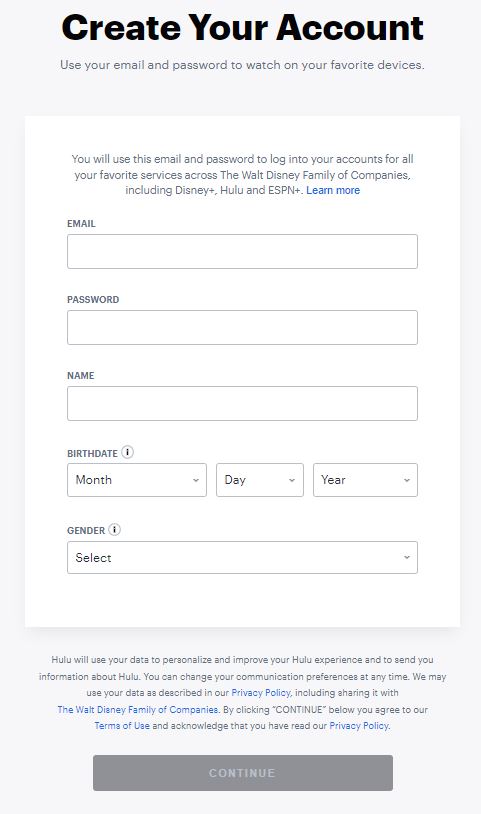
- Then, choose the best subscription package.
And then finish the billing process. After the billing procedure gets completed, you will receive the confirmation mail. Use the Login Credentials.
How much does Hulu Cost?
Most commonly, you can watch Hulu Originals, Exclusive Series, and Hit Movies in all Hulu Subscription packages. But the advertisement is different for each package. Also, some Premium Sports and Original content streaming services such as ESPN+, Disney Plus, and some more along with Hulu on-demand content. Here are the Hulu Subscription plans.


Check both the Basic and Bundle Plans of Hulu Plus Live TV and select the budget-friendly subscription package. Then purchase it on the Hulu Plus Live TV Streaming app or on its official site. Also, the PlayStation Console also supports streaming Hulu on PS5.
Conclusion
How to Install Hulu on Hisense Smart TV? Hulu is available on Hisense Roku, Fire, Google, and Vidaa Smart TV officially. So, visit the App Store and Install the Hulu app directly on your device. After the installation, you have to Activate the Hulu app with the Smart TV, if you are an existing user. Or, Create a New user account with Hulu Plus Live TV. If you need Guidelines, check out the topics given above.