
Everyone is interested in playing the Games with more Comfort. LG Smart TV is the perfect Platform to Play all your favorite Games. But before that, we need to Enable Game Mode on LG TV. That helps you to Play the game without any disturbance. You can enable the Game mode using your remote controller or without a remote through the Application. Also, you can use an external device.
While enabling the Game mode, Additionally you can use these features. Because it provides many options to play the games on a Smart TV with More comfort. Even if you play the Game at night you can use it to reduce the dark mode option to avoid eye problems. Let’s Join us Together to find ways to enable the Game Mode option and play our favorite games.
Table of Contents
How to Enable Game Mode on LG TV?
There are many ways available to turn on the Game mode on LG TV. Using or without a remote a different types of possible ways to enable the Game mode on LG Smart TV. Once you turn on the game mode, play all your favorite games without any disturbance. Here we share all the possible methods to turn on the Game Mode on LG TV.
The Steps are:
- Switch on your LG TV and click the Settings button on your TV remote.
- From the Home screen on the LG Smart TV.
- Press the All settings Option.

- After that, Tap the picture Mode Option.
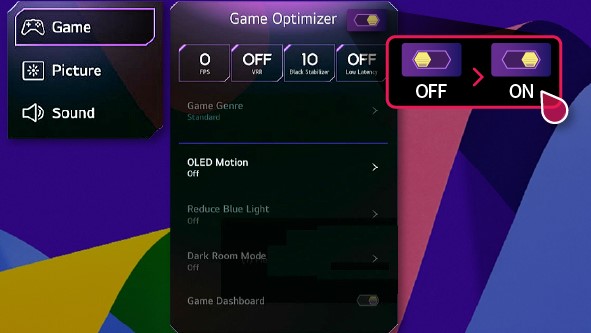
- Press the Select Mode and then select the Game Mode option.
Now it’s ready the Game mode is enabled on the LG Smart TV. Suppose you want to disable the Game Mode on LG TV then you can proceed with these steps, Move to the settings option and then select the different picture Mode to disable it.
Check the Post: FOX Sports on LG TV.
How to Enable Game Mode on LG TV without Using Remote?
Switch on the Game More without using the remote, For this Process Click the physical button or the LG TV remote application. There is an application available for LG TV plus use this application as a remote. Also, use the LG ThinQ App or any other App. All these apps are available on the Google Play Store. Another way, you can use any other external device such as Mouse or Keyboard on your LG TV to enable the Game Mode.
Alternative Ways
Not only these two methods, but you also have to chance to enable the Game Mode on LG TV using various types of external devices and applications. In the next section will share with you all the ways to Turn on the Game Mode to avoid all the unnecessary disturbance.
Using various remote
Some of the remote controllers are compatible with the LG TV and you can access the Settings menu options easily. You can use a Universal remote, an Amazon Fire TV remote, or an Android Remote.
Universal Remote

Use a Universal remote to access the Game mode on LG TV then you have to use an IR Blaster on your Tablet or Smartphone. Otherwise, Your phone will not be able to transfer the commands to your LG TV. This is a basic application for your process but it doesn’t share any other additional features.
Amazon Fire TV Remote

The Amazon Fire TV remote is only used when you connect the Amazon Fire TV box to your LG TV. Other than that, you can’t access the LG TV by using the Fire TV remote.
Android Remote
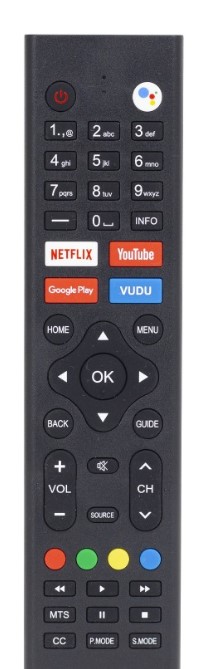
Whereas the Android remote works with LG TV. But you have to connect your smart TV with a strong Wi-Fi connection. Also, it has an Easy process to turn on the Game Mode.
Check the Post: How to Watch TBS on LG TV
Using Mouse
This is one of the ways to access the Game Mode on the LG Smart TV. The mouse is compatible with LG Smart TV and you have to easily enable it to play the games.
- Fix the Mouse to the USB port of your TV.
- After that, Switch on your LG TV.
- Click the Menu Button on the TV and navigate to the settings menu option.
- Using your Mouse, Move to the Picture mode.
- Choose the game mode and the options will be displayed on the screen.
Using Xbox One
Xbox One is a gaming Console, You can play different types and varieties of games are accessible and you can connect the device to your LG TV. If you want to play Games with LG TV then you have to change the Settings on your LG Smart TV.
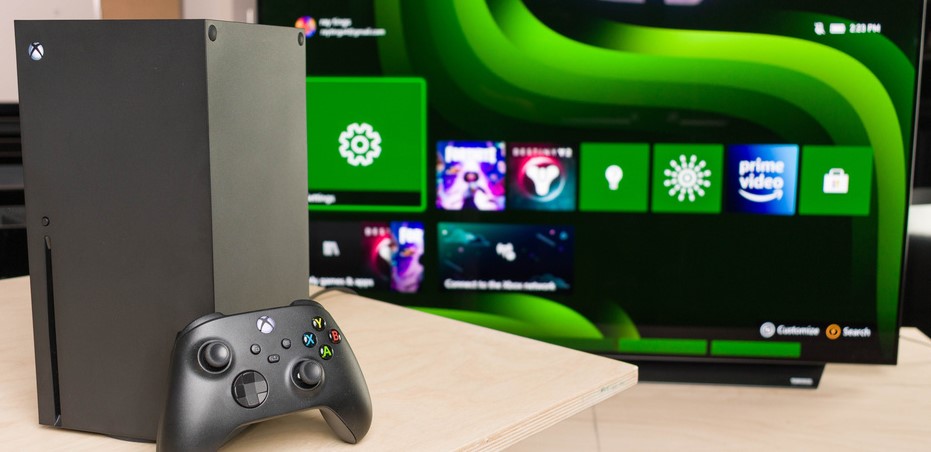
The Steps are:
- Switch on your TV and Xbox One.
- Move to the Settings option on your Xbox One Gaming console.
- Choose the TV and then click the Oneguide Menu option.
- Following this select the device Control option.
- Select the Automatic and then click the command.
- In your controller, Click the B to access the Power settings.
Once you have done it you have to switch on the Xbox One device to play the games on LG TV.
- On your TV Screen Click the Menu Button.
- Move to the settings option by using the remote to choose the picture mode.
- Now you have to click the Game mode from the Suggestion List.
Additional Information: How to Watch ABC App on LG TV
How to Optimize Game Mode on LG TV?
Most of the Smart TVs don’t work to our expectations because of the default Customization of the Mode. To avoid all these issues you must Turn on the Game Optimizer mode on your LG TV. It gives more features and good gaming Performance.
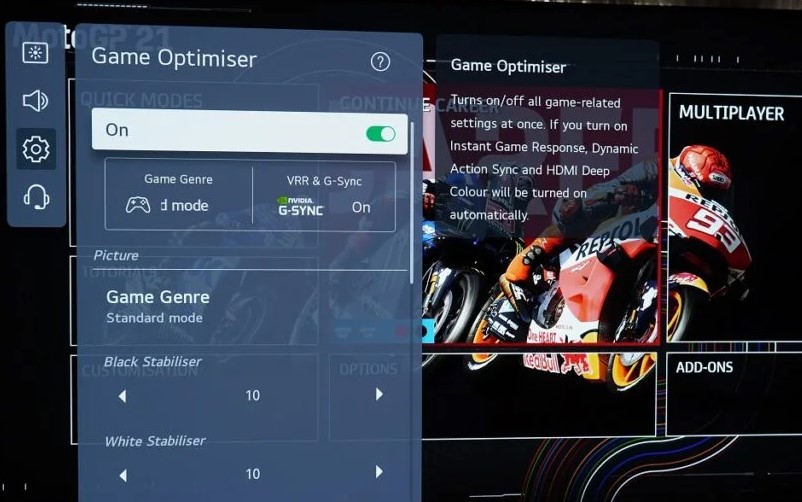
- From the Home page of LG Smart TV.
- Move to the Settings option.
- Click All Settings.
- Following this General–> Game Optimizer—> Switch to On.
Types of Game Mode on LG TV
Here we will share some best Game Mode options on the LG Smart TV.
- VVR: Switch on the VVR and G-Syn Option and you have to decrease the screen Tearing and Judder.
- Game Genre: It helps to change the display type and you can enable the option on your LG TV by clicking the Game Genre. There are three different types of Genres available on this option that includes RPG, FPS, and RTS. You have to choose the game mode based on your selected Game. Also, you can select the Standard mode.
- Input Lag: This is one of the options to enable the game mode on the LG Smart TV. If you play a High-end game such as Puby or any other difficult thriller or Action game. Then you can use this Game mode to to Play the Game without any input. To get a better performance then choose the Prevent Input Lag option and Boost option.
- Reduce Blue Light: It helps you to play the game even at night time without light. Clicking this feature to reduce the Light to Mild. The option will be available at the option of filtering the Blue light on the LG TV. So that, you won’t have any eye strain problem. Now you can enjoy your Game at any time.
- Color Balance: You can use this option to adjust the color settings for your Display. Once the process is over you can see your Display better. Other than that, you can use the Arrow keys to optimize the Black and White Color Level.
Final Words
The above article shared with you How to Enable Game Mode on LG TV. There are many possible ways to turn on the Game Mode. Also, it comes with many additional features. We have mentioned many methods to enable it, You can use the LG TV remote controller or without using the remote, Otherwise, Use an Application, Mouse, and more external devices to enable the Game Mode. Before you play games on LG TV Must you do all the basic process settings. It will protect you from other interception. LG TV settings have provided Many game Mode options to play all your favorite games with more comfort. LG TV is the right choice for playing games because its performance is good. Never miss spending your time playing the Games with LG Smart TV.