
Oh No! Did the App Stop Working? If yes! Then You need this Guide Right Now! Read to Know How to Fix the Xfinity Stream App Not Working on Roku. We have given you the best methods to let you Resume your Streaming.

Table of Contents
Why is the Xfinity Stream App Not Working on Roku?
Streaming Apps and their Working issues are Like the Common Cold that we all get Once in a Season. The Reason behind the Cold – I mean Not Working can be So Common to Sometimes Serious. So, Before you get into Finding a Solution, It is Important to Lookout at what would have caused Xfinity Stream not to work on the Roku Issue.
Reasons for Xfinity Not Working :
- Unaware and Not Connected to the Xfinity Internet.
- Stale Log-in Issues or Incorrect Credentials.
- Damaged or Loosely Connected Cables.
- Outages and Server Status Down.
- Outdated Xfinity Stream App.
- No or Slow Internet Connection.
- Unsupported Streaming File Formats.
- Incompatibility Issues.
- Settings error on Roku Player.
- Expired or No Subscription.
- Storage Full / No Space on Roku Device.
If you experience the app not working properly, There might be any of these above-mentioned reasons behind interrupting your Streams. So, You will need to Fix it by using the Best Methods Possible depending on the Reason for the App Problem.
Also Read: Peloton App Not Working on Roku
How to Fix the Xfinity Stream App Not Working on Roku?
Analyse, What is the Issue that is causing your Xfinity App not to work on Roku, and Then Move on with Trying our best guide of the Methods to Fix it?
Ensure of the Connected Xfinity Internet on Roku
It is Important to Note that the Rental Modems / Routers Prevent the users from accessing Xfinity on Roku Via Roku App. So, That is why it is also important to Make sure that your Roku is aware of being Connected to Xfinity Internet.
NOTE: To access Streaming the Xfinity Stream app – Users will need to have Subscribed to the Xfinity TV and Xfinity Internet Plans.
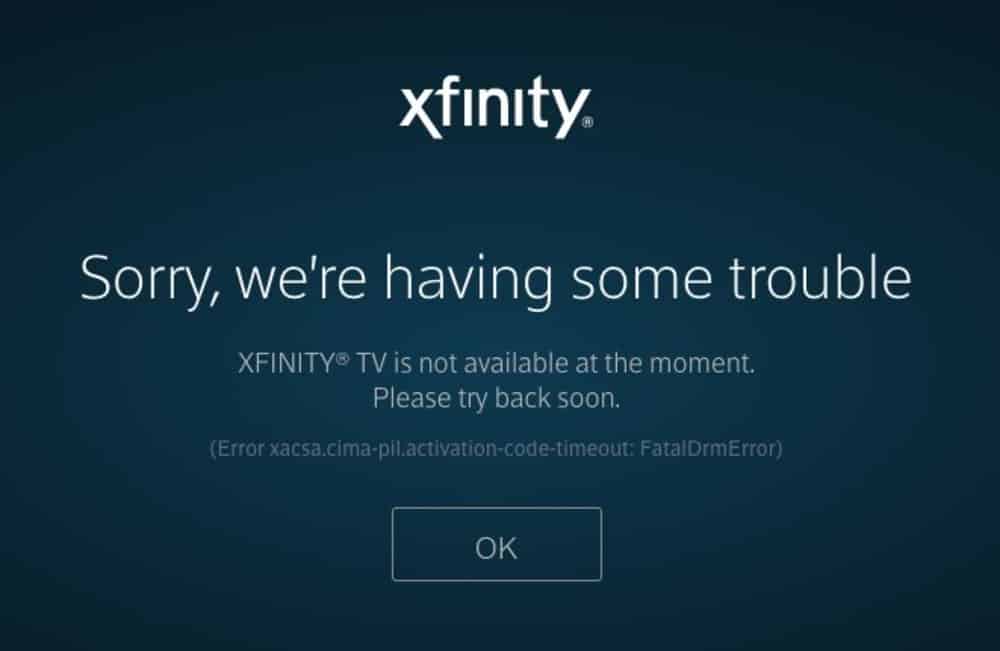
For Errors on Roku of ERROR: TVAPP- 00101 Saying :
This Device can only access Xfinity Stream on your Home Xfinity WiFi.Use the app on your SmartPhone, Tablet, or Laptop to watch on the go, Anytime You Like.
In case, You get the TVAPP Error on your Roku, It means that your Device thinks that you are NOT CONNECTED TO XFINITY INTERNET Even if you are, and thus Causes the Xfinity Stream App not to work on Roku.
Restart the Xfinity Stream App
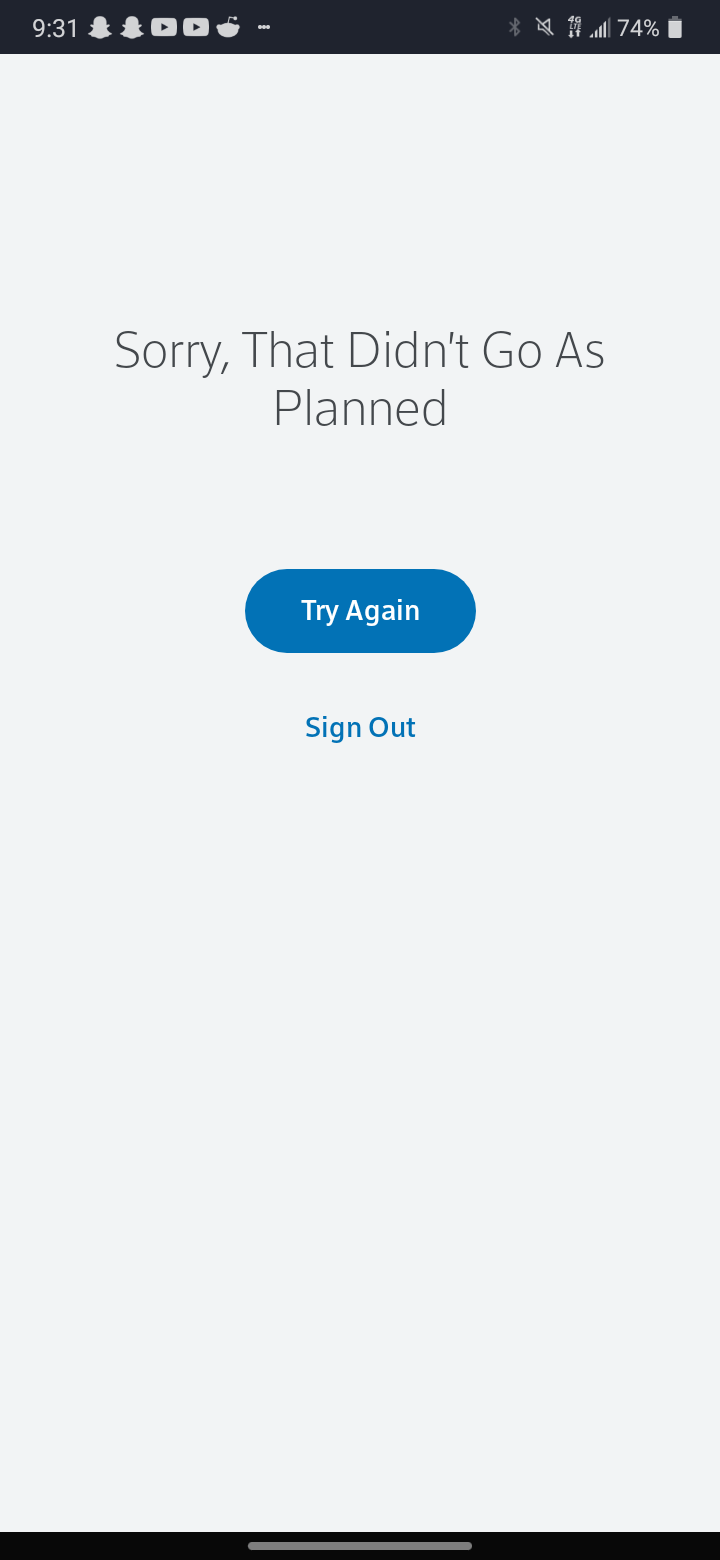
Any Glitches on the app can be removed by Restarting it as you do on your Smartphones when the app stops Working.
- Navigate to the Xfinity App on Roku and Click on the Settings.
- Select Accounts > Account Tab > Click on Sign Out.
- Wait for some time and Sign in to the app.
- Access Streaming and Check if the Problem Persists.
Update Xfinity on Roku
Outdated app Versions can also be one of the Reasons Why the Xfinity Stream App Not Working on Roku. So – UPDATE IT to the available Newer Version.

On Roku Home Screen > Go to the Xfinity App > Press the Asterisk Button (*) on Remote > Click on Update app on Menu > Update > OK.
If there are any available Updates on the app, it will be done automatically.
Read to Know: Why is Hulu Not Working on Roku?
How to Update Roku Device?
In case, your Roku TV / Stick is of the Older Version then there are chances of any app stopping working. You can update your Device Firmware to make the apps Run Smoothly and get better App Performance.
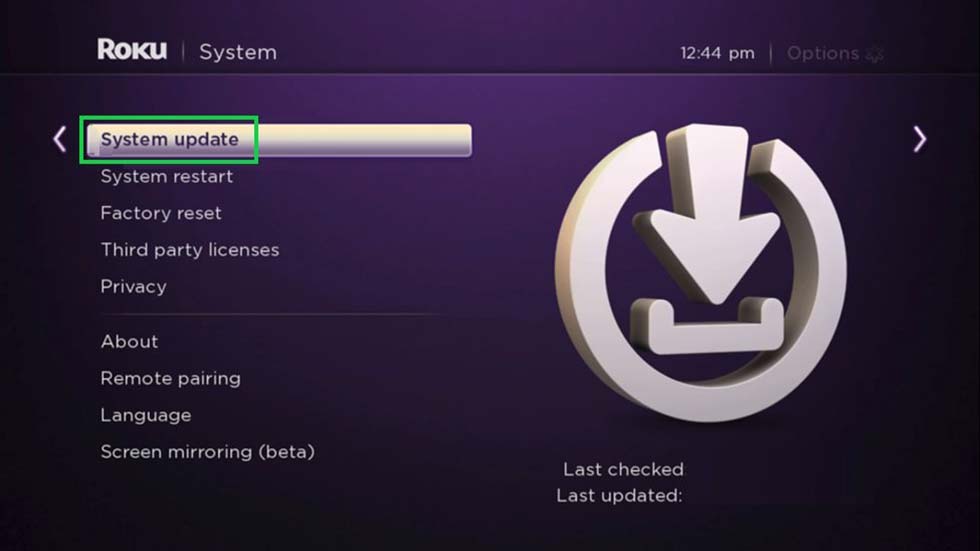
Roku Home Screen > Go to Settings > System > System Update / Software Update >Check Now > Click OK if prompted.
You will get the Current Software/ Version Displayed and also if there is any latest Update available > Update if any.
Refresh the Stale App log-in
What if you have logged into the app in a Hurry Burry and Now Crying that you are not able to acces the app? Well, The Work done in a Hurry can never be good – as my Mumma says. So, Let us fix it.
- Log Out of the App on your Roku and Wait, Then Log back in with the Correct Xfinity Credentials.

- Go to Xfinity App> Settings > Accounts > Account tab > Sign Out > Sign in with ID and Password.
- Check and Log Out of your Roku Account too – Sign in using the Correct Roku Credentials.
- Try Streaming the app on Roku now to check if the Problem is Solved.
Restart Roku – Xfinity Stream App Not Working on Roku
The best Troubleshooting way is Restarting / Rebooting your Roku Device.
- Go to Settings > Choose System > System Restart > OK > Wait and Relaunch the Xfinity app on Roku.
If this doesn’t work, Try PowerCycle your Roku :
- Turn OFF the Roku Device > Unplug the Roku from the TV and Uplug from the Main Power Source > Wait for some time> Replug it > Turn ON.
Power Cycle your Router / Modem
The app may not work when the Internet is not Proper. It may be due to errors on the Router, or Loose Connections are multiple devices connected to the Same Internet Source.
- Fix it by Power Cycling your Router and Removing all the Other Devices Except Roku.

- Unplug the Router for at least 15 – 20 Seconds.
- Now, Reconnect the Power Cords and Turn ON the Router.
- Make sure that the Connections are made Properly on Both Ends.
Uninstall and Reinstall the Xfinity Stream App
Any Faulty issues can affect the functionality of the app on your Device. Uninstall the app to Remove the bugs.
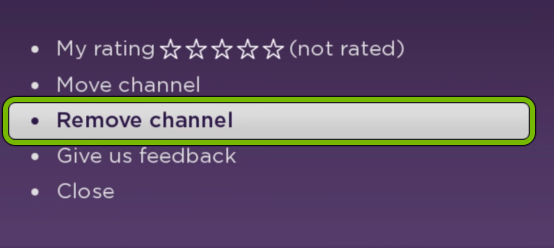
On your Roku Home Screen > Navigate to the Xfinity Stream App > Press the Asterisk Button (*) on Remote > Select the Remove Channel and Uninstall the app.
Learn More: How to Delete Apps on Roku?
How to Install the Xfinity App on Roku?
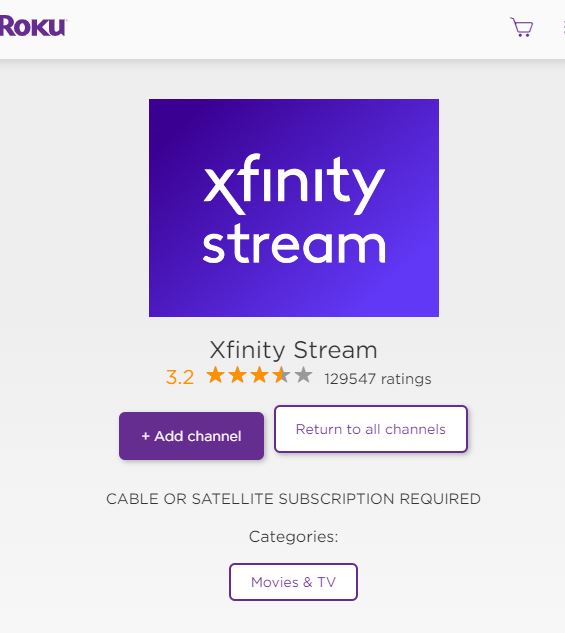
Go to the Home Screen > Streaming Channels > Search Channels > Type Xfinity Stream > Find and Select > Click on Add Channel > Log in using your Credentials and There you go.
To Know More, Do Check Out :
Clear Cache and Data
Too Much Storage on the Device can also affect the Working of the Xfinity Stream app on Roku. Clear Cache and Remove the Unwanted Files on your Device.
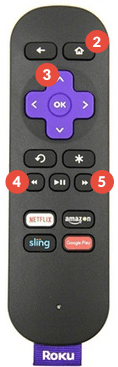
- On Roku Home > Press Home 5 times > Press Up Button > Rewind 2 times > Fast Forward 2 times.
This Key Trick on your Remote will Clear the Cache and Make some improvements.
Check the Internet Connections
Make sure that you have an Internet Connection on your Roku that is Stable and Reliable.
- Settings > Network and > Check Connection.
If you are not connected to your Router, Then do the following ;
- Go to Settings > Network > Set Up Internet Connection > Wireless > Open Network Settings > Choose your Home Wifi and Type the Password.
Choose to Stream Compatible Media Files
If you are trying to Stream an Incompatible File Format on the Xfinity Stream app, You may experience Streaming Not Working on Roku. So, Choose a File that supports the app.
The Types of File Format supportable on the Xfinity Stream app are H.264/AVC, MP4, and MOV/ MKV.
Try playing the Different Media Sources on Xfinity and Test if the Format Works.
Check the Xfinity Servers
When the Servers are down and there are any Outages in the Service, You will experience the UNAVAILABLE Problem.
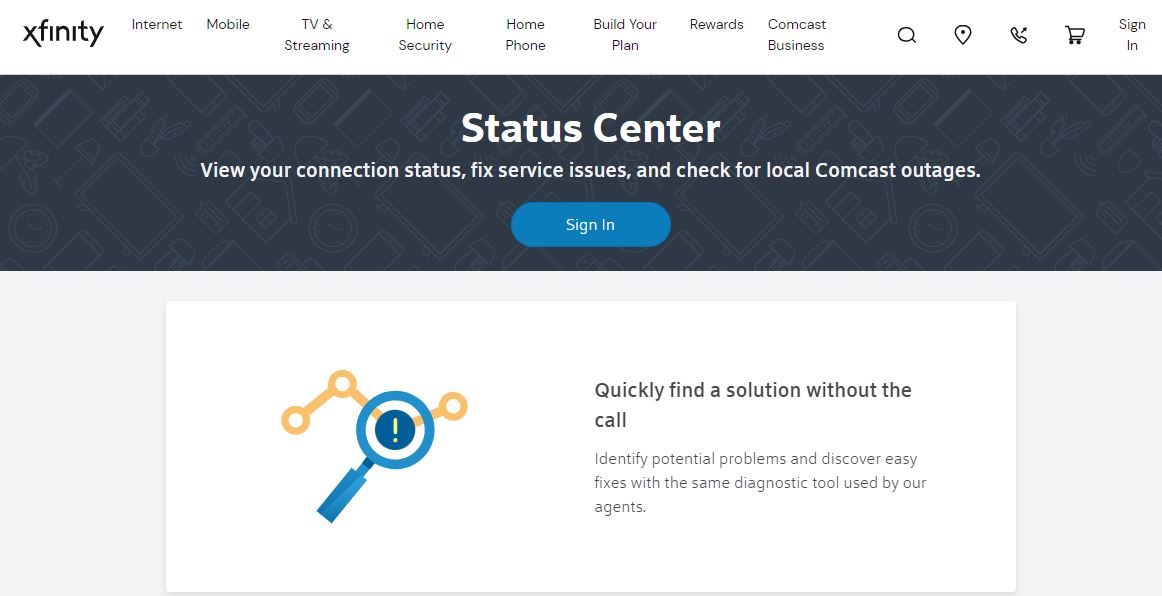
- Use the Browser on your PC / Phone and Visit the Xfinity Status Center.
- Check the Server Status and Sign in if necessary.
- Click on the Check for Outages Option Enter your Service address and Check for your Area.
Troubleshooting Ways Xfinity Stream App Not Working on Roku
You can also try using these Common Troubleshooting ways to Fix the Issue. These can use any of the Following and Get the Streaming Back.
How to Solve Xfinity Error?
- All you can do is contact Comcast or Your Current Provider > Explain the Issue on your Roku > and Wait Until Customer Care Provides you a Solution.
Try testing the Internet Speed on Roku and Check if there are any Hardware Malfunctions.
Reset Xfinity Internet Via Router
Once you Reset your internet by Restarting your Internet Router / Modem.
- Unplug and Replug it all back and See if the Connections are good.
Factory Reset your Roku Device
This is a Hard Reset that will erase all your Data, Installed Apps, Settings, Login accounts, and Other Preferences. Make sure that you take a Backup before Factory Reset.
Check Out For More: How to Reset Roku TV?
Contact the Xfinity Customer Support
If Nothing Works – Call Them. There are Just One Call away as Charlie Puth Says. It is Now Time to Contact Xfinity Customer Support and ask them helo for the Xfinity Stream App Not Working.
Change the Cables
- Check if there are any damaged or Broken Cables Connected to your Roku, Router / Modem. If any, Remove and Change with the New and Better One.
- Tighten the Loosely Connected Cables and Get the Better Streaming.
Choose a Compatible Roku Device
The App is available on Majority of the Roku Models.
Roku TVs, Streaming Media Players, Streaming Sticks, Soundbar, Streambar.
- Meet the Requirements as Firmware Versions – 8.1 b1 or Higher.
- Only the Compatible Devices, You will find the app on the Roku Channel Store.
Disable the Software – VPN | AdBlocker|Firewall|
- If there is any Third Party Software Installed on Roku – Go to Settings > Apps > Choose if any VPN / Adblocker / Firewall is installed.
- Disable the Software and Try Streaming the App.
Check your Xfinity Account
Make sure you have an Active Subscription on the Xfinity Account Or Contact Xfinity Customer Support to get assistance with the Account Activation.
You can also try to Stream by Knowing : How to Chromecast Xfinity Stream Tv App?
Bottom Line
Applause to you if you have come through All Over the Guide and Tried these methods on your Roku. One or the Other method will surely help you fix the issue. Enjoy the App and Continue Streaming the Content on your Roku.