
If you are working out with the Peloton App at your Home on your Big Screen and It doesn’t work Out. Then make it work out now with the Easy Fixes we have here for you. To help you with the Peloton App Not Working on Roku. Do Read and Make the App and Yourself work out for the better.

Table of Contents
Why is Peloton App Not Working?
If you are facing troubles with a Particular Channel on your Device, then it can be due to Errors in the Installed Channel.
- Improper Installation of the App.
- Any Faulty Updates or Outdated Version of the app.
- The Peloton app has been Corrupted.
To solve any of the App related issues that are causing the Peloton App not to work on Roku, We Have Some Solutions.
- Update the App to its Latest Version.
- Uninstall and Reinstall the app to Remove any Corruptions issues.
How to Update Peloton App on Roku?
To Update any app on your Roku TV / Streaming Device, Follow the Instructions as given ;
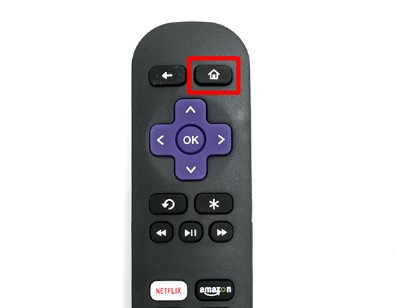
- Go to the Home Screen on your Roku.
- Select the Peloton app from the Channel List.

- Now, Press the Star ( * ) Button on your Roku Remote.
- From the Pop-up menu, Click on the Check for Updates.
- If there are any available updates on the app, They will appear on your Screens.
Find Out: Why is Hulu Not Working on Roku?
Update Roku Firmware
The Peloton App Not Working issue can also occur due to the Older version of the Roku Firmware. So, Updating your Device is as important as updating the app.
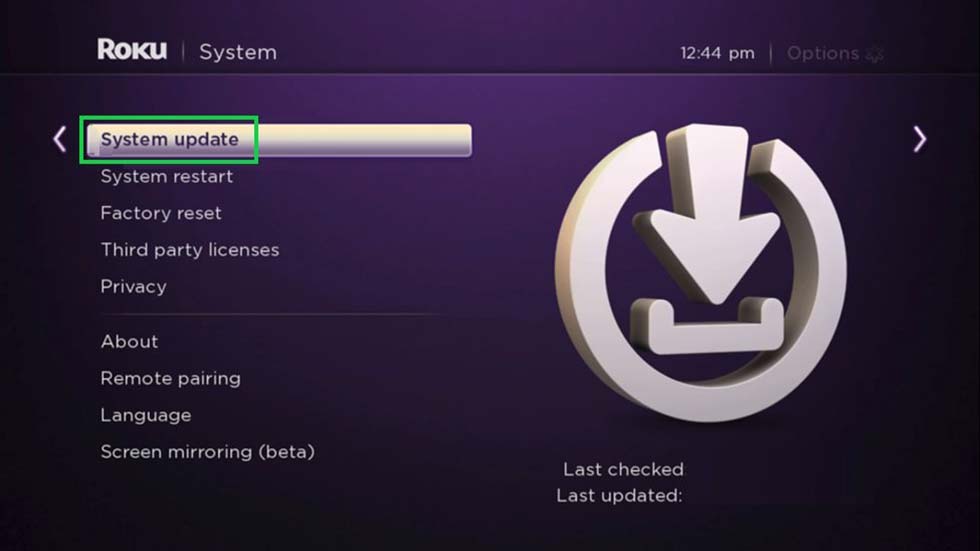
- Go to the Home Screen and Click on the Settings to Select the System.
- Click on the System Update and then Tap on Check Now.
- Check for any new updates and Update your Roku Firmware as well as the apps.
Software Update on Peloton
You can also Update your Peloton Device to a Newer available Version of its Software.
- Navigate to the Settings on the Peloton Home Screen – It is located at the Top Right-hand corner.
- Now, Click on the Device Settings.
- If you have a Bike or a Tread +, Tap on the About Tablet Option under the System Option.
- OR If you have a Peloton Bike + or the Tread, Then Click on the System Option.
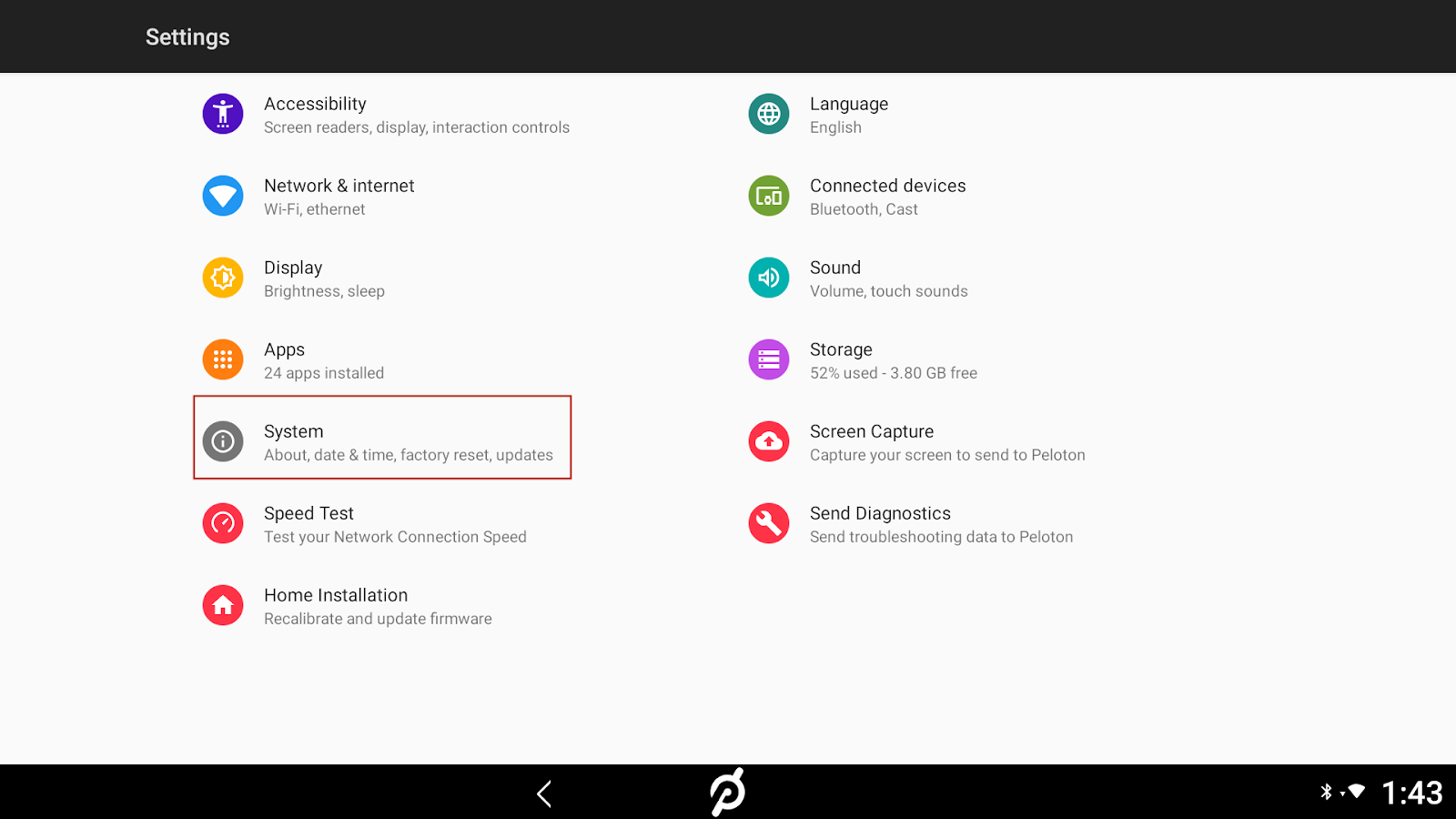
- Select the System Update Option – At this tab, You will know If you have an available Software Update or if it is already Up to date.
- If there are any Updates available, You will get a Pop Up Window with a Note of Software Update. Click on OK and Let your Device Updated to its Newer Software Version to get the New Features.
Uninstall and Reinstall the Peloton App on Roku
You can delete the app and Choose to Install it again on your Roku device – this will remove any kind of Glitches / Bugs / or Corruptions that affects the App.

- Press the Home Button > Search, Find, and Highlight the Peloton Channel.
- To Remove, Press the Star Button and Click on the Remove Option from the Pop up list.
How to Install the Peloton App on Roku Devices?
Once you uninstall the app, it will remove all the Residual Files that disrupt the Performance of the app. Reinstall it and Start accessing the App on your Device with its Newer Version.
Refer to Read a Detailed Guide on How to Add Peloton App on Roku here.
How to Fix Peloton App Not Working on Roku?
Most of the time, the Reason behind the Not Working is really Silly Small. Poor Internet, Server down, Wrong Credentials, No Subscription, and Whatnot. You can use the below Troubleshooting Steps to resume your Workout.
Check your Network Connection
To use the Peloton app on Roku, You need to have a Constant source of Internet Connection. Slow Internet Speed or any Interruptions between the Source can cause the Peloton App Not to work on Roku.
- If you are planning on Attending Live Classes on the app, Then you should surely have a Good Wifi Connection on your Device.
- Remove any Other Devices connected to the same Internet Router. Connect only your Roku.
- Run an Internet Speed test and Make sure that the Network is not weak.

Home > Settings > Network > Set up Connection > Wired or Wireless > Select your Network from the List and Connect if it is not.
Restart your Roku Device
Sometimes, All your device need is a Small Restart. Tired of the Continuous accessing of Apps, It needs some rest.
Go to the Home Screen > Choose Settings > System > System Restart > Press Restart and it is done.
Log Out of the Peloton App
Often, the Peloton app faces the Member Log-in issue, and it is also updated on the Official Page. – if it is, wait until it is fixed. There are Chances that you may have entered the Wrong Login Credentials and Trying to use the app. In that case, Refresh the app and Launch it again.

- Enter the Correct Log in Credentials and If you are a New User, Click on Signup and Create an account.
- Then Sign into the app to Overcome Peloton App Not Working on Roku Problem.
Check Out: How to Fix Max Not Working on Roku?
Check your Peloton Subscription
If you have just forgotten to Pay for your Peloton Subscription, You will no longer be able to access the Workout library, Live Classes, or anything on the app. The Membership plans occur every Month, and if you haven’t renewed it yet – That is what causing the Not Working issue. Renew and Resume your Workout Streaming.

Anyway, You can pause or Cancel your Subscription with the Manage Option.
Check the Peloton App Server Status
If it is not only you, But your Friends too who are going through the Peloton Not Working on Roku Crisis, Then Chill. This might be due to the Outages of the Server. The App’s Server can be down and under maintenance. Wait until the Server gets better and It will be updated on any Server Status Website or the Official Site.
Clear App Cache
Unnecessary Files and Cache can result in the Bad Performance of the app. Making your Streams not work, Stuck in the middle.
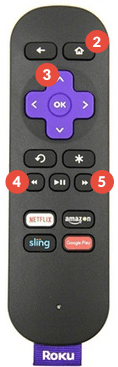
Go to Roku Home > Select the Peloton App > Press the Home Button – 5 times > Up Button 1 time > Rewind – 3 times > Fast Forward – 2 times.
To know How to Clear the Cache on Roku TV? Check out the Guide.
Use Casting to Solve Peloton App Not Working on Roku
Sometimes, Users cannot install the app due to the Compatibility issue, If you do not have a Compatible Roku Device as listed above in the Guide, This can make the Peloton App Not Work on Roku.
Using Alternative Casting Methods can solve half of your accessibility issue.
- You can install the Peloton App from the Google Play Store / App Store on your Smartphone.
- Enable the Screen Mirroring on your Roku> Pair the devices and Start Casting the App on your Screens.
Bottom Line
Breathe in Relief if you have successfully Solved the Not Working issue with the Troubleshooting ways in the help Guide here. and if not, Try each and every solution to fix your problem. Once done, go back to your Home Gym and Make yourself fit and healthy.