
Some People search for How to Add, Install and Get the Blah and Blah apps on their Devices. But If you have searched for How to Delete Apps on Roku. Then you sure need this Guide to help you. And We are here!
Table of Contents
How to Uninstall Apps on Roku?
Yes, It is Possible to Uninstall Apps on Roku. But why you want to Uninstall apps that you have installed can be a question of Concern.
- Apps on your Roku Not Working.
- You No Longer Use the Apps.
- To Free Up Space when Low on Storage.
- Unable to Update.
- Keep your Device Organized and Optimized.
- Issues with User Experiences and Usability.
Among these mentioned Reasons, You can have any of your own. But The Thing that matters is Knowing How to Uninstall Apps on Roku. So, To Find Out Different ways to do that Keep Scrolling.
Know: How to Fix Max Not Working on Roku?
What do you need to Delete an App?
Reasons and Solutions? Nah! A Delete Button Nah! To Move on and Delete something on your Roku Streaming device, It is necessary that you have these 2 Important requirements.
- Roku Remote in a Good Condition with Batteries.
- An Internet Connection on your Devices that you use.
If you are all set with these 2, Then Scroll down.
How to Delete Apps on Roku?
It is possible to Delete and Remove apps on Roku Devices such as the Streaming Player, Roku TV, and Whatever device you have in use.
You can Delete apps on Roku in Three Different ways. Users can Uninstall apps on Roku Devices as well as on Mobile apps with a Compatible Device.
As you all know, there are two types of Apps on Roku.
- Free Channel.
- Premium Channels – Paid.
Delete Either a Free or a Paid Channel – has different ways. If you have both Free and Paid Premium Channels, Then Look down at the Guide below to Uninstall them on your Roku.
Uninstall Free App on Roku
Removing a Free Channel is as easy as Pie.
Press the Home Button > Use the Directional Pad > Search for Channel that you want to Delete on the Home Screen > Choose app > Press Asterisk Button ( * ) > Tap on Remove Channel > Confirm > Done.
Uninstall Paid Premium Apps on Roku
Delete a Paid App requires you to do a Little Work. Since you have paid for the App to Install it and access Streaming on your Roku. You will need to Cancel your Subscription before deleting it.
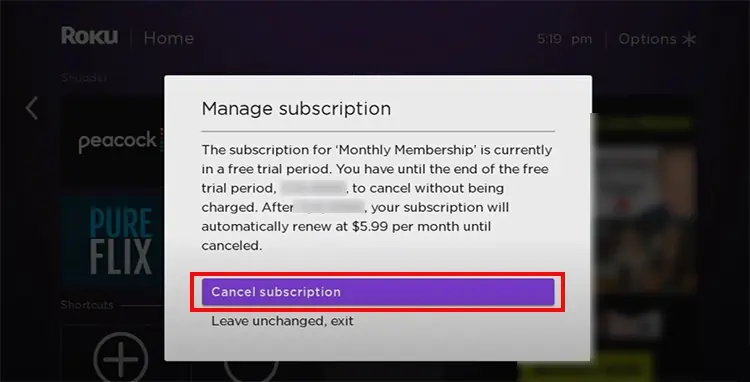
In case, You are using an app on its Free Trial Plan, Then Cancelling the Subscription before the Free Trial will save you Money – Otherwise, you will be Charged.
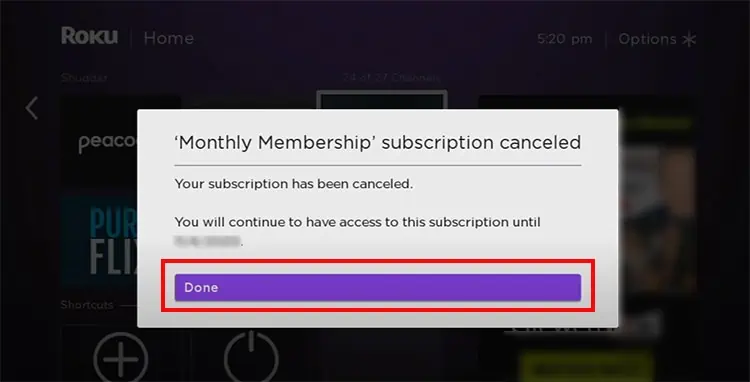
When you Cancel the Subscription, It will stop the Auto-Renewal. Thereby, it will not be affected until the next renewal date. So, Once you cancel before the End of the Subscription for the Month, You will still have access to Getting the Service before the next renewal. If you again want the app on Roku, Install and Continue with your Previous Plan ( If it is not Over ).
Get an Overall View on: What is Roku?
Cancel your Subscription on Roku and Remove the App
- Press the Home Button and Hover to the Channels Tab on Right Side.
- Choose the Channel and Press the Star Button.
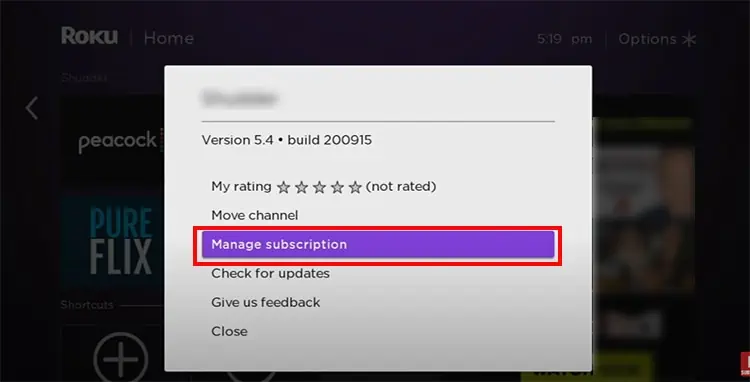
- Select Manage Subscription > Click on Cancel Subscription.
- Confirm and tap on the Done.
- Now, Choose the Same app to Delete > Press the Star Button.
- Click on Remove Channel > Confirm and It is Removed.
Also Know, How to Cancel Bet Plus on Roku?
Other Ways to Uninstall Apps on Roku
Apart from the Free and Paid, There are also a few other ways that you can use to Free up your Device Storage.
APPS –
- Within the Channel Lineup.
- On Roku Channel Store.
- Roku Mobile App.
We have given here the Guide to Uninstall, Delete and Remove apps on Roku in Various Ways Possible.
Delete Apps on Roku within Channel Lineup
This method is to Delete and Remove the apps that are available installed on your Roku Home Screen. You can choose to uninstall the apps that are within your Channel Lineup.
Follow the Steps given right here – Pre-Installed Apps :

- Firstly, Press the Home Button on your Roku Remote.
- Now, Navigate to the Right Side of your Screen using the Remove.
- Highlight the Channel app that you want to Delete.

- Press the Star Button on Remote and Access the Options Menu.
- Click on the Remove Channel to Remove the app you have Selected.
Remove Apps on Roku Channel Store
This way you can remove the Newly Installed or the apps that are not already available by default – But Installed by you on the Device ( Free and Paid ).
NOTE: Installed Apps on Roku can be identified by a Check Mark on the Bottom Right Hand Corner of your Screen.
- On your Roku Remote, Press the Home Button.

- Go to the Streaming Channels Option on the Menu.
- Access the Channel Store and Find the Channel apps that you want to Remove.
- Select and Press OK on Remote.

- Tap on the Remove Channel prompt and Confirm to Delete.
Uninstall apps on Roku Mobile App
For users, Who are not already using the Roku Mobile app. You can go on and Install it to use this Method. It is Free to download and access. Also, available on Android and iOS Devices.
- Open to Launch the Roku Mobile app on your Smartphone. ( Install if needed ) .
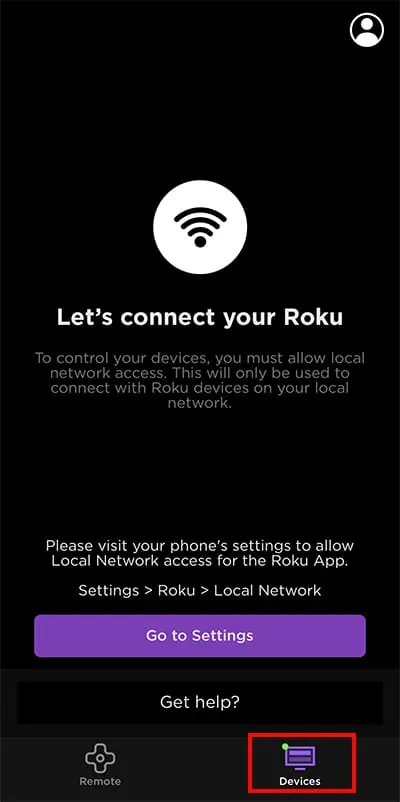
- Go to the Devices tab and Tap on the Roku Device to Connect.
- On the Navigation Bar, Tap on the Channels.
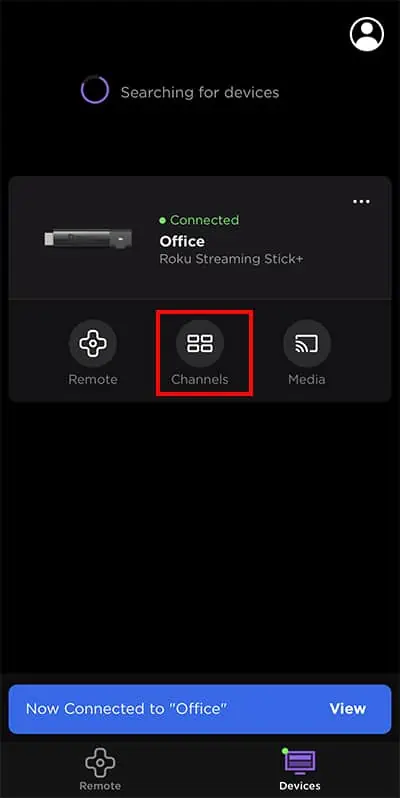
- To Get the List of Installed Channels available on the tab, Choose the My Channels option.
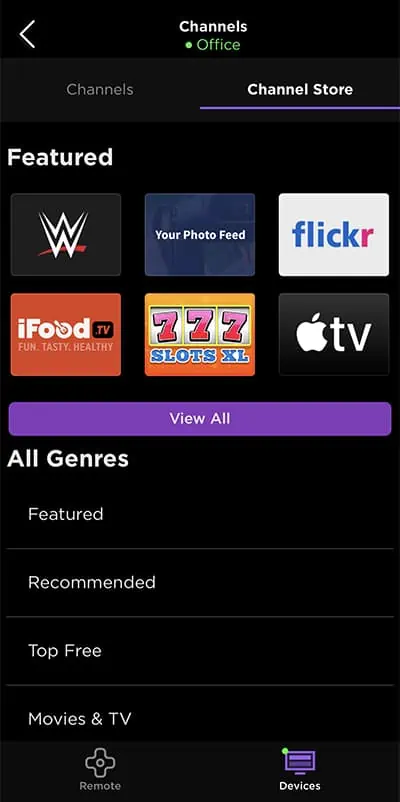
- Tap and Hold on a Channel to View More Info.
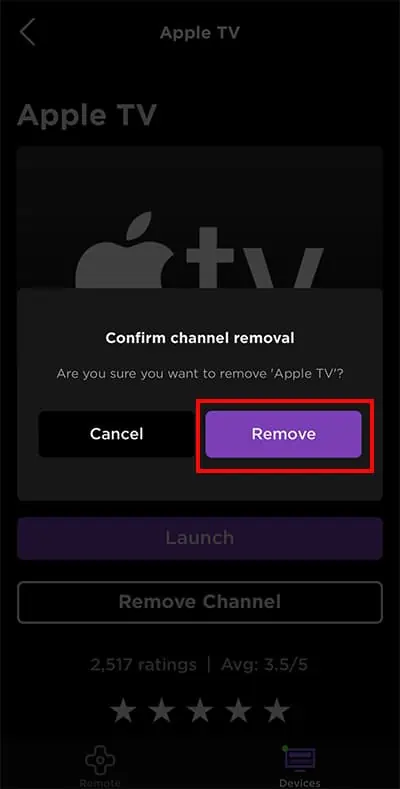
- Finally, Click on Remove and Confirm to Uninstall the app on Roku.
- In case, You have lost your Roku Remote, the Mobile app is the best way to Choose.
- Uninstalling and Deleting apps on Roku will give you a lot of Storage where you can install New Apps and Stream Effectively.
People also Search for How to Get Peacock on Roku?
How to Remove Apps from Roku Home Screen?
- On Home Screen, There are Preinstalled Free apps that are easy to Remove.
- Choose the app > Press the Options Key > Click Remove > Confirm and Voila!
- The Apps will disappear from the Apps Grid on your Roku Home Screen.
Bottom Line
With the help of this Guide, You now Know How to Delete, Uninstall, and Remove the app. You can do that using any of the above Illustrated ways. Anyhow, all the methods are quite straightforward. Get Rid of the apps that you no longer need and Install new ones to Start Streaming Something New – Cause Sometimes CHANGE IS GOOD!
Frequently Asked Questions
How to Rearrange Apps on Roku?
- On your Roku Remote, use the Arrow Buttons and Select Channel to Move.
- Now, Press the Asterisk * Button and Click on Move Channel.
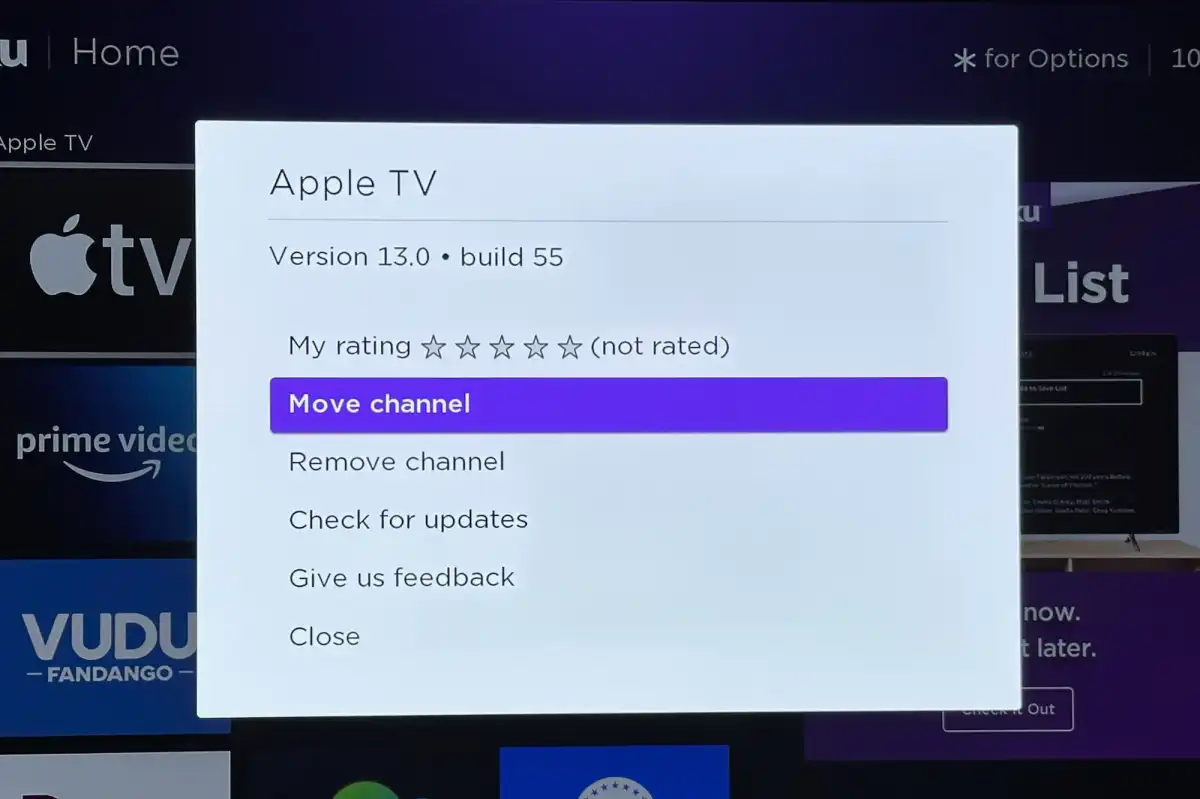
- Use the Arrow keys and Change the order /Place of the app.
- Once done and in your desired place, Press OK to Rearrange it on Roku.
How to Add Apps on Roku?
Press the Home Button > Go to Streaming Channels > Type the name > Find the app > Click on Add Channel and Ta-dah!
Home > Roku Channel Store > Select Channels > Browse from Categories > Choose and OK.