
To Sign out of Prime Video on TV, you need to go to the Prime Video settings and have to deregister your account to sign out. You can also go to the official website to deregister your Prime Video account on TV. To know the methods and steps used, read this article to the end.
Table of Contents
How Can I Sign Out of Prime Video on Smart TV?
To sign out of Prime Video on TV, you need to open the app and select the Deregister device option and confirm the process to sign out of Prime Video. You can also go to Prime Video’s official website and sign out of all connected devices.
What are the Steps to Sign Out of Prime Video on TV?
If you have your Smart TV installed with Prime Video and you need to sign out of your Prime Vidoe account on your TV then follow the steps given below,
- On your TV open the Prime Video app.
- Go to the Settings option at the top of the home page screen and press OK on your Remote.
- Now highlight the Deregister my device option and press OK.
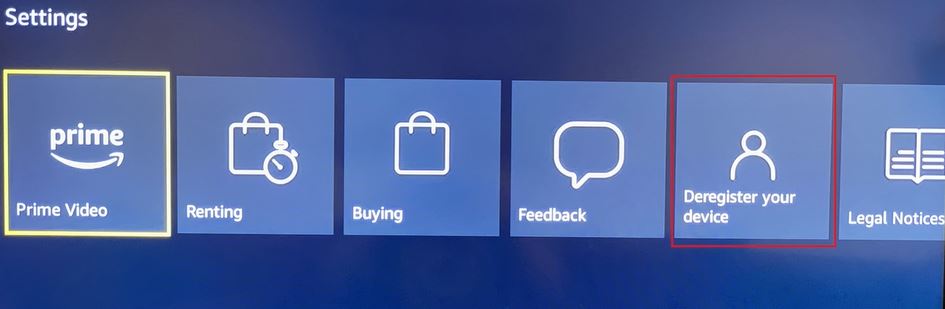
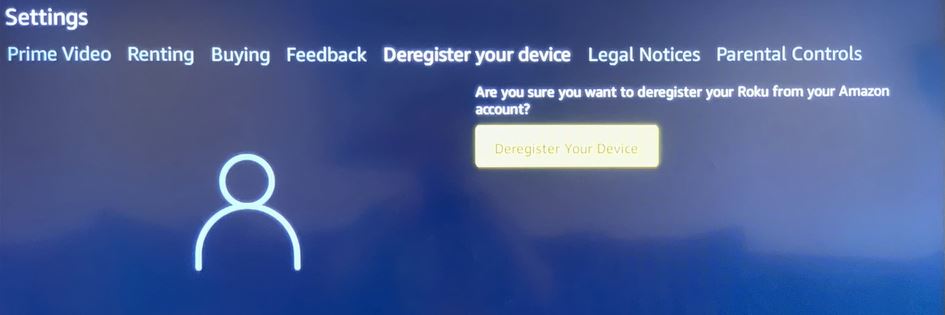
- On the next page tap on the Deregister device option.
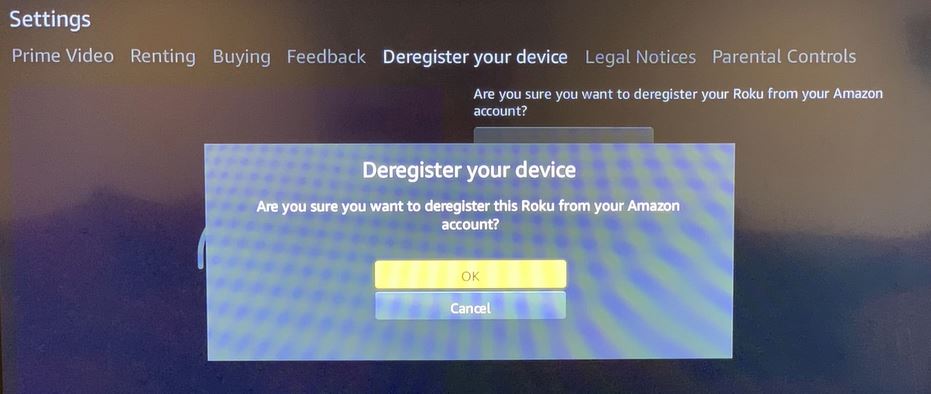
- To confirm your selection tap on the OK option on the pop-up screen.
- Press OK on the Success Message.
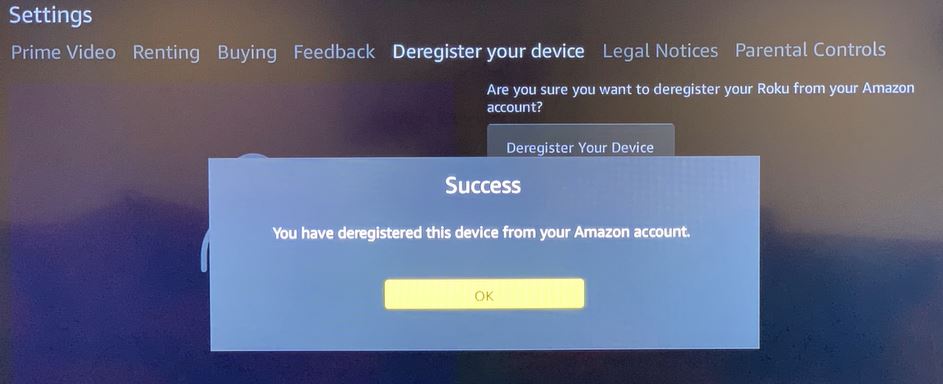
By following the steps you have now successfully signed out of Prime Video on your TV. You might be interested to read about, How to Stream AccuWeather on TV?
How Can I Sign out of Prime Vidoe using Website?
With the help of the official website of Prime Video, you can sign out of Prime Vidoe on any device. To sign out of Prime video on a TV with the help of the official website follow the simple steps and methods mentioned,
- On your TV open the Prime Video app.
- Go to the Settings option at the top of the home page screen and press OK on your Remote.
- Now highlight the Deregister my device option and press OK.
- Now Tap on Your Video Library from the list of options.
- Move on to Settings and select the Your Devices option.
- You can find all the devices you have your Prime Video on.
- From the available devices find your TV.
- Tap on the deregister button.
- Your Prime Video Account on your TV will get signed out.
Using the official website you have now successfully signed out of your Prime Video account on your TV. Watch Scottish Open Tournament on TV.
What are the Steps to Sign Out of Prime Video on Roku TV?
On your Roku TV, you can sign out of your Prime Video account by following the simple steps given here.
- On your Roku TV open the Prime Video app.
- Move to the Settings option at the top of the screen and press OK on your Remote.
- Now highlight the Deregister my device option and press OK.
- On the next page tap on the Deregister device option.
- To confirm your selection tap on the OK option on the pop-up screen.
- Press OK on the Success Message.
By following the steps, you have now successfully signed out of Prime Video on your TV. You might be interested to read about, How to Add Roku on LG Smart TV?
The End
With the simple steps given in this article, you can now sign out of Prime Video on yoru TV and on all other devices using the official website. If you have any doubts about the steps used, you can ask them right away in the comment section.
Frequently Asked Questions:
How Can I Sign Out of Prime Video on all Devices?
Visit the Prime Video website and sign in with your credentials. Now go to your account and select Log Out of all devices. This will make your account Log Out on all devices on which you have signed in.