
Listening to music is an amazing feeling. For every situation, we have different songs and kinds of music. Usually, we use Mobile apps to hear music on our Phones. But, you can also access these apps on your Smart TV. Now, Spotify is the only music that is trending worldwide. If you have Samsung Smart TV, then read this article to know How to Install and Play Spotify on Samsung Smart TV.
Before that, we have to know whether the Spotify app is available on the Samsung Smart TV or not. And, if you chose the Spotify app randomly and do not know about it, please read the first topic to know about it. Also, Spotify has a premium subscription. Continue reading this article to know all about Spotify…
Table of Contents
About Spotify:
Spotify is a privately-owned Swedish Audio Streaming Service. Also, it is a Media Services Provider that is established on 2006 April 23rd. And it is founded by Martin Lorentzon and Daniel Ek. The Spotify service provides more than 100 million Digital Copyright restricted and recorded audio content. And, you can listen to More than Five Million Podcasts.
Spotify allows its users to search the music or songs based on Genre, Artist, or Album. Also, Spotify users can Create a Playlist, Edit, and Share the created Playlist with any platform. The registration process is required in the Spotify app. Then only, you can save your playlists and liked songs in your Spotify user account. Also, the Spotify app is available on many streaming platforms.
For example, you can download it on both Android and iOS Devices. Some Smart TV brands also natively had a Spotify app. Now, we have to know the availability of Spotify on Samsung Smart TV. Grab the answer in the next topic below. To make your Smart TV more smarter, Install and stream Swift Streamz on Samsung Smart TV and enjoy watching.
Is Spotify on Samsung Smart TV?
Yes. The Spotify app is available on Samsung Smart TV. It is available on Samsung Galaxy App Store. So, you can download it directly on your device. To know the installation process, check the following topics below
How to Install Spotify on Samsung Smart TV?
Spotify is a worldwide popular Music streaming service. And it is available on Samsung Smart TV. Not only is the Samsung TV, but also you can install it on other devices. Here, go through the Installation procedure of Spotify on Samsung Smart TV.
- Turn On your Samsung Smart TV.
- Click the Smart Hub button on the Samsung TV remote.

- Tap the Search option.
- Type “Spotify” in the search field.

- Then, pick the official Spotify app from the search result.
- Now, click the Install button.
- Wait until the Spotify app gets installed on your Samsung Smart TV.
- Once, Spotify gets installed,
- Launch the Spotify app on the Samsung Smart TV.
- Login with your Email Address,

- Or, you can also you can log in with your Mobile Number.
Then, select the Language which you would like to stream on Spotify. Then you can select your favorite songs and add hit the heart symbol to add to the Liked Songs list. Also, you can create a playlist on Spotify and it lets any Spotify user view your Playlist. Do follow each step above to get Spotify on Samsung Smart TV. And, the HBO Max on Samsung Smart TV is the best one to stream On-Demand content and Original movies and Series on your TV. Tap to learn the installation procedure.
Spotify Premium Subscription:
Spotify has a subscription package to stream all songs Without Ads. Just launch the Spotify app. And click the Premium tab in the bottom right of the app. Then, click the Subscription plan.
- $9.99 >> Per Month.
It has 1 Month free for those who purchase the Spotify Subscription First Time. If you are an existing premium user, a 1-month free trial is not available for you.
- $99 >> Per Annum.
It is a Yearly general package. You have to renew the subscription every year at the date you purchased the Spotify premium package.
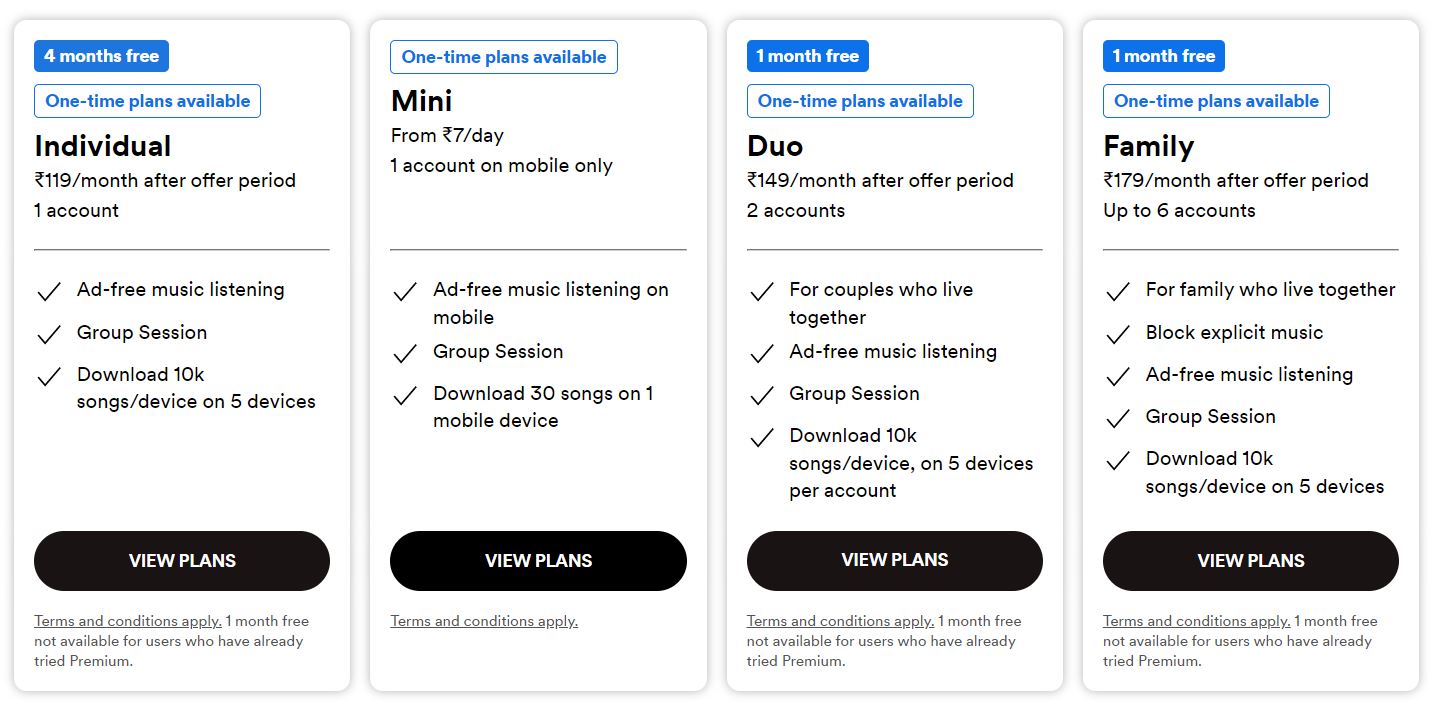
Also, it has Premium Individual, Mini, Premium Duo, Premium Family, and Premium Student. Check out all Subscriptions and Purchase your budget-friendly Premium Plans on the Spotify app.
Why Can’t I Find Spotify on Samsung Smart TV?
If the Spotify app is not visible on your Samsung Smart TV’s in-built app store, your Samsung TV requires the updated operating system software. So, you have to Update your Samsung Smart TV immediately to Install Spotify on Samsung Smart TV. Follow the guidelines given here;
- Click the Home Button to return to the SamsungTV Home screen.

- Go to the menu section.
- And, click the Settings option from the menu.

- Then, Select the System tab and click on it.

- Following that, tap the Support menu.
- On the screen, you can see the Software Update.

- Tap on it.
- And head toward the Check for Updates option.
- If the System Update is required, tap the Update Now.
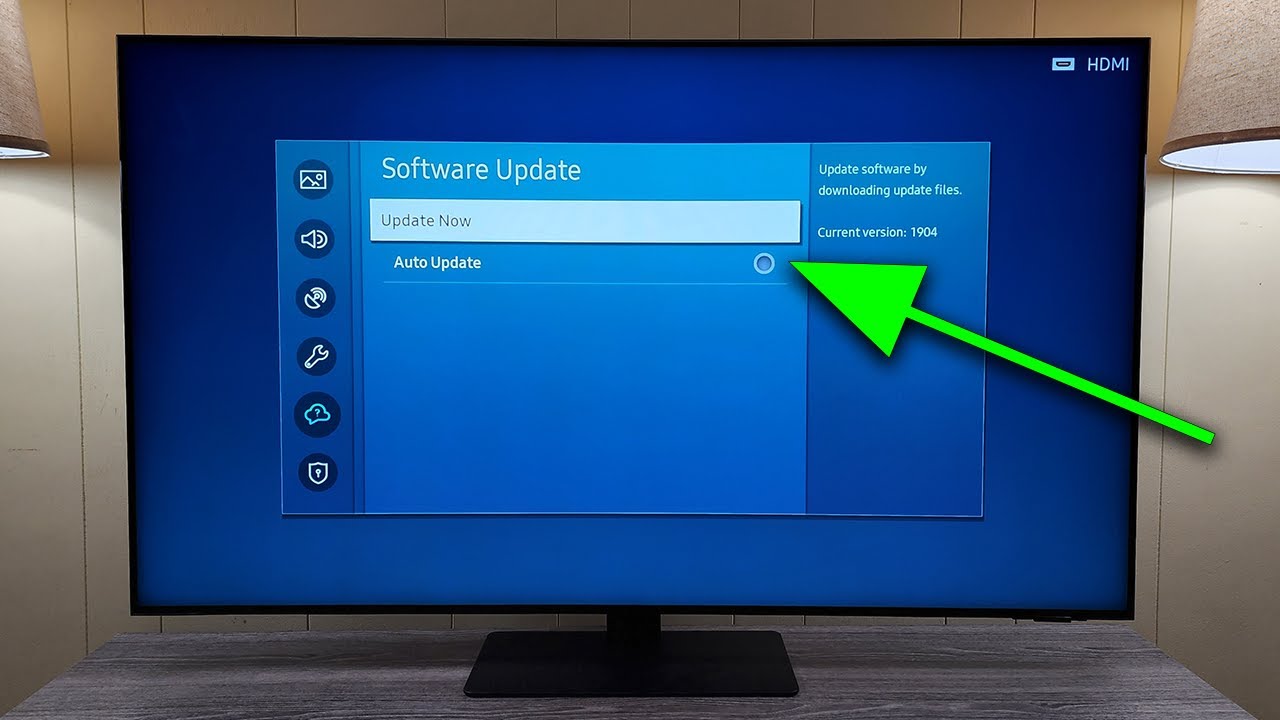
- Now, the Samsung Smart TV OS Software is started downloading on your Wi-Fi.
Once the update process gets completed, the Samsung Smart TV restarted automatically. Now, follow the steps given above topic and Install Spotify on Samsung Smart TV. You can also watch an NFL Plus on Samsung TV’s big screen. Grab the procedure and watch live NFL games on your TV.
Spotify 2023 Trending Songs:
There are no limits to music. Only in music, do we listen to new songs weakly. So, in that list, we have some trending songs on Spotify in this year 2023. They are;
- Boy’s a lier Pt.2
- 10:35
- I’m Good (Blue)
- Flowers
- Shivers
- Levitating
- Kill Bill
- ABCDEFU
- Anti-hero
- About Damn Time
- Voices (feat, Oliver Tree)
- Beg for you (feat. Rina Sawayama)
- Creepin’ (with the Weekend)
- Left and Right
- Just wanna Rock
- TQG
- Die For You
- Unholy (feat. Kim Petras)
- Special (feat. SZA)
- Miss You
These are all the most trending songs on Spotify. Search for these songs and enjoy listening to them without ads. If you want to listen to all trending music without ads, you have to purchase the premium. Take a look at the premium cost in the above topic. Peloton App on Samsung TV is a trusted fitness app, that trains you perfectly. And you have a trainer too. Click the link to learn more about the Peloton app on your Samsung TV.
Conclusion:
How to Install and Play Spotify on Samsung Smart TV? Spotify is directly available on Samsung Smart TV. So, you can install it from the in-built app store on your TV. If you have any doubts about the installation, please check the How to Install topic to refer to the installation procedure. Also, if you would like to listen to the newly released podcasts and want to stream them without ad disturbance, you have to purchase the Spotify Premium Subscription. So, take a look at the premium cost and purchase it. If you need any more details about Spotify or streaming it on the Samsung Smart TV, please mention it in the comment box.