
If you are spending your quality time with your family and friends by watching your favorite movies. In the interesting scenes, the commercial ads are interfering in the middle of the Movies is more irritating you. If you are looking for the article on How to Block Ads on Smart TV. Here in this article, we will share lots of methods along with the steps. There are many possible ways available to block the commercial ads. Let’s follow the methods that are more comfortable for you. Stop the Ads and watch your favorite Movies, and shows without any interruption.

Table of Contents
How to Block Ads on Smart TV?
There are different ways available to Block Ads on Smart TVs. You can use any one of these methods. Choose the method and block the ads to stream all your favorite content without any interruptions.
Change the Smart TV Settings
This is the best way to Block Ads on your smart TV in the process of changing the smart TV settings. It may have a chance to block Ads, If it is changed then you can watch all your favorite shows, programs, and more entertainment sources without any ads. Try out the steps.
- Launch the Android TV Home page to access the Home Screen.
- After that, Move to the settings option.
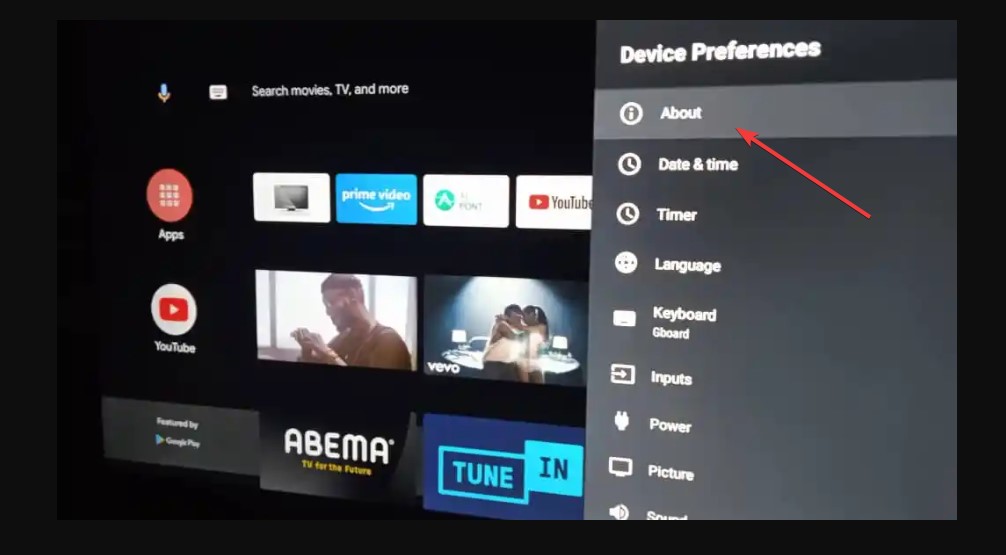
- Choose the Device preferences, Following this Click About Option.
- Move to the Legal Information and then Press the Click Ads option.
- Next, you have to Switch off the Ad Personalization option.
Check the post: How to Block YouTube on Roku TV
Modify the DNS Server
The Smart TV allows you to modify the DNS Server to block ads, It is an easy process to watch all the content without any interference. Here are the steps to modify the DNS Server on your Smart TV.
- On your Smart TV home page.
- Direct to the Advanced Network Settings.
- Now you can see the option of all TV.
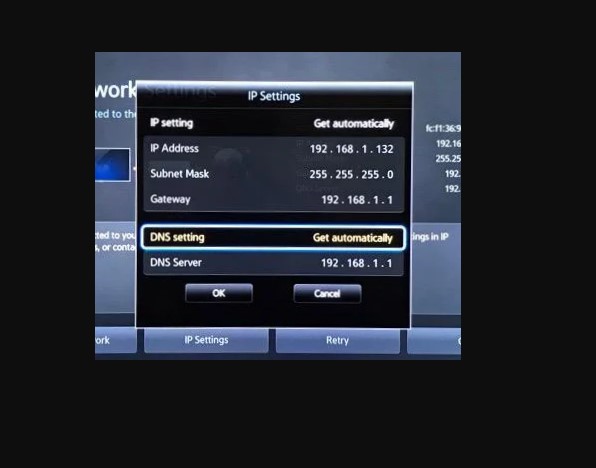
- In that, you have to select the DNS Server and fix it manually.
- After that, you have to enter the values of the DNS Server and save the changes.
Basically, they preferred DNS Server: 94.140.14.14. or Alternatives DNS Server Accept: 94.140.15.15.
Block Ads on Smart TV through Router Settings
You can also use the router setting to block Ads. Try out the steps to Block ads through Router Settings. Here you can use your username and password. But be careful while in this process, sometimes it will show some issues on your device.
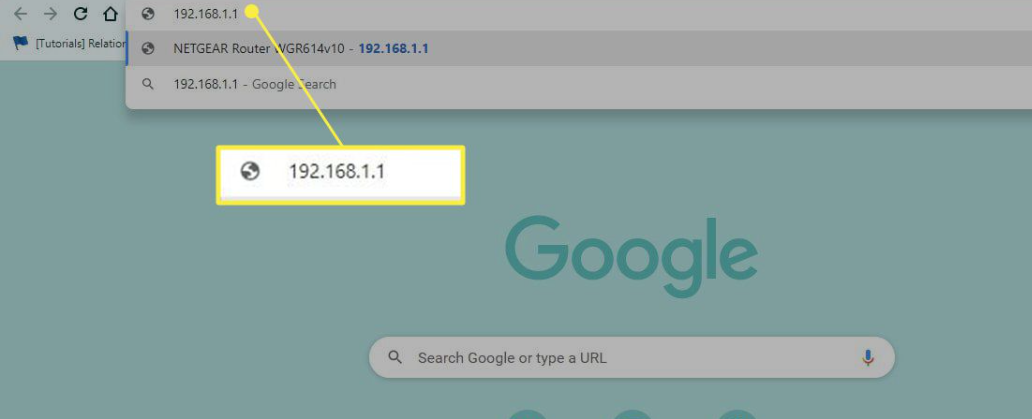
- On the address bar, you have to enter the address.
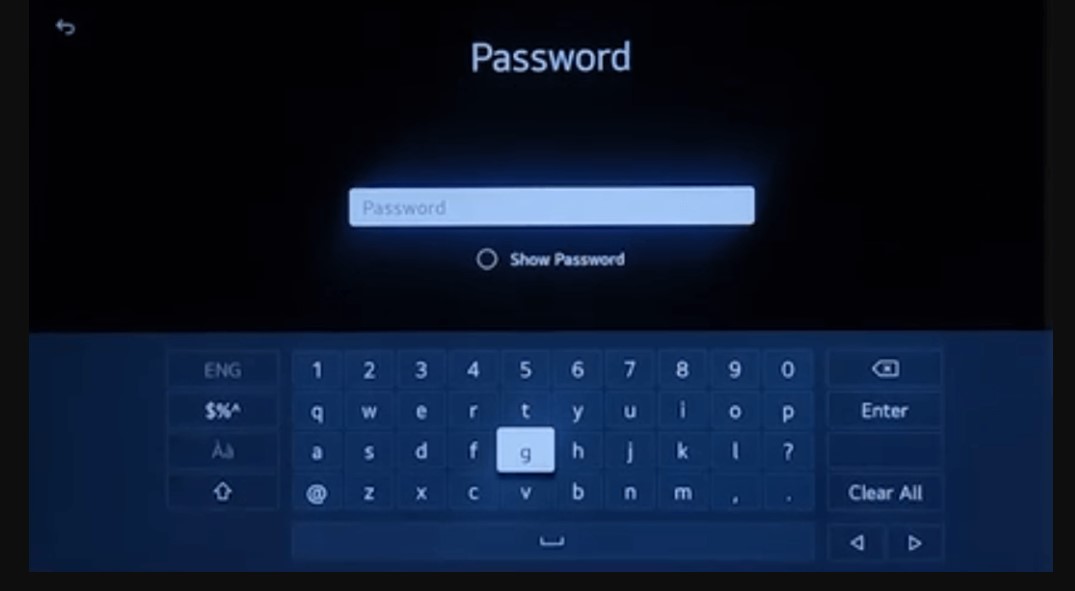
- After that, enter the username and password to complete the Sign-in process.
- Move to the Filter settings, Now you have to fill in all the URLs for the Ads.
- Once the process is done then ensure that you are Blacklisting and not Whitelisting them.
If you are using a Router to block the Ads on your Smart TV then it will affect the device.
Similar post: How to Turn Off Ads on Roku TV
To Block Ads on Smart TV Using a Network-Wide Ad Blocker
This is one of the best ways to block Ads on Smart TVs. In the process of setting up your device. It will clear out all the unwanted commercials at the network level. There are some Ad blockers available for this process.
The Steps are:
- First of all, you have to download Home on your Router.
- After that, Construct the AdGuard Home to Block Ads and track.
Block Ads on Smart TV through Adblockers
There are many Adblockers officially present on this platform, you can download it on your device and access it to block the commercials. But most of the smart TVs aren’t compatible with adblockers. So initially you have to check that your Adblockers are supported with your smart Tv then you can process further procedures.
The steps are:
- You can download the Ad Blocker on your Smart TV.
- Various types of ad-filtering apps are available, You can choose any one of these.
You have to check and then choose the Ad blocker for your Smart TV, becasue some of them are harmful to your Smart TV and they are not trustworthy.
Opt-Out Choices for Android TVs
This option is available on most Android TVs to block Ads, If you are an Android TV user then you can follow these steps. And Stream all your favorites without advertisement.
The Steps are:
- Move to the Settings option.
- Select the device preferences or device, It is based on your TV model.
- Now you have to choose the About option or About TV.
- Swipe and find the Ads.
- After that, you have to remove the OPT out Ads personalization option.
Check the post: How to Adblock on Crunchyroll
Block Ads on Smart TVs using YouTube Premium
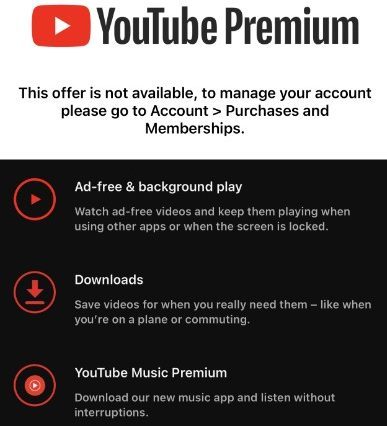
It is an easy way to block ads on your Smart TV, becasue YouTube Premium is a paid service and it will offer you Ad-free content to watch on this platform. If you sign up for the YouTube Premium it should be easy to block Ads on your smart TV.
Don’t be confused with other settings, your subscription will allow you to block the Ads to watch all the content and any commercial interference.
The Closing Off
We hope you get the Solution on How to Block Ads on Smart TVs. we have mentioned many different ways to block the Ads to watch all your favorite content without any commercial disturbance. You can even download the Adblocker directly on your smart TV, you can choose any other method to do this process. It has an option to block the ads through YouTube Premium. Check out all these methods. If you have any related doubts, let me know in this comment section.