
Element TV is one of the best Television brands and it comes with many additional features and Buttons. You can access many popular Live TV Channels, shows, and more programs by default. If you need to add any application it will be available on the Element TV App store. In our home, we have a naughty kid who will throw the remote somewhere so that, we can’t access the TV without the remote. If you are in the same situation, don’t worry we have a Solution for you. You can use the Smart TV even without using a controller. Read this guide on How to use Element TV Without Remote.
You can use all these four methods which are more comfortable for you. There are many possible and official replacement options available for you. We will also share the steps to reset the Element TV without a Remote.

Table of Contents
How to Use Element TV Without Remote?
There is an option to access the Element Smart TV without using a remote. If you lost the remote then you can use these methods to access the Element TV. Some compatible application is available and it is the best replacement for using a Controller. In addition, use a Universal remote to use your smart TV. This Universal remote is also accessible to some other streaming devices. By default, some of the physical buttons are present on this Element TV. Also, you can use the Voice controller device too. All this information can be explained in detail in the below section.
Element TV Remote App
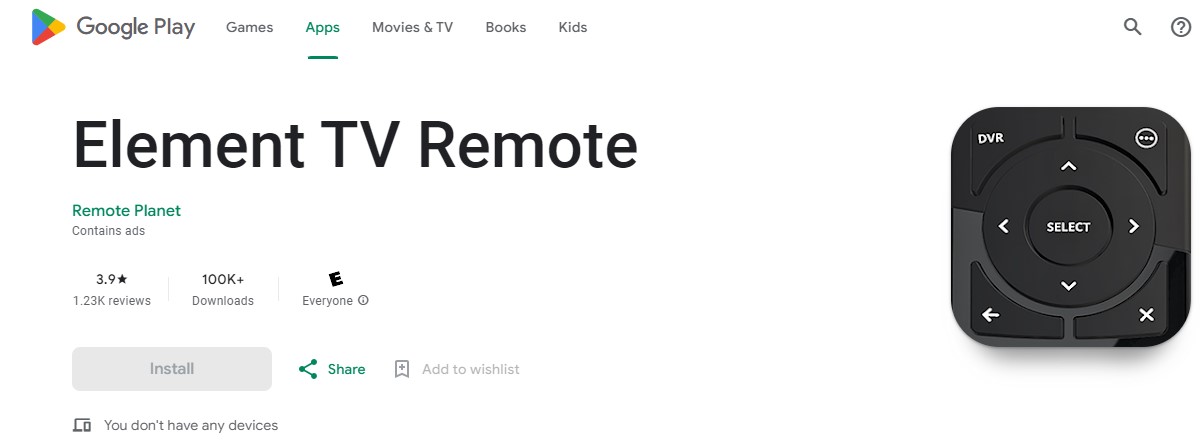
There is an official Remote App is available on the Google Play Store. So you can download it to access your Element TV. The Application comes with many advanced features. You can use this remote App as your original physical remote. It is easy to access your Smart TV. You can access the actions such as power, Mute, Adjust the Volumes, Change the channels, Also, give any inputs through this application. To get a better experience in accessing your Element TV use this Element TV Remote application.
Use Smartphone Application
Using an application is the best alternative method to access your Element TV without using a Remote Controller. Free to download and this application is available on both Google Play Store and Apple App Store. Also, this application works as a Universal Remote App. Ensure that you have to connect your Element TV and your Smartphone with the same Wi-Fi network Connection.
The Steps are:
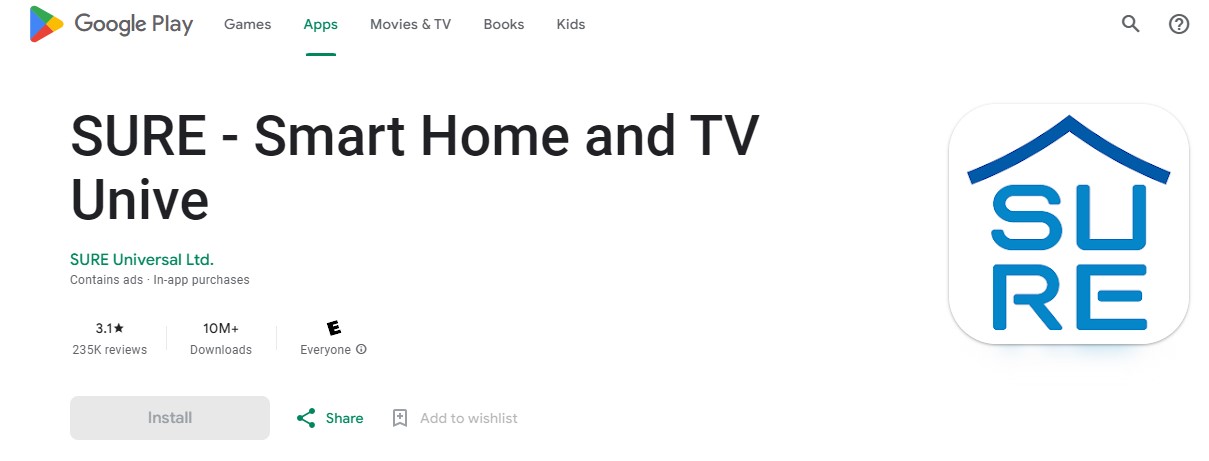
- First of all, Download the SURE Universal Smart TV remote Application on your Smart TV.
- Once the application is installed open it and pair the app with your Element TV.
- If it gets paired then you can use the Navigation button on your application to control your Element TV.
Check the Post: How to Turn on Toshiba TV without Remote
Access Element TV using the Universal Remote Control
There are some universal remotes available to access your Element TV. If you want to use Element TV Without Remote. Then you can use these Alternative remotes these also have many additional features to access it. To Use, follow the remote code to pair up the Universal Remote to Element TVs. Also, you can use this remote for Android TV or Roku TV. Here we share the remotes along with their codes to use for Element TV.
| Remote | Remote Code |
| Verizon |
1283, 3264, 1927, 1736, 0293, 0827
|
| Cox |
1886, 2183, 1687
|
| DirecTV |
10178, 11687, 13907, 12183
|
| Comcast Xfinity |
12260, 10178, 13907, 118886, 11864, 12964, 11687, 10178, 13559
|
| RCA 3 |
12183, 118886, 12183, 13559, 11687, 12964
|
Use Physical buttons on Element TV
All the available action buttons are present on the Element TV by default, You can use these buttons to access your Smart TV. There are many actions that can be done by these physical buttons.
The Steps are:
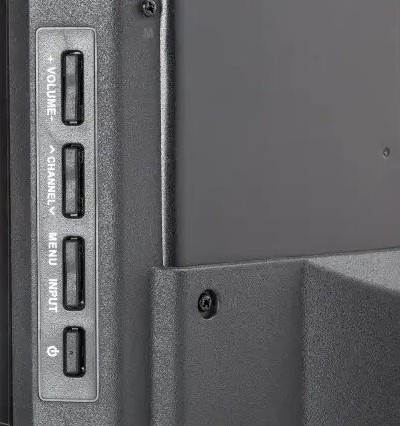
- Ensure to Switch it to your Element TV into the electric outlet.
- Click the power button for one time.
- After that, Switch on your Element TV.
- Now you can use the Volume Control button on your TV click the (+ and -) as well click the Channel up or down button to fix the element TV Settings.
- Click the power button again to switch off your Element TV without a remote.
For More Info, How to Turn On Roku TV without Remote
Turn on Voice Commands
There are many Voice controller external devices available in this market and it is a hands-free device to control your element TV. You have to connect your Voice controller device to Element TV. Google Assistant or Amazon Alexa are compatible with Element TV. Best and most comfortable alternate way to access your Element TV Without a Remote.
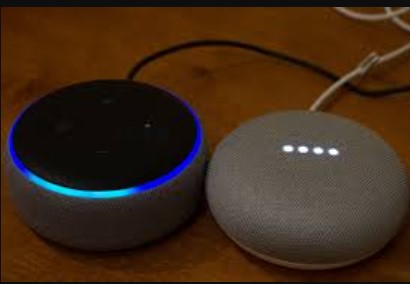
- Google Assistant: You can use the command and say, “Hey Google”, and switch on my Element smart TV”.
- Amazon Alexa: Also, use this Alexa to access your Element TV, Say the Voice input as “Alexa Help”, and “Launch My Element Smart TV”.
How to Use Element TV Menu Button?
All models of Element TV contain a Menu button, also use this to access your TV to switch on and adjust volumes, change the Channels use work on the setting process.
Turn to Wi-Fi on and fix it with a network, Go to the settings–> network–> Set up connections.
Click the button for one to turn on your TV and Hold it to switch it off Short Press the button. In addition, Control your TV by using an application best to replace for remote.
How to Access Element TV without Remote- Using Gaming Console
If you don’t have a remote then you have to connect the gaming Console to your Element TV. While using a Console is easy to turn on your Smart TV. Also, some of the external devices contain a remote also you can control your Element TV with its streaming device controller. Here in this section, we have shared the steps to work with the Nintendo Switch Gaming Console.
The Steps are:
- initially, you have to connect the Nintendo Switch to your Element smart TV.
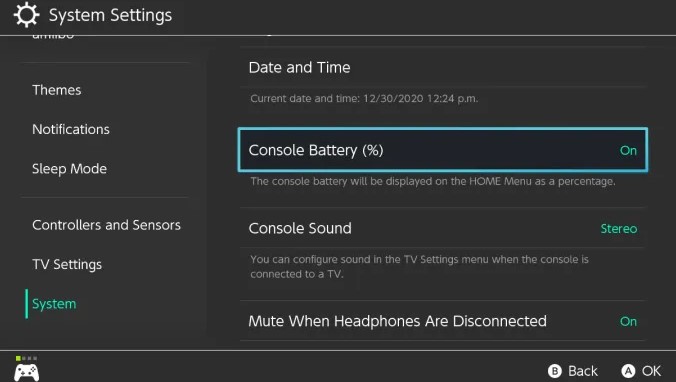
- Move to the system settings option on Nintendo Switch.
- Click the TV settings option.
- Press the match TV Power state to switch to ON.
- Now you can switch on your Element TV using a Nintendo Switch.
Additional Info, How to Turn on Vizio TV without Remote
How to Reset Element TV Without Remote?
Here we share the steps for simple Ways to solve without using a remote. In this case, your Element TV is affected due to some technical error this is the best solution to clear all the problems.
- Switch on your Element TV.
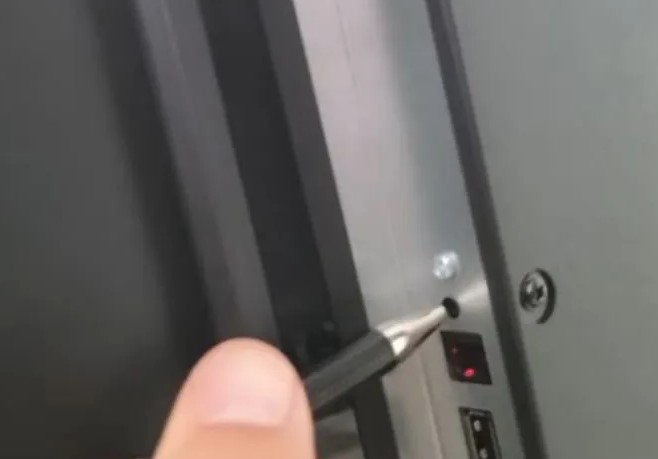
- There is a small reset button is present on the back side of the TV.
- You can use any small object like a toothpick or any soft object to click the reset button.
- Click and Hold the reset button for a few seconds and you must wait until the TV screen will completely switch off.
- Again press and Hold the button until the element TV logo shows on the display screen.
- Now the reset process is completed the element TV is completely Reset to its Default Settings.
The Closing Off…
From this article, you guys know How to Use Element TV Without a Remote. It is possible, that there are many solutions available to access your element TV even if you don’t have a Remote controller. We have mentioned the methods along with the steps to use the Element Smart TV. Also, use a gaming Console or any other Compatible external device with a remote to access your Smart TV easily. In addition, we have shared the steps for restarting your Element TV without using a remote. In case, There is Any Error occurring on your TV just try out the steps to clear it.