
Are you frustrated with the Britbox Not Working on Roku? Do not worry about it. You can fix the issue within a while using your Roku device remote. Just keep your Roku remote in good condition And keep little patience. We have more than five easy and possible methods to fix the Britbox Streaming Service that is not working on the Roku device.

Try all methods one by one from first until it fixes. Please do not harm your device. Now, dive right into the article to grab all methods one by one with step-by-step instructions.
Table of Contents
How to Fix Britbox Not Working on Roku?
As I have told you, we have many easy ways to Fix the Britbox Streaming service that is not working on the Roku device. The method is listed here;
- Check Wi-Fi Connection on Roku.
- Power Cycle Wi-Fi Router.
- Check Britbox Server.
- Take a Look at Britbox App Update.
- Restart the Roku device.
- Clear Cache Roku.
- Uninstall and Reinstall.
- System Update Roku.
- Contact Britbox Customer Service.
Try these nine methods to fix Britbox Not Working on Roku. The Step-by-Step Guide for these nine methods was mentioned in the following section. Follow one by one.
For your Reference: Britbox on Firestick
Check Wi-Fi Connection on Roku
First, you have to check that your Roku device is connected to your home Wi-Fi network. If it is disconnected, you will not be able to access the Britbox on Roku.
Follow the Steps to Fix, Britbox Not Working on Roku:
- Turn On the Roku device.
- Tap the Home Button on Roku remote.

- Navigate to the Settings option and click on it.

- Following that, select the Network option.

- Then, tap the Check Connection.
There you can see the Wi-Fi network status on your Roku device.
Note: If your Roku device is not connected to the Internet, you have to click on the Set Up Connection option. Then Choose the Wi-Fi Network. Enter the Wi-Fi Password. And Connect it.
Power Cycle Wi-Fi Router

So, the second method we are going to check on the home Wi-Fi router. If the light blinks on the Router, there must be a problem in the Router box. So;
- Switch Off the Router from Power Socket.
- Unplug all cables connected with Smart TV to Router.
- Let the devices disconnect for 5 to 10 minutes.
- Then, Connect all Cables Back to the Smart TV and Router.
- Switch On the Smart TV and Wi-Fi Router.
- Go to Settings on Roku.
- Visit the Network section.
- And Connect to the Wi-Fi Network.
Once, the Wi-Fi gets connected, Launch the Britbox streaming service from the Streaming Channels page on Roku. I hope, now you can watch the Britbox without any glitches.
Also, read: Britbox on Smart TV
Britbox Not Working on Roku | Britbox Server |
Is there any technical glitch that Britbox has facing, the server may be down and you are not able to stream the app smoothly. Before getting into the big actions, check the Britbox server. Here are the steps;
- Launch the Web Browser app on Roku.
- If you do not have a browser on Roku, use a Smartphone or any device.
- Search for any Server Status Websites in the given search space.
- Go to the official website from the search result.
- Navigate to the search section.
- Enter “Bribox” in the given space.
- And search for it.
Now, These Websites will show the Britbox streaming service server status in your area. If the server is down, close the Britbox app if you launched it on the Roku device. Relaunch the app after some time. The Britbox Not Working on Roku may be fixed.
Update Britbox App
If the Britbox new version is released and still you are using the old version, the interfacing and accessing the app may work slowly. Also, some content does not support HD Quality. So, Follow the Steps below to Fix it;
Britbox Not Working on Roku:
- Click the Home Button on Roke remote to return to the home screen.
- Select Streaming Channels from the menu.

- You can see more apps on the page.
- Search and move to the Britbox app logo.
- You can also use the search panel to find the app easily.
- Navigate to the Britbox app and click the ( * ) Button on Remote.
- Now, the App Info menu will appear on the Roku Screen.
- Select the Check for Updates and click on it.

- The action is under process.
- Now, you will get the Update result in the pop-up screen.
- If the Briotbox app needs an update, click the Update Now button.
Once, the Britbox streaming service update process gets completed, close all the screens and return to the home screen. Launch the Britbox on Roku and watch your favorite videos in high-definition picture quality without glitching.
For your Reference: Activate Britbox on Fire TV
5). Clear Cache on Roku
The Britbox Not Working on Roku may also cause unwanted Cache files on the Roku device. Not only is the Britbox Streaming service but also it is little tricky to use all apps and other functions on Roku. So, clear the cache on Roku with these easy steps;
- Tap the Home Button on your Roku remote.
- On the home screen page,
- Again, click the Home Button 5 Times.
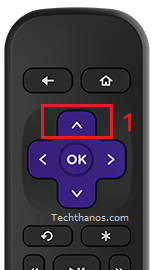
- Secondly, click on the Up Button a single time.
- Then, tap on the Rewind Key 2 Times.
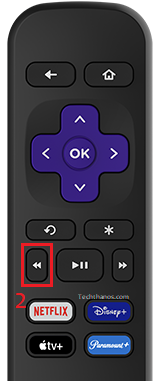
- Next, click on the Fast Forward Key 2 Times.

- Now, leave your device for 20 – 40 Seconds.
Do not press any keys or try to Switch Off the Roku device. All the cache files are clearing on the Roku device. It takes a while. Wait and Launch the Britbox app once this process ends.
Britbox Not Working on Roku | Restart Roku |
After clearing the unwanted cache files on the Roku device, it is better to restart the device. Here are the steps to Restart the device.
- Click the Home Button on the remote.
- Tap the Left Directional Key.
- Then, click on the Settings option.
- Now, tap the System tab.
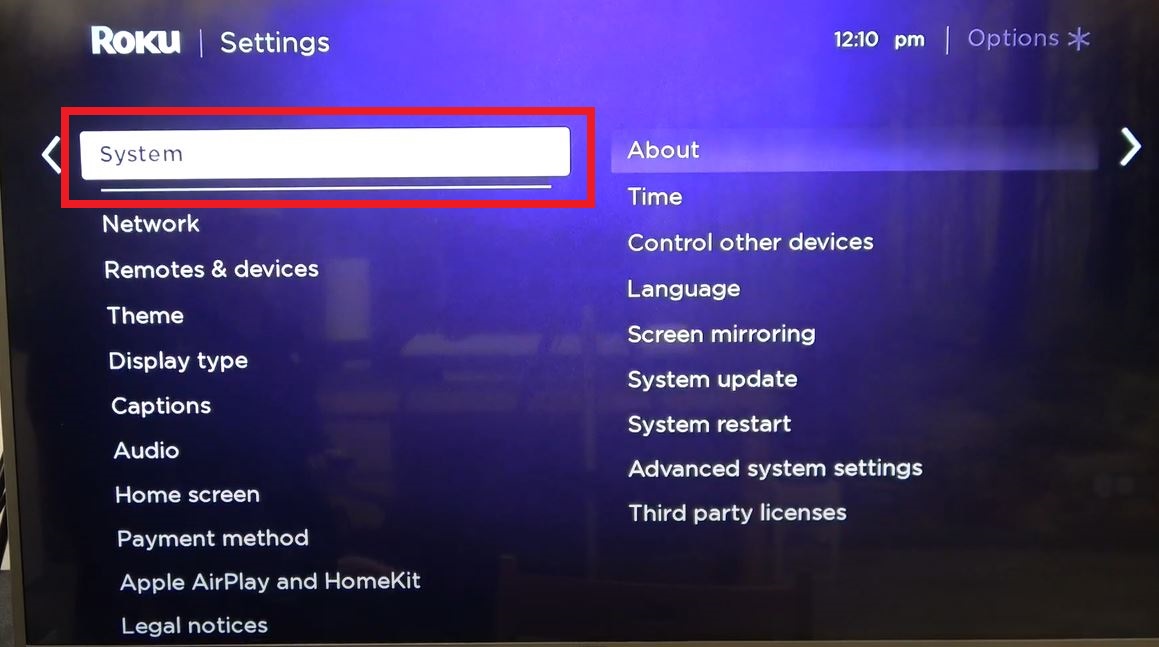
- Select the Power option and click on it.
- Next, click on the System Restart button.

The Roku device started restarting and back to normal activities within a minute. Now, check Britbox Not Working on Roku issue has been fixed or not. If not, try the next one below.
Update Roku
If the above is not the problem, Then, please take a look at your Roku device Operating System version. Using the older version of Roku Software may harm your device. It may affect the screen color too. Here are the steps to Update your Roku device;
- Click the Return Button on the remote.
- If your Roku remote does not have a return button,
- Click the Home Button.
- Now, tap on the Left Directional Button on the remote.
- The menu page appears on the screen.
- Select Settings from the menu.
- Then, click the System option.
- Following that, click on the System Update option.

- Now, select the Check Now button.

- You can see, that Roku started searching for the system update.
- Now, the pop-up screen will appear.
- Tap the Update Now button.

After the Roku device gets updated, it will automatically be restarted. Now, your device can Perform well. And the Britbox Not Working on Roku issue will also be fixed.
Also, read: Britbox on Xbox
Uninstall and Reinstall Britbox on Roku
The Britbox Not Working on Roku issue may fix after uninstalling the Britbox streaming service and reinstalling it on the device. Here are the steps;
Remove Britbox on Roku
- Go to the Roku Home Screen.
- Visit the Streaming Channels page.
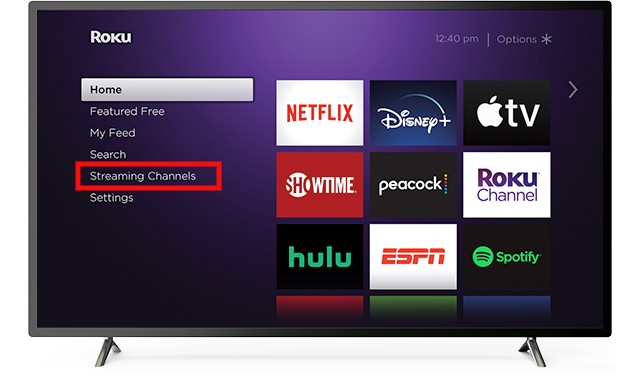
- Use the Directional keys and Navigate to the Britbox App.
- Click the ( * ) Button on Roku Remote.

- Now, click on the Remove Channel button from the app info menu.
Add Britbox on Roku
- Click the Return or Home Button.
- Launch the Streaming Channels page.

- Select the Search Channels option.
- Type “Britbox” in the Roku Channel Store search panel.
- Discover the official Britbox app from the search result.
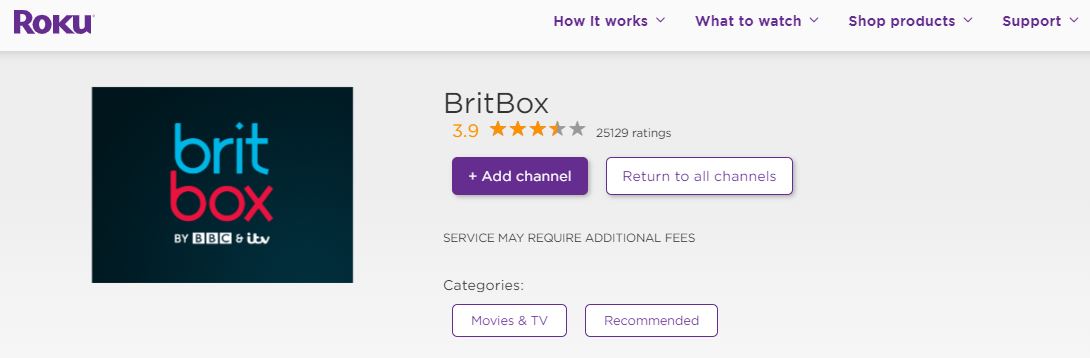
- Now, click on the Add Channel button.
Once the Britbox app gets installed on the Roku device, Launch the app. And log in with your Britbox User Credentials. Start Streaming.
Britbox Not Working on Roku | Customer Service |
If the above-mentioned 8 Solutions do not Solve the Britbox Not Working on Roku, then contact the Britbox Streaming service customer service. Search for the Contact number on the Internet. You can get the Customer service number on the Britbox official website. Make a call and raise the complaint that you are facing now.
For your Reference: Britbox on PS4
Conclusion
How to Fix Britbox Not Working on Roku? Restart, Update, Uninstall, and Reinstall, Clear Cache Roku, and there are more methods to fix the Britbox app not Working on Roku devices. You can get step-by-step clear Guidance for all methods in the above section. And you can also Factory Reset the Roku device. It will clear all data and it will turn on as a new device. Sign In with your Roku account from the beginning and set up the Roku stick. Then, you can install any apps you need.