
Are you the one who can’t turn on the Wifi on your LG smart TV? Then follow this guide to learn more about this article. From this, we will guide you to fix the issues by turning on the wifi from your LG smart TV.

Table of Contents
How to Turn WiFi on LG Smart TV?
To browse on the Web Browser or to Install apps on your LG Smart TV, Wi-Fi Connection is the primary thing to the process. So, if you don’t know how to access the Wi-Fi settings on your LG Smart TV, this topic will let you know.
Follow the Steps to Turn Wi-Fi on LG Smart TV:
- Startup by Turning On your LG Smart TV.
- And then the Home Button on LG TV Remote.
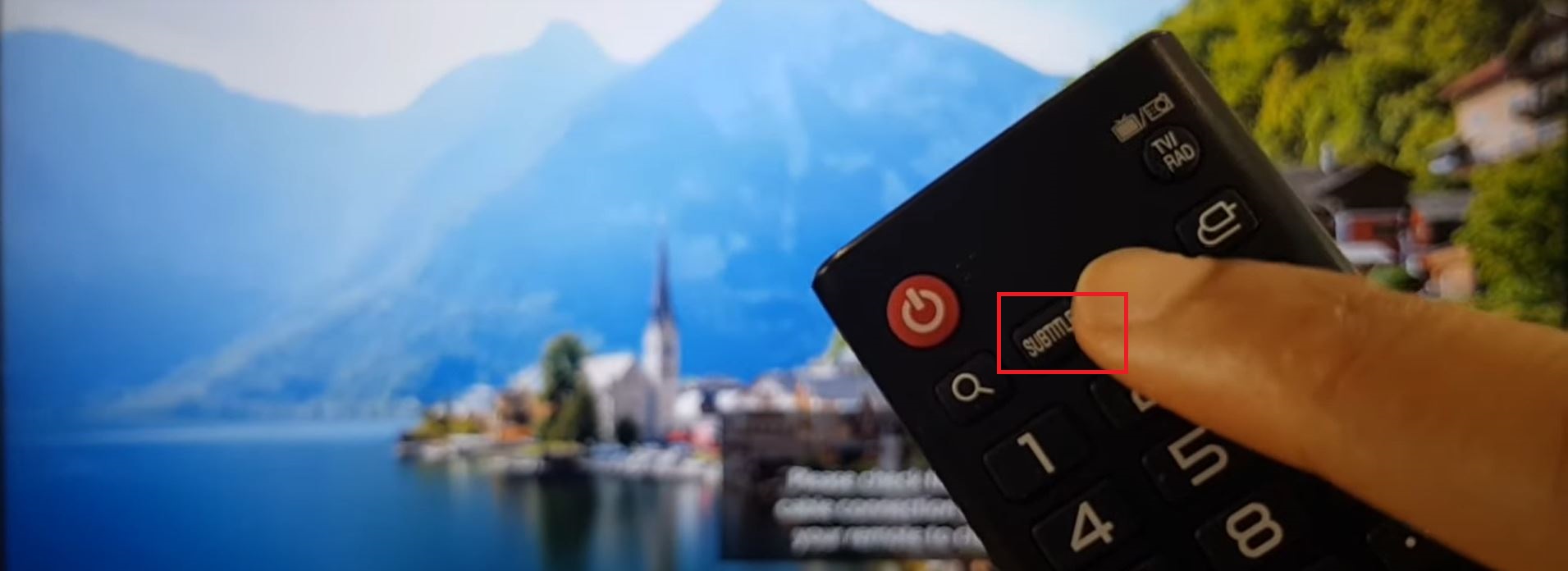
- Then, Click the Subtitle Button from your LG Smart TV remote.
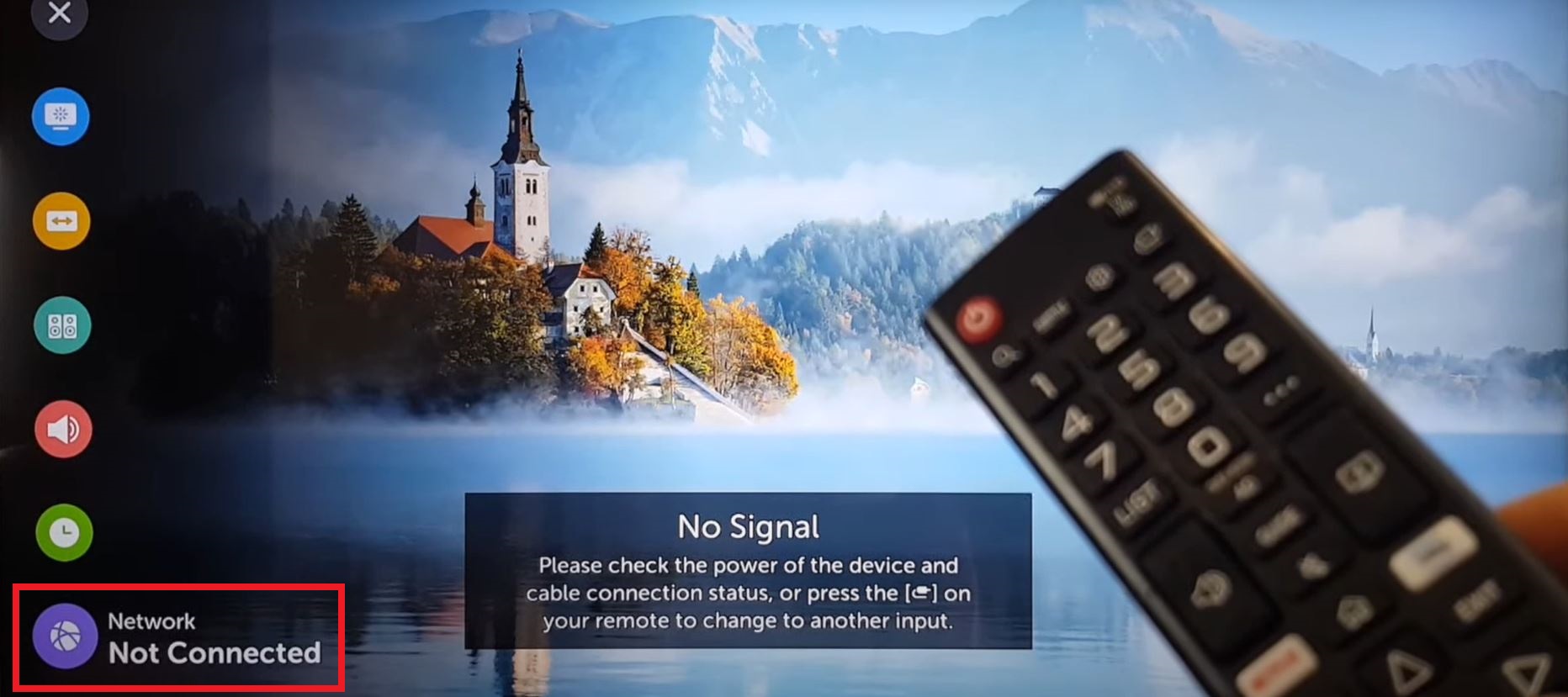
- Tap the down arrow button and select the Network option from the menu.
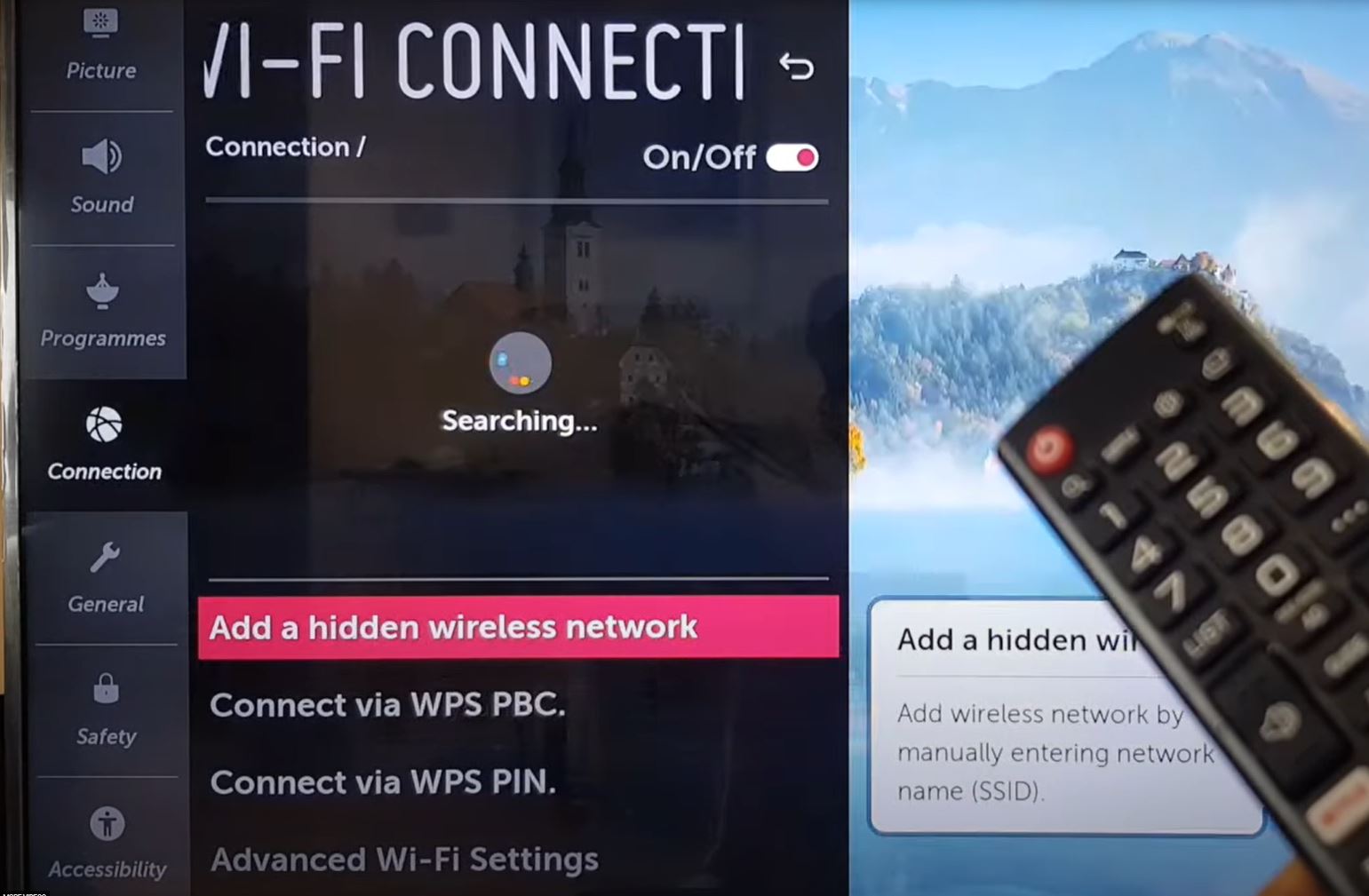
- Select the WiFi Connection option on the screen.

- Hit the Toggle and Turn WiFi on LG Smart TV.

- Your LG Smart TV Started searching for the Wi-Fi connection.
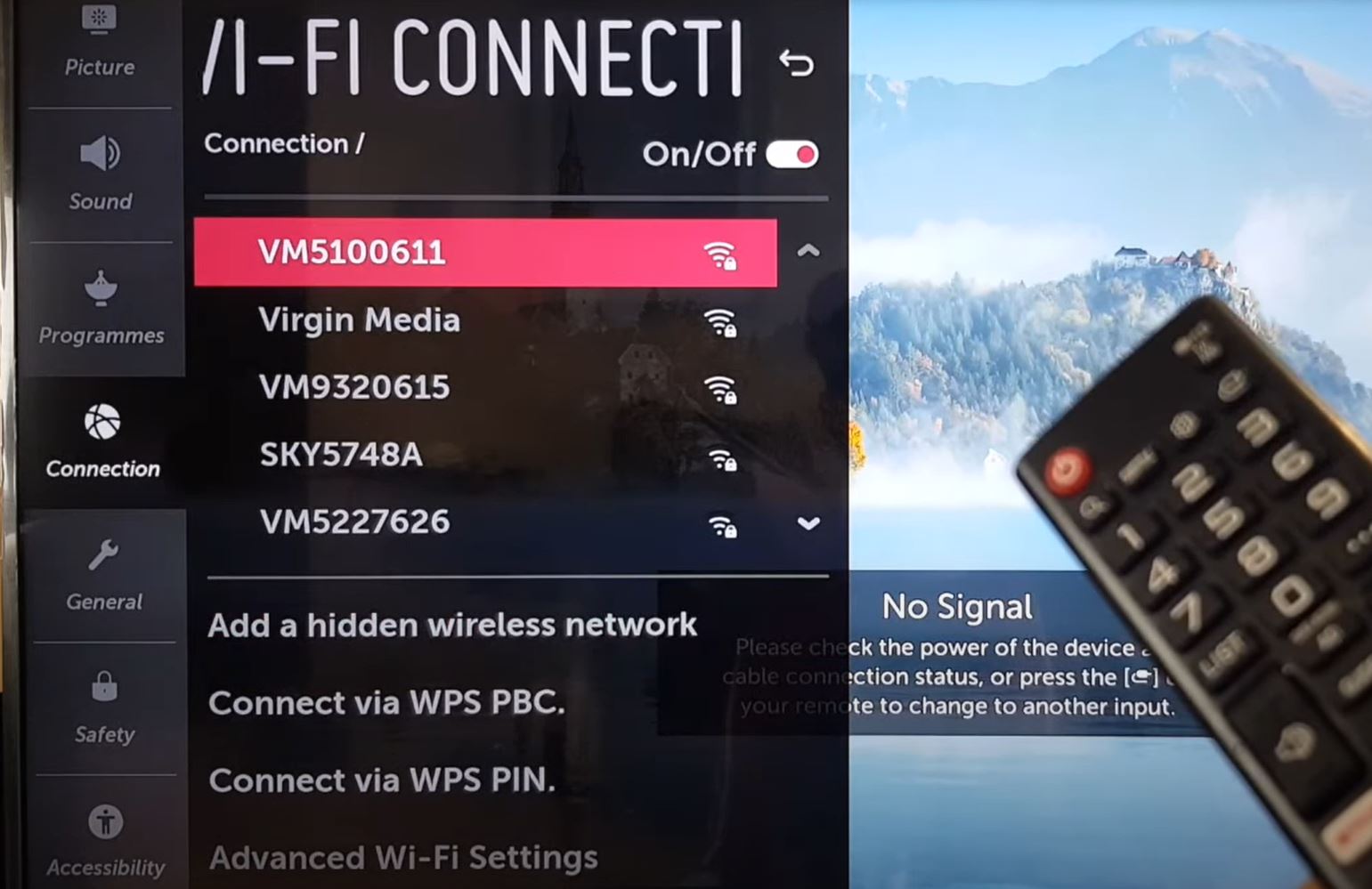
- Now, select and click on your Home WiFi router name.
- Enter your WiFi Password in the required space on the page.

- Tap the Enter tab after entering the correct password.
- Check that you have turned the WiFi On.
Back to the WiFi page and check you have connected to your WiFi provider. Follow all the steps one by one given in the above section. If still, your LG Smart TV does not connect to WiFi, check the next topic to get the solution. After you have connected the Wi-Fi internet to your LG Smart TV, refer to this article to Install an amazing On-demand streaming service HBO Go on LG Smart TV.
How to Turn WiFi on LG Smart TV Without Remote?
If your LG Smart TV remote has broken or you missed it and immediately want to connect your TV to Wi-Fi, come back with the procedure mentioned in this topic.
If you have been using the 2013 or later LG Smart TV Model, you can connect the Mouse by the USB Cable to your LG TV HDMI portal.
Steps to Connect LG TV to Wi-Fi Without Remote:
- Plugin the Mouse into your LG Smart TV HDMI gateway.
- Under the LG Smart TV Logi, you have to click the button to visit the Quick Settings page.
- Use the mouse and navigate to the Input option on the screen.
- Now, tap on Live TV from the menu.
- Locate the Side Menu and select the Recommended option at the end of the page.
- When it is Brought about to the Connect option. Tap the Yes tab.
- Now, you have to Select your Wi-Fi Network on the page.
- And, Provide the Password correctly on the page.
- And then, select Enter/ Connect option to Turn WiFi on LG Smart TV Without the Remote.
If your LG Smart TV does not support the mouse, you have to use the Manual buttons on the LG Smart TV. Check the buttons on the four sides and back sides of your TV Panel. You can also use Facebook on LG Smart TV. Click on the link and access your Facebook page on your LG TV screen.
How to Turn WiFi on LG Smart TV using | Ethernet Cable |:
If you have a standard or a new Standard Ethernet Cable, you can connect it without a Remote and set it in the Settings section.
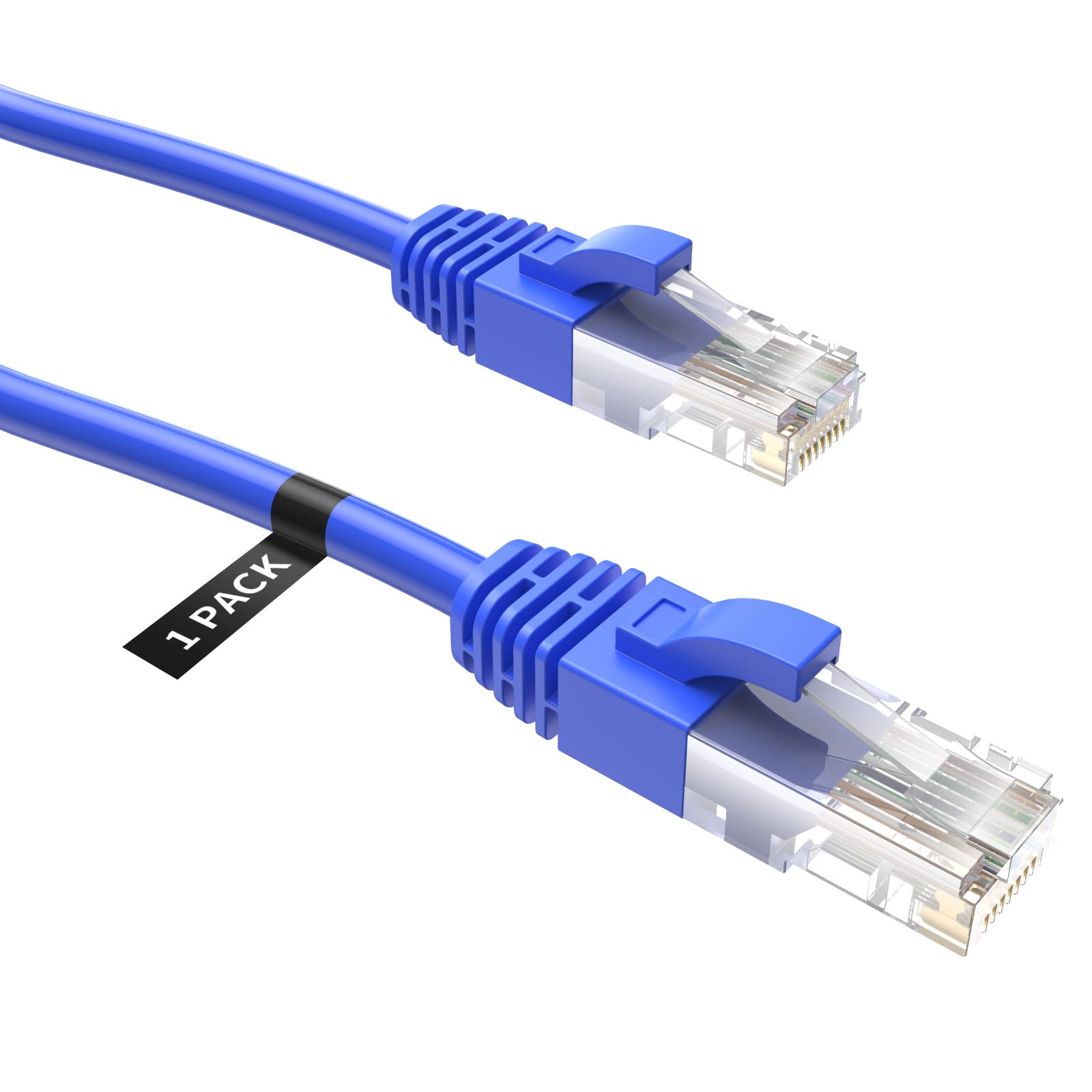
Guidelines to Connect LG TV using Ethernet Cable:
- Take the Ethernet Cables and Connect one end to the Wi-Fi Router.
- Now, insert the other end to your Smart TV HDMI port.
- Then, Power On your LG Smart TV.
- And Switch On the Home Wi-Fi Router.
Wait until you have seen the home screen of your LG Smart TV. If you see the Wi-Fi symbol on the home screen, you can browse anything online. If the Wi-Fi symbol is not shown, locate the Network page on your LG Smart TV. And select the Wi-Fi Connection (Ethernet) option and check the Wi-Fi connection. Then, connect it to your router. Every Sports lover can watch the MLB on LG Smart TV. Proceed to this link and learn the Installation and other details required for you.
Wrapping Up:
LG Smart TV is an excellent TV with HD resolution, but it often has some problems connecting to the Wifi network on your TV. LG Smart TV is turned off wifi often, and then you need to fix the issues immediately by following the guide. Suppose you have any troubleshooting while watching your desired content on the internet. You can use the eight methods mentioned above in the article to fix the problems. Still, your wifi turned off? Let me know in the comment section.