
Wolf Launcher is the best application if you want to customise your Firestick interface. It comes with additional benefits for the Firestick users.
![How to Get & Access Wolf Launcher [With Simple Steps]](https://techthanos.com/wp-content/uploads/2022/05/How-to-Get-Access-Wolf-Launcher-With-Simple-Steps.jpg)
This article will learn about Wolf Launcher, the steps to get it, access the Launcher, and the benefits of using the Launcher as your default interface for Firestick. To know more about the Launcher reading this article to the end will help.
Table of Contents
What is Wolf Launcher?
With the Wolf Launcher application created by TechdoctorUK, you can personalise your FireStick interface and customise your FireStick to the way you want. Additionally, the Launcher blocks default sponsored apps and banners, and you can also protect folders with passwords and also hide apps,

This launcher is not available at the Amazon App Store, so the only way to get it into your Firestick is by sideloading.
How Can I Get The Wolf Launcher on My Firestick?
Follow the simple steps to sideload the Wolf Launcher app on your Firestick.
Downloader App:
You need the Downloader App to sideload the Wolf Launcher app.
- From the Firestick Home screen, go to Find and select Search
- With the help of your remote and on-screen keyboard, type Downloader
- Select the Downloader app for the list of results.

- Press on the “Download” option to download the app.
You have now successfully downloaded the Downloader App on your Firestick.
Allow Firestick to Sideload:
- From your Firestick Home screen, go to settings.
- Select My Fire TV and tap on Developers Option

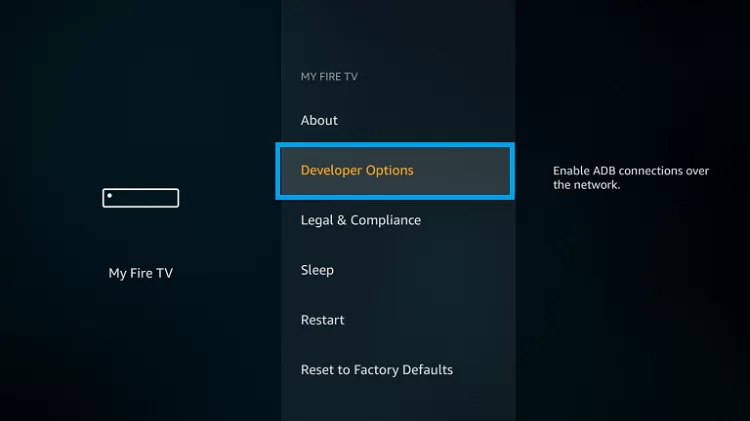
- From the screen, select Install Unknown apps
- Now select the Downloader app present on the next page.
These steps will allow your Downloader App to download apps from other sources.
Get Wolf Launcher on Firestick:
- Select the Downloader app to launch it.
- Tab enters the app’s URL from its official website on the Search.

- Select the Go option to download the app
- Once the download gets completed, press install.
- After installation, click on the option Done.
- Make sure to delete the apk file from your Firestick storage.
This Launcher app is now successfully installed on your Firestick.
How to Access Wolf Launcher?
To access the Wolf Launcher on your Firestick, follow the simple methods and steps.
Set Wolf Launcher as Default Launcher for Firestick:
You can get the Wolf Launcher as your default launcher; follow the steps carefully.
- Select the downloaded Wolf Launcher and wait for it to load.
- From the Firestick Home screen, navigate to Settings.
- Select the Launcher Options
- Now select the “Disable Stock Launcher.”
You have now set this Launcher as your default Launcher with these steps.
Change Wallpaper:
- With the Firestick remote in your hand, press the Menu Button
- Click on Launcher settings and select Wallpaper.
- You can set wallpaper by clicking the option “Select Wallpaper.”
- Go to the folder with the image you want as wallpaper and select it.
- To enable the wallpaper, select Application Wallpaper and enable it.
You have now successfully changed the background image of your Firestick.
Customise App Tiles:
- With the Firestick remote in your hand, press the Menu Button
- Click on Configure option
- You can now change the icons, size, name, and colour of Tiles.
- You can also make a tile show or disappear and change the corners of tiles into round or sharp edges and shadows of the tiles.
Add New App Section:
- With the Firestick remote in your hand, press the Menu Button
- Click on the Launcher Settings option.
- Now select “Sections” and click on Manage Sections.
- You can now select Add Section and give a name for the section.
A new section has gotten created on your Firestick home screen.
Add Apps to Section:
To add apps to the newly created section, follow the steps,
- Navigate to the app you want to move to the new section.
- Click the menu button on your remote.
- From the options, select “Move to Section.”
- After that, select the section you want to move the apps.
- The app is now moved to the selected section.
Hide Apps:
To hide apps on your firestick,
- With the Firestick remote in your hand, press the Menu Button
- Click on the Launcher Settings option
- You can now select the Hidden Apps option and select the apps you want to hide.
You have now successfully hidden the app you want to hide.
Customise Status Bar:
- With the Firestick remote in your hand, press the Menu Button
- Click on the Launcher Settings option
- Tap on the Status Bar option and toggle the on and off options of Status Bar, Date, Clock, USB Icon, Bluetooth Icon and Network Icon.
You can now customise the status bar to your liking.
Create New Folders:
To create a new folder and give a password for protection.
- With the Firestick remote in your hand, press the Menu Button
- Click on the Create Folder option
- Give a name for the folder.
- Move the app into the folder by selecting the app and pressing the menu button.
- Select Move to Folder and select the folder to move the app.
You can also give a password if needed.
How to UnInstall Wolf Launcher?
To uninstall the Wolf Launcher, follow the steps carefully.
- Select the downloaded Wolf Launcher and wait for it to load.
- From the Firestick Home screen, navigate to Settings.
- Select the Launcher Options
- Now select the “Enable Stock Launcher.”
These steps will remove this Launcher as the default launcher and set the default launcher of Firestick.
Benefits of Using Wolf Launcher:
Some of the benefits of using Wolf Launcher as your default launcher on Firestick are,
- Can customise your Firestick interface.
- Removes sponsored apps
- Wolf Launcher can remove banners.
- You can save data.
- Can set passwords to folders.
- Change wallpaper and add a new section.
F.A.Q:
Is Wolf Launcher Free?
Yes, the Wolf Launcher application is free to download and use. You must spend some data downloading it from its official website, i.e., TechdoctorUK.
Can I get Wolf Launcher From Amazon App Store?
Currently, this Launcher is not available for download from Amazon App Store. But you can get it for free on your Firestick by sideloading the app using the URL of the Wolf Launcher APK.
Also read,
10 Ways to Fix FireStick Which Keeps Rebooting
How to Fix Hulu Not Working on FireStick: Definitive Guide
With this, the article has come to an end, and I hope you have found the information you want from this article. You can now download the Wolf Launcher application on your Firestick, customise it the way you like, and save data by removing banners and suggested apps. Thank you for spending your precious time on this article. If you need any help or have any doubts, you can ask them in the comment section at the bottom of the page.