
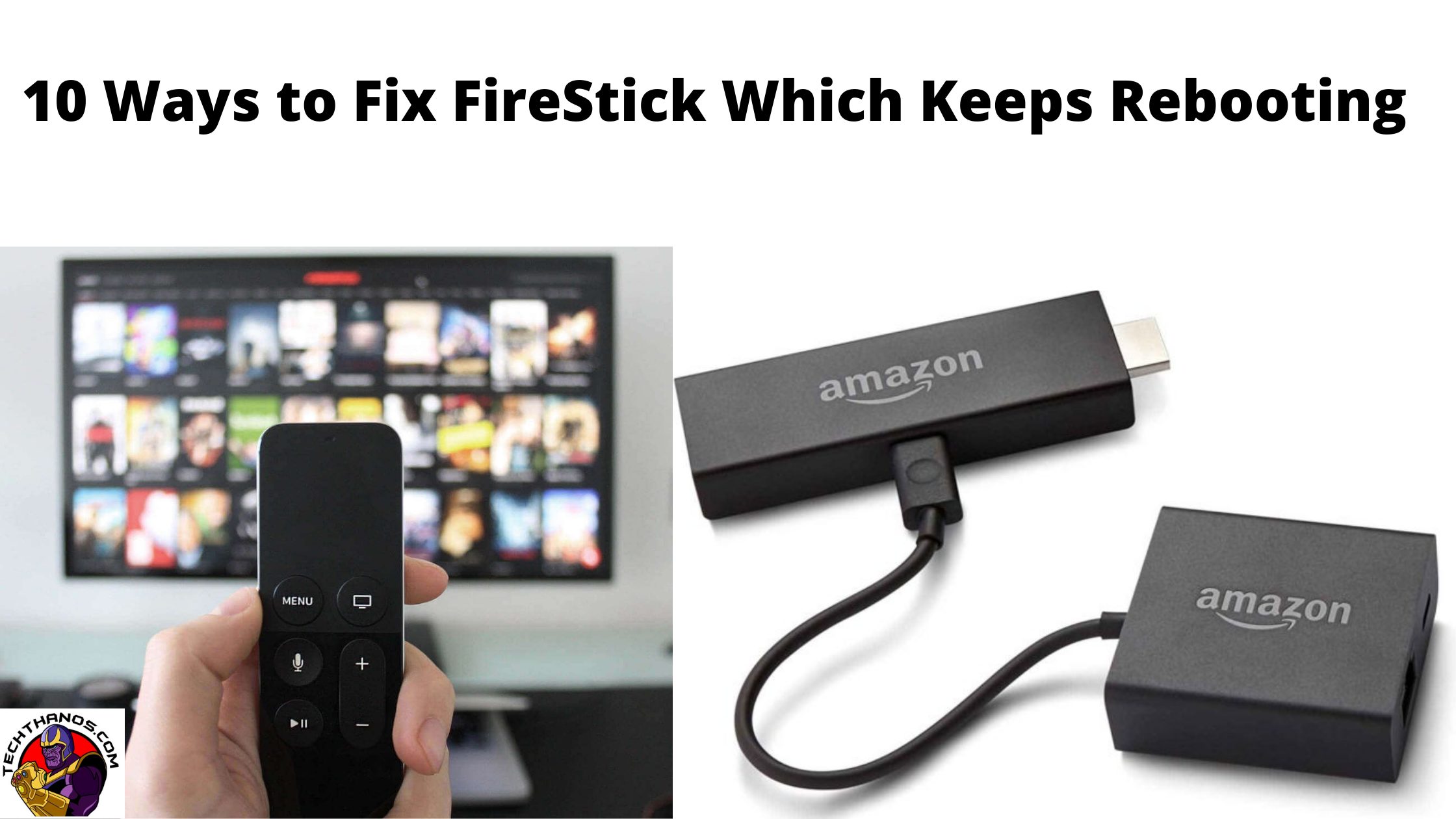
People have issues using a FireStick device. Due to an erratic power supply, the firestick keeps the restart issue. People get irritated by this problem. In this article, we will see the ways available to fix the restarting issue. Below are the best ten ways to fix FireStick, which keeps rebooting.

Similar post, How to Fix mds_stores Consuming High CPU Usage?
Table of Contents
1: Use Official Firestick Accessories
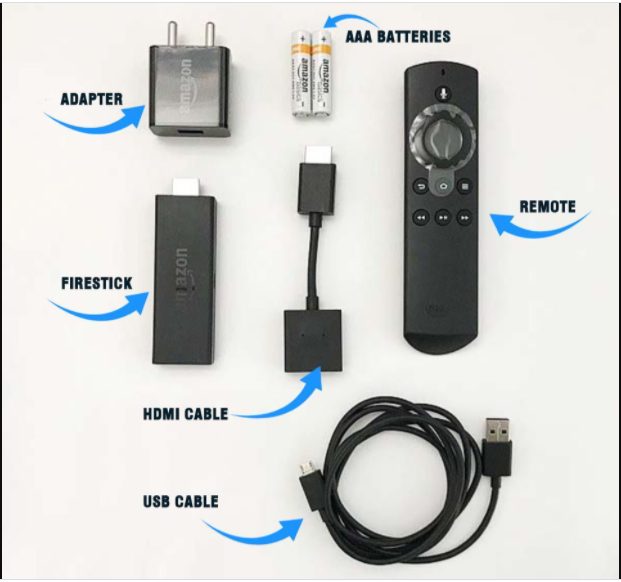
Sometimes we use various USB cables or adapters instead of using original accessories. In that case, your firestick keeps rebooting. So avoid off-brand USB cables or power blocks. Use the original USB cable for your firestick, which comes along with your device, to fix FireStick, which keeps rebooting.
2: Replace the USB cable
Most people prefer a Micro USB cable for their convenience. But that cannot be long-lasting. Anytime it stuck with the problem. The micro USB cable will not provide a good enough power supply to your firestick/fire TV. So use a new brand Micro USB cable to replace the old cable.
3: Change the Adapter
Amazon firestick comes with a 1 Amp adapter. So if you are stuck with restarting issues, you can use a 2Amp adapter that suits the giant Amazon Firestick TV.
4: Plug Your Power Adapter into a Power Outlet

Mainly firestick users used to Plug their power cable into the USB port of their TV. Plug your USB power cord into your power outlet if the firestick keeps rebooting because all USB ports do not provide enough power supply to run your device.
5: Disconnect USB Extension Cable
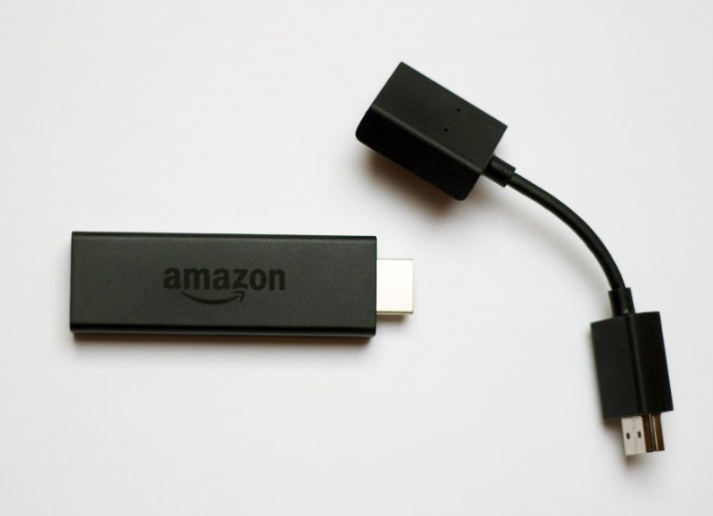
USB extension cable provides various amounts of power supply. So using an extension cord will not give your firestick device the necessary amount of power supply. Remove your extension cord to get enough power.
You may like, How to Watch 2000 Mules on TV For Free Online
6: Remove other HDMI connected devices
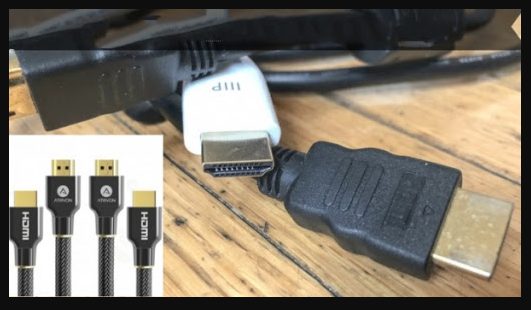
Nowadays, TVs have two HDMI ports. If you hook several devices to your TV, other HDMI devices are stuck with rebooting issues. At that time, you should unplug all the HDMI devices one by one except the firestick.
7: Reset the firestick
Having so many installed applications on your firestick device will not help you run your application correctly. If it is so, then the device is stuck with restarting issues. It is known as “ Factory reset”.
Steps to follow:
1: Navigate “settings” on your home screen.
2: Choose the “My fire TV” option.
3: Now select “Reset to factory defaults”.

4: Wait for a while to reset your device.
8: Use the fire TV remote to restart your firestick
A soft reset is an alternative way to unplug the power cord from the device and fix FireStick, which keeps rebooting.

Steps to follow:
1: Press and hold the “Play button” and “Select button” simultaneously.
2: Keep holding the button until you receive a message on your screen.
Another way is called “Hard reset”, which is similar to a soft reset.
Steps to follow:
1: Press and hold (select button, right button, back button, and reverse button)
2: After resetting, you can use your device without any issues.
9: Disable HDMI CEC

HDMI CEC helps you to control your firestick device.
1: Go to “ settings” on your firestick home screen.
2: Choose the “Display& sounds” option.
3: Select “HDMI CEC device control” and check whether it is switched off or not. If not, switch off it.
10: Update your Firestick
Updating your application or device will help you get the latest version with all updates. Update your device so that you can fix FireStick, which keeps rebooting.
Steps to follow:
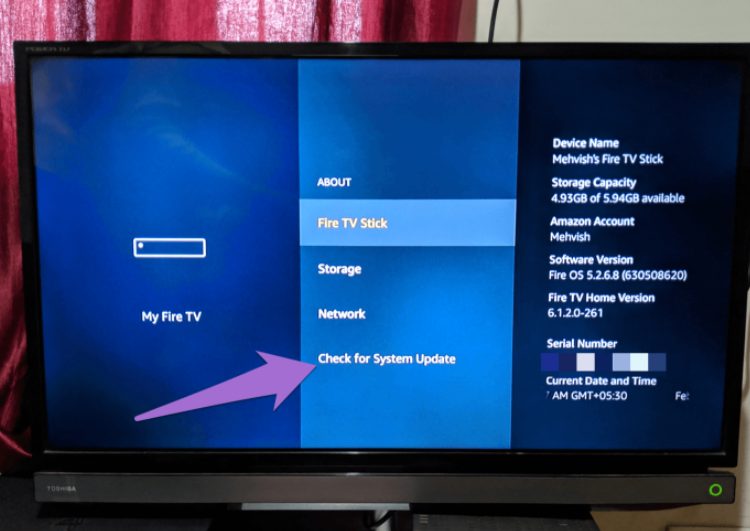
1: Go to the “home screen” and click the “settings” option.
2: Choose the “My fire TV” option.
3: Next, select the “about” option.
4: Click “choose for system update”.
Conclusion
Coming across FireStick issues is expected while using it, but we hope that through the above guide, you can fix FireStick, which keeps rebooting.