

Telegram is a cross-platform messaging service that can help you chat with other users and share media files. I have been using Telegram on my smartphone but got the idea to access it on my Android TV. I tried some possible methods to get Telegram on Android TV and got successful. Here you can learn the procedures and steps I used to get Telegram on my big screen.
Table of Contents
Is Telegram on Andorid TV?
Telegram is available for Android devices through Google Play Store. But the Telegram app is not supported by Andorid TV. That does not mean it is impossible to use Telegram on your TV. You can sideload the APK file of Telegram on your TV.
How to Sideload / Install Telegram on Android TV?

Since Sideloading is the only option to get Telegram on your Android TV, you need to enable the developer options. Using the Downloader and an URL that directs directly to Telegram APK makes it easier to install Telegram on Android TV. Follow the simple procedures here to get Telegram App on your TV.
NOTE: The following procedures can also be used to get Telegram on Android TV Box.
How to Enable Developer Options on Android TV?
By enabling Developer Options on your Android TV, you can install third-party apps that are not available for your Andorid TVs through Google Play Store. You can enable the “USB Debugging” and “Install from Unknow Sources” options to get the third-party apps. The Steps to enable developer options on Android TV are as follows,
- Go to your Android TV Settings menu.
- Under the Devices section tap on the About option.
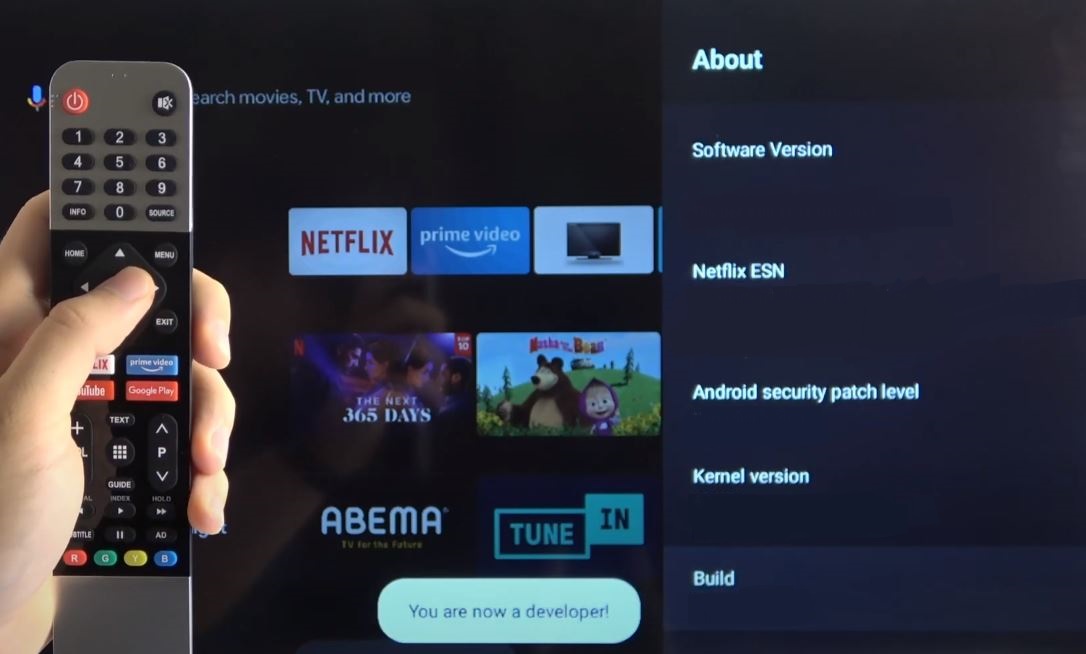
- Find and highlight the Buil option.
- Now press OK on your TV remote until the “You are now a developer!” notification appears.
- Get back to the Settings menu and go to Devic Preferences.
- Select Developer Options and select USB Debugging to enable it.
Is your Android TV / Google TV not working? you can make it work again using the methods and steps provided at How to Fix Google TV, not Working Issue?
How to Install Downloader app on FireStick?
The Downloader app available on your Google Play Store is compatible with Android TV models. You can use the Downloader app to download and install the Telegram APK file on your TV. To get the Downloader app on FireStick, follow the steps given here.
- On your Android TV home screen select the Magnifying Glass icon.
- Now use the on-screen keyboard to enter the name of the app (Downloader).
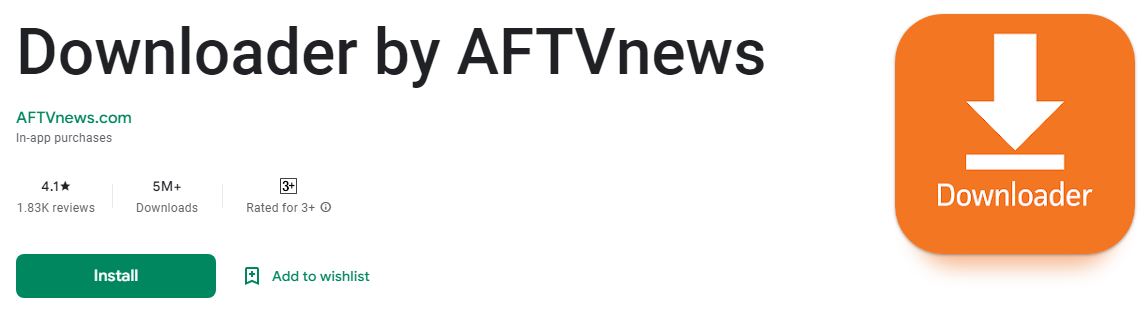
- Start the search and select the Downloader App tile from the results.
- From its information page tap on Install and wait for a few seconds.
The Downloader app is now installed on your Android TV. You can find the app in the Apps & Games section on your Android TV.
Do you want to Sideload apps on FireStick using the Downlaoder app? Check out How to Use Downloader for Firestick?
How to Sideload Telegram on Android TV?
You can get the link for the Telegram APK file directly from its official site (https://telegram.org/dl/android/apk). Use this URL in the Downloader app to get the Telegram app on your Android TV. If you have not used the downloader app before follow the steps given here,
- Launch the Downloader app on your Android TV.
- Complete the prompts and instructions on the screen.
- On the Downlaoder app Home page, we can find a URL tab.
- Enter the Telegram APK URL https://telegram.org/dl/android/apk here.

- Select Go and wait for the APK file to get downloaded.
- From the prompts select Install and wait for a few seconds.
- The Telegram app is installed on your Android TV.
- Select Done after the installation process is complete.
- You will be prompted to delete the APK file.
- Select Delete twice to delete the Telegram APK file.
You have now successfully installed the Telegram app on your Android TV.
How to Use Telegram on Android TV?
Now that you have got the Telegram App on your Android TV, it is time to access it. If you have not yet registered to Telegram, you will need a registered mobile number. Follow the simple steps given to her to sign in and use the Telegram app on your TV.
- Launch the Telegram app on your Android TV.
- Select the Login option.
- Choose your Country and enter your registered phone number.
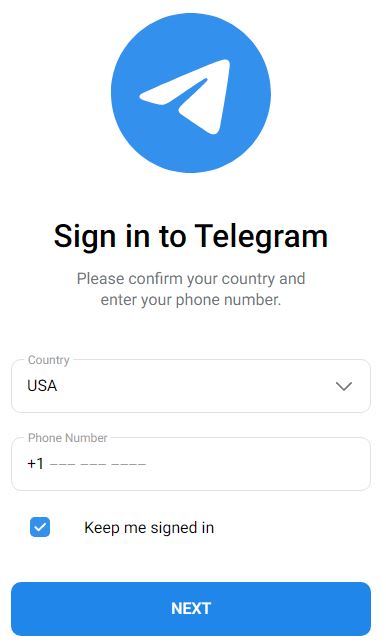
- Press Next to get OTP to your phone number.
- Enter the OTP and press OK.
- Complete the prompts on the screen.
- Follow the instruction and set up your account.
You now chat with your friends using Telegram, and access media files shared on it on your Android TV easily.
NOTE: It is better to create an account from web.telegram.org or Telegram app on your Smartphone.
Suggestions
If you find it difficult to access Telegram on your Android TV, you can just screencast it from your Smartphone to your TV by connecting to the same WiFi network. Use the Google Home app to connect your smartphone and Android TV for smooth screencasting. Make sure to follow Telegram guidelines and dont access pirated content, if found you will be banned permanently from Telegram.
Want to watch the latest sports events from Fox Sports on your Android TV? Get the app now on your Android TV with the help of How to Get Fox Sports on Android TV?
How to Cast Telegram to Andorid TV? [Google Home]

- Download Google Home and Telegram apps on your Smartphone.
- Log In or Sign Up for Telegram.
- Connect your Smartphone and Android TV to the same WiFi network.
- Open the Google Home app on your Smartphone.
- Sign In with your Google Accont credentials.
- Select the Add or Plus icon.
- Choose your Android TV from available devices
- Follow the instruction to connect your TV to your Smartphone through the Google Home app.
- From the Google Home app home page select your Android TV.
- Select Cast and tap on Cast Screen.
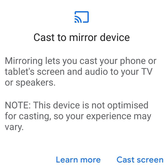
- Use Telegram on your phone and watch it on your Android TV.