
Does UP Dates UP Set you? Unable to Play games peacefully? Numerous Updates banging on your Nintendo Screen – Whenever you switch on the internet. I know how tired you might get with this and Pissed too. Unwanted Updates also interrupt your Gaming. So Remove all these by Just knowing How to Turn off Auto Update Switch. Easy, Quick, and Whoosh methods to Whoosh off your Worries.
Table of Contents
Why Turn Off Auto Update on Switch?
Where Everything is Automatic, Why do you want to Turn it OFF? Well, Sometimes, Some Auto-mated features do cause trouble. So, Turning it off would be a better thing.
If you own a Nintendo Switch Your Game, Software gets automatically updated. Then Check Why you should Turn Off Auto Update on Switch.
To Avoid Unwanted Updates: Too many updates that you dont want and Still updated, Because you have turned ON the Auto update on your Switch. This can fill up a lot of space on your Console and also affect the Performance, Compatibility while playing games.
Customize the Switch Firmware: Most users wish to customize their Console firmware. But end up in distress due to the Official Updates on the Nintendo Switch.
Free up Storage: Downloading everything – Important and unimportant can crowd up your Switch Storage. Turn off the auto-update and it will keep the Storage Space Controlled.
Saves Bandwidth /Internet: Updates surely asks for Internet. When the Console updates manually, it uses your internet which you might not want to. Turning off can also save your Internet and You can download and Play the other games you want.
Jailbreak your Nintendo Switch: If you are thinking of Jailbreak your Switch – Though it is not Recommended as Risky. You will need to turn off the updates. To be able to install Unauthorized third-party games.
Learn more: How to Jailbreak My Nintendo Switch Lite?
How to Turn OFF Auto Update Switch?
There is a Direct – Straight Line Method, which you can use to Turn Off the Auto Update on Switch. Follow the Instructions right here and make it done in just blinks.
- First, Switch on Your Nintendo Switch.
- Go to the Home Screen -You can make use of the Navigation Buttons to move to the options.
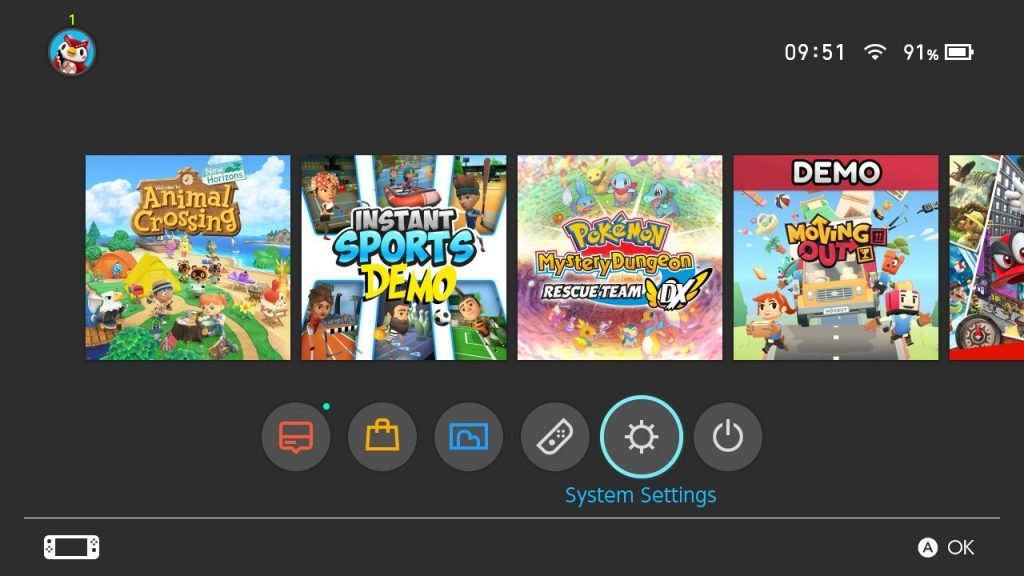
- Click on the System Settings Option.

- Under that, Select the System and Scroll down on the Screen.
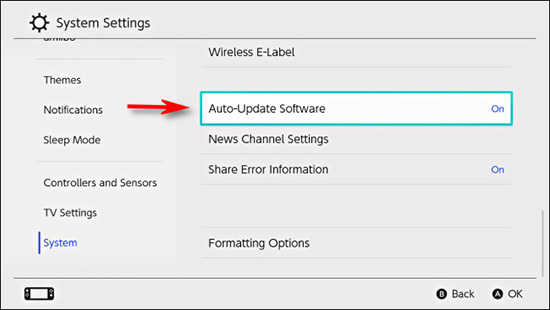
- Choose the Automatic Software Updates and Press the A Button ONCE to Turn OFF the Toggle.
People Also Search for How to Homebrew Switch?
Airplane Mode on Switch – Turn OFF Auto Updates
- Now, Select any game that you want to play.
- If there are any Updates available on your Switch, You will get a Pop-up Notification as in the image – Highlighting Download.
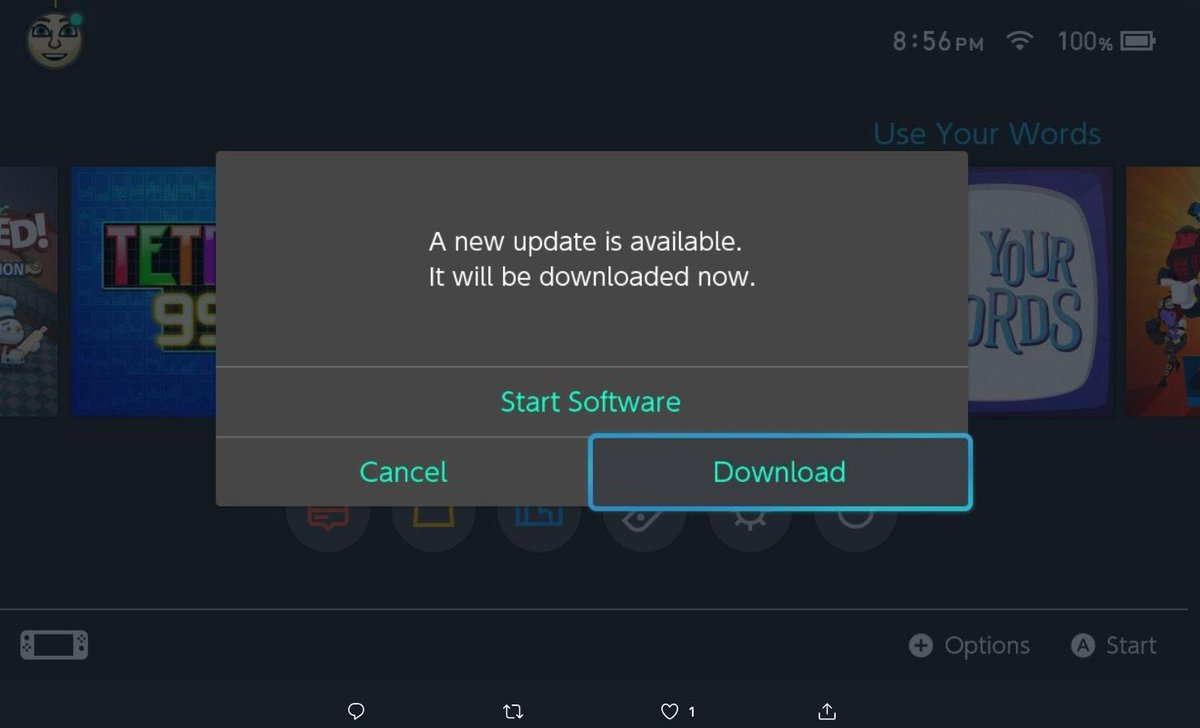
- Press the D-Pad, Move to Start Software, and Click on it to Close the Software.
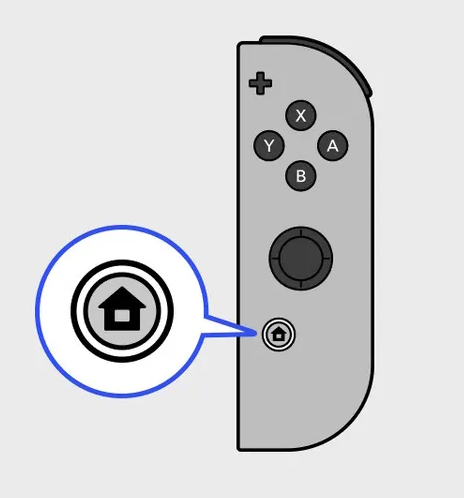
- Now, Hold the Home Button on your Console to access the Quick Settings.

- Select the Airplane mode and Press A Button to turn it on.
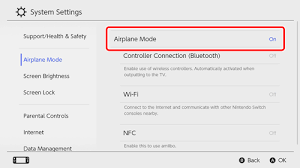
- OR Home > System Settings > Airplane Mode > Press A.
If you are okay with playing already existing offline games and No Multiplayer or Going to the eShop for some days, You can turn ON Airplane Mode.
- Until you turn it off, Your switch will avoid the Auto Updates Switch – Due to No Internet Connectivity.
KEEP IN MIND
DO NOT select the Software Update Option – That will trigger the Unwanted Software updates on your Switch.
Alternative Method to Turn OFF Auto Update Switch
Though We have the Direct Method, You can also try the Alternative that can be as helpful to Turn Off any Auto Update on your Switch. If you have the Automatic Updates ON, As soon as you switch on your Internet / Wifi on your Console, it will be set to Check for any newly available updates. Continuous Notifications will annoy you for sure.
How to deal with it? Switch the Toggle OFF. S-I-M-P-L-E.
You can choose to Change the Network DNS Settings to a Different Server. It will prevent your Switch from Checking for any unwanted Firmware updates- accidentally or automatically.
Change DNS Server on Switch
- First of all, Make sure that you Connect your Nintendo Switch to an Internet /Wifi Connection.
- On the Home Screen of your Switch, Go to the System Settings.
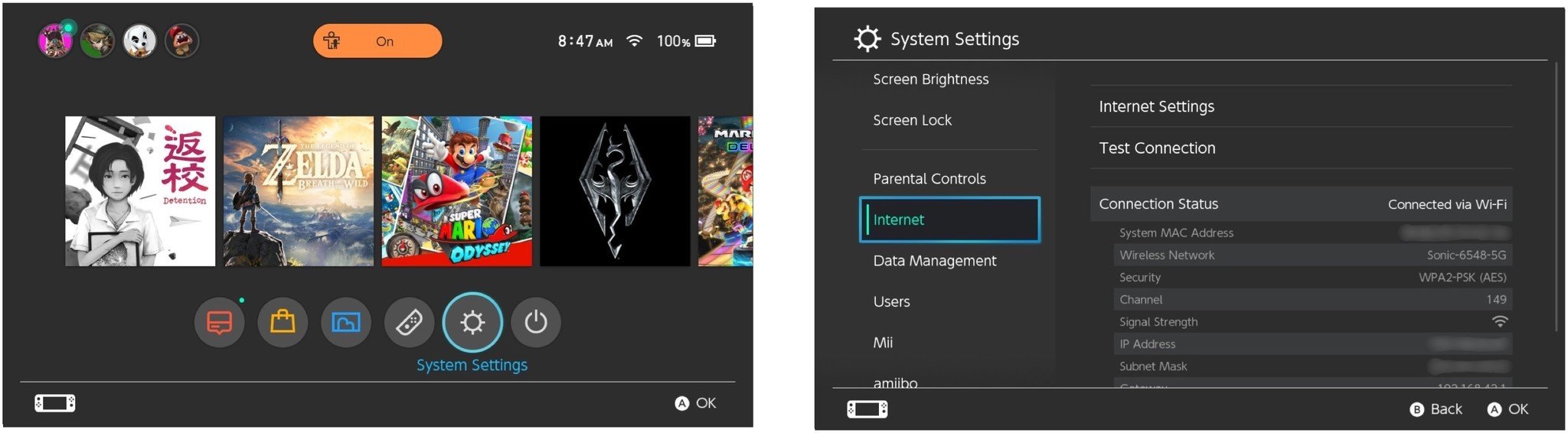
- Scroll and Choose Internet from the Menu.
- Now, Click on Internet Settings.
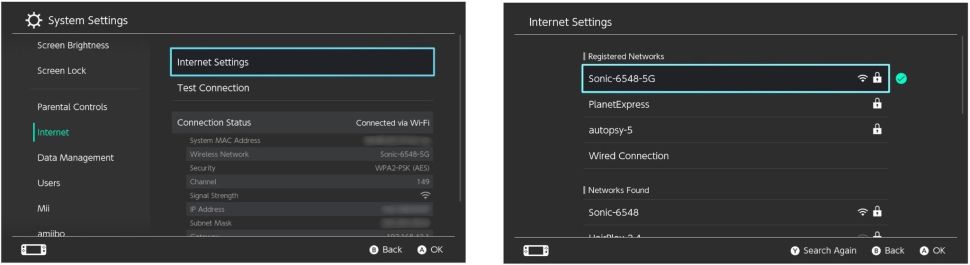
- Choose your Current Network and You will get a Blue Circle – Checkmark next to it.
- Select Change Settings and then select DNS Settings.
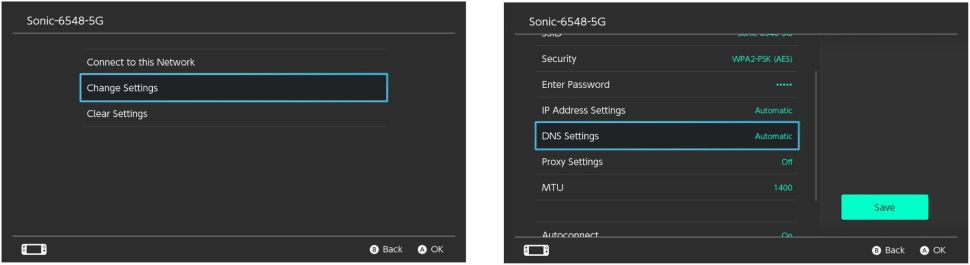
- Click on Manual and then Click on Primary DNS.
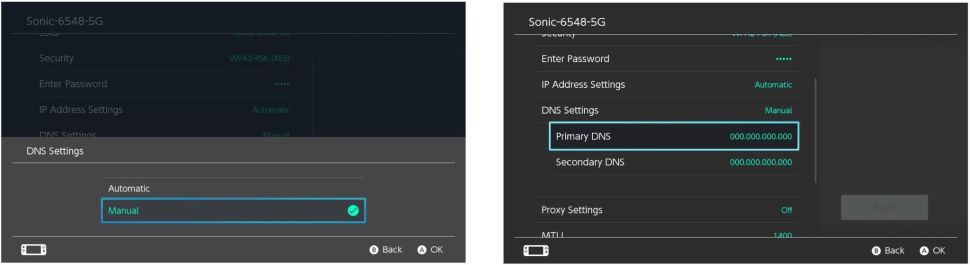
- Now, Enter 173.255.238.217 and then press OK.
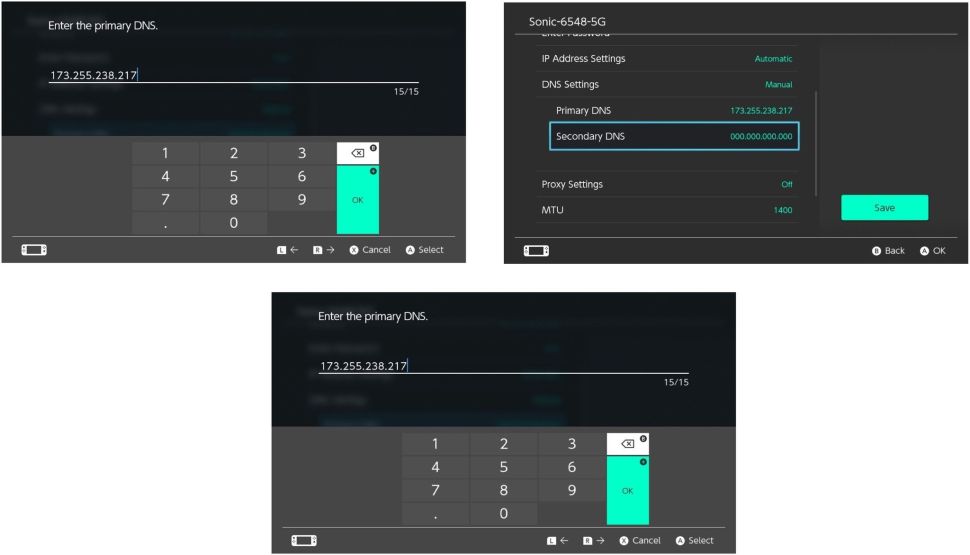
- Select Secondary DNS, Enter 173.255.238.217, and Tap on OK.
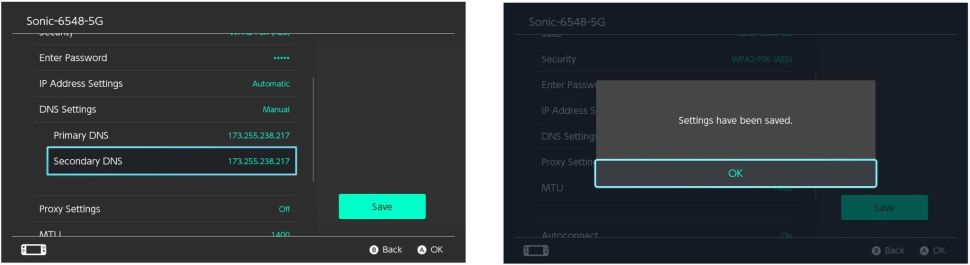
- Tap on Save and then Click on OK to Confirm the Change in DNS Server on Switch.
POINTS TO NOTE
- This Change in DNS Server Redirect will turn OFF the auto-update Switch.
- Also, It might affect the Internet Connectivity or any Online Functionality on your Switch.
- You can delete any unwanted downloads but do not delete the Already Installed Updates.
- DNS Redirect will now be able to block Nintendo from receiving /sending any updates.
How to Delete Updates on Switch?
Sometimes, When any Particular Update is downloaded but stays waiting to Install in the Queue. You can clear the Update Queue -if that already exists and is done on your switch.
Follow the Instructions and Free up space from the Incomplete Auto update on Switch :
- Turn off your Nintendo Switch.
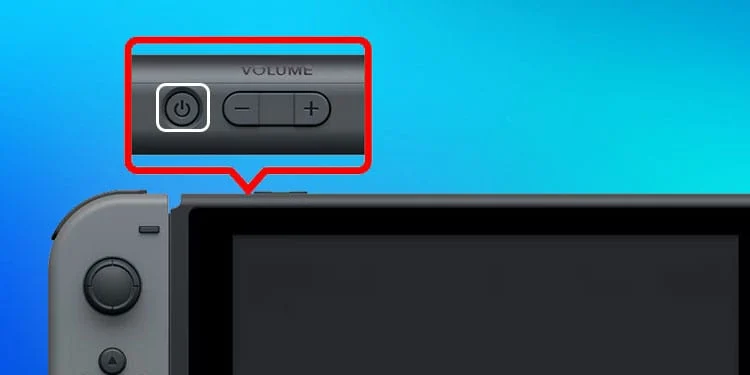
- Now, Hold the Power Button, Volume Up, and Volume Down Buttons – Simultaneously.
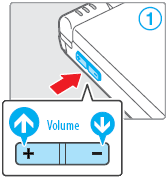
- Press hold these buttons until you see the Nintendo Switch logo.
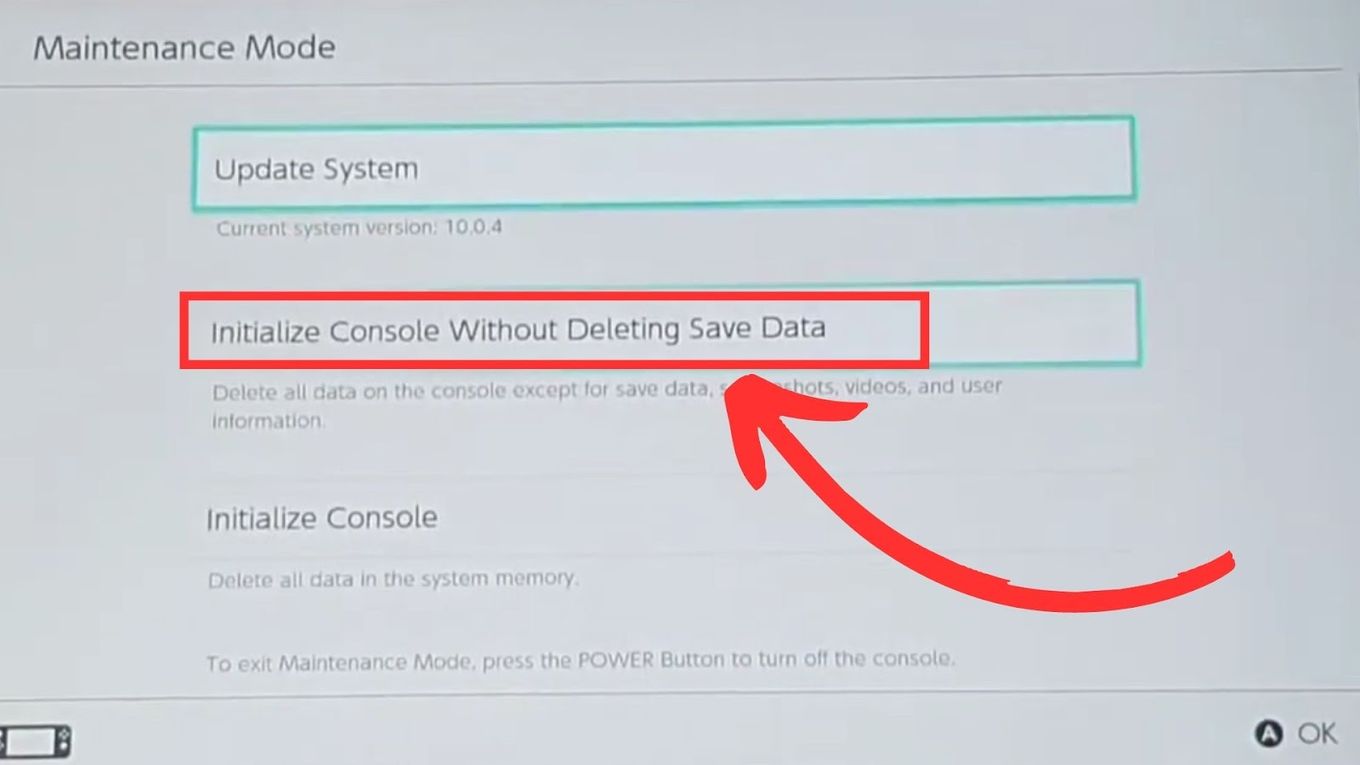
- It will be in the Maintenance Mode now. Press the Power Button again and Switch it OFF.
- Maintenance Mode on Switch will Clear the updates on Switch which is downloaded – You do not have to do anything.
You will also like to get Paramount Plus on Nintendo Switch
Final Notes
So, By following the Guide over here, The Updates will not Upset you anymore. You can follow the instructions given here. Continue to Play your favorite games on your Custom Firmware. Also, Keep in mind the Points that you should remember while turning it off. A Simple toggle -can do what you want. Therefore, Do not forget that some updates are necessary that can enhance your Gaming Experience. You can choose whether you want an up or down.
How to Delete Game Updates on Switch?
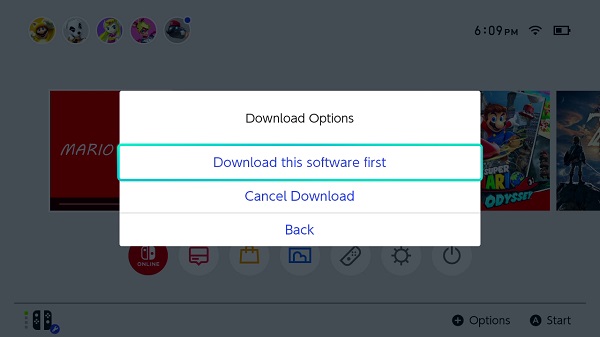
Press the Home Button > Tap on the Download Management icon ( Right ) > Select the Download that you want to delete /Cancel > Click Delete > Confirm Delete.
This way you can Revert the game Update on your Game Consoles.
How to Undo an Update on Nintendo Switch?
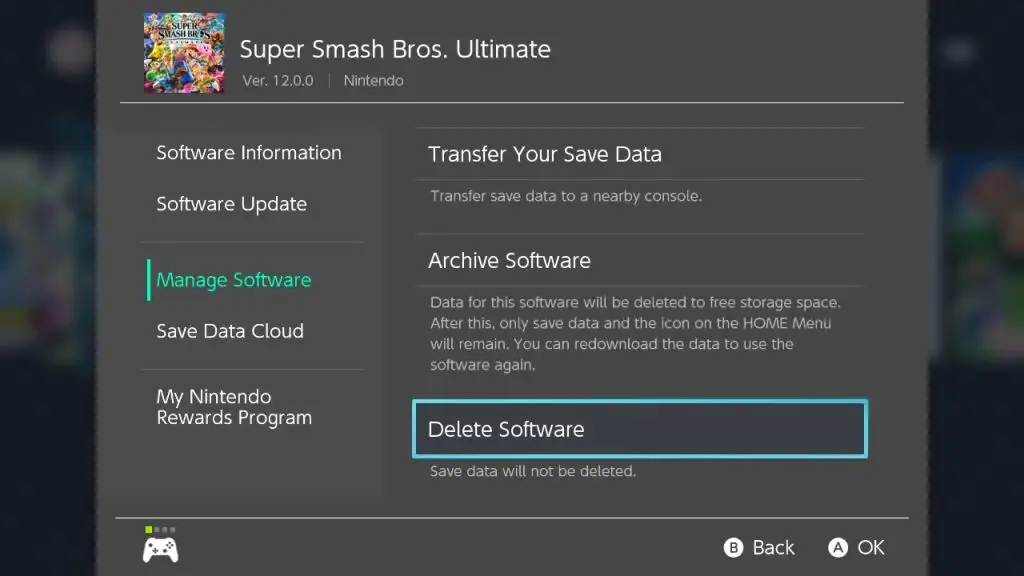
With the Latest System Update, Go to Home > System Settings > Left – Select Data Management > Manage Software > Select the Particular Software you want to Manage or delete.
To avoid such updates, Make sure you follow the above guidelines and Turn off the Auto Update on Switch.