

SmartCast on Vizio Smart TV has access to both Chromecast and AirPlay. Without SmartCast, it will be impossible to access the apps and other streaming services available on your Vizio TV. But due to the factory, you may find SmartCast not Working on Vizio. You may find the notification “SmartCast TV Not Available” on your Vizio TV screen. In this article, I will provide you information on How to Fix SmartCast not Working on Vizio TV issues with quick and simple steps.
Table of Contents
Why is SmartCast not working on Vizio?

When you are watching your favorite entertainment on Vizio TV, and suddenly the screen goes black, this might be due to a number of reasons. The primary fact for SmartCast not Workin on Vizio is the internet or WiFi Network connection. Sometimes it is due to the glitches that appear on your Vizio Smart TV and cables connected loosely to your TV or other ports. You can make some changes to your Vizio TV to make SmartCast work again. Find out the methods and steps you can use to get SmartCast to work on your Vizio TV by continuing with this article.
How to Fix SmartCast not Working on Vizio?
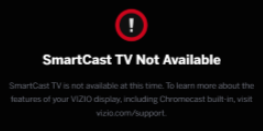
Knowing the causes for SmartCast not working on Vizio, you can easily fix it by resolving the causes. To do so, you need to make changes within the Vizio TV and on your WiFi router and other supportive devices. The things you can do includes power cycle, enable DHCP settings, factory reset, and others. Follow the steps provided and make SmartCast work again on your Vizio TV.
Check Internet Connection:
You have to make sure that your Vizio TV is connected to the Internet or not. Because when there is no internet access, SamrtCast on Vizio TV does not work. You can do a simple network test and make Vizio TV connected to any internet connection like a WiFi network or mobile hotspot.
- Press the Menu button on your Vizio remote and go to Network.
- From the available Network, choose the Network you want by highlighting it and pressing OK on the remote.
- Enter the correct password when you are prompted.
- Go back to Network and choose Network Test or Test Connection Option.
- If the Network fails the test, you can connect to a different internet provider.
- Make sure the Network you are connecting to has very less traffic.
Sometimes you can find the Vizio Smart TV Remote Not Working; if you are facing this issue, click on the link and learn the procedures to fix it.
Power Cycle Vizio SmartCast TV:
The glitches and bugs that appear on your Vizio TV can make SmartCast not work. In such cases, you need to do a power cycle by using the soft power cycle option within your Vizio TV or by using the manual method. Follow the steps given here to power cycle your Vizio TV,
- Go to the Vizio SmartCast TV menu and move to the System option.
- Now select TV settings and choose Reset & Admin from the pop-up menu.
- Tap on the Soft Power Cycle option turns off your WiFi router.
If this is not working, you can do a manual power cycle to your Vizio TV with the following steps,
- Turn the power down for your Vizio TV and unplug the cables connected to the powerhouse.
- Now press and hold the power button on your Vizio TV for some time and release it.
- Reconnect all the cables to their original places and turn on your TV.
With this, you have removed the glitches and fixed SmartCast not Working on Vizio. If the problem still persists, you can move to the other methods.
Update Vizio SmartCast TV:
Using old and outdated software for Vizio SmartCast TV can result in errors or make SmartCast not work on Vizio TV. Vizio TV provides updates regularly, and you need to update them constantly for seamless operation. To do a software update on your SmartCast TV, follow the steps provided,
- On your Vizio TV, go to its Settings.
- Now move to the System option and choose System Updates.
- If your TV is not in its latest version, you can see New Update is Available option.
- Now tap on Install and Update the System and wait for it to end, and make your TV restart.
Most of the time, Vizio TV does its updates automatically. With the updated software, you can find SmartCast working properly on your Vizio TV.
Change DHCP Settings:
The DHCP (Dynamic Host Configuration Protocol) gives IP addresses for devices on a network and helps in preventing connection problems. There are times when DHCP does not give SmartCast an IP address and follows up with errors causing SmartCast not to work on Vizio. To fix this, you need to reset the DHCP settings with the following steps,
- Disconnect any network connected to Vizio TV and turn it off.
- Go to a web browser on your PC and enter the URL of your Router.
- Enter your Username and Password to open the router’s setting page.
- Reach the DHCP Server setting menu and select Enable.
- If already enabled, you can disable and enable the DHCP server again.
- Save the settings and close it.
- Turn on your Vizio SmartCast TV, and you can find it working properly.
If you are still getting the SmartCast TV Not Available message, then the only option to fix it is to do a Factory reset.
Factory Reset Vizio SmartCast TV:
When you do a Factory Reset on your Vizio TV, all the custom settings will be removed. Your TV will become fresh as it was when you purchased it. Factory Reset should be considered the last resort after trying out all the methods provided above. Follow the steps to do a factory reset on your Vizio SmartCast TV.
- Use your Vizio TV remote and press the Menu button.
- Navigate to the Reset & Admin option and select the Reset to the Factory Settings option.
- Choose the Reset option to complete the Factory Reset procedure.
After this, you can find the SmartCast to be working well on your Vizio TV. You can take photos of your custom settings before going to do the Factory Reset to restore them manually later.
THE END
Enjoy watching your favorite shows on Vizo TV’s big screen and have a happy time. Even after the Factory reset, if SmartCast is not working on Vizio TV, please get in touch with the customer care number to know what to do next. You can get the customer care number from the Vizio official site. If you have a warranty for your Vizio TV, you can claim it and get a new Vizio SmartCast TV.
Frequently Asked Questions:
Does Vizio have any Apps?
Yes, Vizio has WatchFree+ and Vizio Mobile. With Vizio Mobile, you can control your Vizio TV with the remote feature offered by it. You can watch free channels of sports, news, movies, and more for free using the WatchFree+ application.
Can I Cast my device to Vizio TV?
Yes, with the AirPlay and Chromecast features available at SmartCast on Vizio TV, you can cast all your Android, Google, and Apple devices. This can be done for apps that are not available at the Vizio App Store.