
Ring app is nothing but the connectivity to the Ring device. It is like a video doorbell. You can access the Security Cameras and Alarm Systems on it. It will alert you by ringing when it detects someone at your doorstep or any Motion detected. Sometimes, these types of devices are not working well. Today we are going to learn, How to Fix the Ring App Not Working.
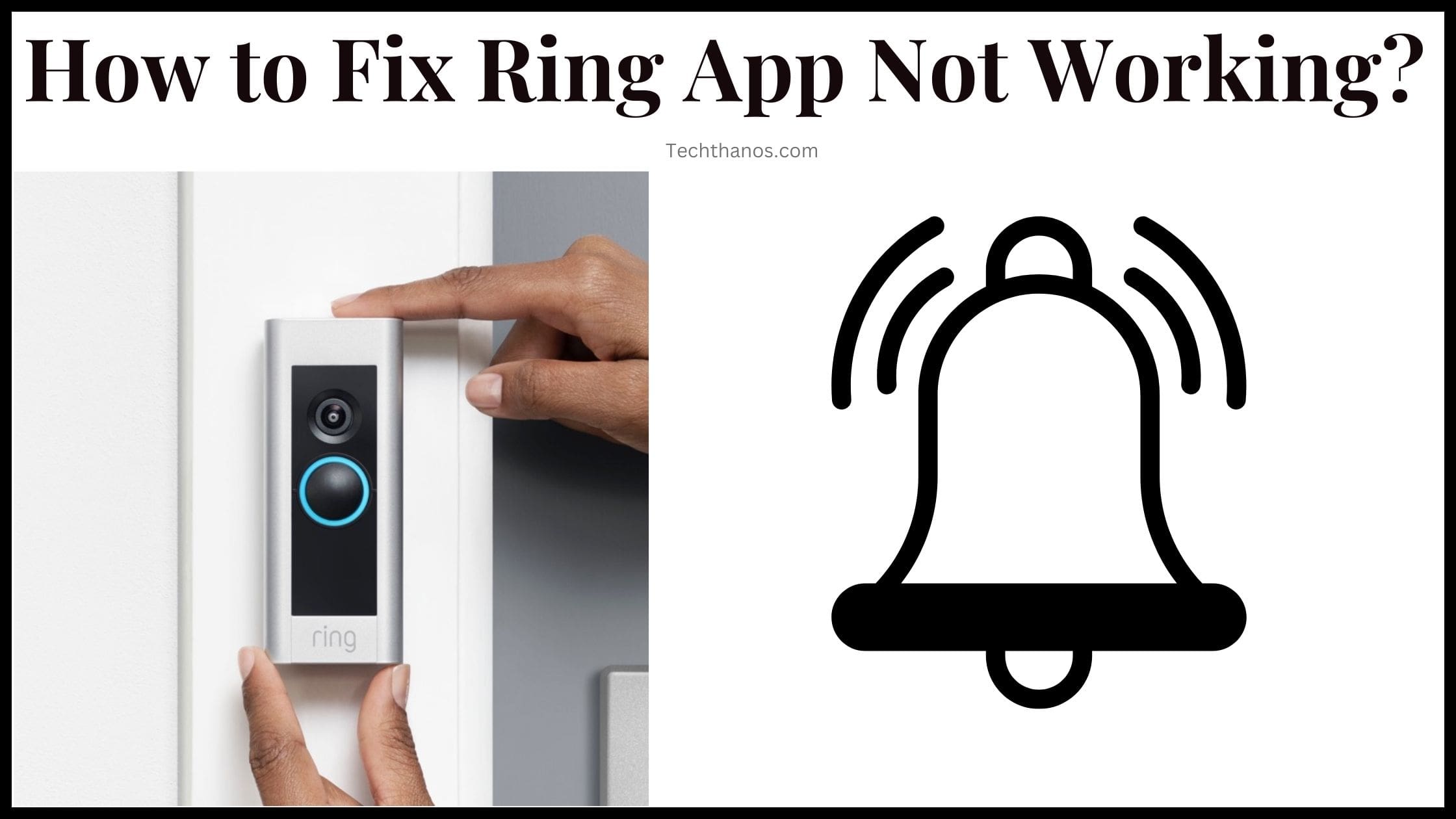
We will go with start to end. First, we have to know, that this problem happens. If you find it, you can avoid the issue and never come back. Next, learn the procedure to fix it in the following. Dive right into the article…
Table of Contents
Why is the Ring App Not Working?
Not only the Ring device but also many reasons why the Smart devices are all not working. You can see the app Couldn’t Load the real-time location. You can see the Try Again Later note on the screen. The Mode Status was Unavailable. And, the Ring Dashboard was not Loading. Why do these errors happen?
- Poor Internet Connection
- Latest Ring App Version
- Overload of Cache data
- Server Issue
- App under Maintenance
- Using the lastest Software version of your device
These are all the main reasons why the apps are not working with the devices. To fix it, go to the next topic to learn the methods with a step-by-step guide.
How to Fix Ring App Not Working?
The above-mentioned are all the major reasons why the Ring App Not Working. So, here I have given all possible Problem-Solving Methods to fix the app to run on your device. Do follow the procedures one by one as given in the following;
Check Internet Connection
First and foremost, you have to check the Internet connection on your device. Because you can access the Ring app thorugh the internet. If it is disconnected or if there is any stuck in the Network provider, it will not work.
- Turn On Flight Mode.
- Wait for 10 seconds.
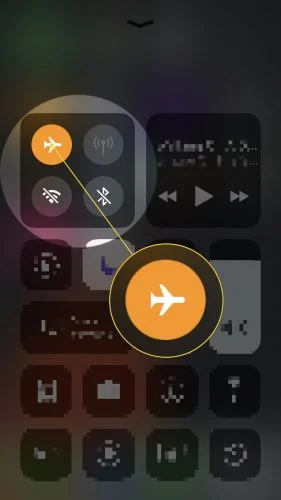
- Turn Off the Flight Mode.
- If you are using Wi-Fi, Turn Off the Wi-Fi, and Turn it On back after 10 seconds.
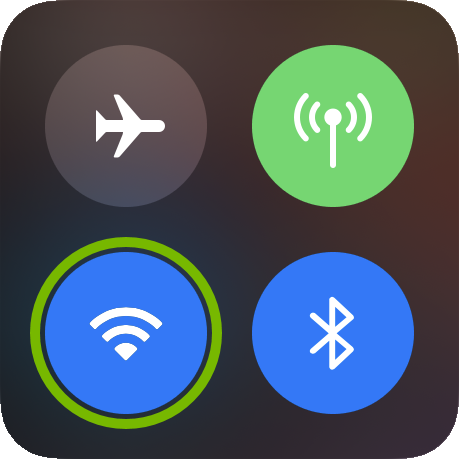
Or, Unpair your Wi-Fi device, and repair it. Now, play any online content on YouTube. If the network works, launch the Ring App, and check it is working. If not, move to the next method.
Also, check: Pandora App Not Working
Clear Cache on Ring App
When you have installed the app download the features and update on the app. The older version and the unwanted data are stored in a cache location. It is also a major reason for Ring App Not Working. So, follow the steps given here to Clear the Cache on the Ring App.
Android Users
- Click the Settings icon on the Home screen.
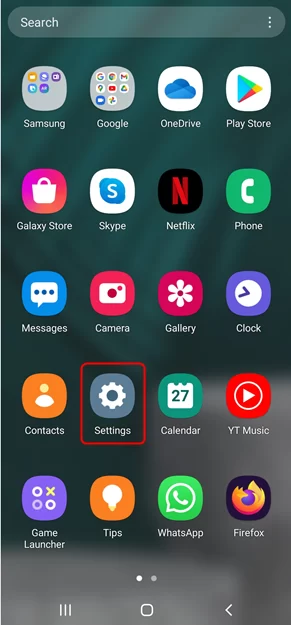
- Select Apps Management from the list.
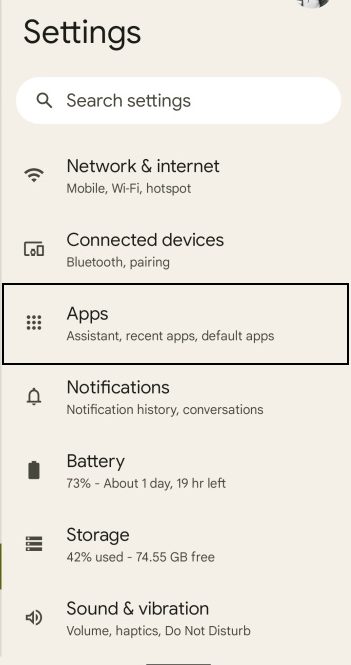
- Scroll down and click on the Ring App.
- Then, tap the Storage and Cache option.
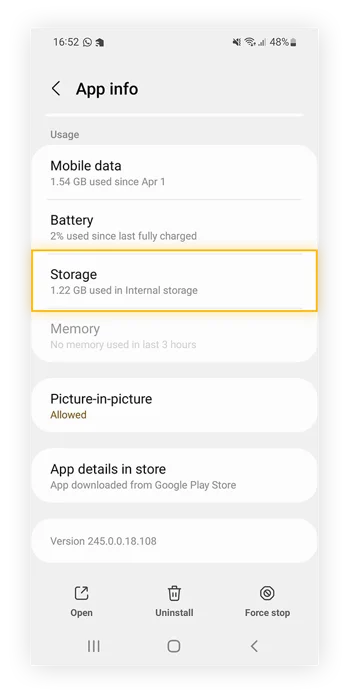
- Head to the Clear Cache button.
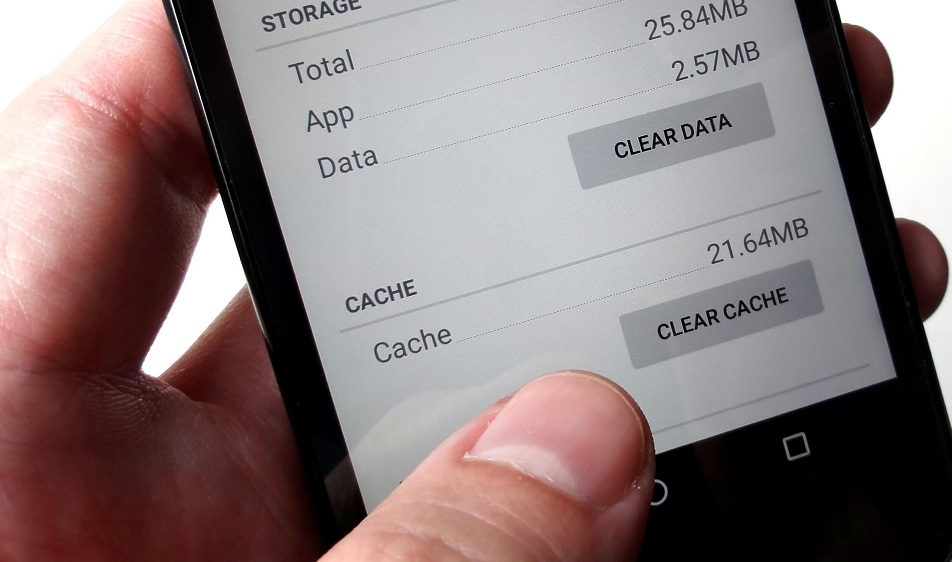
- Also, click on the Clear Data option.
It takes 10 – 15 seconds to clear all unwanted Cache data. After the cache data are cleared, restart your phone once. And relaunch the Ring app. Now check whether it is working or not. If not, please refer to the next method.
Disconnect Mobile from other Devices
If you are connecting your Mobile with any other Bluetooth devices or sharing hotspots with any other devices, disconnect them. Go to the control center and Turn Off the Bluetooth and Hotspot. Now, Restart or Reboot your Smartphone. Long press the power button and select the restart or Reboot option. Turn On the Mobile Data or Connect your Phone only with a stable Wi-Fi network. Go to the apps page and relaunch the Ring app. Now check, that the locations are loaded correctly.
Update Ring App
Still, the Ring App is Not Working, check that you are using the Older version app. If yes, update it immediately. Here is the guide for updating the Ring App on Android and iPhone.
Update Ring App on Android
- Turn On the mobile data.
- Launch the Google Play Store app.
- Look at the top-right corner of the screen.
- Click on the Profile icon once.
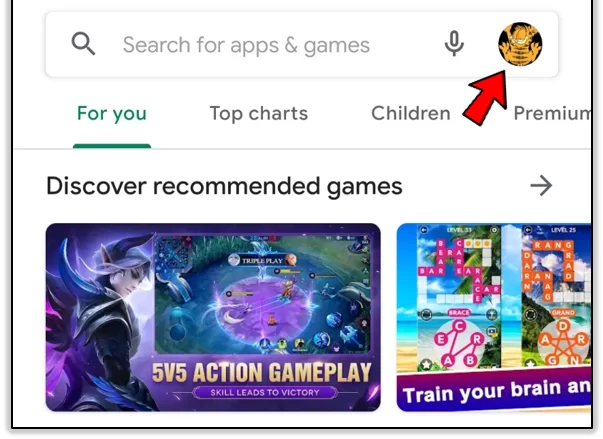
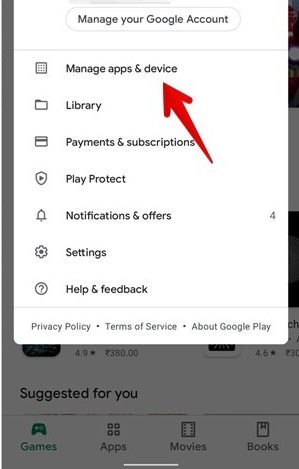
- Select, the Manage Apps & Device option.
- Now, click on the Updates Available option.
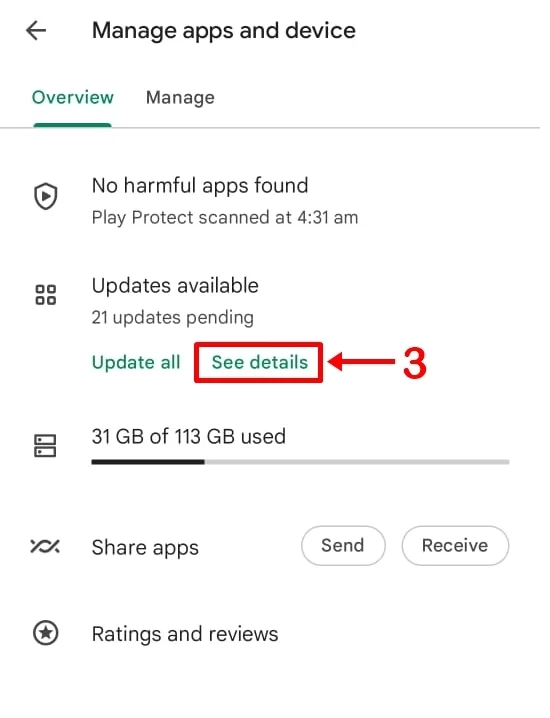
- Scroll down and find the Ring App.
- Click the Update button.
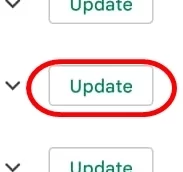
Wait and launch the Ring app after the update gets completed. I hope, now the Ring app is working correctly.
Update Ring App on iPhone
- Turn On the mobile data or connect with Wi-Fi.
- Launch the Apple App Store.
- At the top right corner, click the Profile icon.
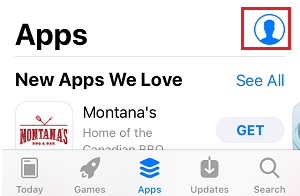
- Scroll to see the apps list that require updates.
- Select the Ring app.
- Click the Update button.
- Or, if you want to update all apps,
- Select the Update All option.
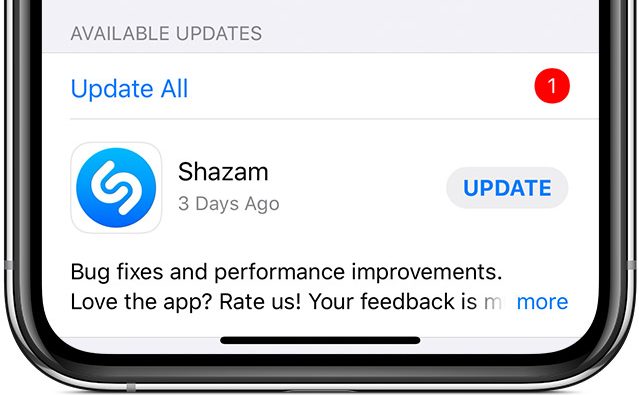
Based on your Mobile Data speed, or Wi-Fi, the app will update as soon as possible. Once the Ring app is updated, launch it and check whether it is working or not. If not, you can also check your device.
Also, read: Max Not Working on Roku
Update Device When Ring App Not Working
If the mobile requires an update, not only the Ring app. The device may get heated, and you can feel your phone screen freezing. To avoid this, update your mobile now by following the instructions given below;
Update Android
- Check that your Android is connected to Wi-Fi.
- If not, connect it.
- Or, turn on the mobile data.
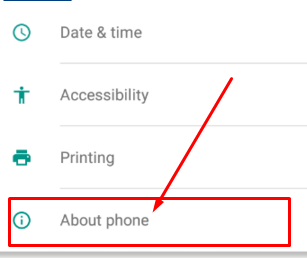
- Then, go to the mobile Settings page.
- Click the About Phone option.
- And, select the Check for Update button.
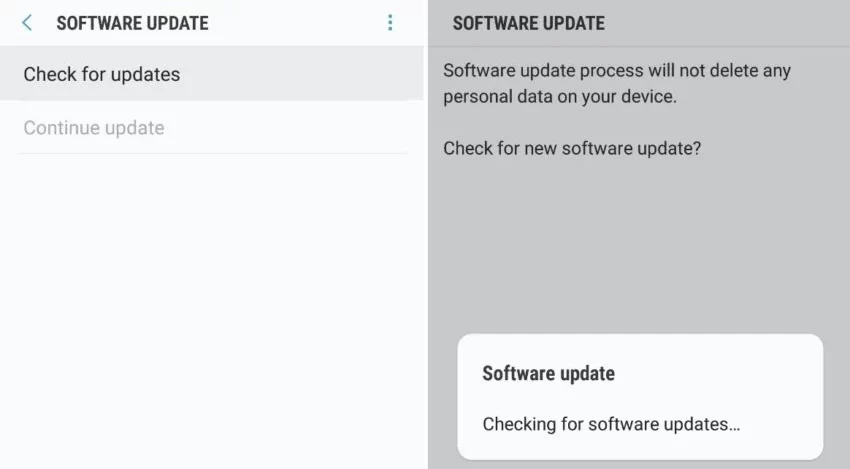
- If your device requires an update,
- It will be shown on the screen.
- Click, the Install Now/ Update Now button.
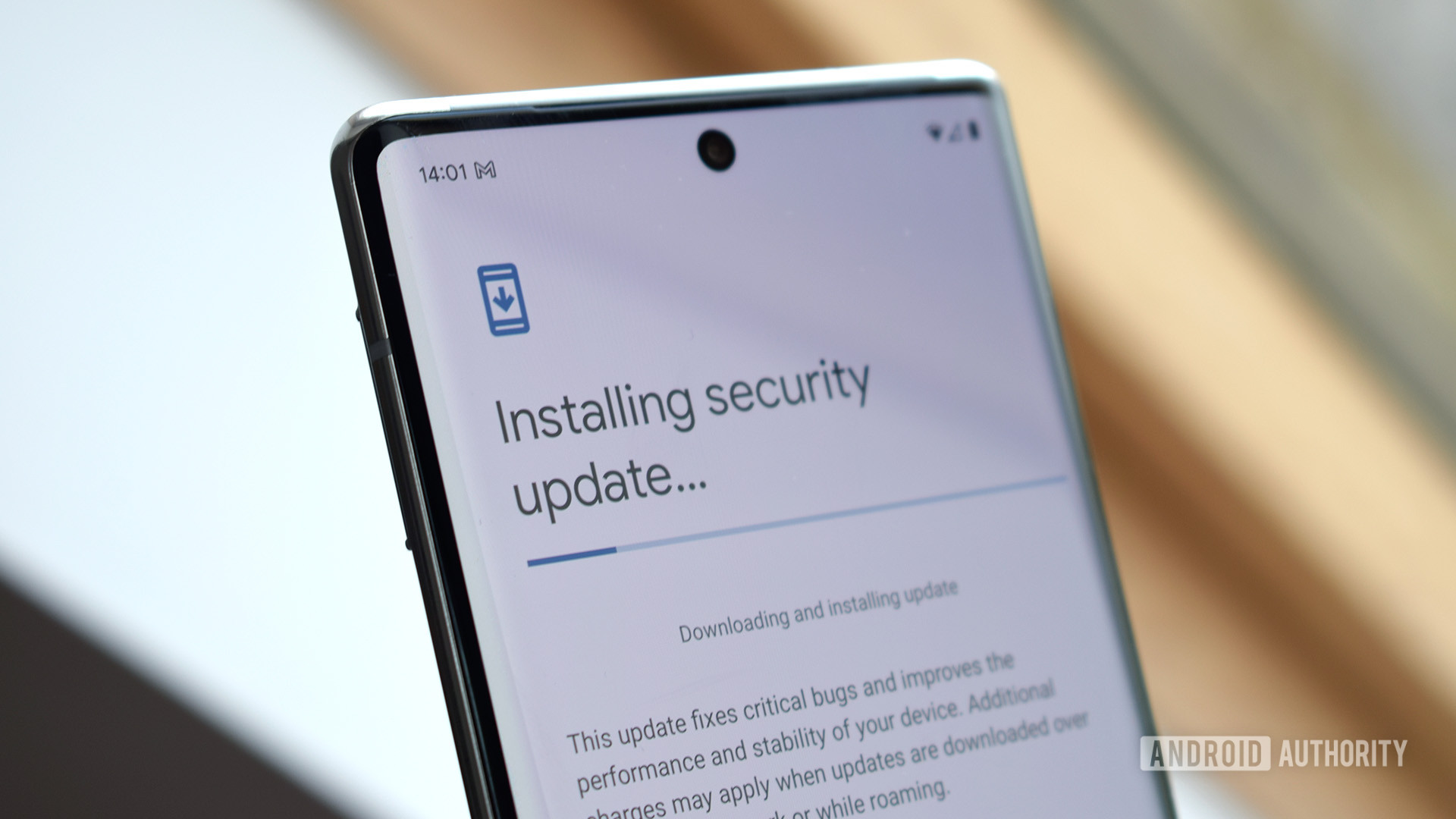
Your device will automatically restart when the update is completed. If not, you can restart it manually.
Update iPhone
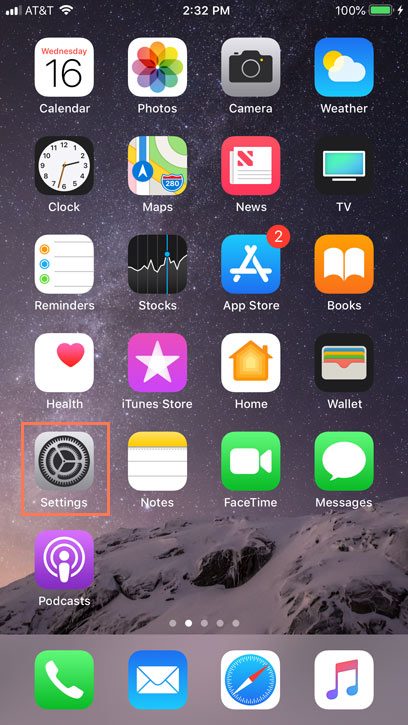
- Go to your iPhone Settings page.
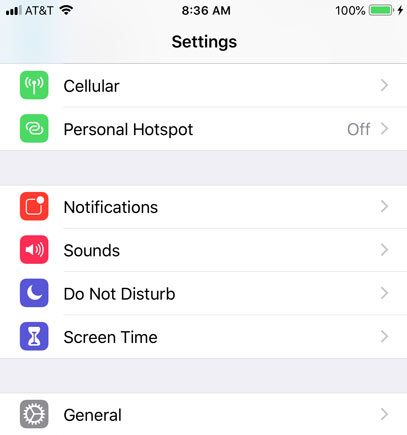
- Launch the General settings page.
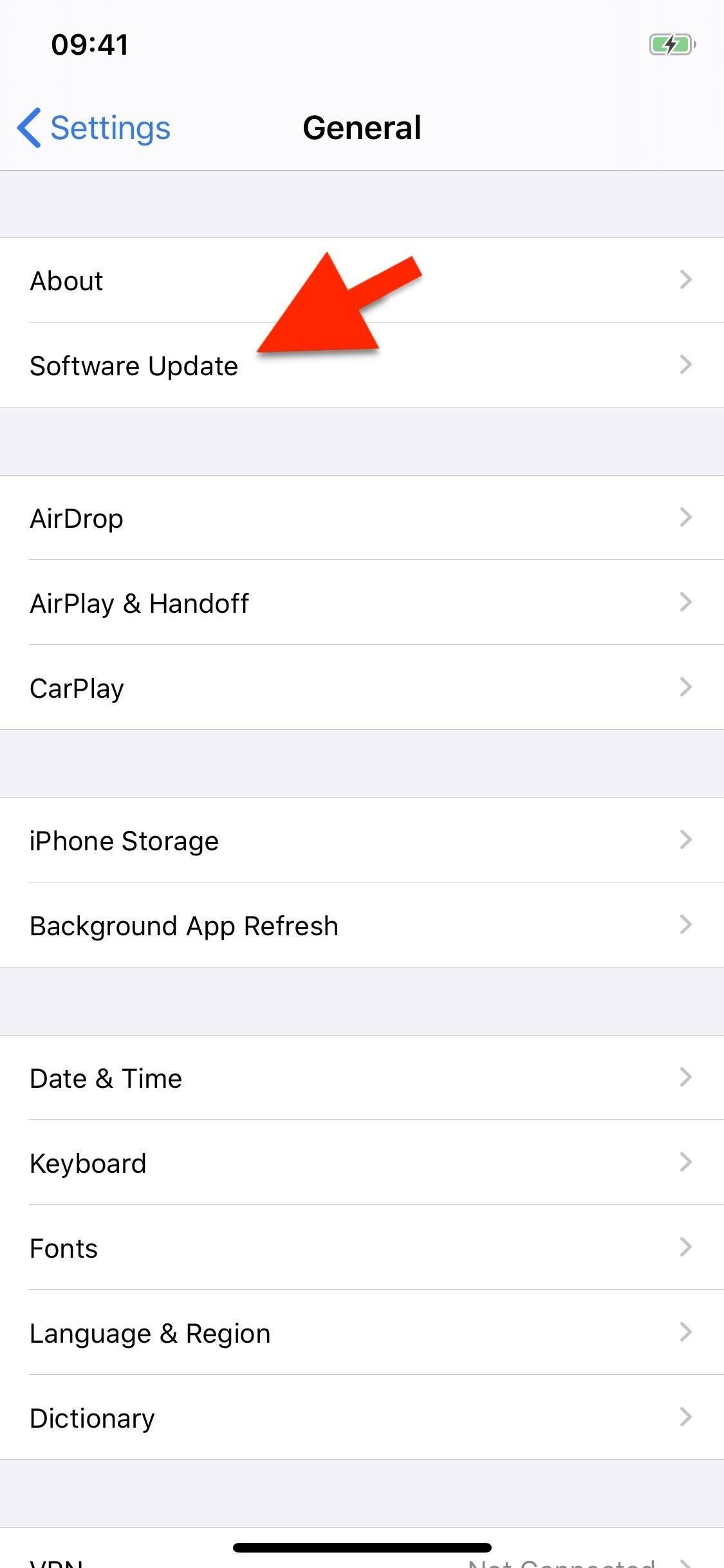
- Click on the Software Update option.
- Select, the Automatic Updates button.
- Turn On the Download iOS Updates.
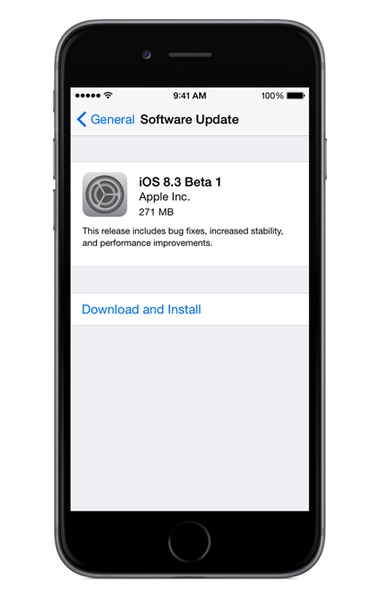
Now, your iPhone has started updating. To start and complete this process as soon as possible, you need a stable and high-speed internet connection. After that, relaunch the App and check how it works.
Reset the Ring Device
Your Mobile and the app do not have any problem, but the Ring App is Not Working, you can also check the Ring device once. Just restart the Ring device. Here is the guide;
Reset the New Model Ring device
- Unmount the Ring device from your wall.
- Turn Back the device.
- There you can see the orange button.
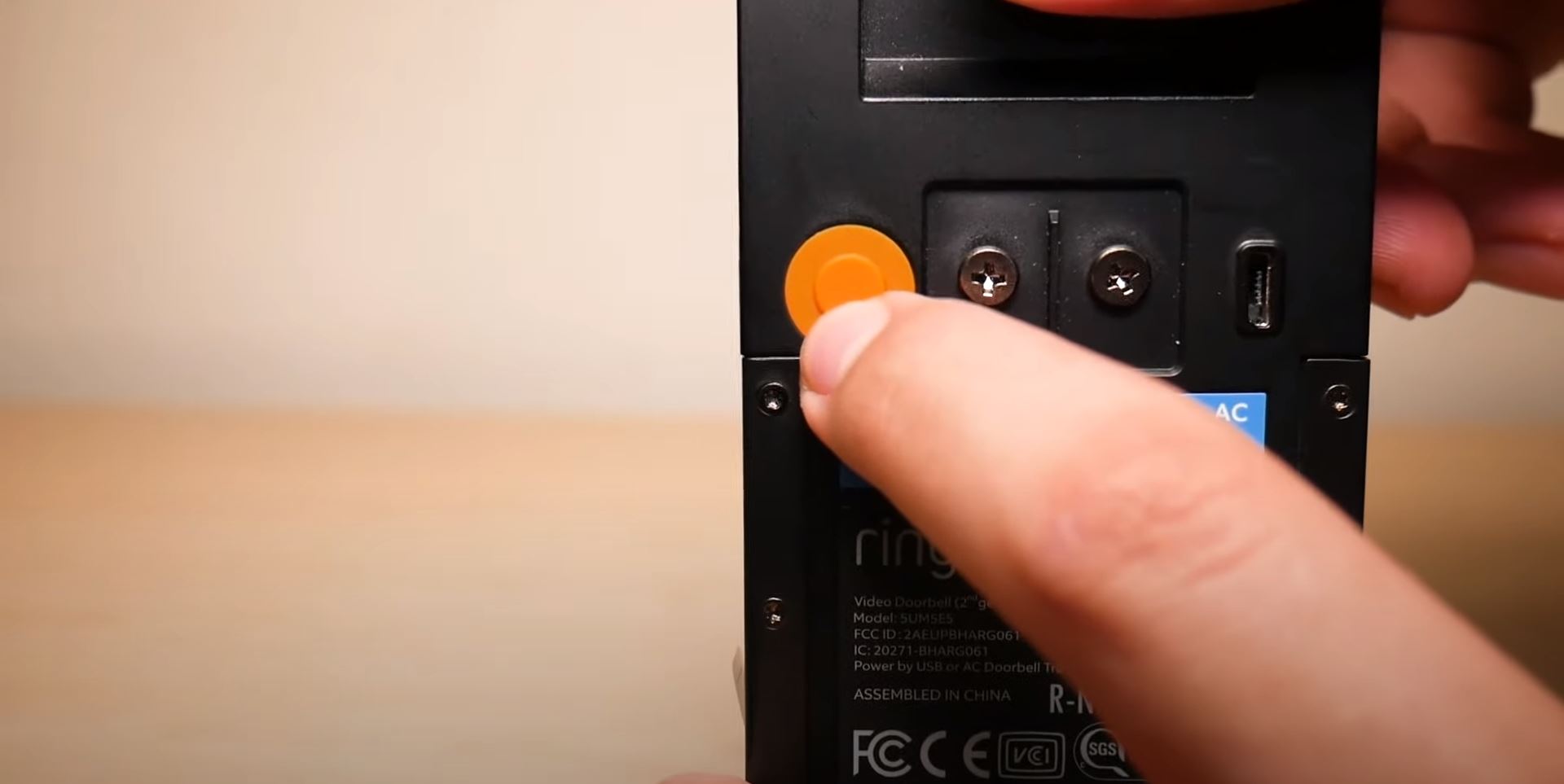
- Click and hold the button for a while.
- And, look the white light is rotating.
- The device is restarting.
Reset Older Ring Device
- Take off the Screwdriver.
- Move to the bottom Screw on the Ring device.

- Remove the top board on the Ring device.
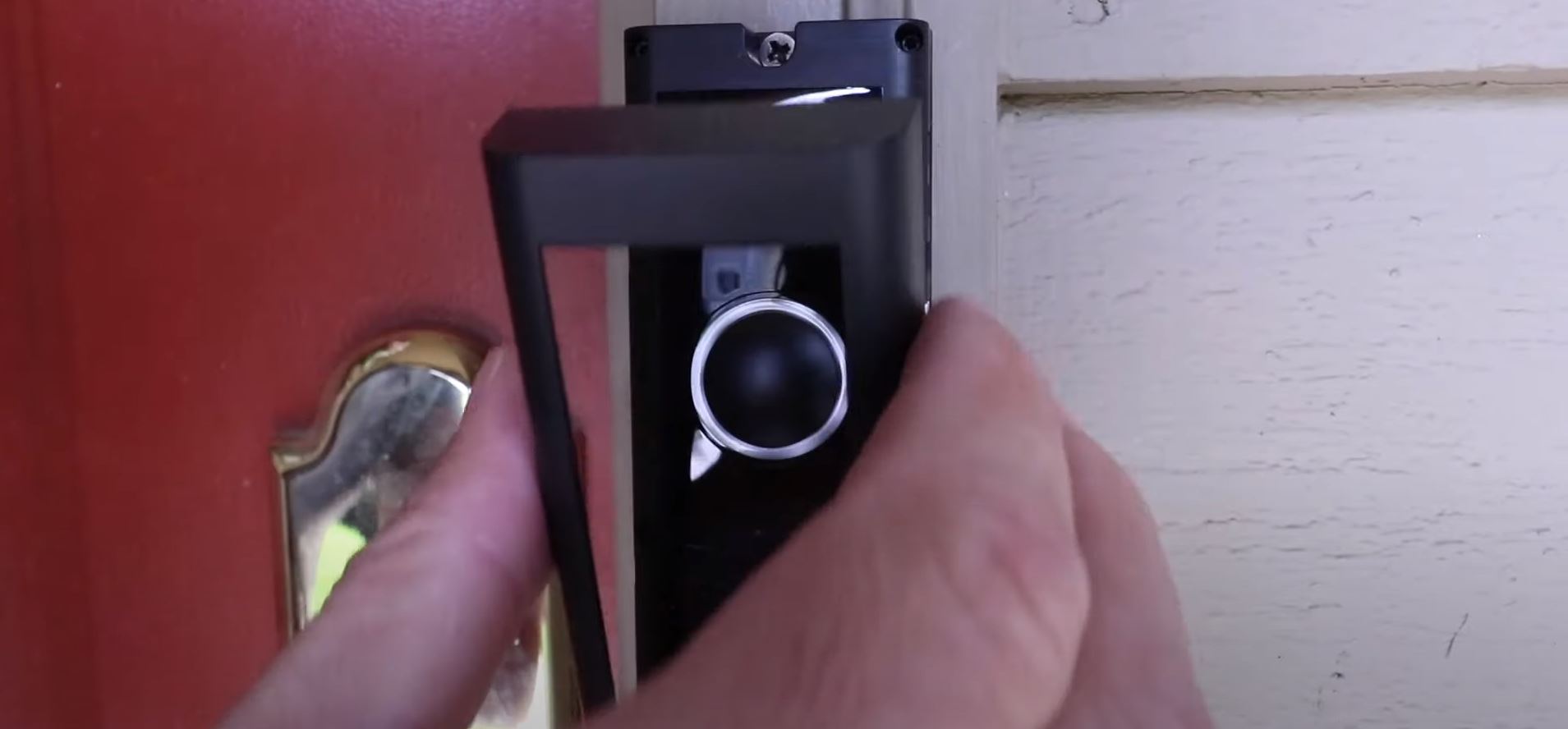
- Check for the Black or Red button around the device.
- Check it four sides of the device.
- Click and Hold the button for 10 – 15 seconds.
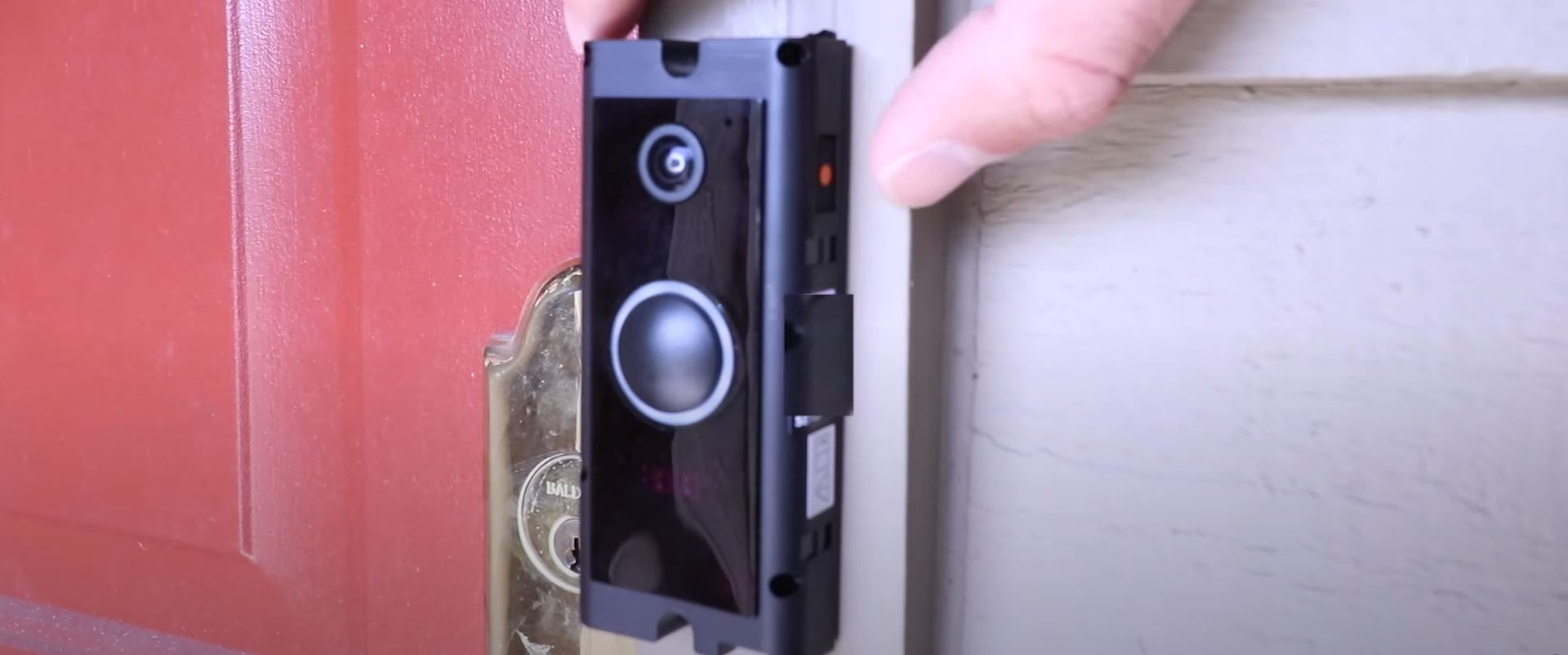
- First, the Blue light will blink in the front.
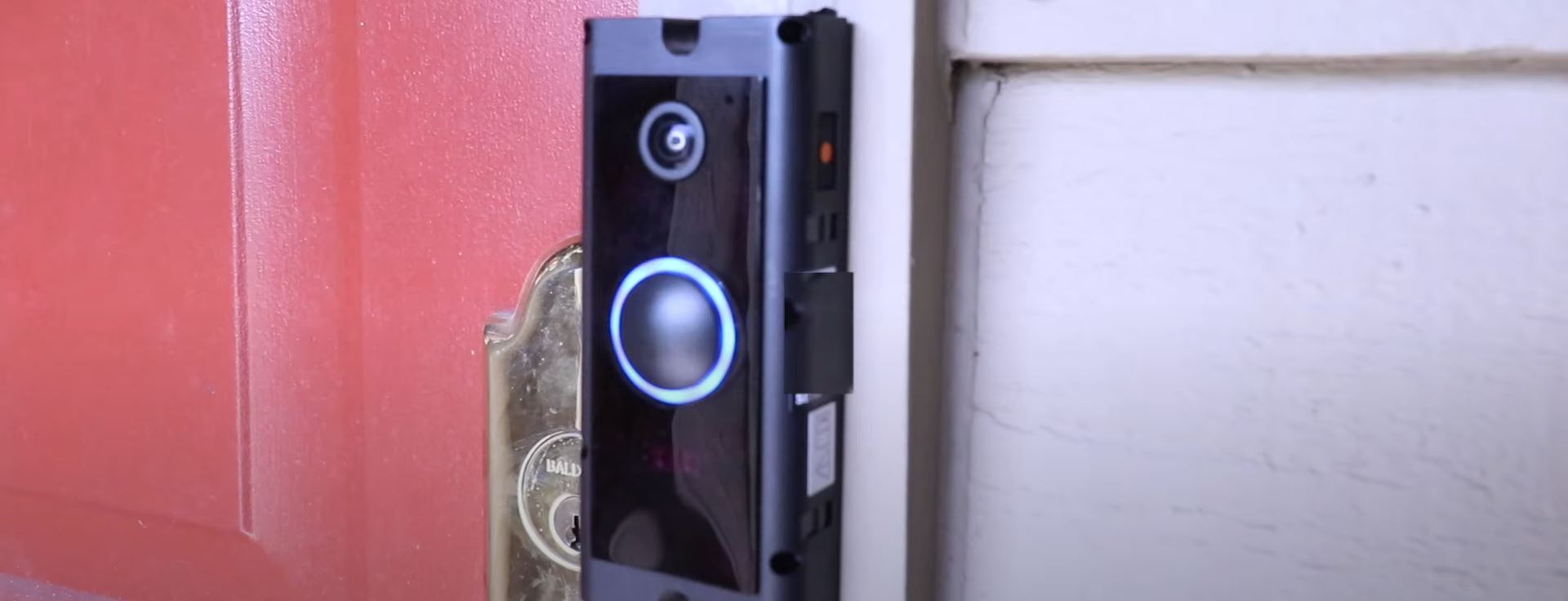
- Later, the White light will start blinking and rotate.
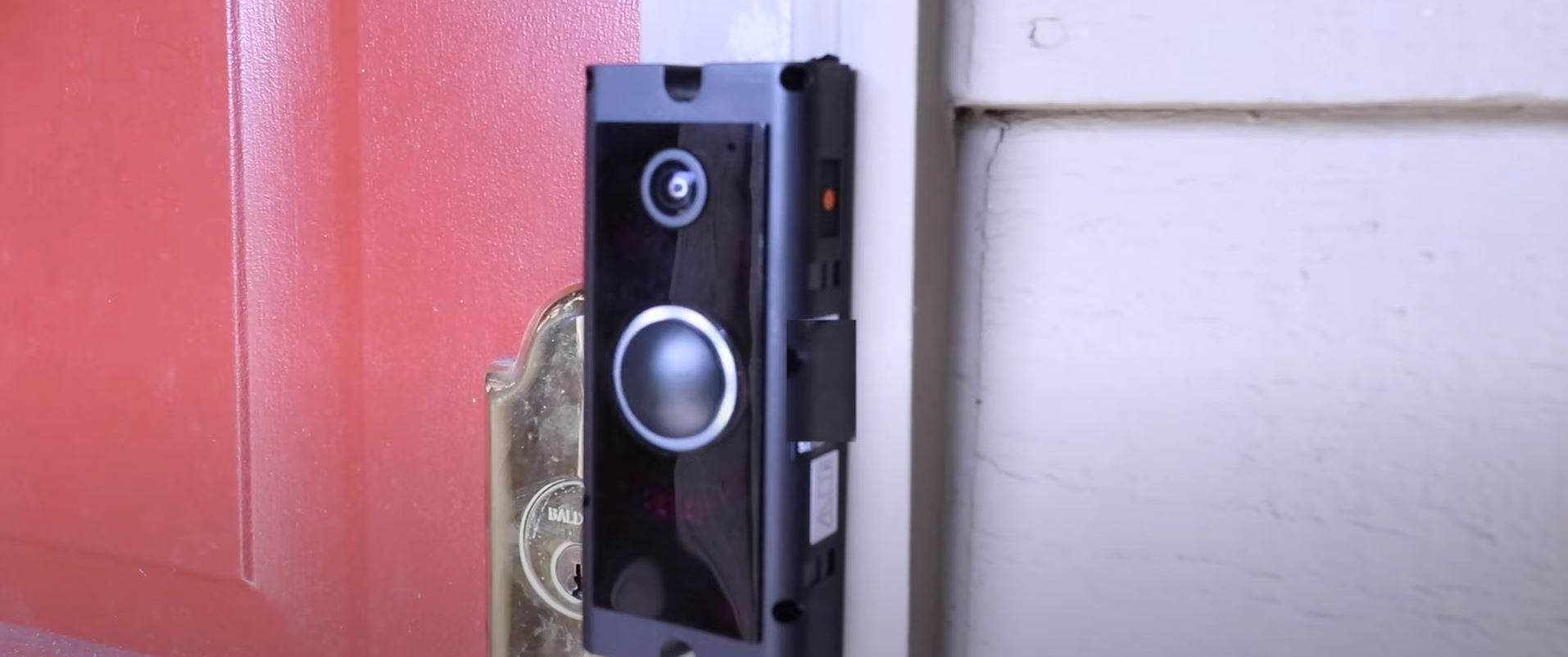
- It seems the Ring device is restarting.
- Refit the Ring device on the wall.
Now, Turn on the Ring device and again connect it to your Smartphone. 70% of people said their Ring app would work when they restarted their Ring device.
Also, check: Xfinity Stream App not Working on FireStick
Uninstall and Reinstall the Ring App
Still, you cannot check the location or it doesn’t alert you when anyone is detected on your doorstep, once, uninstall and reinstall the app.
Uninstall and Reinstall the Ring App on the Android
- Launch the Google Play Store app.
- Click the Profile Icon in the top-right corner.
- Select the Manage Apps & Games option.
- Click on the Manage option near Overview.
- Scroll and find the Ring app.
- Tap the checkbox straight to the Ring App.
- Now, move to the top-right corner of the screen.
- And, click the Delete Icon.
- Click, the Uninstall button on the pop-up screen.
- Now, go back to the Google Play Store home screen.
- Search for Ring App.
- Install it again.
- Launch and set it with your Ring device.
Uninstall the Ring App on the iPhone
- Go to the App library on your iPhone.
- Tap and hold on to the Ring app.
- The app info will pop up.
- Select, the Delete App option.
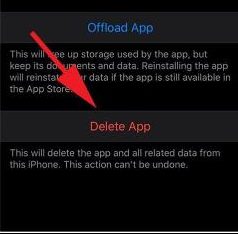
- Again, click the Delete option.
- Go to the home screen.
- Launch the Apple App Store.
- Search for Ring App.
- Install it on your device.
- Set it with your Ring device.
Still the Ring App Not Working, there is some problem with the app or on the device. Better you contact Ring device customer service and tell them about this issue. They will guide you until it works.
Also, check: Spotify Not Working on Firestick
Finally…
If it is a small problem, you can fix the Ring App Not Working within a minute. Or, if there is any technical issue on the Ring app or on the Ring device, you have to take this problem to the Customer executive. They will guide you or replace another device. Before that, try all the methods mentioned in this article. When No method will help, do contact customer support.