
Spotify is one of the stress-buster apps. When the app brings stress, it’s really frustrating. But you do not worry about it. We are here to guide you to clear the issues that you are facing on your Streaming devices. Now, Know How to Fix Spotify Not Working on Firestick.
We have many tricks and plans to Fix that the Spotify Music Streaming service is not working well on the Amazon Firestick device. All the methods are listed along with the step-by-step guide in the following section. So, go through all the topics and follow the same procedure as mentioned…
Table of Contents
How to Fix Spotify Not Working on Firestick?
Do not Trash the app or Harm your Amazon Firestick device. You can fix this issue within a while, using some tricks. You have to check what is the main cause of Spotify Not Working on Firestick. Then, fix it by following the step-by-step instructions given in the following. So, we are going to follow;
- Check Wi-Fi Internet Connection.
- Power Recycle Firestick.
- Check Spotify Outage.
- Update Spotify App.
- Update Firestick.
- Clear Cache Spotify.
- Uninstall and Reinstall Spotify.
- Contact Spotify Customer Care.
So, these eight methods are going to help us to fix Spotify Not Working on Firestick. Let us check the step-by-step procedure in the upcoming sections.
Check Wi-Fi Connection
First, you have to invest in the Wi-Fi Network. If the Internet connection is lost or it’s slow, not only the Spotify app but also nothing you can browse on your Firestick device. So, follow the steps to check the connection on your Firestick,
- Switch On the Amazon Firestick device.
- Click the Home Button on Firestick remote.

- Use the Right Directional Key to move to the menu section.
- Select the Network option and click on it.

- Now, click the Play/ Pause button on Firestick remote.
- After clicking the Pause/ Play button.
- You can see the Internet Connection Status on the screen.
If your device showing any problem in connecting the Wi-Fi, please follow the on-screen instructions to fix the issue. Or, is there all normal? go to the second method below.
Recycle Firestick | Spotify Not Working on Firestick |
Recycling means just Reconnecting the Firestick connect with your Smart TV. Here is the step-by-step guide.
- Switch Off the Firestick and Smart TV.
- Plug Out the Firestick from the HDMI port.

- Also, plug out the Charge wire from the power Socket.

- Do the same for your Smart TV.
- Keep these disconnected for 10 to 15 minutes.
- After that, Plug In the Power Cable to the Firestick.
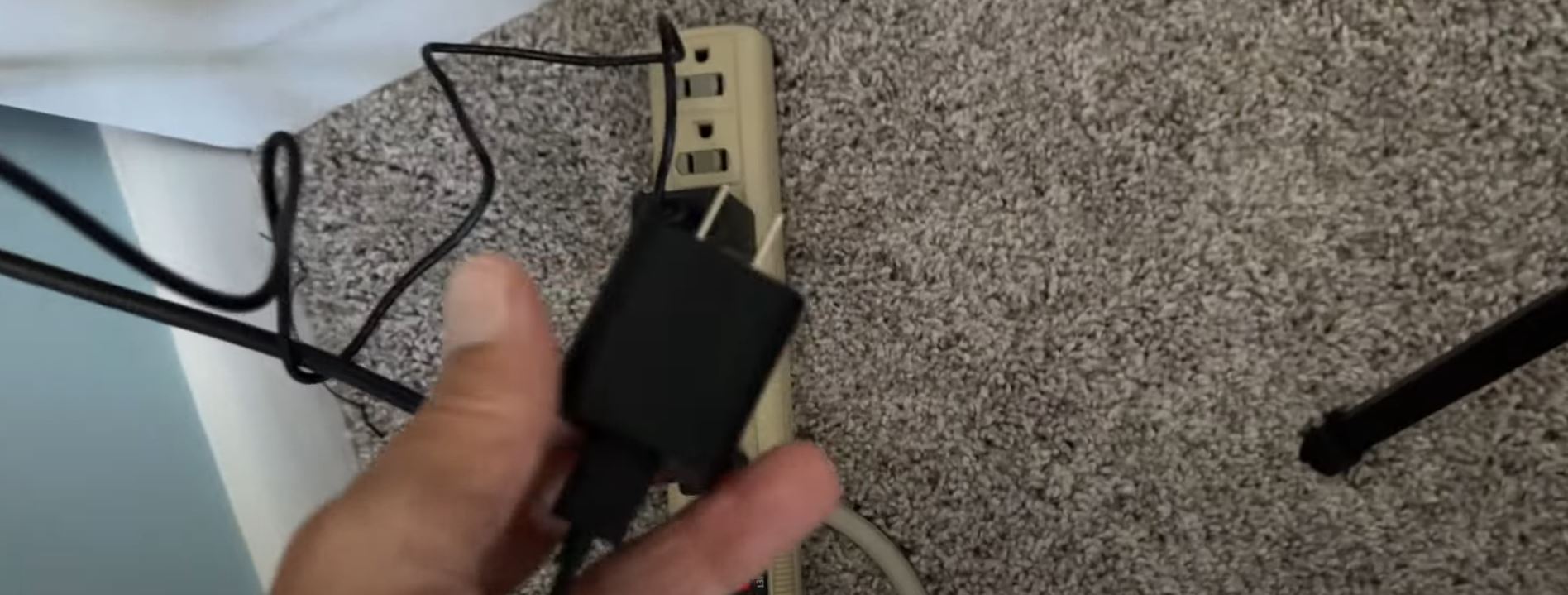
- Now, insert the Firestick into the HDMI port on Smart TV.
- Plug In your Smart TV Power Cable into the socket.
- Switch On the Firestick and Smart TV.
Then, connect your device to a high-speed Internet Connection. And then, Launch the Spotify App on Firestick. And check, whether Spotify Not Working on Firestick has been fixed or not. If you have a Roku device, click this link to learn How to Install and Stream Spotify on Roku.
Check Spotify Outage
If the second trick is not working on the issue, try this. Sometimes there is a technical glitch in the Streaming services. To check the Spotify server outage, try the steps below;
- Launch the Internet Browser App on your Streaming device.
- Navigate to the search panel.
- And type “Downdetector” in the given search panel.
- Launch the Official Downdetector website from the search result.
- Opt for the search section.
- Type “Spotify” in the given space.
- Hit the enter key.
- Now, the Downdetector shows you the Spotify app server graph on the screen.
- Check this image as a reference.
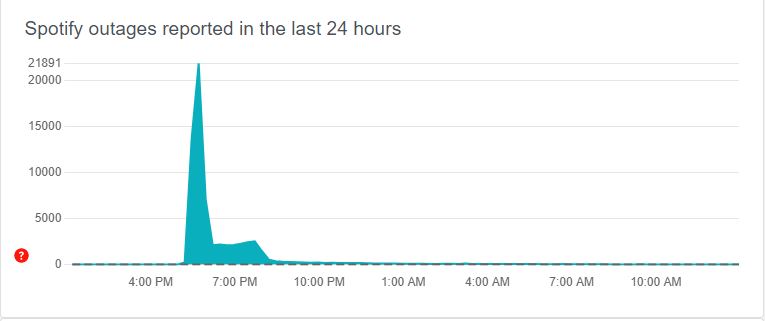
If the Server is down, close the Spotify app on Firestick. And wait for at least 20 to 25 minutes. After a while, relaunch Spotify and check that Spotify Not Working on Firestick has been fixed. If not, move to the next topic.
Spotify Not Working on Firestick | Update Spotify |
Spotify app service is stable but it is not working on the Firestick. It may be due to the cause of the old software version. So, update the Spotify app right now. Use the steps below;
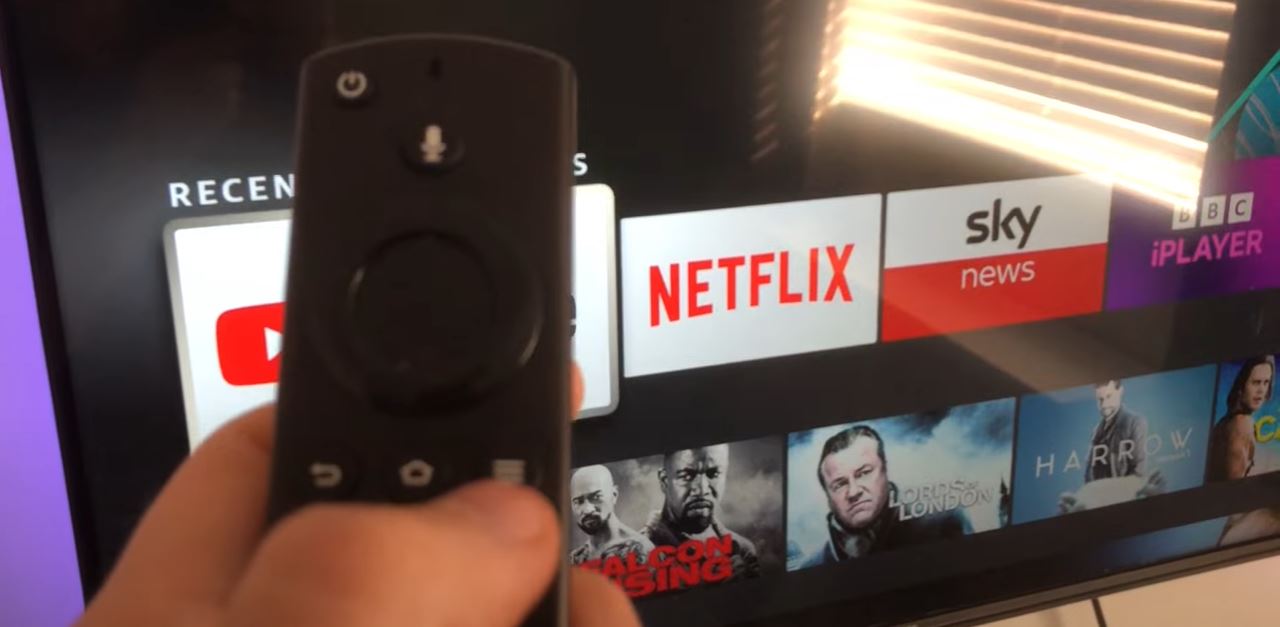
- Click the Home Button on Firestick remote.
- Launch the Apps and Games page on Firestick.
- Navigate to the Spotify app.
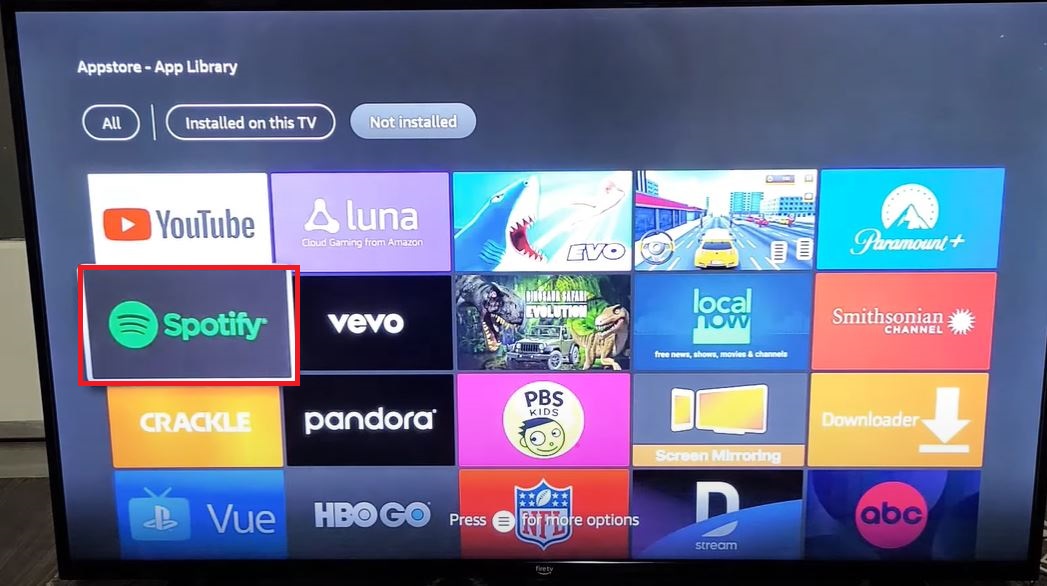
- Click the Three-Horizontal Lines Button on Firestick remote.
- Navigate to the Bottom Right Corner of the tv screen.
- And, click the More Info option.
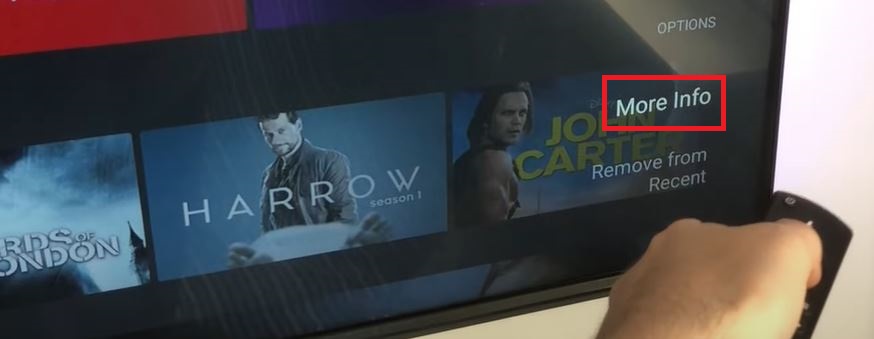
- There, select Check for Updates.
- If the app requires an update, click Install Now/ Update Now button.
Update Spotify App
- Hit the Home Button on the remote.
- Select the Settings icon on the home screen.

- Click on the Applications option.

- Now, tap the Appstore from the list.
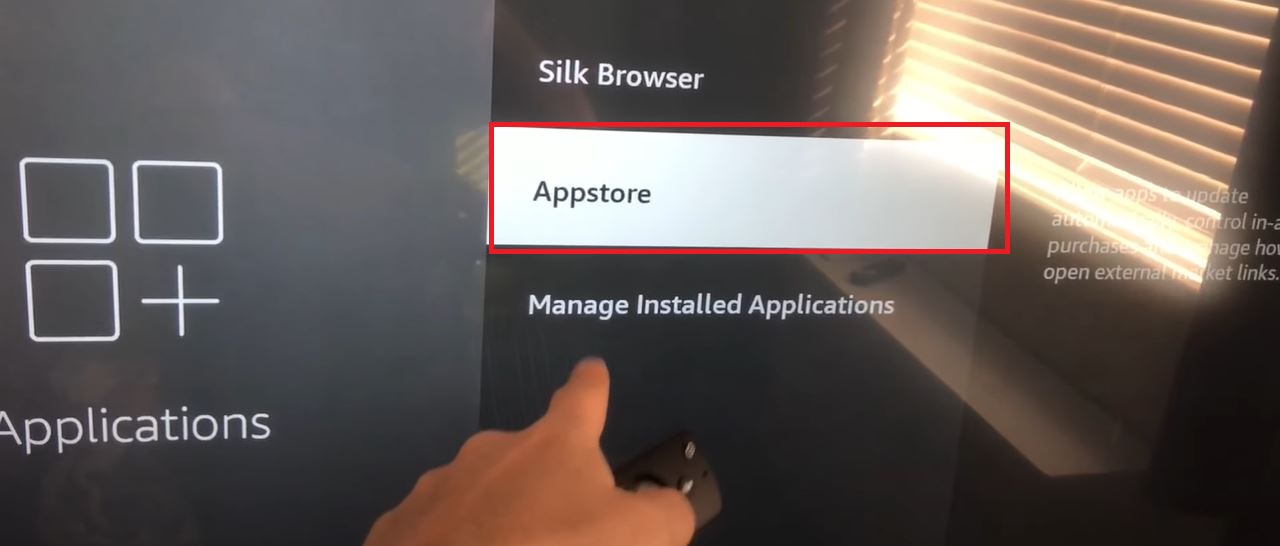
- There, you can see the Automatic Updates option is OFF.
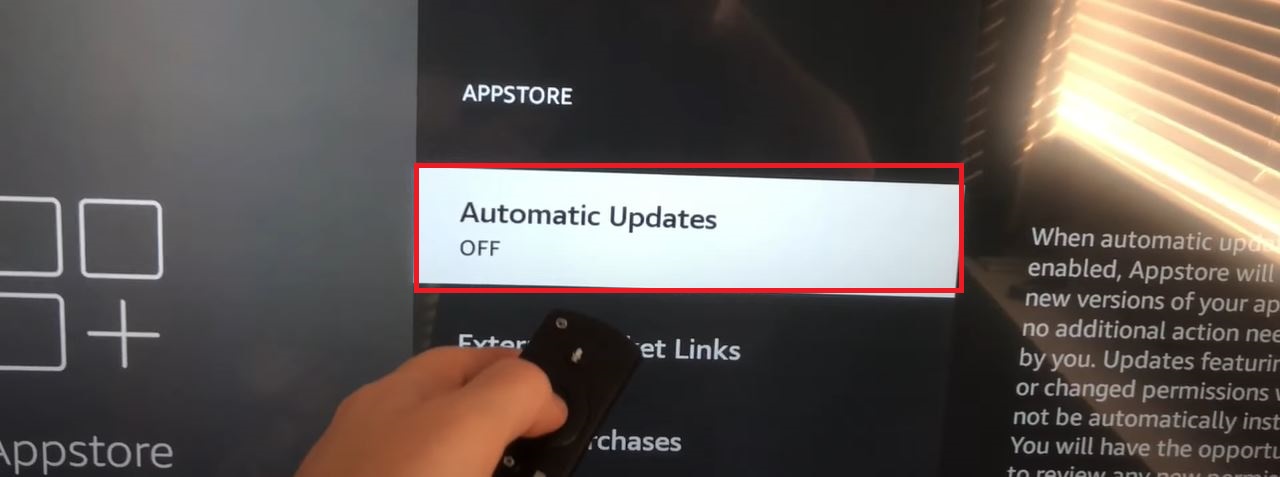
- Click the Center button on the remote.
- And Turn ON the Automatic Updates option.
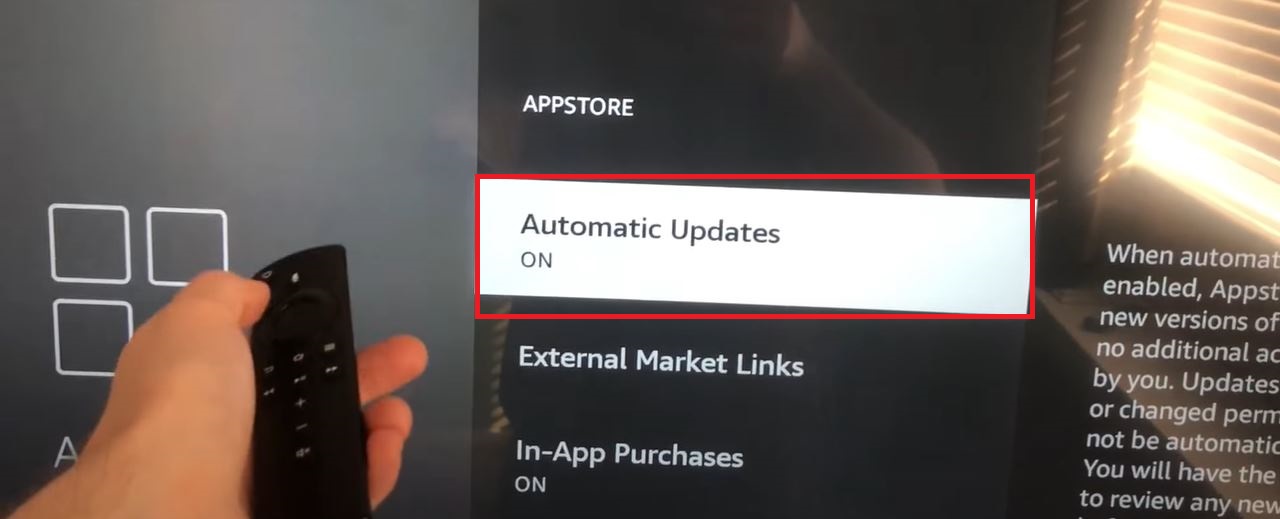
Now, all old-version streaming services are started updating the software automatically, Including Spotify. Do not disturb your Firestick until the update process gets complete. Once it is finished, launch Spotify and start playing your favorite playlist and enjoy the music. Not only on external streaming devices but also you can play Spotify on PS5.
Update Firestick
After the Spotify app software update, still Spotify Not Working on Firestick, Then take a look at your device’s Operating System version. Here are the steps;
- If you are not on the home page,
- Click the return button or Home Button.
- Select the Settings option from the menu.

- Now, click on the My Fire TV option.

- Click on the About button.
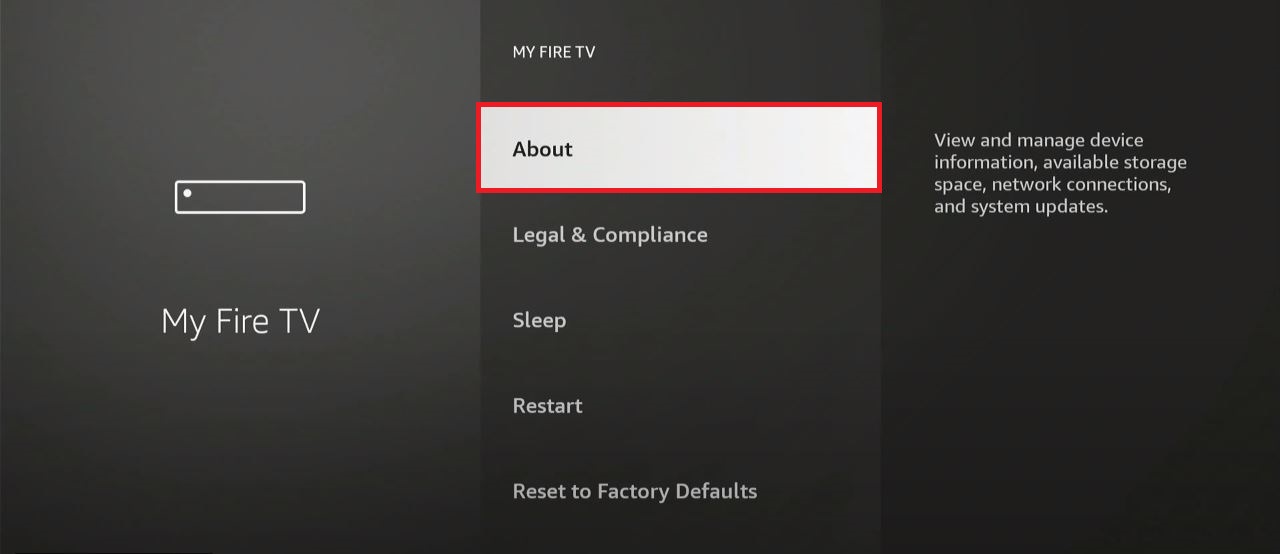
- Then, tap on the Install Update tab.

- Or, Check for Updates based on what your device shows.
- After clicking it, you can see that Firestick Powering Off.

- Now, the latest version is started to be installed on the device.
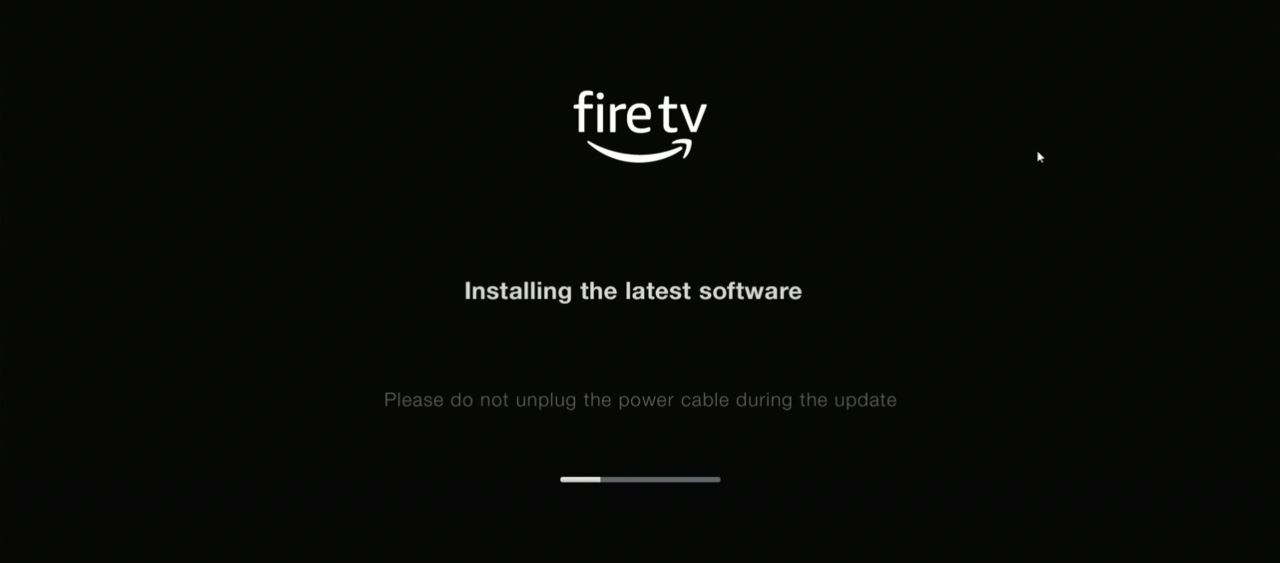
Do not press any keys on your Firestick remote. And do not switch off your Firestick TV while the latest version is updating. Once the Firestick system update is completed, it will be restarted and Turn On back. Go to the Apps section and launch the Spotify app. And check, whether it is working properly or not.
Spotify Not Working on Firestick | Clear Cache Spotify |
The Multiple Copies of the data or data are in the temporary storage in the app called Cache data. If there any cache files are the issue on the Spotify app, you must have to clear them. Follow the steps;
- Click the Return or Home Button on the remote.
- Select the Settings option.
- Now, tap on the My Fire TV option.
- Click the Applications button.
- Navigate to the Manage Installed Applications and click on it.

- Scroll down and click the Spotify app from the list.
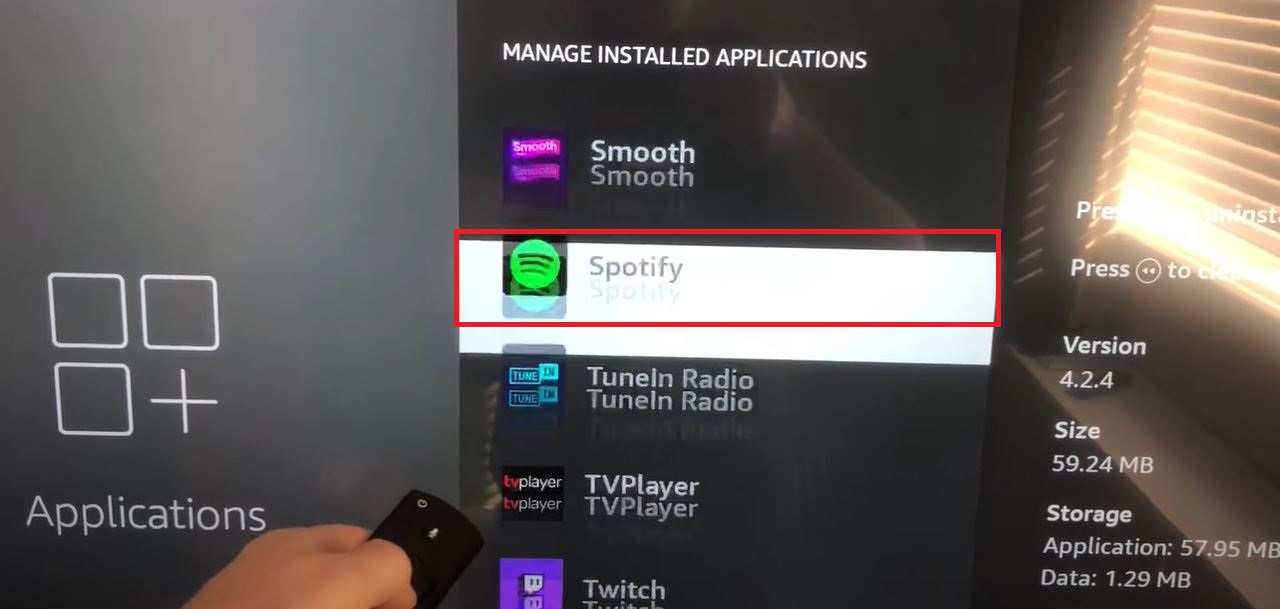
- Now, you can see many opinions.
- Click the Clear Cache button.
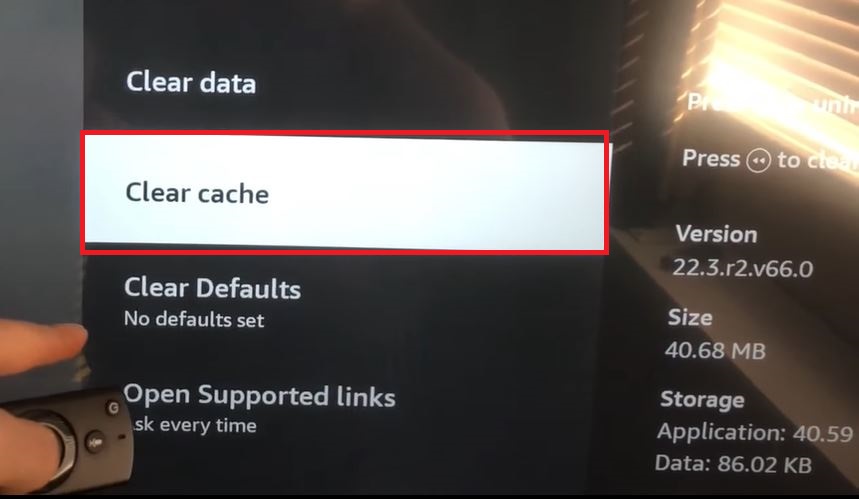
- Once, you have clicked it, all th cache files are cleared.
And the Spotify Not Working on Firestick problem was also fixed. Still, it is not fixed, Follow the same steps above, and click the Clear Data option. Now, check all problems have been fixed.
Uninstall and Install Spotify on Firestick
At last, it will be better to Uninstall and Reinstall the Spotify app once on the Amazon Firestick device. Follow the steps.
Uninstall Spotify on Firestick
- Go to the Firestick Home Screen.
- Launch the Apps and Games section.
- Navigate to the Spotify app.
- And, click the Three Horizontal Lines button on the remote.
- Go to the opinions and click Uninstall.
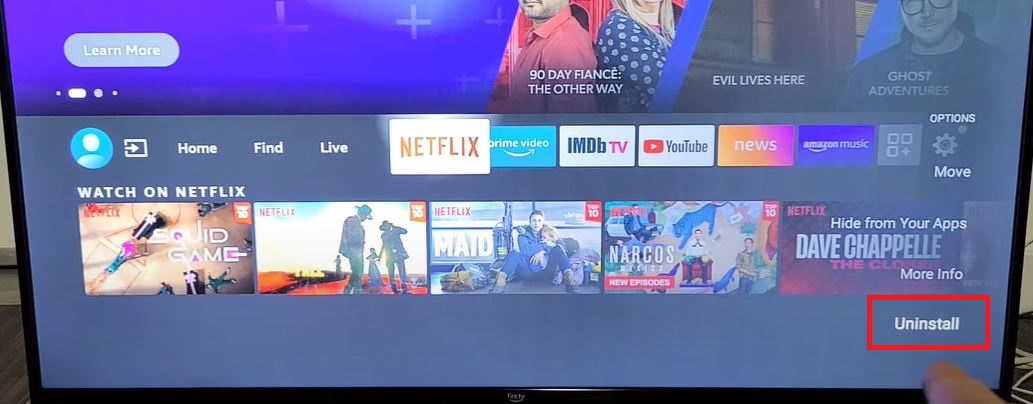
Uninstall Spotify via Settings
- Click Settings on the home page.
- Select the Applications option.
- Click the Manage Installed Applications option.
- Select the Spotify app from the list.
- And then, click Uninstall option.
Install Spoify on Firestick
- Click the Home Button.
- Select the Find option on the home screen.

- Type “Spotify” in the given search space.
- And, select the official Spotify app from the search result.
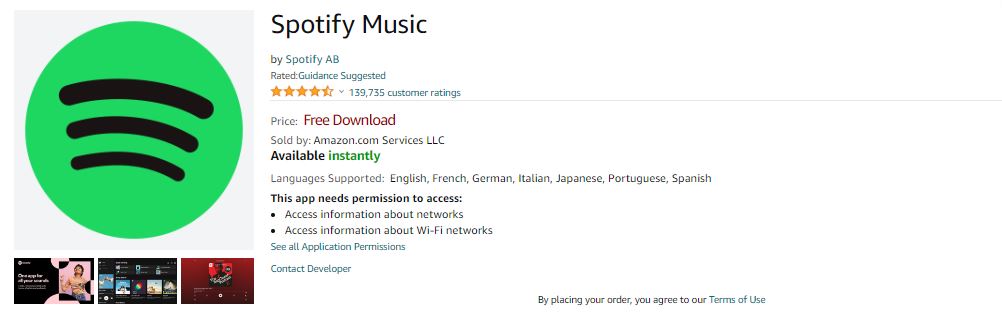
- Then, click the Download button.
Know more and Read: Install the App on Firestick And Sign In using your Spotify user credentials. I hope Spotify Not Working on Firestick issue has been fixed. Like Firestick, if Spotify Not Working on Roku, click this link and know how to fix it.
Contact Spotify Customer Service
If it is a small problem, the Spotify Not Working on Firestick has been fixed by any one of the troubleshooting methods from the above list. If still, the Spotify music app is not working properly on the Firestick device, you must contact Spotify customer service. Launch the Web Browser app on the Smart device. And search for the Spotify Customer Service Contact Number. Copy the contact number from the search result. Make a call to that number. And raise the complaint that you have seen on the Spotify Screen.
Conclusion
Do not get frustrated by Spotify Not Working on Firestick. Just follow a few simple and easy tricks on your Firestick and Spotify app. I have given eight different methods in the above section. Do follow all the methods one by one as mentioned. Not only Spotify but also you can follow the same procedure for other streaming services too.