
Whereas YouTube is the most popular streaming service Platform and it has the features of sharing videos at free cost and also watch any content online easily. It has various content with different categories such as Movies, Songs, recipes, and More. All this content is available and accessible to your computer or Smartphone. If you are user-facing an error that Middle Click is Not Working due to some issues on YouTube TV. Then you can solve this issue by yourself. Here in this article will explain to you How to Fix the Middle Click Not Working on YouTube.
Scroll down the article to know more possible methods and tricks.
Table of Contents
What is Youtube Middle Click Not Working?
It’s like an option to open a New Tab on YouTube by using a Mouse Middle Click. Moreover, it is an excellent feature that user can access their image and Videos in individual Tabs based on their convenience. In the Source of YouTube play an important role that can allow a user to view and access multiple Video at the same time in separate tabs or watch side by side.
Recently YouTube Users can face the issues that they can’t access it new tab by using Mouse in Middle Click. If you are trying again and again but fail. Then you can try our solution to fix the issues.
How to Fix YouTube Middle Click Not Working?
If there is a technical issue that happened to the service then it will not be able to work normally. It will show some error codes on the screen to clear the problems to continue streaming your favorite content. Suppose you see any error code and your Youtube Middle Click Not Working then you can try out all the coming tricks and Methods to solve the issues.
Check the Internet Connection
It is a simple command issue that happened to your devices. Suppose your device is connected with a poor internet connection. Then you can test your internet speed using the Internet Speed testing website. If the speed is good then once you disconnect the internet from your router and wait for a few minutes and connect again to get speed internet to your device to watch the content without buffering.
Disconnect the Inline Player Features
Inline Player has an Amazing feature that will automatically play a video if you come back to the home page or anything else. It will run in the background. Sometimes it will cause the biggest issues to your service. So to avoid the issues, you have to turn off your Inline Playback.
The Steps are;
- Launch the Youtube on your laptop.
- Press the Profile Picture.
- Choose the “Setting” option from the Menu.
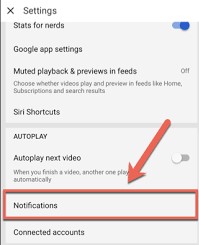
- In the option of setting, Select the playback and Notification option.
- Place the Inline Playback option available next to the Browsing at the bottom.
- Switch off the InLine Playback option by Toggle the Switches.
Check the Post: How to Fix Spotify Not Working on Firestick
Check out the Mouse setting
In the Setting the Mouse middle button option toggle is Off then your Mouse middle click is Not Working on Youtube. Once you can check out the Mouse Setting if the Mouse Middle option is On or Off. If it is off then change the setting to operate the system.
The Steps are;
- Launch the Mouse Properties. Beginning with the process of Clicking the Start Button and Pressing the Control Panel.
- By using the search box Type the Keyword as “Mouse” and click the Mouse option.
- Check the Click Lock option, to use the Mouse buttons. If the Clicklock is off just enabled this option to clear the Middle click not working issues.
Remove the Browser Extension
Here we mention the steps to Disconnect the Browser extension to clear the Middle Click Not Working on YouTube.
The Steps are;
- Launch the Chrome on your device.
- At the top right corner click the dots.
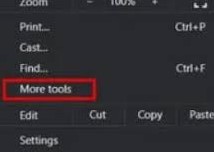
- Choose “More Tool Option” and then click the extension option.
- Tap the Disable button then it will not work for any other extension.
- Otherwise, try to use a Different Browser like Chrome or Firefox.
Update your Mouse Driver
If you have your Movie driver with an old setting then it hasn’t worked with the click of the mouse Middle button. So you have to update your Mouse Driver for getting a better experience.
The steps are;
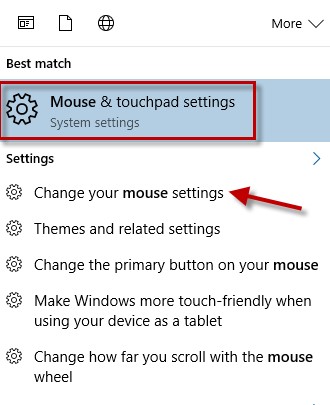
- Click the Search Bar option.
- Find for Device Manager.
- Open it and it will show the list of Hardware.
- Choose the Mouse option and other pointing devices option.
- Then Ellobrate your Mouse menu and search for the Mouse option.
- Press the right button option.
- It will connect and Click the Update Driver option.
- Once the Mouse driver is updated then you have to restart your computer.
Then you can check the Middle-Click Not Working on YouTube issue is cleared. If it is not then moved to the further steps and try to solve it.
Related Post: How to Fix YouTube TV Not Working on Firestick
Scrollable Tabstrip Settings
Follow the steps to check the Scrollable tab strip setting to resolve the issues on your YouTube Middle Click Not Working problem.
The Steps are:
- Go to https://forums.opera.com/topic/46790/scrollable-tabstrip-option-in-settings.
- Move to the option of Scrollable tab Strip.
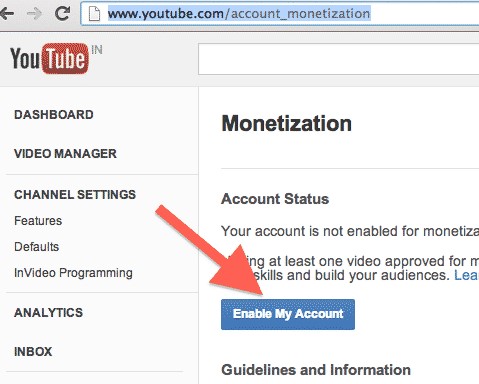
- On the Drop Down option click the Enabled option.
- Tap the reload Button. Suppose the reload button is not available. Then restart your computer.
- Now the Fire Up OperaGX is ready to try it out and see if its works.
Utilize the Chrome Extension
By using a Chrome Extension it is importantly created to address the problem of the YouTube middle Click Not working error. If the users have reported to the service center about the issues that YouTube Middle Click Not Working. Then they will recommend installing the Chrome Extension to resolve the Middle Click error.
Click on Title Alternatively of Thumbnail
Just follow the upcoming steps to solve not working issues.
The Steps are:
- Tap the Middle Click on the Video Screen.
- Not on the Thumbnail.
- This process will open the Videos in a New tab.
Now Check the Middle Click Not Working Issues are cleared.
Run the Hardware Troubleshooter
Here we mention the steps to Run the Hardware Troubleshooter to clear the Middle Click Not Working on YouTube.
The Steps are:
- Find the Control Panel and it is available next to the Windows icon.
- Click to Open it.
- Lunch the Hardware and sound option.
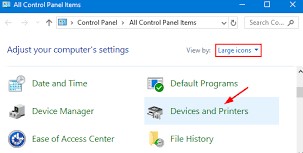
- After that, open the option Devices and Printers.
- Now you have to search for your mouse and do the Right Click on it.
- Tap the Troubleshoot.
Additional Info, How to Fix YouTube Not Working on Roku
Clear your Browser History Cache
This is a simple process to clear your service issues. If your device has filled with unwanted data and files then it doesn’t have enough space to run new content. So you can clear your browsing history to free up your device’s space to run content without error. Also, check that the Middle Click Now Working on YouTube is Solved.
The Steps are:
- Launch the Chrome Browser.
- Then click the three-dot option.
- Proceed with the More tool option.
- Tap the Clear Browsing data.
- Now Clear all the Unwanted data.
Closing Off
Here in this article get completed with the Top ten solution on How to Fix Middle Click Not Working on YouTube. We have mentioned clear steps with definitions. If you are trying all these methods but are still not clear then you can contact customer service. They will solve your device and service issues. Referred to this article and Try out the Steps. In case you have any doubts are needed any additional information. Freely share your comments in the comment box.