
![How to Fix Hulu Not Casting to Smart TV Issue [Guide 2022]](https://techthanos.com/wp-content/uploads/2022/09/How-to-Fix-Hulu-Not-Casting-to-Smart-TV-Issue-Guide-2022.jpg)
Bored of watching Hulu on your small Smartphone screen. You can take it to your large TV screen by casting. For some, Hulu will cast to Smart TV from SmartPhone and Web Browser, but for some casing, Hulu to Smart TV fails. If you are that someone, then you have to read this article to get a way out of the question of Why Hulu is not casting to Smart TV? and How to cast Hulu to Smart TV.
Table of Contents
Why is Hulu Not Casting to Smart TV?

Some factors decide the casting function to take place between two devices. If any one of those factors is not met, then it is not possible to cast anything on any device. The factors that you need to check before casting Hulu to your Smart TV from any device is
- Smart TV and device with the Hulu app must be on the same WiFi network.
- Your Smart TV must be capable of Screen Casting.
- If you are using Devices like Chromecast, make sure to connect it with the Same WiFi network as your SmartPhone or PC.
- Your Hulu app and Smart TV firmware must be updated to their latest version.
If any of these factors is missing, then you can see that Hulu is not casting to Smart TV. Do not worry if one screencast method is not working. Then you can use other methods to make it work. Let’s move on further and learn all the screencasting methods to cast Hulu on Smart TV
How to Fix Hulu Not Casting to Smart TV?
Where there is a problem, there is always a fix. This Hulu not casting to Smart TV problem that you are experiencing now has many other casting methods. If one is not working, then you can try other methods to fix this problem. So, I will now give you all the casting methods that are there to cast Hulu to your Smart TV.
NOTE: For all the casting methods that is going to be discussed here, make sure the relevant devices are all connected to the same WiFi network. You must have signed in to the Hulu app on SmartPhone or Web Browser before following the steps provided.
Method 1: Direct Casting From SmartPhone to Smart TV.
Some smartphones have default casting options like Cast and Screen Mirroring in them. We can use these options to get your SmartPhone screen with Hulu to your Smart TV screen. Follow the steps provided and get Hulu cast to Smart TV.
Cast Hulu from Android to Smart TV:
- Turn on your Android phone and swipe from the top to open the notification tab.
- Move around and find the Cast option.
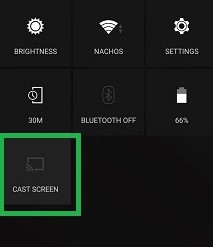
- Now tap on it and wait for some time to find devices connected to the same WiFi network.
- From this, choose your Smart TV.
- Select Accept at the prompt on your Smart TV screen.
- Your Android Device screen is now on your Smart TV screen.
- Open Hulu and play any content you like on your phone and watch it on your Smart TV screen.
Mirror Hulu from iPhone to Smart TV:
- For iPhone users, you need to swipe up to open the command center.
- Just tap on the Screen Mirror option and choose your Smart TV from available devices.
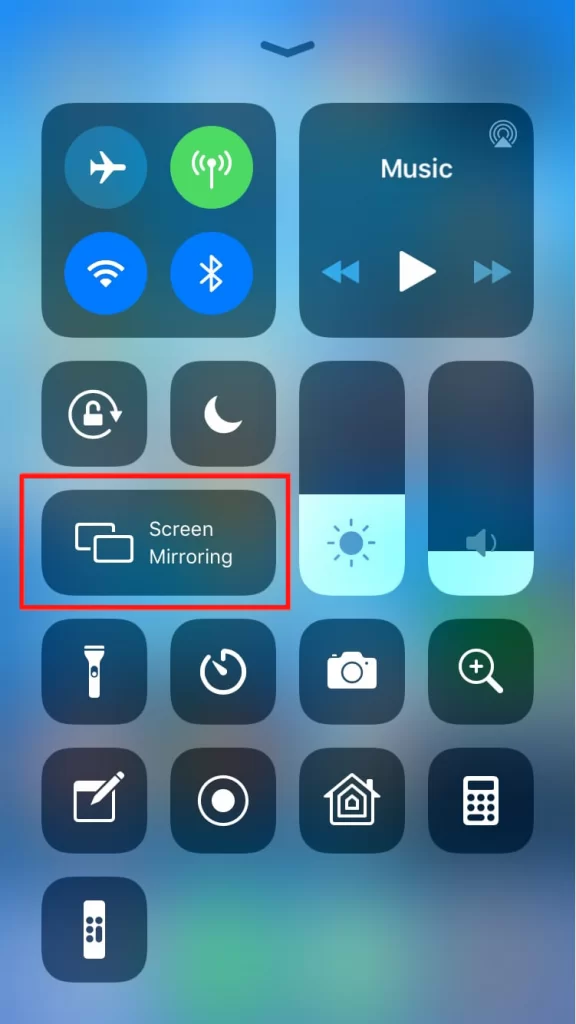
- You have to click on Accept at the prompt on Smart TV.
- This will make your iPhone screen mirror the Smart TV screen.
- Get to the Hulu app on your iPhone to play the content and get it on the Smart TV screen.
Method 2: Casting PC screen to Smart TV.
If you are using Hulu on your PC, then you can use its Project option to get your PC screencast to your Smart TV screen. The process is pretty simple, and you have just to follow along and get Hulu cast to your Smart TV.
- Get to any web browser on your PC and access your Hulu account on it.
- Click on the notification tab and choose the Project option tile.
- Now select Connect to a wireless display option and wait for your Smart TV to show up.
- This will make your PC screen appear on your Smart TV screen.
- Now play any Hulu content and watch it on your Smart TV.
Method 3: Using Casting Apps to Cast Hulu from Smartphone to Smart TV.
As of now, the best casting app would be the Google Home app. This is available for both Android and iOS devices. This app is easy to use and can solve your Hulu Not Casting to Smart TV issues without dropping a sweat. The procedure for both Android and iPhone is as follows,
NOTE: Get Google Home app downloaded on your SmartPhone from the default app store available on it.
- Open the Google Home app and give it some time to find your Smart TV over the Network.

- Select your Smart TV to get connected.
- Now select the Cast my screen option and select the Cast screen option.

- With your Smartphone screen on your Smart TV screen, start streaming Hulu.
- This way, you can get Hulu cast to Smart TV.
Method 4: Using Devices to Cast Hulu from SmartPhone and PC to Smart TV.
With the Chromecast device connected to your Smart TV, casting has been made easier. Now you can directly cast your Chrome Browser web page to Smart TV and SmartPhone screen to Smart TV with the Google Home app. Follow up on the steps for different devices.
Hulu on SmartPhone cast to Chromecast connected Smart TV what Google Home app:
The procedure is the same as the ones that you have witnessed in Method 3 provided in this article. The only change is that, instead of selecting Smart TV, you need to choose the Chromecast device. Since both are products from google, it is more efficient to use, and there is no space for errors.
Cast Chrome Web Browser with Hulu Web Page to Smart TV with Chromecast device:
- Get on your Google Chrome web browser and visit Hulu to sign in with your credentials.
- Select Customize and control the Google Home option with three vertical dots on the top right side of the screen.

- Select Cast and wait for some time to let it finish its process of Looking for devices.
- From here, choose your Chromecast and make a connection.
- Your Hulu web page is now cast to your Smart TV screen.
The End
Is your Hulu Not Casting to Smart TV even after trying out all the methods mentioned in this article? Then the problem is within your Smart TV, and you have to take it to a professional to get it checked. Sometimes it might also be due to your WiFi network issues and connectivity problems. Please check them before trying the methods discussed in this article.
Frequently Asked Questions:
Can I AirPlay Hulu to Smart TV?
Yes, You can AirPlay Hulu from supported iOS devices to Smart TVs that have AirPlay compatibility. Some Smart TVs have an inbuilt AirPlay 2 function. For other Smart TVs that do not have AirPlay, you need to add an Apple TV device to perform AirPlay.
Do I need a Special TV to watch Hulu?
Internet connection is a must, and to directly access Hulu on your TV, it must be an Android TV, Samsung Smart TV, LG Smart TV, or VIZIO Smart TV. If none, then your TV must have HDMI ports to connect Hulu-supported streaming devices like FireStick, Roku, Apple TV, and Chromecast.