
Snapchat is a popular Snap capturing and chatting media platform. It allows its users to express themselves. Also, you can capture your real-time moment using the Snapchat app. Also, you can communicate with people who are all on Snapchat. So, today we are going to learn, How to Use Two Filters on Snapchat in this article.

To know, read the topics given in the upcoming section. Here they are…
Table of Contents
How to Use Two Filters on Snapchat?
So, the filters on Snapchat are the overlays of the snap you have captured. You can change your background and tone settings. Swiping Right and left you can add the filters to the snap. Now, we are going to learn How to Use Two Filters on Snapchat. Here is the step-by-step guide given in the following;
-
-
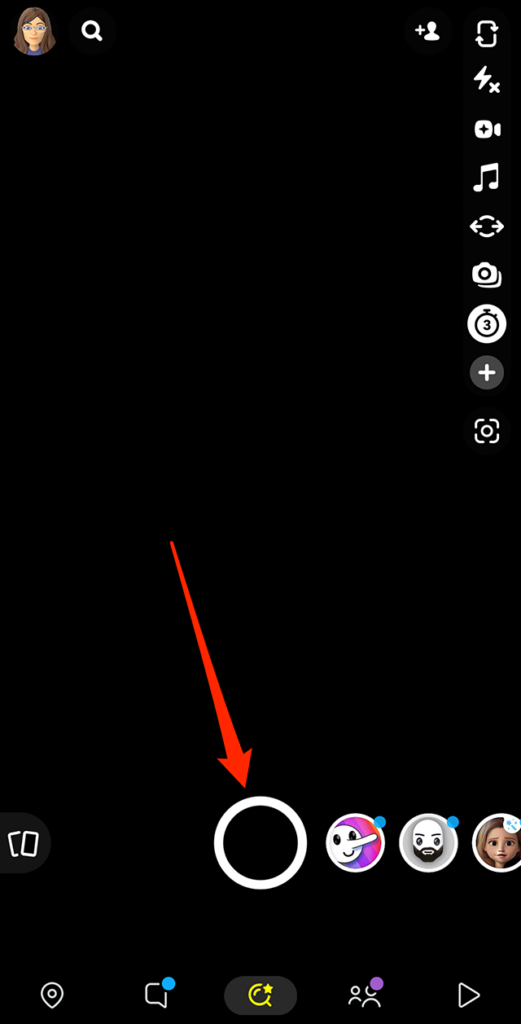
- Launch the Snapchat on your Smartphone.
- Fix the camera in front of the thing that you would like to capture.
- And, click the Capture button in the bottom center of the screen.
-
-
-
- Or, take a selfie of yours.
- Also, you can take a video on the Snapchat app.
- Just click and hold the Capture/ Shutter button on the Camera screen.
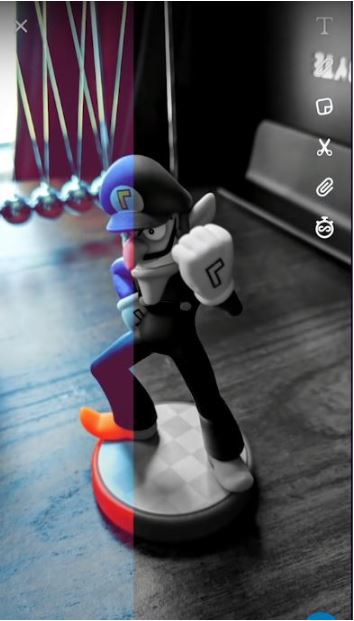
- Now, Swipe Left or Right on the screen.
-
-
-
- Select any filters you like.
-
Also, read: Can You Use Filters on Snapchat Video Call?
You can choose filters such as Climate, Date, Color Filters, and more like this on Snapchat.
-
-
- Press and Hold on to the Screen.
- Do not take off your finger.
- It will show you the first filter you have applied to the snap.
- Keep holding the finger.
- And, Swipe Left or right using another finger.
- Select any other filter to apply as a second.
-

You cannot combine two geofilters for a single snap. But you can combine one Color Filter with the Geofilter.
That’s all. This is the method of Use Two Filters on Snapchat simultaneously. Also, you have another method. Check it out in the next topic.
How to Add Multiple Filters on Snapchat?
The above given is the method to Use Two Filters on Snapchat. If you are using the latest version of the Snapchat app, follow the steps given in the following section. Not two, you can add Multiple Filters on Snapchat.
-
-
- Take a new snap or add the image from the gallery.
- Then, Swipe left or right to add the first filter.
-

-
-
- Tap and hold on the screen using one finger.
- Now, swipe left or right using another finger.
- Select your second filter.
-

-
-
- Again, tap and hold the snap.
- Swipe left or right with another finger.
- Select the third filter.
-
By this way, you can add multiple Geofilters, Color filters, or any other on the Snapchat app.
Also, read: Why Does My Bitmoji Look Different on Snapchat?
Another Way
-
-
- Take a Snap or add it from the Gallery.
- Swipe to Left or Right.
- And select your first filter.
- Then, click the filter icon.
-

-
-
- It will seem like an open box.
- Again swipe right or left to select the second filter.
-
Also, you can add two more Filters for your Snap on Snapchat. Do the same process, clicking the Filter Icon and swiping the screen to select the Geofilter and Color Filter.
Finally…
So, check the topics given in this article to learn How to Use Two Filters on Snapchat. Not only two filters, but also you can use multiple filters up to 5 for the snap you have captured or choosed. After applying the filters, you can add Music or Text by clicking the T icon on the editing screen. Then, click the Save button to save the snap on your device gallery.