
Hi Readers! If you are looking for an article on How to Install Kodi on Android TV? We will share the information in detail. There are many of Multimedia content from Movies and TV shows as well as music and podcasts on the Kodi application. Furthermore, there are many possible ways of downloading the Kodi on Android TV. Here we are going to teach you the step-by-step process in detail, Scroll down the page to know More.
Table of Contents
How to Install Kodi on Android TV?
Whereas Android TV has an official Google Play Store to download the application on the devices. Moreover, the Kodi app is most popular for streaming Video On-demand content, Live Channels, Sports, programs, and More Live events are air on this Kosi platform. It’s now accessible on this Android TV device.
The Steps are:
- Launch the Google Play Store on your Android TV.
- Sign in with your account.
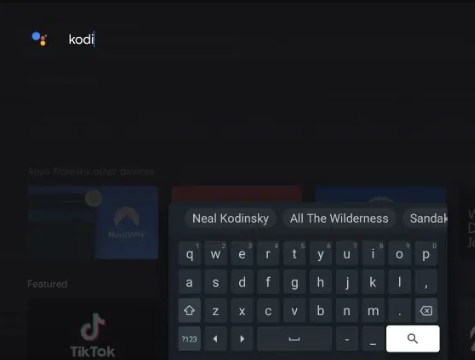
- Click the Search bar, and type the keyword “Kodi”.
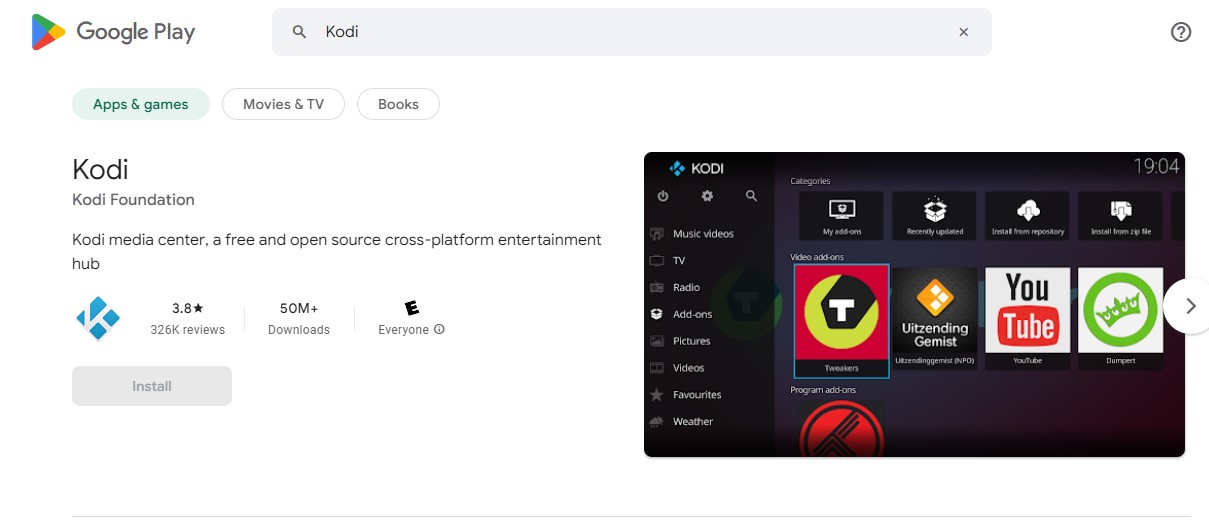
- Hit the application from the result.
- Once the Kodi is installed on your Android TV.
- Then Activate your account to stream your favorite content.
Also, read How to Get Kodi on Roku
Method 2: Install Kodi on Android TV: Using the Official Website
This is easy and also used as an Alternative way to get Kodi on Android TV. Use its official Kodi website to download the app on your device. In case, if you have an Android TV not with the Play Store then you can use this method.
The Steps are:
- On your Android TV move to the setting Panel option.
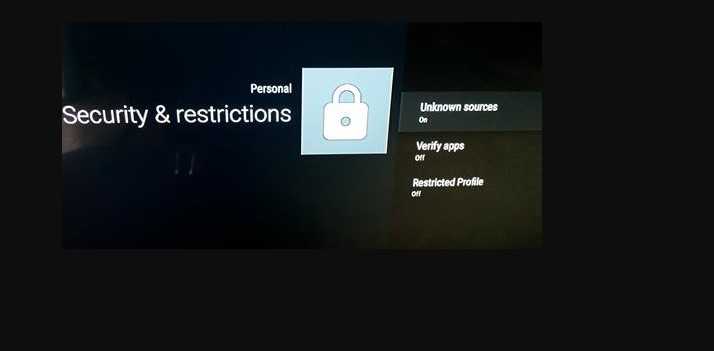
- Swipe down to click the Security and Restriction option.
- Switch on Unknow Source to allow for downloading apps from outside the Google Play Store.
- On your PC, Install Kodi for Android from Kodi’s Download Page.
- To do this process you have to need the latest version of OS.
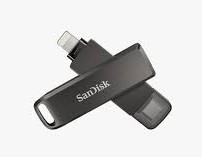
- Now you have to Copy the download. APK File to Google Drive or USB Drive.
- Connect with your Android TV.
- On the TV, Search and use the APK File using the Google App or Another File Manager option.
- Next, Launch the APK File to download the Kodi.
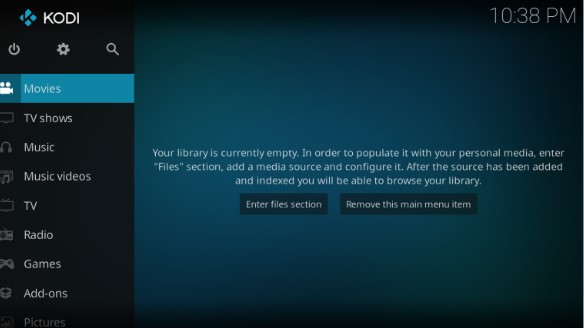
- Once the process is done you can stream the content from the Kodi on Android TV.
Check the Post: How to Get Kodil Repo on Firestick
Method 3: Kodi on Android TV- Using Downloader
This is also one of the Method
The Steps are:
- Download the Downloader application from the respective App Store (Amazon App Store or Google Play Store).
- In the Setting option switch on the Apps from Unknown Source.

- Open the Downloader app.
- Click Allow to Promote the Upcoming Process.

- Now enter the URL Bar to press the Choose button using your remote to launch the keyboard.
- After that enter the Downloader Code on it.
- Press the Install button.

- Once the app is installed you can get the Kodi App installed message on your device. Tap to Open it.
- Press the Continue button.
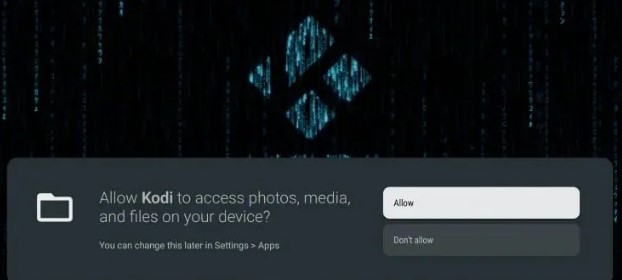
- Hit the Allow option to stream its wonderful popular VOD on your device.
How to Get Kodi on Android Phone & tablet?
If you user of an Android Phone or tablet then you can also download the Kodi app easily. You can stream its Video On-demand content everywhere. Here we share the steps for getting a Kodi app on your Smartphone and Tablets.
The Steps are:
- Open the Google Chrome and enter the Kodi. tv/Download in the URL Bar.
- Press Android.
- Choose the ARMV7A (32BIT).
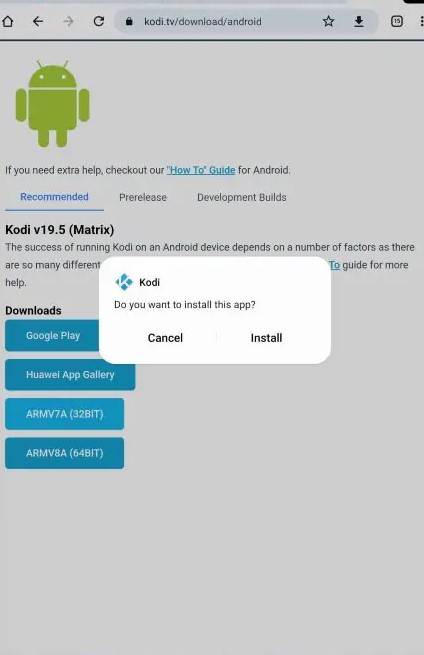
- Press to download them anyway.
- Wait for the download.
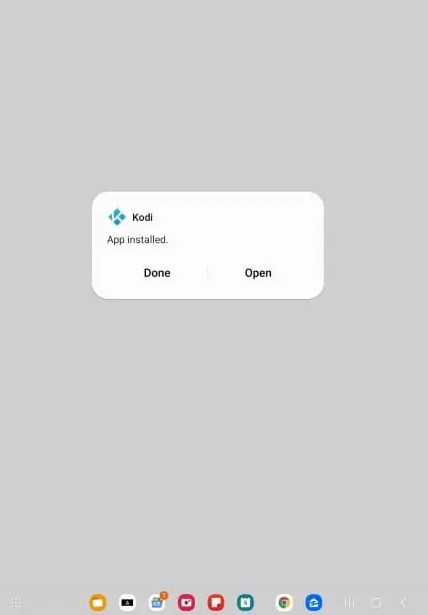
- Tap to Open.
- Hit the Install button.
- Now you can receive the Kodi App installed Message.
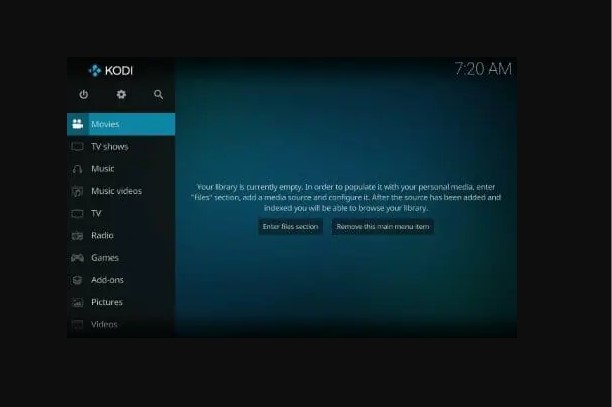
- Next, it will move to the Kodi Home screen.
- At last, you can choose the content and play it.
Similar Post: How to Install Kodi on Chromebook
Alternative Way to get Kodi on Android TV
In the previous section, we have offered the steps to download the Kodi application on your Android phones and tablets. Further, you can also cast the Kodi content from the Smartphone to your Android TV. To do this process we need to fix a Stable internet connection.
The Steps are:
- Download the Kodi app.
- Launch the Application to download any Kodi Add-ons that you need.
- Play the Video content.

- After that, move to the Notification Panel and click the Cast icon.
- Inside the icon, you have to choose your device name.
- Once your smartphone is connected to your Android TV then you can stream the content.
Highlights of Kodi
- Kodi has a default media Player to watch all your favorite Videos.
- It allows you to create Multiple profiles on One device.
- There are many IPTV Add-ons on Kodi to stream various Free Live TV Channels.
- You can obtain content included in the Categories such as Movies, TV Shows, Music, and More.
- If you download the PVR IPTV for the Climent Add-on to access the IPTV Channel easily with your Kodi.
- You can get Customer Support available for 24/7 Live Chat and email.
- At the same time, you can connect up to 8 devices.
- It has over 3000+ Servers in 94 Countries in the World.
Compatible Android Smart TV for Kodi
Only you can access the Kodi content with its Supported devices. Moreover, It is not compatible with all kinds of smart TVs. Here we share the list of Smart TVs that support the Kodi Content.
- TCL Smart TV.
- Sony Smart TV.
- Oneplus Smart TV.
- Vu Smart TV.
- Sharp Smart TV.
- Philips Smart TVs.
- Hisense Smart TV
- Xiaomi Mi Smart TVs.
Supported devices with Android TV Boxes
- Mi Box 4K
- MXQ Pro 4K.
- Airtel X Stream.
- Nvidia Shield TV.
Closing Off
We sum up this article here, You can download Kodi using a Google Play store, Moreover, there are other alternative ways available to watch its Video On-demand content. It has various content like Movies, Music, TV Shows, and Programs. Furthermore, you can get a Huge Library of content that allows you to choose and stream your favorites. In addition, we have mentioned the Smart TVs list for the compatible devices of Kodi.