
The process to download apps on Samsung Smart TV is given in a step-by-step procedure to download apps from Galaxy App Store and from streaming devices, along with third-party apps. To know more about the process read this article until the end.
![How to Download Apps on Samsung Smart TV [Included 3rd Party Apps]](https://techthanos.com/wp-content/uploads/2022/06/How-to-Download-Apps-on-Samsung-Smart-TV-Included-3rd-Party-Apps.jpg)
The important information that will be discussed in this article are,
- Steps to download apps on Samsung TV
- Procedure to download 3rd party apps on Samsung TV
- Enabling Unknown sources and Developer mode.
- Apps from streaming devices on Samsung TV
- And other functions you can use on apps
Table of Contents
Apps on Samsung Smart TV:
The apps that can be downloaded on your Samsung Smart TV are from Samsung Galaxy Store. And it is not possible to directly download apps from Google Play Store and Apple App Store and other app stores.
Samsung Smart TV can access the apps that are available only on Galaxy Store. Some of the default apps that come along with the Samsung Smart TV are as follows,
- Netflix
- Hulu
- Prime Video
- Vudu
- Disney +
- PLEX
- Apple TV + and more.
How to Download Apps on Samsung Smart TV?
Without skipping, follow the steps to download your desired app on your Samsung TV.
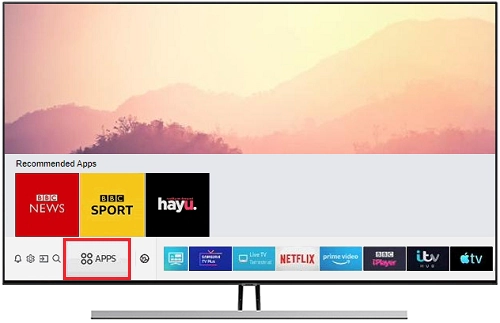
- Find Home Button on Samsung Remote and press it to open Home Page.

- You can also select “Apps” from the list that occurs.
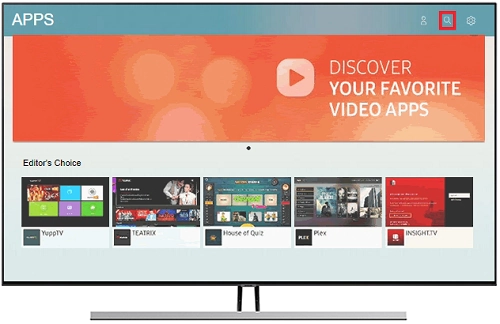
- From the top-right corner of the screen, you can find the Search icon
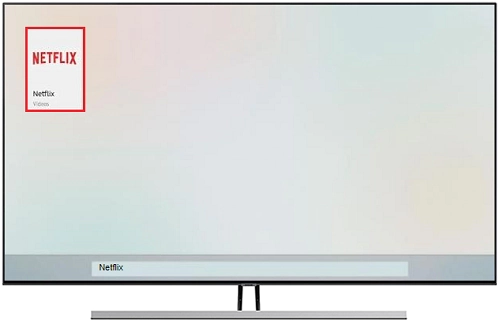
- Tap that icon and enter the App’s name you want to download.
- You can now select the app from the search results.
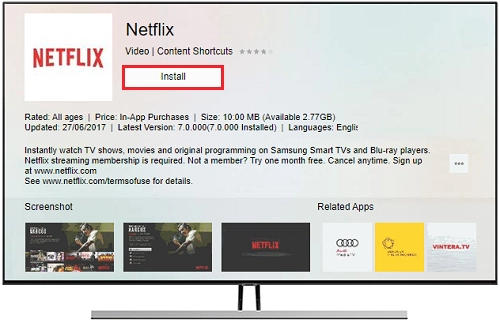
- Select the “Install” option to download your Samsung Smart TV app.

You have now successfully installed an app on Samsung Smart TV.
How to Download 3rd Party Apps on Samsung TV?
If your preferred app is not available at the Samsung Smart TV app store then you can use any of the methods given,
- Install Third-party apps using developer mode.
- Download apps using Streaming devices.
How to Downlaod Third-party apps on Samsung TV?
To download Third-party apps on your Samsung TV you need to do the following steps,
- Enable Unknown Sources
- Enable Developer Mode
- Add Apps using a USB drive
How to Enable Unknown Sources on Samsung Smart TV?
You need to turn on your Unknown Sources feature to install apps from sources outside of Galaxy Store. To do that follow the steps,
- Switch on your Samsung Smart TV.
- Use your Samsung Smart TV remote and press the settings button.
- Now go to System and press ok on the remote.
- Move on to the section Add-ons.
- Navigate to the Unknown Sources option.
- Toggle the button to turn it on.
The process to enable Unknown Sources is successful and you can now download third-party apps on your Samsung Smart TV.
How to Enable Developer Mode on Samsung TV?
To install the third-party apps and make them usable on your Samsung Smart TV, you need to enable the Developer Mode option.
- On your Samsung remote find the Home button and press that button.
- Navigate and highly the option Apps and press ok with your remote.
- You will get directed to the apps page.
- Go to the Apps Panel and press “1234” on your remote.
- From the Developer Mode pop up switch it to on.
- Type in the information asked and press ok.
- To enable the Developer function you need to restart your TV.
With the following steps after rebooting your, Samsung TV is now able to download third-party apps.
How to Add Apps using a USB Drive?
To add Apps from a USB drive you need to first download the app from a reliable source. The steps to be followed are,
- On your PC download the desired app APK file from the browser.
- Now move the APK file to your USB drive.
- Plug the USB drive into your Samsung Smart TV and wait for it to scan.
- Now open the drive and select the APK file.
- Go to options and select install to get the app on Samsung TV.
Wait for the app to get installed and enjoy watching its content on your Samsung TV.
How to Download Apps Not Available on Samsung App Store?
You can use streaming devices to download the apps that are not available on your Samsung Galaxy Store. The streaming device that can be used are,
- Fire TV Stick
- Roku
- Apple TV
- Chromecast
How to Connect Streaming Device to Samsung Smart TV?
Follow the given steps to connect any streaming device to your Samsung Smart TV.
- On your Samsung TV HDMI port connect your Streaming device HDMI cable.
- Connect the power cable to your device for power.
- Now switch on your TV and select the HDMI port to which you have connected your device.
- Follow the instructions on-screen to connect your device to a WiFi network.
You have now successfully connected your Streaming device to your Samsung Smart TV and now you can download the apps from your streaming device app store.
With the above-mentioned streaming devices, you can download the apps from,
- Amazon App Store
- Roku Channel Store
- Apple App Store
- Google Play Store
You can also use the FireStick device to sideload third-party apps onto your Samsung Smart TV using the Downloader and ES File Explorer apps.
Other Functions:
1. How to Move Apps on Samsung Smart TV?
You can move your favourite app to the home screen on your Samsung TV by simply following the procedures given below.
- Find Home Button on Samsung Remote and press it to open Home Page.
- Find the app you want to move and select it.
- Click the Down key on your remote to open an expanded menu of the app
- You can find the Move option in the menu.
- Now select the option and move the app using your remote to your desired location.
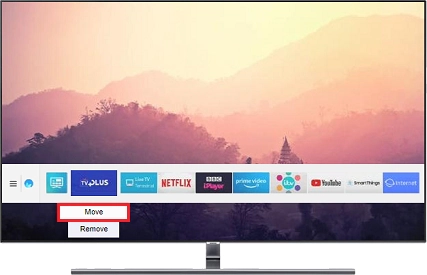
You can now move your app to any desired location on your Samsung Smart TV with the following steps.
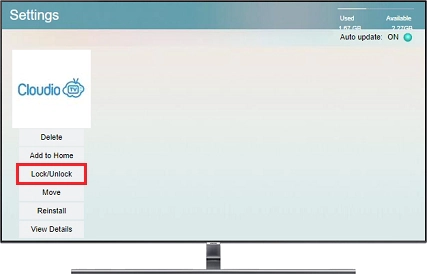
2. How to Lock and Unlock apps on Samsung Smart TV?
- Find Home Button on Samsung Remote and press it to open Home Page.
- Find the app that you want to Lock/Unlock and select it.
- Click the Down key on your remote to open an expanded menu of the app
- You can find the Lock/Unlock option in the menu.
- Enter the TV security code
- If you don’t have a code, then enter the default code “0000” or “1234”.
3. How to Delete Apps on Samsung TV?
- Find Home Button on Samsung Remote and press it to open Home Page.
- Find the app you want to delete and select it.
- Click the Down key on your remote to open an expanded menu of the app
- You can find the Delete option in the menu.
- Select the “Delete” option to delete your Samsung Smart TV app.
4. How to Update Apps on Samsung TV?
- Find Home Button on Samsung Remote and press it to open Home Page.
- Select “Apps” from the list that occurs.
- From the top-right corner of the screen, you can find the Search icon
- Now find the Auto Update option and turn it ON.
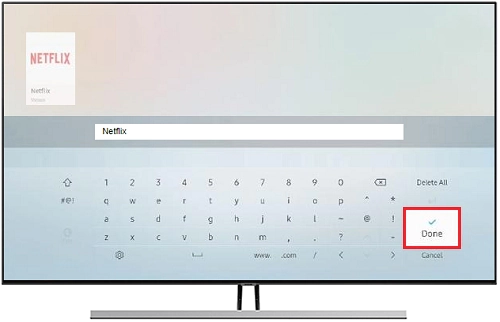
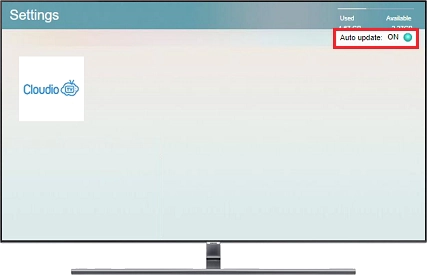
Your Samsung Smart TV apps will automatically detect and update your apps whenever a new version is released.
Frequently Asked Questions:
How to Install 3rd Party Apps on Samsung TV?
You can install 3rd party apps on your Samsung TV by enabling the developer option and Unknown sources option. You can download the app you want in APK file format from a reliable source and transfer it to your Samsung TV using a USB drive and installing the app.
How to Add apps to Samsung Smart TV?
To add apps you need to go to the Samsung Galaxy app store and search for your desired app and select and install it on your Samsung Smart TV.
The End
With the information given in this article, you can now download apps from Samsung Smart TV the Galaxy store and from connected streaming devices and third-party apps by enabling the developer’s option and unknown sources option. And also additional info on the other functions you can carry out on the apps on Samsung Smart TV.
The doubts that you get while reading this article can be cleared by me once you ask them through the comment section.
Thank You