
Is there one City, there are many areas and villages. All the needs we get in our City, such as Movie theatres and Browsing Centres, to watch and browse what we need worldwide. Also, all other essential and expensive things are available in our City. Why now I am often talking about City is, Now the whole City has arrived on your Streaming device. Don’t be confuse; I am talking about City TV. To know what city TV is, check the following topics and also learn How to Get and Watch City TV on Smart TV.

From this article, you can learn what is City TV and how to access it on your Smart TV. Each topic in this article will explain each and every of information the City TV. Take a small tour of this article and grab what you need.
Table of Contents
About City TV:
City TV is the Canada Free Television Streaming Service. And the Owner/Operator of the City TV is Rogers Communication. Omni Television is the Sister channel of City TV.

This Television service mainly focused on broadcasting newscasts, Younger Viewers, Cultural Programming, Music, and Nightly Movies. Mostly City TV approaches the News and Sports content.
You can watch all news in your City, and also it lets us watch popular shows. A few shows on the City TV streaming service are Hudson & Rex, The Bachelorette, Law &Order, Canada’s Got Talent, and Chicago. And you can access this City Television service on your available streaming devices such as Smart TVs, Android, iOS devices, and some more devices.
Can I Watch City TV on Smart TV?
Fortunately, you can. The City TV streaming service is Available on your Smart TV device. If you have an Android TV, you can download it directly from Google Play Store.
Also, I got you something to make you feel free. Check what it is in the following topics. Install the LFCTV Go on Smart TV and make your Television smarter by streaming all exclusive content.
How to Install City TV on Smart TV?
First, the basic process is to install the City TV app on your Streaming. Then, we move to the streaming process. So, I told you I have something for you on the above topic, right? Here it is.
- Install City TV on Smart TV
- Stream through External Devices
- Screencast City TV on Smart TV
These three are the simple methods we are going to use on your Streaming device to watch the content from the City TV on your Smart Television.
1). Install City TV on Smart TV:
To Stream City TV on Smart TV, you have to Install it initially. Follow the steps I have given below:
- Boot up your Smart TV and Connect it with the Wi-Fi Internet connection.
- Click on Home Button on your device remote controller.
- On your Smart TV home screen, you have to click on the Apps section.
- Head towards the Search icon and browse for City TV in the given search field.
- Discover the City TV streaming service from the search result.
- And hit the Install button to initiate downloading the Circle TV app.
- Wait for a while until the City TV app gets installed on your Smart TV.
2). Activate City TV on Smart TV:
- Get back to the home screen on your Television.
- Unfold the City TV on your Streaming device.
- Choose the shows and content from the streaming service.
- Tap the “Play” icon on the screen you have seen.
- Now, you have to click on the TV Provider that you have used.
- And enter the Username and Password of your service.
- City TV will send you the Activation code, and it pops up on your TV Screen.
- Visit [ https://activate.citytv.com/activate/ ] and enter this URL in the web browser.
- There you have to Enter the Activation Code that you have received on your TV.
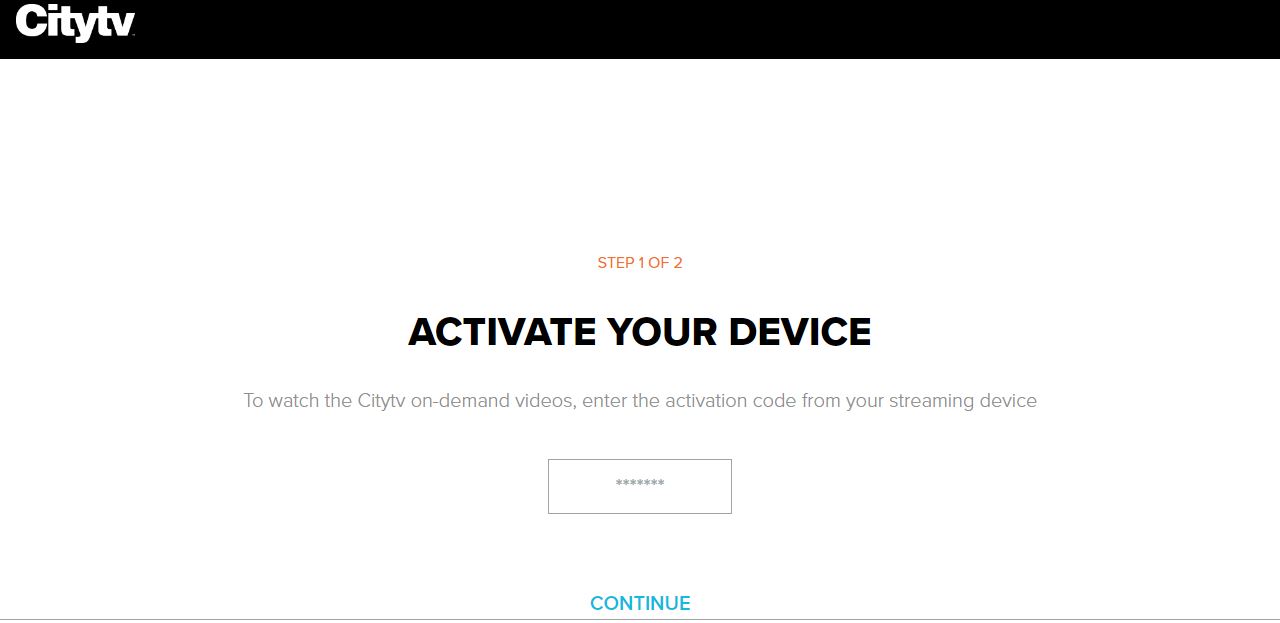
- Here is the image I have given for reference. On the required space, enter the Sever Digit Code.
- After providing the code, Tap the Continue option given at the bottom of the box.
Get back to your Smart TV and stream what you like from City TV on Smart TV. So, the first method of streaming City TV on your Television is completed, and shall we move to the second one? Virgin Media Player on Smart TV is the best player to watch all television content on your TV screen.
2). Watch City TV on Smart TV using External Devices:
External devices mean ROKU/ FIRESTICK/ APPLE TV/ CHROMECAST/ PLAYSTATION, and so on. Now I have used the Roku device to show you the demo installation. You can use any of the external devices I have given above.
- Insert Roku device with your Smart TV HDMI port.
- Turn On your Television device.
- Both Roku and Smart TV need an Internet Connection for browsing and streaming.
- So, select your Wi-Fi internet connection on your TV screen.
- Tap the Home Button on your Roku stick or remote controller.
- Select the Streaming Channels option from the menu.
- And tap on the Search option following the Streaming Channel page.
- Find the City TV Chanel in the Roku Channel Store.
- Pick the required City TV app from the search list and Tap on Add to Channel button.
- After that, the chosen streaming service starts downloading on your device.
- Launch the City TV app on your TV and Activate it by using the methods I have mentioned in the above topic.
That’s all a simple way of installing the City TV on Smart TV. Using this way, you can install the required streaming service on your Smart Television.
But the installation method is completely different for every streaming device. Analyze the procedure for your Device and then install it. Or you can refer to our Website, and we have given the installation methods for all kinds of streaming devices. Ok, let us move to the final method.
3). Screencast City TV on Smart TV using (Android):
You can also use your iPhone for Screen Mirroring on your TV. Now, we go through the procedure for the Android Smartphone device. Here they are:
- To screencast your Android screen on your TV, your devices must be connected.
- So, combine your Android and your Television with a similar Wi-Fi Internet Connection.
- Then, open the Google Play Store on your Android device.
- Tap the search engine box and browse for “City TV App” in the given space.
- Discover the app from the Play Store search result.
- And hit the Install button and initiate it for downloading.
- Open the installed app on your Android and log in using the credentials.
- Then, select the content and play it on your Smarphone screen.
- Move Navigate to the Control panel on Android and click the Cast option.
- And, Select your Smart TV Brand name and select connect/pair/allow option on a TV screen.
Within 10 seconds, your device was paired, and you could watch the City TV on Smart TV using the Smarcast method. This method helps you in the situation that the City TV won’t download on your TV or your external device is not working properly. If you plan to get the best Television box for your TV to make it smarter, purchase Sky Q on Smart TV. Tap the link and connect it to your TV.
Our Final Notes:
Install City TV on Smart TV directly. Now, the City TV app is available on your Smart TV, Smartphone, External Devices, and TV provider. If you can not be able to download the app on your Smart TV and External Streaming device, you can use the Screencast or Screen mirroring method to share the screen with your TV.
Like the streaming service now we have gone through in this article, you have much best streaming service to download on your Smart TV. If you would like to refer to apps, click the Smart TV icon given at the end section on this page and learn the installation of the apps on your Samsung TV, LG TV, Panasonic TV, or any other television set.
FAQ:
How much does City TV cost?
In this section, we are lucky to have this streaming service on our TV because it is a free streaming service. No need to pay for installation, registration, and streaming of the content on its platform.
What Channel is City TV?
Xfinity and DirecTV have this channel on their subscription channel list. You can watch City TV on Xfinity on 3/1094. If you choose DirecTV, you can watch it on 99 Channel number.