
The best way to Get rid of Someone you don’t get the Good Vibes is IGNORING THEM – and What is Ignoring in Social Media Life ? – It is blocking. Know How to Block Someone on Threads soon with no Fuss.

Table of Contents
Can you Block Someone on Threads?
Yes, of course, You can Block Whoever you want on your Instagram Threads. You can Block a Random Thread Profile or Even Anyone from your Followers – It is all possible. To do that is quite easy, We have here the Easy Steps to do the same.
Read: What Does NFS Mean on Instagram
How to Block Someone on Threads?
Why would you want to Block Somebody – There might be any reasons – The Posts can be Inappropriate or You do not want the User to Reach out to your Profile. Or Maybe You had a Fight with your BoyFriend – You can Block him too.
Basically, There are Two Ways in which you can know How to Block Someone on the Threads App. Do Have a Look at the below Stepwise Guide.
Block Through the Instagram Threads Feed
First of all, To Move on with the Steps, Make sure that you have installed the Threads app and Logged in using your Instagram Credentials.
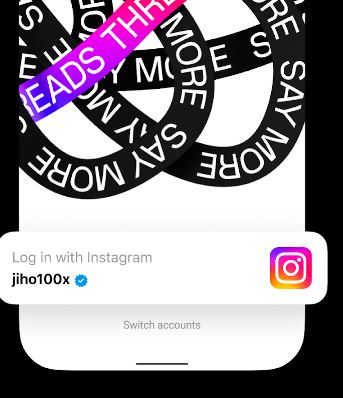
Once done, Ensure that you have your Internet Turned ON on your Phone/PC or Whatever Compatible Device you are using to access to Instagram Threads app.
- On your Home Page, You will see through a lot of feeds that you may like.
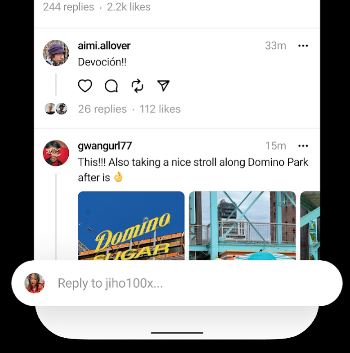
- Now, Choose a Thread Post that you want to Block.
- Click on the Profile by which it is posted.
- Now, In your Top Right Hand Side Corner, Click on the Three Dots Option

- From the Menu, Tap on the BLOCK Option from the List.

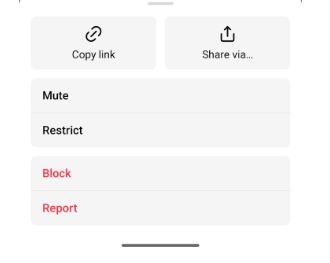
- You will get an Option to Either Block that Individual Account or Choose to Block any Account that they may create.
- On this, You can choose one of your Preferences and Move on with Blocking the Profile.
Check Out: How to Archive Reels on Instagram?
Search on Threads to Block Someone
- You can Search for Someone’s Profile and Block them too.
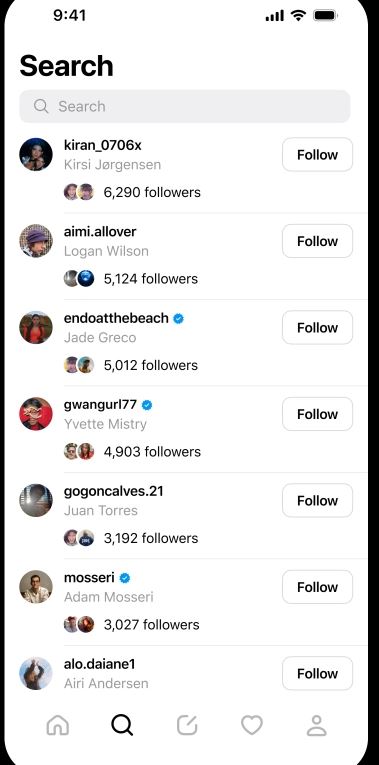
- Click on the Search Icon on the app and Type the Username of the Profile that you want to Block.
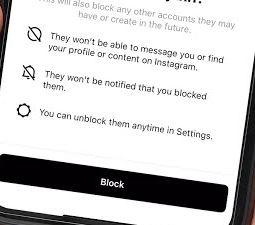
- Again, As Same as above given Instructions – Select the profile > Click on the Three Dotted Menu > Click on Block > Confirm Block by choosing a Single Option.
How to View Blocked Accounts on Instagram Threads?
Once you are done with Block Someone on the Threads app, If you want to view those Accounts, You can do that easily.
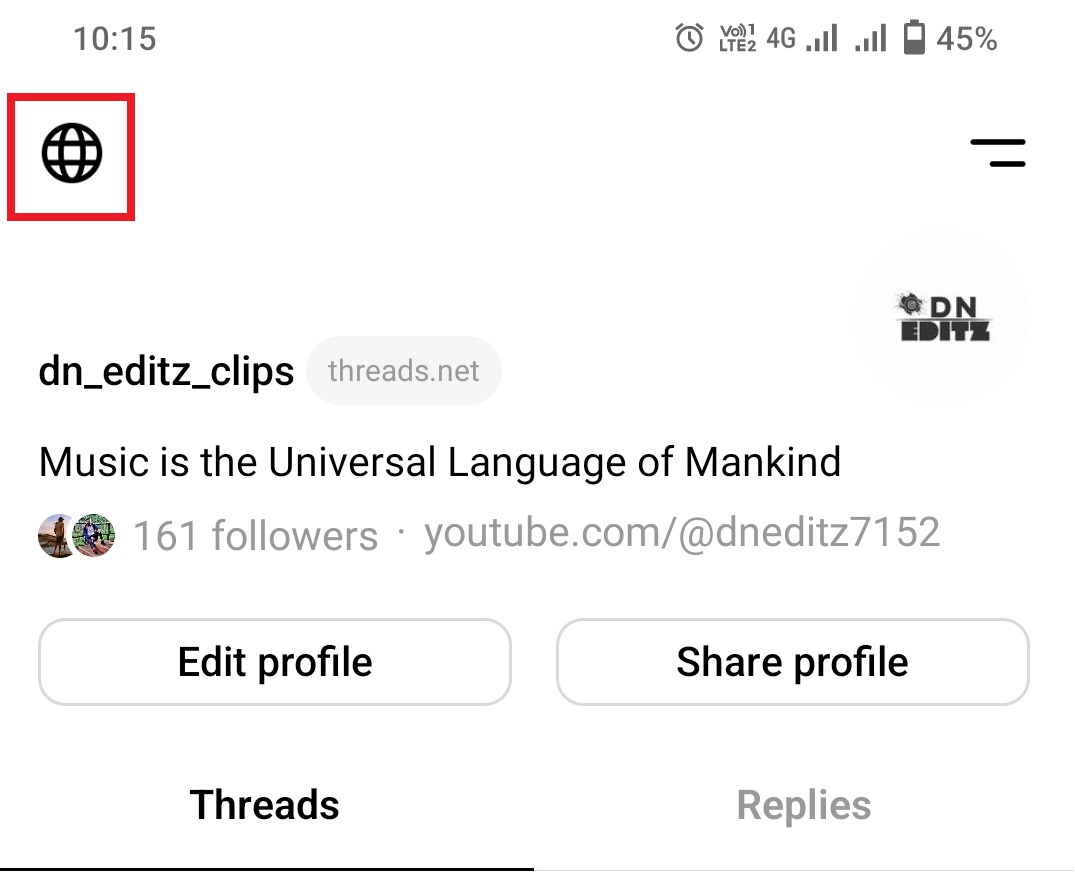
- Go to your Profile Page on Threads App.
- Click on the Left Hand Side Internet / Globe Icon – Open Settings.
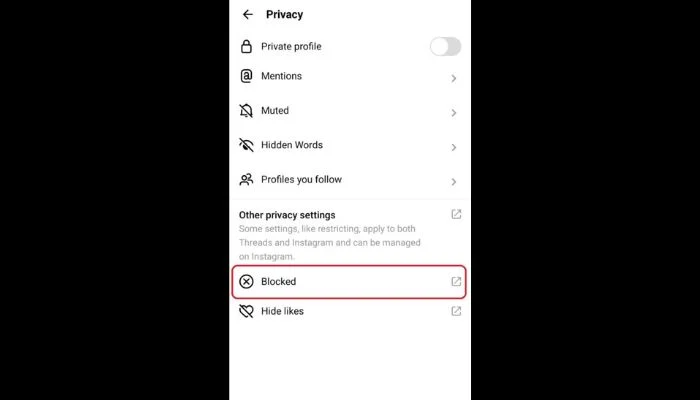
- Go to Privacy and then Click on the Blocked Option.
- This Option will automatically Redirect you to the Instagram App and Shows you a List of Accounts that you have blocked.
- It may also mean that the Ones who were Blocked on Instagram, as well as the Threads, are noted here. Some Options are Common for Both the Meta Apps.
How to Unblock on Instagram Threads?
Human Minds tend to Change – Somedays you like Pizza and Some days you crave Burgers. So, If you go through your Mind Changes to Unblock somebody you have blocked and Do not know How to do it – Do not miss to Check Out these Simple steps.
- Go to your Profile > Click on the Options menu at the left.
- Choose Settings > Then Select Privacy and Click on Blocked.
- You will be navigated to Instagram > See a List of Blocked Accounts.
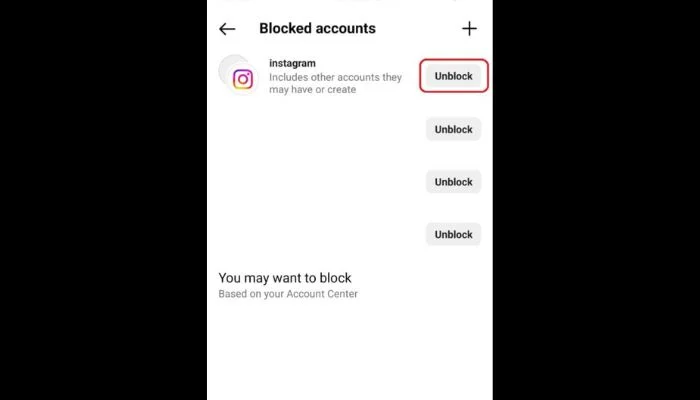
- Beside Each Account name, You will find a tab saying – UNBLOCK – Tap on it and There you go.
- You can find the Unblocked by Searching for them in your Search Field on the Threads app.
Other Ways to Block Someone on Instagram Threads App
Since blocking can be done in just blinks, You can still go for some other ways – If you do not want to see those Profiles – Without Blocking.
If you do not like certain users and Do not want them on your Feeds – You can Mute, Report and Restrict the users.
How to Mute on Threads app?
Muting Someone is actually keeping them on Mute – Whatever they post, their text will not be notified and You won’t have to see them tingling on your Notification bars.
So, If someone is as annoying as that One Neighbour – You can choose to Mute their Account right now. You can mute them Either through the feeds or their Profile.
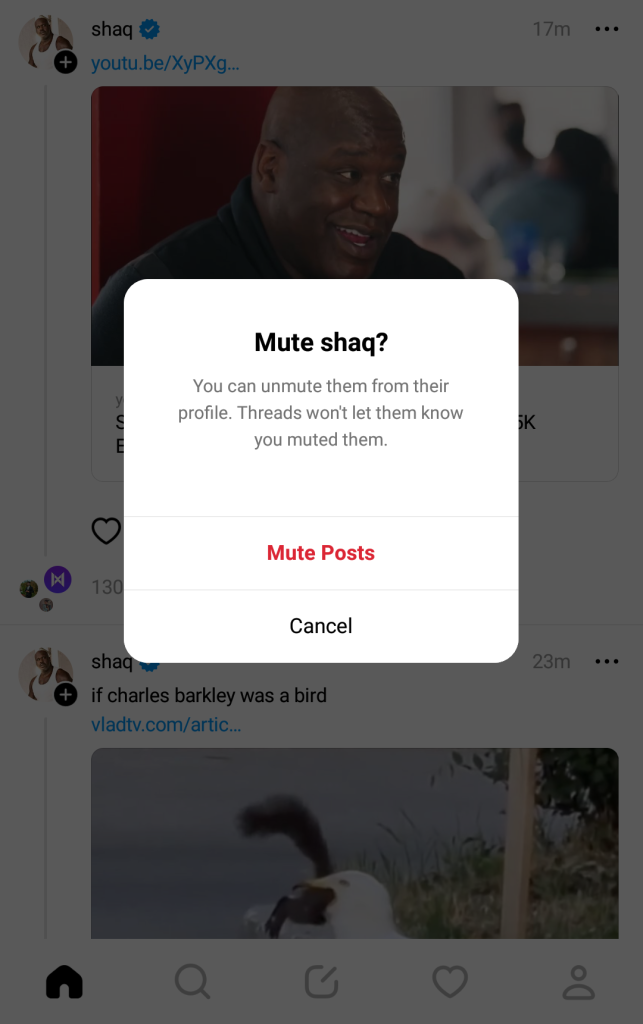
Hover over the Account that you want to Mute > Click on Three Dots > Choose Mute > Confirm and you have now chosen to Silent their Posts.
- To Unmute – Follow the Same > Click UNMUTE.
Restrict Account on the Threads app
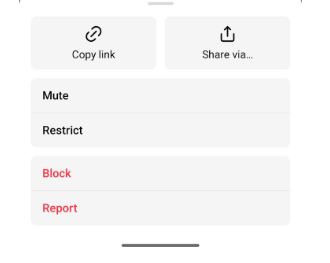
Go to their Profile > Click on Three Dots > Tap RESTRICT.
After restricting, the Restricted User will not be able to see When You are Online /Seen Messages and your Other Activities.
How to Report Someone on the Threads app?
The user account that you want to Report > Three Dot Menu > REPORT.
How to Deactivate Threads Account?
Yes, You can Deactivate your account if you do not want to Permanently delete it. Although, Your Threads, Replies, Comments, and Shares will be hidden until you Reactivate it again.
- Go to your Profile Icon on the app and Click on the Two Line Menu at the Top.
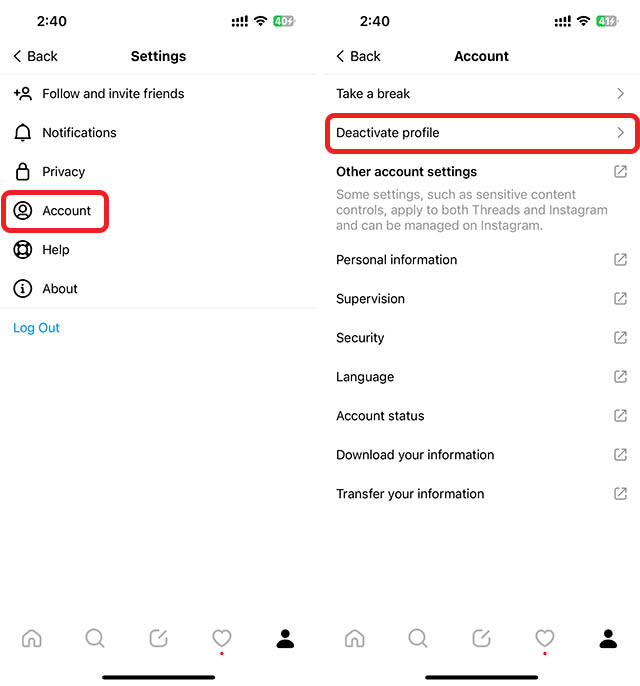
- Tap on the Accounts > Click on Deactivate Profile Option.
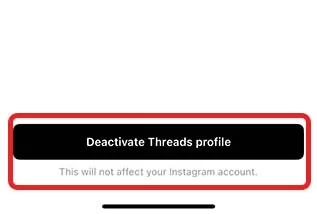
- Click on Deactivate Threads Profile > Confirm by tapping on Deactivate.
People Also Search for Trending Songs For Instagram Reels.[Top 50 Songs]
Bottom Line
Since the app has just started to come after Launching – You can have a few doubts and How to do that and these questions launching too.
This Guide will definitely help you to get rid of all those queries – We hope you have successfully Blocked Someone you wanted to on the app. Though the success doesnt sound great – Have a Great Experience with saying more with the texts on the app.