
Install Sling TV on Roku: Sling TV is one of the most popular live TV streaming services in America. It helps to connect with more than 150 channels like TNT, ESPN Bravo, and HGTV to stream live TV sports events, recent shows, and favorite movies. It costs low monthly bills, so you can enjoy all your favorite channels with less pay. One can watch live TV programs whenever and wherever one wants.
Table of Contents
About Sling TV:
Sling TV is an American Television Streaming Service. Sling TV LLC operates the Sling TV Streaming service. It is entirely owned and a subsidiary of the Dish Network. And it is a Pay Television Service. Sling TV is a United States popular Streaming service. And Warren Schlichting is a key person in the Sling TV service.

Also, it is called the Multi-Channel Video Programming Distributor focused on companion subscription On-Demand Videos provider for the Cord Cutters. Sling TV offers a choice of the most popular Cable TV Channels and OTT Services on its platform. It can be able to Stream on Smart TVs, Apps, and Digital Media Players.
Also, you can find the Sling TV streaming service on some External Streaming service that is compatible. If you want to know Whether the Sling TV app is available on the Roku device or not, read the next topic. Also, you can Watch Sling TV on Chromecast. Tap the link to learn how.
Is Sling TV on Roku?
Yes. The Sling TV app is now available on your Roku device. You can download and Install the Sling TV streaming service directly from the Roku Channel Store. So, we have the direct method to install the Sling TV service. In the following topic, I have given the installation guide for you. Check it out now.
Also Check: Sling Tv Not Working | Down
How to Add Sling TV on Roku?
We have a Direct Method to Add the Sling TV to your Roku device. If you have already installed any streaming service on your Roku device from the Roku Channel, the same method is to get the Sling TV on Roku. Or, you have to go through the steps once and check the following section.
Follow the Steps to Add Sling TV on Roku:
- Take the HDMI Cable and Connect one side of your Roku device.
- And insert the other side on your Smart TV.
- Now, Turn On your devices.
- Tap on the Home Button on your Roku remote.
- And select the Streaming Channels from the menu.
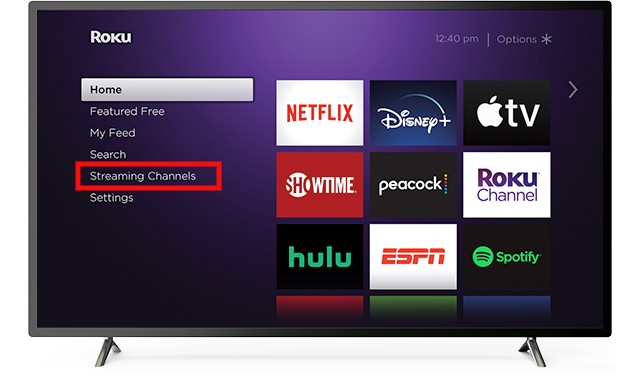
- Then, head toward the Search option from the submenu.
- Type “Sling TV” in the given search panel.
- Select Sling TV from the search result.
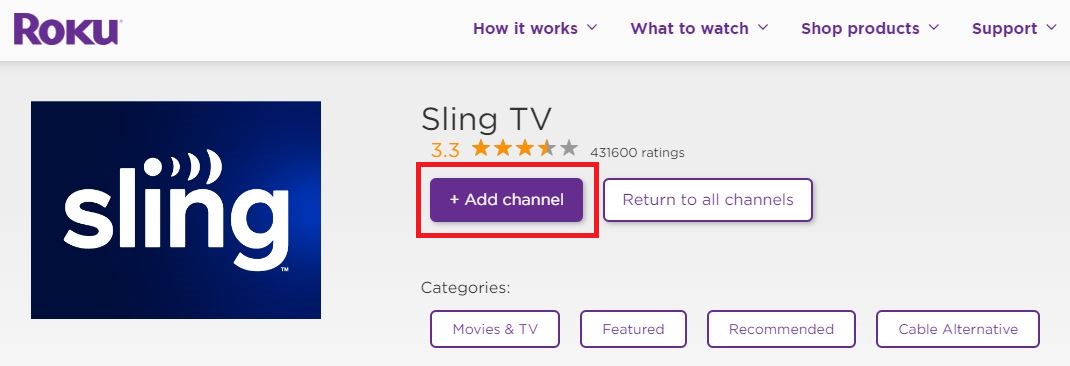
- And click on the Add Channel option.
- Wait until the Sling TV app is installed on your Roku device.
- Once the app gets installed, Open the Sling TV.
- And, Sign In using the valid credentials you have on Sling TV.
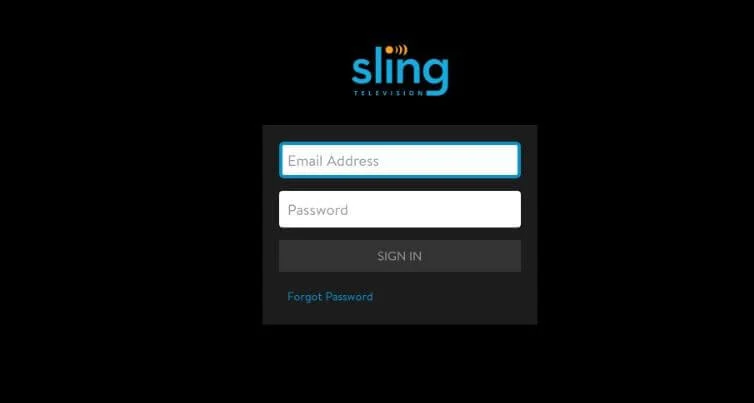
Then, locate the Content Library on Sling TV. Now, select any content and stream the Sling TV on Roku. If you do not have an Active user account on Sling TV, Create a new user account right now. And we have another way to get the Sling TV streaming service on your Roku device. Check it on the next topic below. If you would like to Cancel the sling tv, proceed to this link to learn how to cancel it.
Another Way to Add Sling TV on Roku:
The above-mentioned is the direct way to get the Streaming service on your Roku device. This section also contains another way of getting the app directly on your Roku device. Go through the steps given below:
- Switch On the Roku device.
- And go to the Roku Home Screen.
- Open the Web Browser on your Roku device.
- Click the URL bar and browse “Sling TV on Roku” in the required panel.
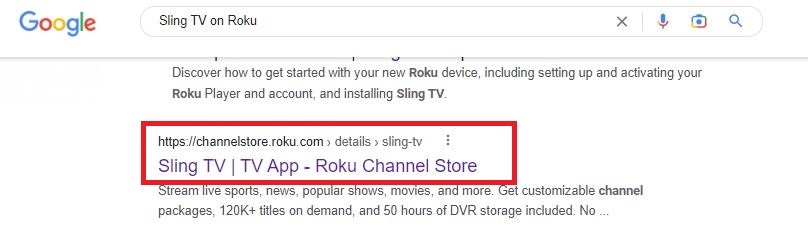
- From the search result, click the first website.
- There, you have to click the Add Channel tab.
- Now, it asks you to enter the Roku Account Credentials in the required space.
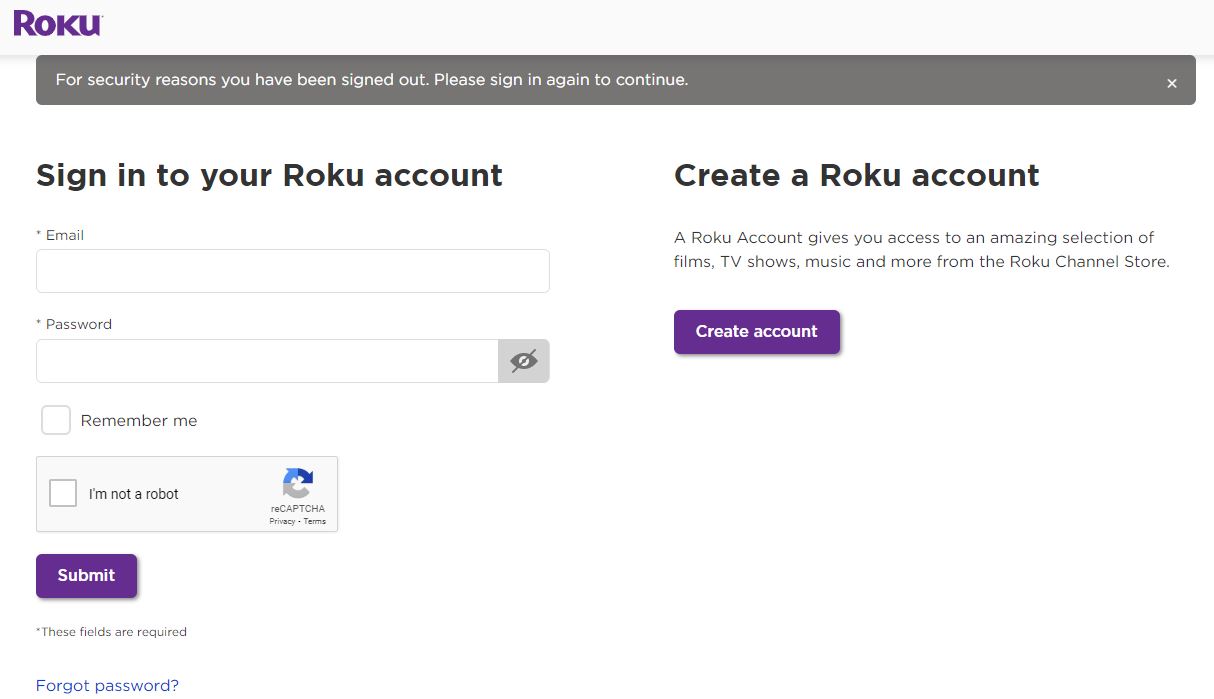
- After entering your Roku account credentials, click on the Submit button.
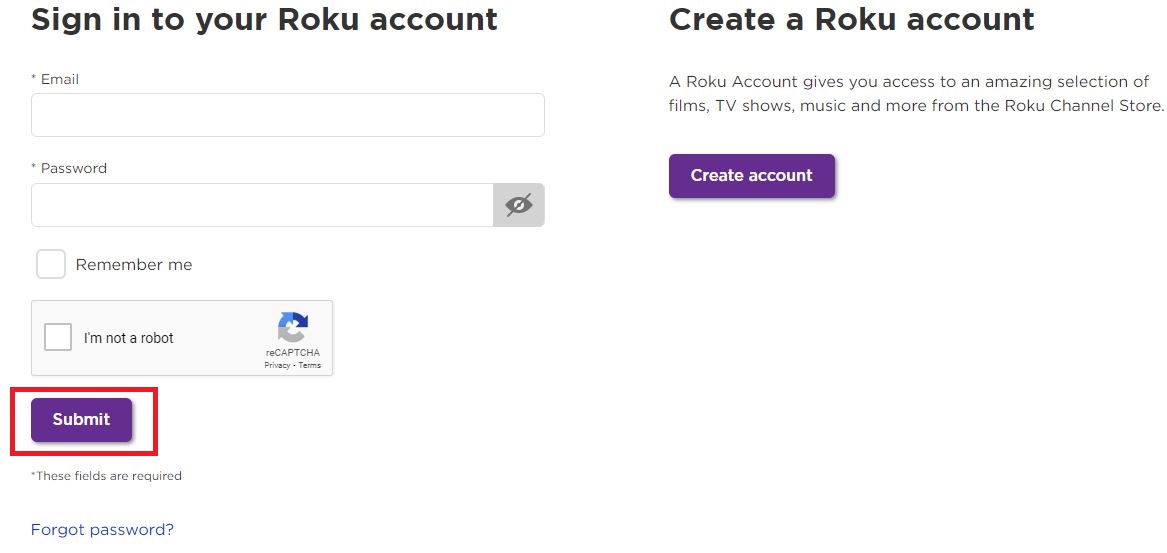
- Now, you got the Sling TV on Roku.
Go to the Streaming Channels page on your Roku device. And search for the installed Sling TV app. Launch it, Sign In with the correct user account details and Stream the exclusive content on your Roku device. Watch Lifetime on Sling TV, the popular television show which is streaming Sling TV.
Activate Sling TV on Roku:
After the installation process, we have to activate the Sling TV streaming service on your device. For this process, you need a handheld streaming device additionally.
Steps to Activate Sling TV on Roku:
- Go to the Streaming Channels section on your Roku device.
- And launch the Sling TV app.
- Then, locate the Sign Up section of the Sling TV.
- Now, Create a User Account with the required details.
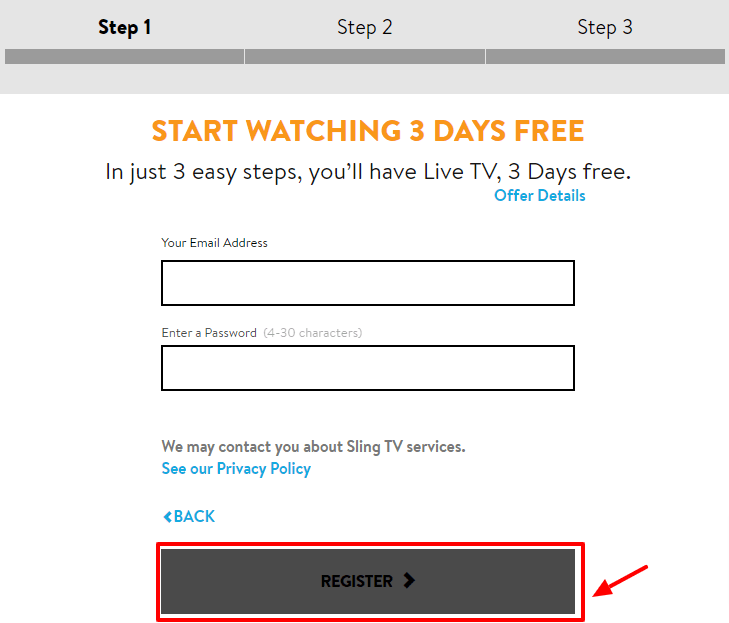
- Submit the details, and the Sling TV generates the Code.
- And the Activation Code appears on your device screen.
- Launch the Web Browser on your handheld streaming device.
- Type “sling.com/activate in the given URL panel.

- Select the first website from the search result.
- Enter the 7-Digit Activation Code in the box.
- And Submit.
Purchase your budget-friendly subscription package and refer to the cost in the following topic. Then, start streaming the On-demand titles on Sling TV.
Sling TV Subscription:
As we discussed in the above section, Sling TV is a paid streaming service. Without the active subscription plan, you can not be able to stream live tv channels or any other content. If you are a new user, then this topic is more helpful to you.

Here Sling TV offers two subscription plans. Refer to the channels given in each subscription plan and choose Sling Blue or Orange. Visit the Sling TV official site and purchase the subscription plan. In the above section, you can grab the installation process of the Sling TV on Roku. Follow the instruction and stream your favorite content on your device. If you are an LG TV user? Then here is the installation procedure for you to stream Sling TV on LG Smart TV.
How to Get Sling TV Gift Card?
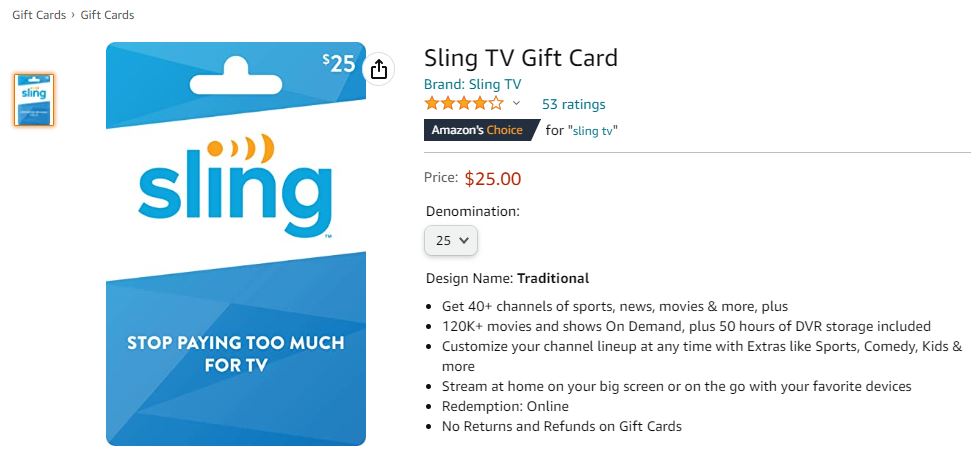
Sling TV Gift Card is nothing but can be used to watch Domestic or International TV Channels on the Sling TV Subscription. If you would like to get the channels, follow the steps below to get and Redeem them.
- Open the Web Browser on your device.
- And browse the Amazon Store.
- Then type “Sling TV Gift Card” in the given search space.
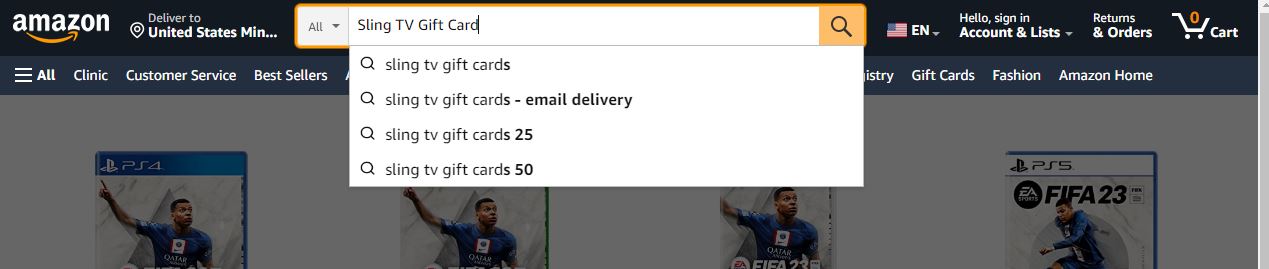
- Select it and purchase it for $25.00 Only.
- And then, Open the Sling TV App on your streaming device.
- Go to the Menu section.
- Head towards the My Account tab.
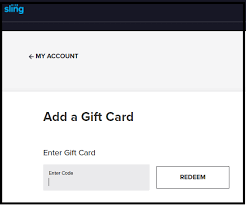
- From the menu list, click on the “Add Gift Card” option.
- On the page, Enter the Gift Card/ PIN Number in the required area.
- Now, tap on the REDEEM button to avail the Gift Card with your subscription.
Now, you can watch the International Channels or Domestic channels from the Sling TV on Roku or any other device.
Features of Sling TV
- You can stream all the local channels from your broadcasting stations with the help of HD Antenna. One pay for the Antenna is enough to stream all the channels.
- Sling TV delivers sports add-ons with the cheapest package and offers channels like NBA TV, SEC Network, ESPN Goal Line, Motorsport TV, and many more channels.
- Sling’s add-on packages are different from others because you have to pay only for your desired channels, and it has no shortages.
- Sling TV gives you the best offers for Hindi channels and also for the add-on packages like Hollywood, lifestyle, sports, news, and much more.
- The storage capacity to store the old contents in a cloud DVR is only 50 hrs. Sling Orange helps you to record one particular show at a time, but Sling Blue offers you to record 3 shows at the same time.
For your Reference: Sling TV Activate (Tap the link to learn how to Activate the Sling TV app)
Conclusion
Sling TV is one of the most recommended live TV streaming services by replacing other cable connections. Sling TV with a Roku device is a good choice because of its dynamic features. We hope this article will help you.
Frequently Asked Questions:
1). Why does Sling TV Keep Freezing on Roku?
If you see a frozen image or a broken buffer wheel during streaming, you may notice a decrease in the Internet bandwidth available to your device. This crash usually occurs when many connected devices – such as phones, laptops, game consoles, or tablets – use the same Internet connection. Each device in your home network shares a portion of the available bandwidth, which means that with each connected device, a smaller bandwidth will be available for other network devices to perform network tasks. When you try to watch TV, this limited bandwidth can affect the quality of the stream.
2). How to Cancel Sling TV on Roku?
Here are the Short notes on subscription to Sling TV on Roku; for details, Know here How to cancel Sling Tv?
- Sign In to your account here.
- You will be taken to your account settings, where you can click “Unsubscribe.”
- Select a reason to cancel and click Continue
- Then click “Cancel my subscription.“
- Finally, enter your password and select “Cancel subscription.”
3). How Much is Sling TV on Roku?
Note: This information, according to the recent tariff, may change depending on the period. With Sling TV, you pay $5 per month for each channel group (known as Advanced). Sling offers two consumer services: Sling Orange ($ 25 per month) and Sling Blue ($ 25 per month). Sling Orange allows you to broadcast to one device at a time and includes 30 channels, such as ESPN, Disney Channel, AMC, CNN, HGTV, and others.