
In order to access those apps and contents that are not available on the official app store of amazon. To install the apps that amazon doesn’t include in their stores, you will need to enable specific settings on the device. This blog will guide you on How to allow unknown sources on the Firestick device.

Table of Contents
How to Allow Unknown Sources on Firestick:
Why Should you Allow Unknown Resources?
While using an amazon Firestick or any other amazon device to stream, you will notice that you can only install the apps that are available on the amazon app store. These apps or services that are not permitted on your firestick because amazon doesn’t allow those apps on its devices.
The reason behind which amazon not allowing certain apps can be anything, including security and other privacy factors. As Firestick is an amazon product, it’s evident that it will access the apps permitted by only amazon. On the other hand, Android users can download apps that a basic app store does not permit.
Allow Unknown Sources on Firestick :
When a Firestick doesn’t allow downloading or installing a particular, it is because of the Disabled Unknown sources option. This option restricts the installation or downloading of apps and games from other than its verified app stores.
As Firestick is based on Android OS software, we can still install and download the apps that are not permitted by amazon. To download apps from any third-party applications, you need to enable the option to allow unknown sources on your firestick device. Follow the instructions below to enable unknown sources on your firestick.
Also: How to Install Freeview on Firestick?
Steps to Enable Apps from Unknown Sources :
- On your Firestick, Go to the home screen
- Navigate to Settings and Search for My Fire TV
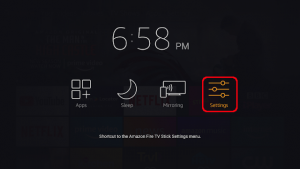
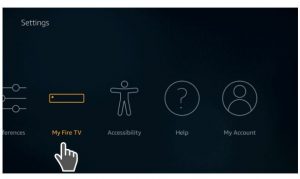
- Select and click on the My Fire TV option
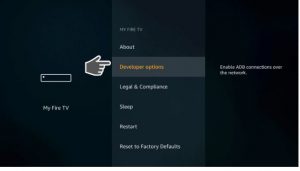
- Click on the Developers option.
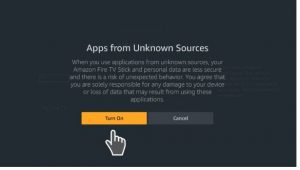
- Turn on the option Apps from Unknown sources.
- Also, remember to turn ON the ADB debugging.
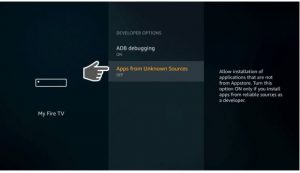
Enabling Unknown Sources -New Interface:
If you are using a new amazon firestick interface, you might experience a few things that are changed from the previous one. The developer’s option must be missing in the new interface.
- Go to the settings icon on your firestick home screen
- Click on My Fire TV.
- If you cannot find the developers option, use your remote and click OK 7times.
- You will see a notification saying, ‘you are now being a developer.’
- Select the developer’s option and enable the unknown sources option
- To allow unknown sources, turn ON the Apps from Unknown sources option.
Check out: How to Install Sky Go on Firestick?
Is it Safe to Enable Unknown Sources?
I think deciding whether it’s safe to enable the option and allow unknown sources on firestick depends on the apps that you want to install. Amazon does not allow third-party apps on its devices because the apps may contain any sort of virus or malware. Those viruses present in the app may damage the functioning of the devices.
Always ensure that the apps that you have installed are safe and trusted. You must have heard the saying Prevention is better than cure. To prevent your firestick device from unwanted viruses, it’s better that you install a VPN on the device. A VPN is a service that secures your privacy, including the IP addresses.
So if you are enabling the apps from unknown sources, always remember that you install a VPN connection service on your amazon firestick. It will remove all the unwanted threats caused by the installation of third-party apps.
Read also: How to Install Britbox on Google TV?
Conclusion:
By enabling the apps from unknown sources, you can download apps without any restrictions. You will just need to follow these steps mentioned in the article. It will help to allow you to download apps that are unavailable on the amazon app store. As we know that every restricted thing is always safe, so Better keep a VPN. Install your desired apps and enjoy watching movies, shows, and series on your firestick device.