
Watch ITV Hub on FireStick using different direct and alternative methods provided in this article. You can download the ITV Hub app from Amazon App Store directly, or you can get it by sideloading it using apps like Downloader ES File Explorer and Apps2Fire.
You can also use the internet browser on Firestick and access the ITV Hub website, and mirror ITV Hub from other devcies.
![How to Get ITV Hub on Firestick [With Alternatives]](https://techthanos.com/wp-content/uploads/2022/06/How-to-Get-ITV-Hub-on-Firestick-With-Alternatives.jpg)
In this article, you will come across information about,
- ITV Hub on FireStick
- About ITV Hub and its Registration and Subscription process
- Downloading ITV Hub on Firestick using the direct method
- Watching ITV Hub on Fire TV using Internet Browser.
- 4 Alternative methods to get ITV Hub on FireStick
- Solution for ITV Hub not working on FireStick.
Table of Contents
Can I Watch ITV Hub on Firestick?
Yeah, you can watch all the UK channels on your FireStick along with ITV Hub. You can watch ITV Hub on FireStick by,
- Download ITV Hub from FireStick Amazon App Store
- Download ITV Hub using Downloader
- Get ITV Hub using ES File Explorer
- ITV Hub app on Fire TV using Apps2Fire app
- Watch ITV Hub on FireStick using the Internet Browser
- Screen mirror ITV Hub to Fire TV
ITV Hub:

ITV Hub is a free online on-demand video service which offers programs from ITV, ITV2, ITV3, ITV4, ITVBe and CITV. Signing in to ITV Hub can give you free access to all its content with ad support. You can also watch them without ads by using ITV Hub + subscription.
The subscription costs to watch ITV Hub ad-free and to download your favourite shows is,
- £3.99/month
- £39.99/year
By subscribing, you can get benefits like,
- ad-free content
- Download shows
- Binge watch the whole series
- Cancel subscription any time.
How to Register and Subscribe to ITV Hub?
To register and create an account in ITV Hub, you need to follow the steps given below,
NOTE: Registering alone can give you access to all the contents of ITV Hub but with ads.
- Use a Browser to go to the ITV Hub home page.
- Tap the sign-in option near the account icon.
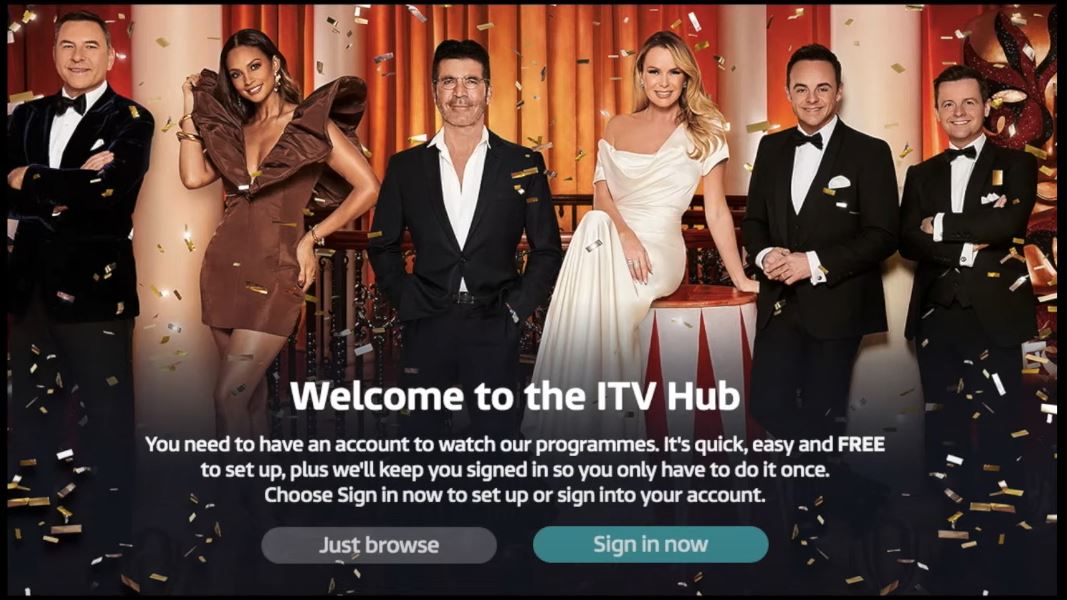
- Now select the “Sign In Now” option.
- You can now enter the information and agree to the ITV Terms & Conditions.
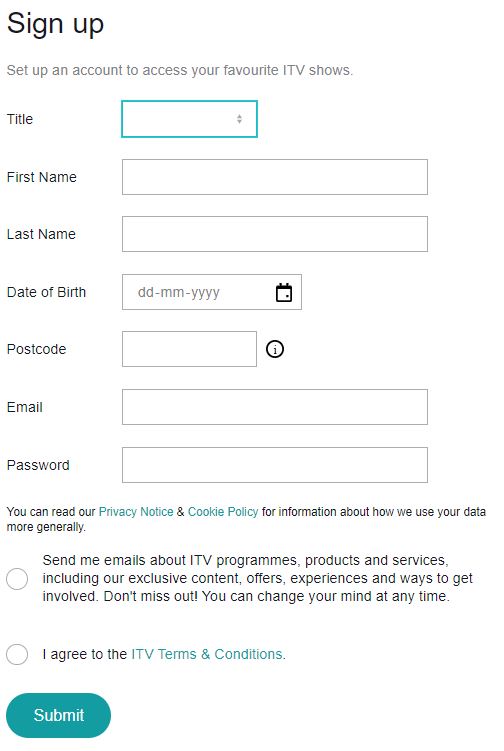
- Now tap on submit to create your account.
- To subscribe to ITV Hub+, tap on the “Watch ad-free now” option on the top left side near the search icon.
- Sign in with your credentials

- Select a monthly or yearly plan and pay for it using the payment methods given.
You have now successfully registered and subscribed to ITV Hub and ITV Hub+, where you can watch the ITV content without any ads.
How to Download and Watch ITV Hub on FireStick?
You can download the ITV Hub app from the Amazon App Store on your FireStick. To do soo, follow the steps carefully,
Download ITV Hub on FireStick:
- On your FireStick home page, go to the Find option.
- Under the Find menu, select Search
- You can now type “ITV Hub” in the search using the on-screen keyboard.
- Select the ITV Hub app tile from the search results and press OK.
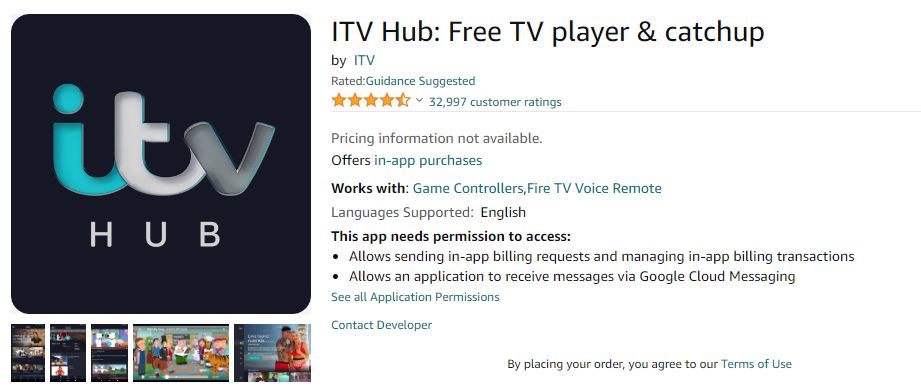
- On the App Information page, select Download.
- Wait for the app to get downloaded and installed.
- After the installation is complete, tap on Open.
The above steps will open the downloaded ITV Hub app on your FireStick device.
Watch ITV Hub on Firestick:
After completing the download process of the ITV Hub app, you can find the app in the apps section on FireStick home.
- Now open the ITV Hub app on your Fire TV.
- Tap on the Sign in now option, which will take you to the next page.
- Read the instruction given on that page.

NOTE: You must have an ITV Hub account to sign in or pair your account to your ITV Hub app on your Fire TV. You can also manually sign in with the help of your TV remote.
- On your internet-connected device, visit www.itv.com/hub/pair.
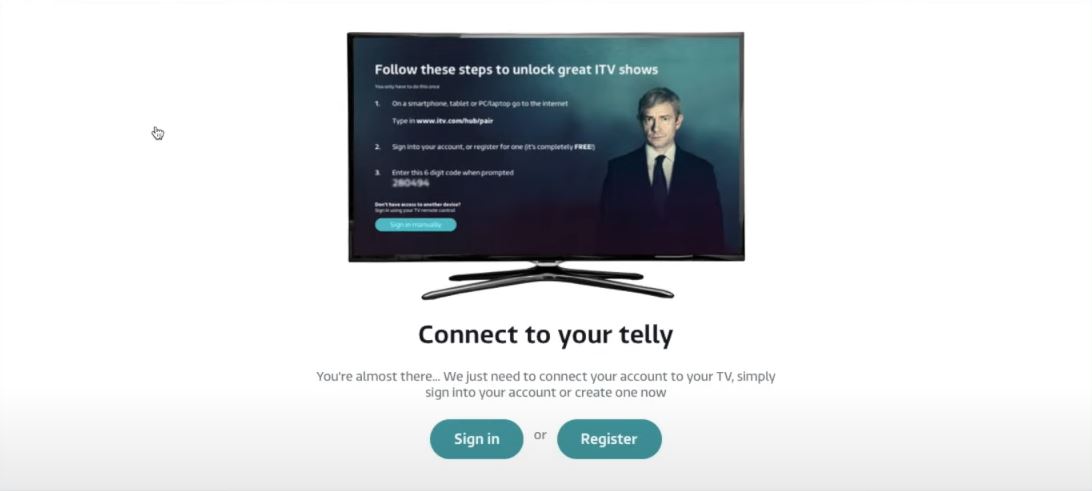
- Sign in with your ITV credentials.
- Now type in the code on your TV in the code tab and tap continue.

- Wait for the all-done message, and you can now watch ITV Hub on your FireStick.
You have downloaded the ITV Hub app on FireStick and can watch all the shows on it with or without ads according to the subscription plan.
How to Watch ITV Hub on FireStick Using Internet Browser?
To watch ITV Hub on Fire TV, you must first have an Internet Browser on your device. To download the Internet Browser on your device, follow the steps,
Download Internet Browser:
- On your FireStick home page, go to the Find option.
- Under the Find menu, select Search
- You can now type “Internet Browser” in the search using the on-screen keyboard.
- Select the Amazon Silk – Web Browser app with the Internet tile from the search results and press OK.

- On the App Information page, select Download.
- Wait for the app to get downloaded and installed.
- After the installation is complete, tap on Open.
Watch ITV Hub on Amazon Silk – Web Browser:
- When you open the Browser, tap on the Accept terms option
- After that, you will be on the default bing.com page.
- In the search tab, type ITV.com and tap on Go
- It will take you to the ITV Hub home page.
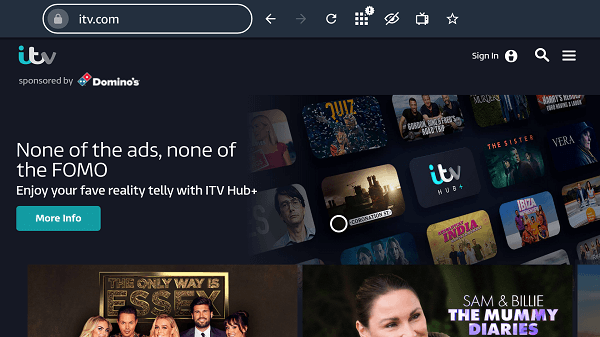
- Tap the sign-in option near the account icon.
- Enter your registered email ID and password to sign in.
- Select the content you want to watch, tap on the Play option, and watch.
With the following steps, you have successfully downloaded the Internet Browser on FireStick and accessed ITV Hub on Amazon Silk – Web Browser.
Alternative Methods to Get ITV Hub on FireStick:
The alternative methods that you can use to get the ITV Hub on your Fire TV are as follows,
- Sideload ITV Hub app using Downloader App
- Sideload ITV Hub app using ES File Explorer App
- ITV Hub app on Fire TV using Apps2Fire app
- Screen Mirror ITV Hub app to Fire TV from other devices.
To sideload an app on a FireStick device, you need to enable the Developers option. To do soo, follow the steps given.
- On your FireStick device, go to Settings.
- Now select the My Fire TV option.
- You will get directed to the Developers option.
- Select ABD debugging and Apps From unknown sources and turn them on.
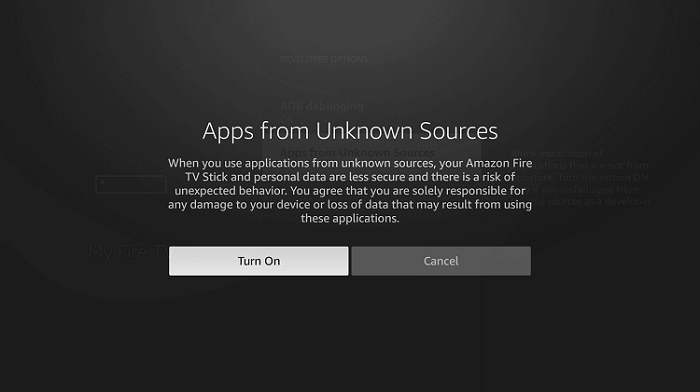
Your FireStick device is now ready to install apps from unknown sources, i.e., Downloader and ES File Explorer.
NOTE: To download any app using an external app on your FireStick device, you need to get the URL of the app in APK format from a reliable source.
Method 1: ITV Hub app on FireStick Using Downloader App.
Download the Downloader App on FireStick:
- On your FireStick home page, go to the Find option.
- Under the Find menu, select Search
- You can now type “Downloader” in the search using the on-screen keyboard.
- Select the Downloader app with the Internet tile from the search results and press OK.
- On the App Information page, select Download.
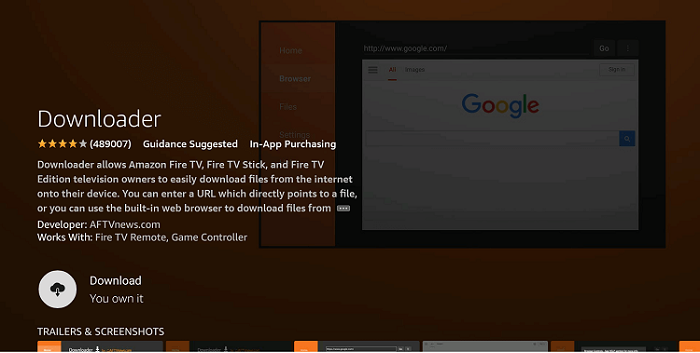
- Wait for the app to get downloaded and installed.
- After the installation is complete, tap on Open.
ITV Hub app using Downloader App:
- On the Downloader Home page, type the URL of the ITV Hub app in the URL box.
- Afterwards, press Go to download the ITV Hub app in the APK file.
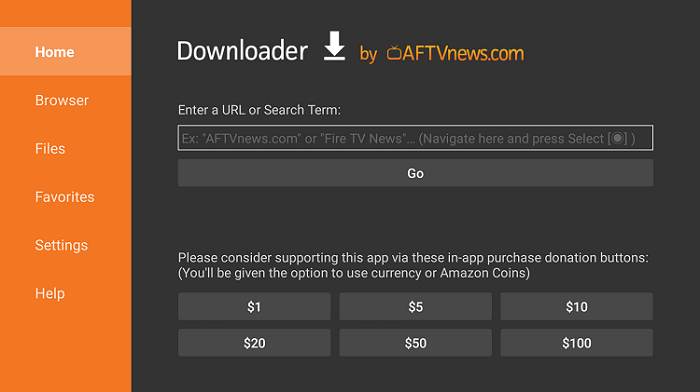
- Find and Open the APK file and tap on install and Done to get the ITV Hub app on your Fire TV.
NOTE: Delete the ITV Hub APK file after installation to save space on your FireStick device
You have now successfully downloaded the ITB Hub app on FireStick using the Downloader App.
Method 2: ITV Hub app on FireStick Using ES File Explorer App.
Download ES File Explorer App on FireStick:
- On your FireStick home page, go to the Find option.
- Under the Find menu, select Search
- You can now type “ES File Explorer” in the search using the on-screen keyboard.
- Select the ES File Explorer app with the Internet tile from the search results and press OK.
- On the App Information page, select Download.
- Wait for the app to get downloaded and installed.
- After the installation is complete, tap on Open.
ITV Hub app using ES File Explorer App:
- On your ES File Explorer App, tap on the “+ New” icon.
- Type the URL of the ITV Hub app on the text box and press Download.
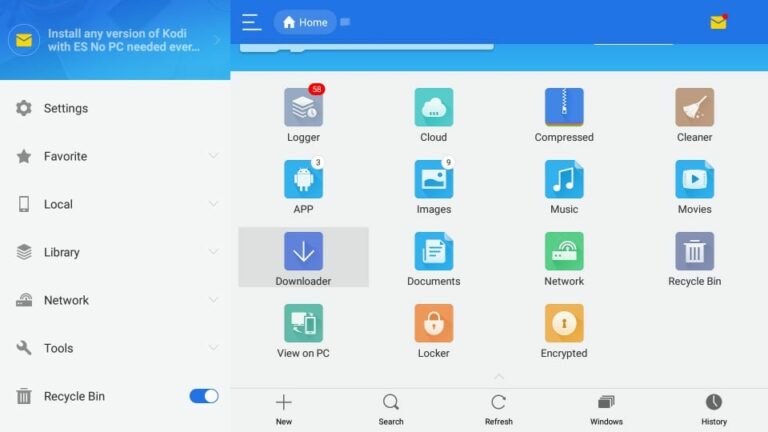
- After the download is complete, find and open the APK file on your FireStick.
- Tap on install and then Done to get the ITV Hub app on your Fire TV.
You have now successfully downloaded the ITB Hub app on FireStick using the ES File Explorer App.
Method 3: ITV Hub app on FireStick Using Apps2Fire App.
To use this method, you must have the ITV Hub and Apps2Fire App on your Andorid device. To get the ITV Hub app onto your Fire TV, you also need to find the IP address of your FireStick device. Follow the simple steps to get ITV HUB on Fire TV.
NOTE: You can only use this method using an Android device.
The IP address of FireStick:
To find the IP Address of your FireStick device, follow the given steps carefully,
- On FireStick home, go to Settings
- Select System and go to the About section, and press OK.
- You can find the IP address of your FireStick device under the Network section.
Note down the IP address to use it on Apps2Fire App.
Download ITV Hub and App2Fire on Andorid:
- Open the Google Play store on your Android device.
- On the search tab, type Apps2Fire and press search.
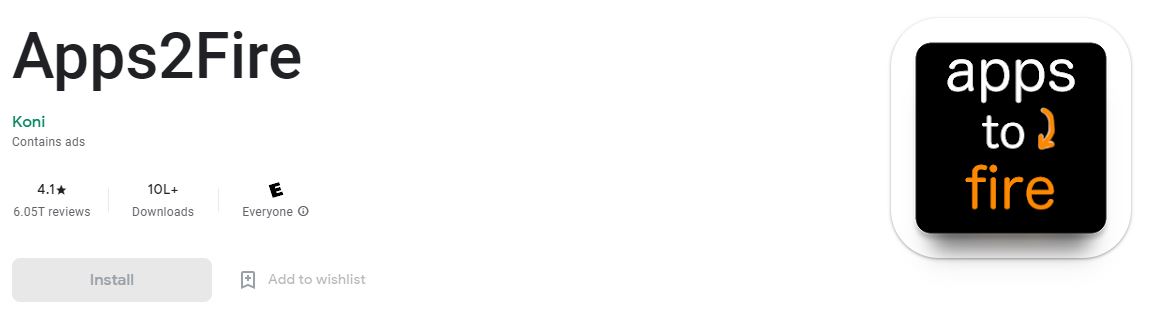
- From the results, select the app and install it on your device.
- Now search for the ITV Hub app.

- From the results, select the app and install it on your device.
Using Apps2Fire to sideload ITV Hub on Fire TV:
- Open the Apps2Fire app on your Android device.
- Go to the menu and select Setup.
- Type your FierStick device IP address under “IP address of your FireTV”
- Go back to the Apps2Fire home page and select Local Apps
- Find and select the ITV Hub app from the list of apps available on your Andorid device.
- Select Install on the prompt menu to get the app installed on Firestick.
- You can find that app installation notification on your Fire TV screen.
You can find the installed ITV Hub app in the Apps&Games section of your FireStick device.
You have successfully downloaded the ITV Hub app on your Firestick device using the Apps2Fire App from your Andorid device.
Method 4: Get the ITV Hub app on FireStick Using Screen Mirror Function.
To screen Mirror the ITV Hub app from compatible devices to your Fire TV screen, follow the given instructions carefully.
NOTE: Your device and FireStick are connected to the same WiFi network to access the Screen Mirror function.
Enable Screen Mirror on FireStick:
- From FireStick home, go to Settings.
- Highlight Display and Sound settings.
- Now select Enable Display Mirroring and toggle it to turn on.

Your FireStick device is now ready to mirror any device on its Screen.
Downlaod ITV Hub and Screen Mirror on Fire TV:
- Downlaod the ITV Hub app from respective App Stores.
- After installation, login into ITV Hub using your credentials.
- Android: From the notification tab, tap on the Cast option and select FireStick device to Mirror your Screen.
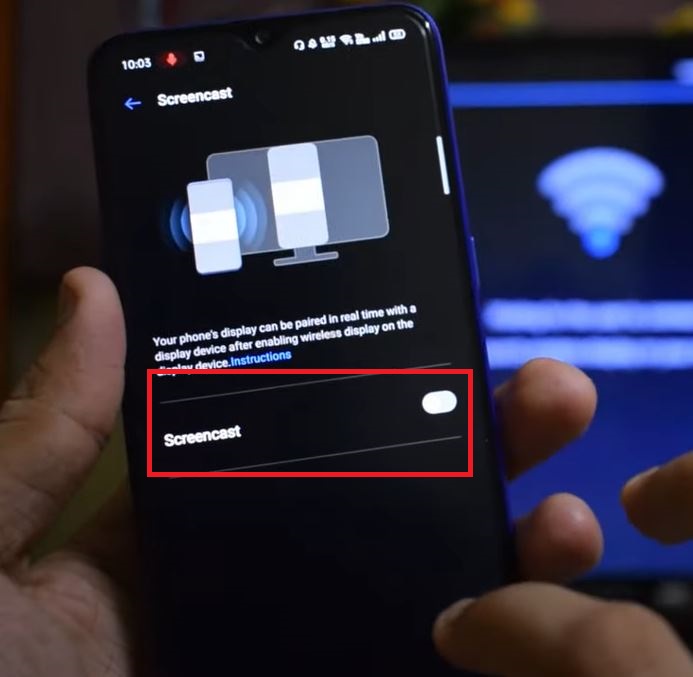
- Apple: From the drop-down Control Center, tap on Screen Mirroring and select FireStick device to Mirror your Screen.

Screen Mirror ITV Hub website from PC (Windows):
- On your PC, open Browser and go to the ITV Hub website.
- Log in using your ITV Hub Credentials.
- On your PC notification tab, select Project.
- Click “Connect to a Wireless Display”, and from Search, click your FireStick device to mirror.
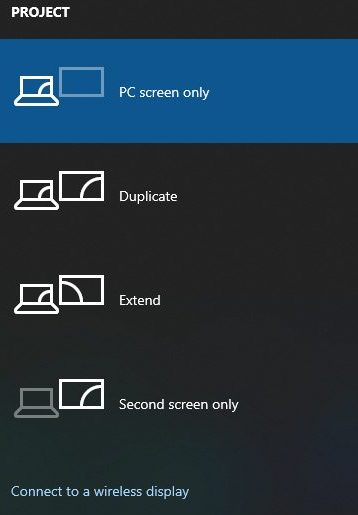
You have successfully mirrored your ITV Hub app from your device to your FrieStick Screen.
What to do if ITV Hub on FireStick is Not Working?
If your ITV Hub app is now working on FireStick, follow the simple steps to make it work,
- Update the ITV Hub app to its latest version.
- Check if the ITV Hub server is down or not. If it is down, waits for ITV Hub to resolve these issues.
- Try to delete and reinstall the ITV Hub app on FireStick.
- Update your FireStick device Firmware.
- Try clearing your FireStick cache files to remove bugs.
- Check your internet connection.
- Try to reboot your Fire TV and Modem.
- Factory Reset your FireStick and use ITV Hub.
If none is working, contact your service provider or call the help centre of ITV Hub and FireStick to resolve this issue.
You may also like to read other articles like,
Watch Britbox on Firestick: Quick Installation Guide
How to Get DIRECTV App on FireStick
How to Get Morphix TV on Firestick?
How to Get Local Channels on Firestick
Frequently Asked Question:
How to Get ITV Hub on FireStick?
You can watch ITV Hub on FireStick by,
- Download ITV Hub from FireStick Amazon App Store
- Download ITV Hub using Downloader
- Get ITV Hub using ES File Explorer
- ITV Hub app on Fire TV using Apps2Fire app
- Watch ITV Hub on FireStick using the Internet Browser
- Screen mirror ITV Hub to Fire TV
How to Watch ITV Hub Ad-Free?
To watch ITV Hub content without ads, you need to upgrade to ITV Hub+ by paying a subscription cost of £3.99/month and £39.99/year.
Is ITV Hub Free to Watch?
You can watch all the contents of ITV Hub like ITV, ITV2, ITV3, ITV4, ITVBe and CITV for free. All you need to do is register and have an ITV Hub account. The only drawback is that you will be watching a lot of ads.
The End
Watch ITV, ITV2, ITV3, ITV4, ITVBe and CITV on FireStick using the ITV Hub app. You can also add free by subscribing to a premium and upgrading to ITV Hub+ with a cost of £3.99/month and £39.99/year. If you have any doubts regarding the methods and steps provided, ask them in the comment section at the end of the page.
Thank You