
Excited about the New Feature but Crying with an OOPSIE MOMENT. Wipe your Tears and Scroll up your Screen to Know the Solution. For those who are asking themselves with 1000 + tries of trying to Create a Channel Why Cant I Create a Broadcast Channel on Instagram?, Here Know Why, and How!

Table of Contents
Why Can’t I Create a Broadcast Channel on Instagram?
If you have read the Article on How to Create an Instagram Broadcast Channel Thoroughly, followed the Steps given, and Still can’t Create a Broadcast Channel on Instagram. Then You need this.
Firstly, There can be many reasons for Answers to your Worry. Having a Glance at them is what we are going to do now.
Reasons for Can’t Create an Instagram Broadcast Channel
- To start with you will first need to know who can actually Create it to know Who can’t Create a Broadcast Channel on Instagram.
- Make sure you meet the Eligibility Criteria – Be a Creator with Maximum Followers and An Active User with Followers.
- Unavailability can also be due to – If you have a PRIVATE ACCOUNT.
- Even if you do have a Great Active activity on your Profile with No Good Bio or Profile or Any Good Content, Then this can also be the reason Why Can’t you Create a broadcast channel on Instagram.
- Older Version of the Instagram App or using it on the Web Browser.
- Geographic or Regional Restrictions.
- Violated any kind of Instagram Privacy Policy and Restricted under Compliance.
Who can Create a Broadcast Channel on Instagram?
Until now, There is no Officially Specified Eligibility Criteria for the Broadcast Channels. But it is said that it does work depending on some Factors and is available for only selected users.
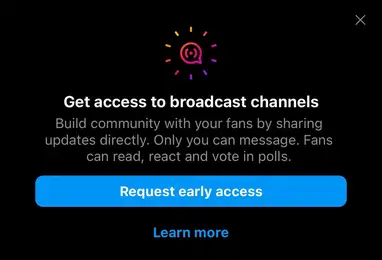
- Instagram Users who have a Public Account can access the Feature.
- If you are a Creator, An Influencer, or a Business Account Holder with Active Content, You can get to use the Broadcast Channels on Instagram and Create it to form a Community.
- A user account with a Minimum of 10K Followers is required.
- Verified Instagram users and Creators who have an active Subscription on Instagram, can change their Audience preference to ALL FOLLOWERS and Get to Create an Instagram Broadcast channel.
How to Fix Instagram Broadcast Channel Not Available?
Change your Account Privacy Settings

As we have told you, This tool is available only for Public accounts. So, If you are using a Private account even with Maximum Followers, You will not be able to Create it.
Do Change your Instagram account from PRIVATE TO PUBLIC.
Go to your Profile > Click on Settings > Navigate to Privacy and Security > Toggle off the PRIVATE ACCOUNT Tab. This will change it to a Public account.
This will solve your issue of not being able to Create it. If doesn’t then Go to the Next Solution.
Update The Instagram App
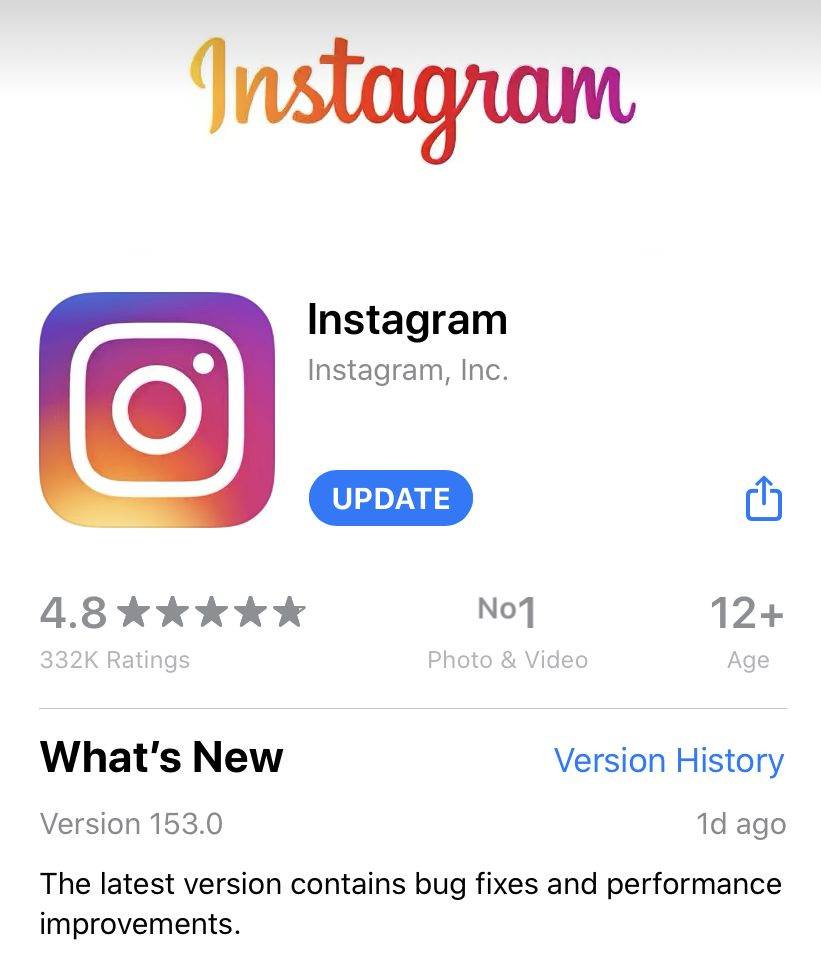
Outdated App Version cannot Walk with the Updated Features – SO UPDATE YOUR APP Instead.
ANDROID USERS: Google Play Store > Menu > My Apps and Games > Instagram > UPDATE.
IOS USERS: App Store > Profile > Pending Updates > Instagram > UPDATE.
Do Check Out, If you want to know: How to Check Who Unfollowed on Threads?
Wait for your Regional Availability
If you are from a Region Where the Broadcast Channel Feature still has not rolled out. ” DO WAIT!” Launching of New Features, Tools and Updates can Vary for Different Regions in the World.
Follow the Instagram Policies without Violating
A user whose accounts are Restricted in case of any Violations, cannot be able to access any New Features. If you have already done with messing up the Guidelines here to Know Why Can’t I Create a Broadcast Channel on Instagram. Then there is a Tip.
- Make sure to FOLLOW THE GUIDELINES of Instagram.
- Mistakenly Restricted – Do Register your Concern with Instagram Support.
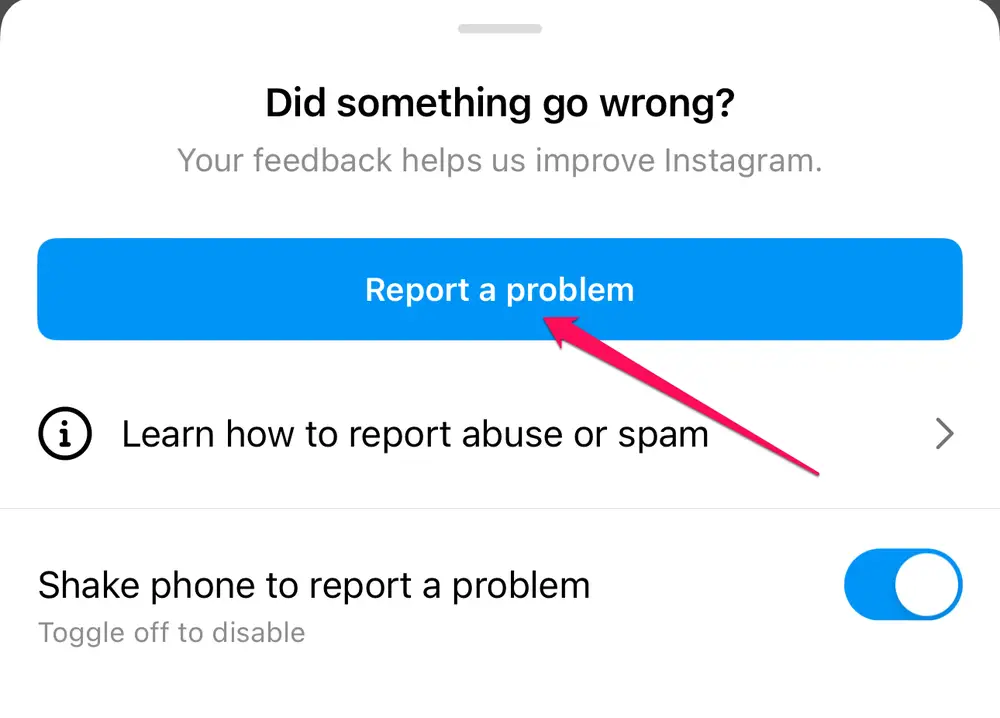
|Go to Profile > Three Line Menu > Settings > Help > Report a Problem.|
How to Create a Broadcast Channel on Instagram?
If you still do not know How you create a Broadcast Channel in the first place, then Here is a Simple Guide that will surely help you out. You can use the Instagram App on your Android or iPhone and Create the Instagram Broadcast Channel real quickly.
- Firstly, On the Top Right Side – Click on the Arrow or the Messenger Icon.
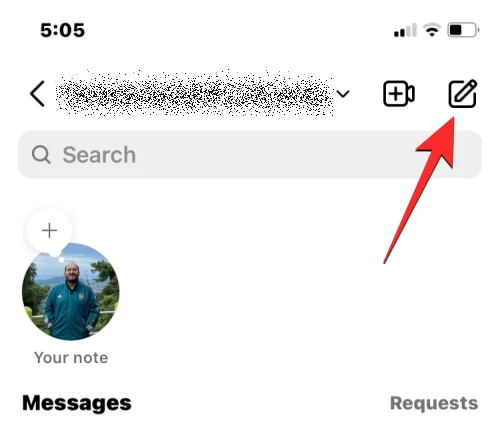
- Now, Tap on the Edit/Create icon with a Pen on the Top Right.
- Click on the Create Broadcast Channel Option.
- Type your Channel Name.
- Select your Set of Audiences.
- Choose when the Channel ends.
- Click on Show your Channel on your Profile.
- When all this is done, click on the Create Broadcast Channel at the Bottom.
You can find your Created Channels at the Top of the Instagram App(Tap on the Arrow or the message icon).To Join Audiences, You can also share the Invite with others.
- Share an Instagram Invite Link.
- Add the Channel to your Stories.
- Send a Message.
To Know more, Read: How to Create an Instagram Broadcast Channel?
Bottom Line
Try the Methods above to Fix your issue of Instagram Broadcast Channel Not available. Also, Sometimes do Check if you have a Proper Internet Connection – the data is ON, etc. If you are a Creator, then these Fixes can surely Fix your Problem. But if you are not, Wait until Mark Zuckerberg makes it accessible to Each Normal User.
Frequently Asked Questions
How to Turn OFF Broadcast Channel Notifications on Messenger?
On the Messenger Mobile App:
- Choose a Channel on the Chat list that you want to Mute.
- Now, Tap on the BELL Icon appearing at the top.
- On the Mute Notifications Option, Tap on the Toggle to Enable it.
- You can also choose the Time Duration until which you want to Mute the Notifications.
- Once Done, You can Click on the DONE.
- Go to the Chat List and select the Channel.
- Tap on the Name of the Channel Click Mute and Set the time.
How to Turn OFF Broadcast Channel Notifications on Instagram?
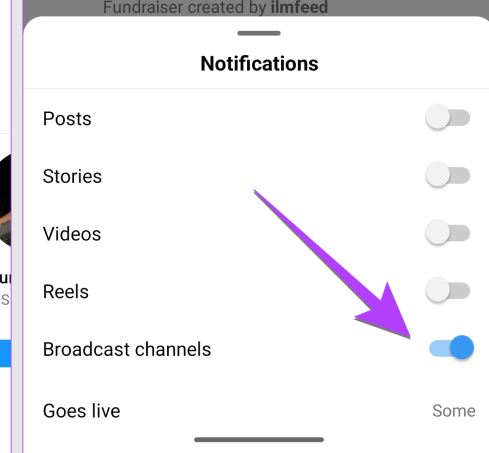
- Launch the Instagram App>Click on the Profile Icon.
- Now, Tap on the Three Lines Icon on the Top Right Side.
- Click on the Settings and Privacy.
- Select the Notifications option and Then Messages and Calls.
- Navigate to the Broadcast Channel Messages and Click on the OFF Button.
- By doing this, You will no Longer Receive any Notifications as you have muted it.
How to Stop Broadcast Channel Invites on Instagram?
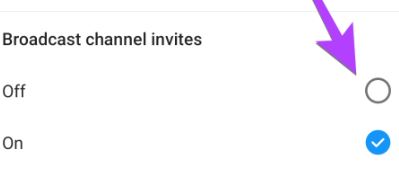
- On the Instagram App, Select the Profile Icon.
- Go to the Settings and Privacy.
- Select the Notifications and Then Messages and Calls.
- Find the Broadcast Channel Invites Option and Turn it OFF to Disable it.
Can you switch to a Creator Account on Instagram?
Yes, You can Switch to a Creator Account on your Instagram Whenever you want to.
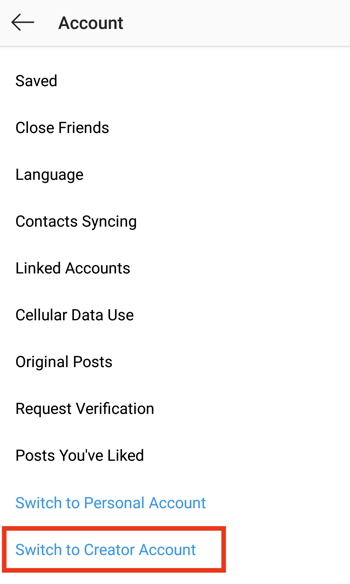
- Go to your Profile Page and Click on the Three Lines.
- Tap on the Settings and Then Account.
- Scroll and Find the Switch to a Professional Account.
- Click on the Creator Option.
How to Turn OFF Hype Comments on Instagram Story?
- Go to the Story Settings.
- Find the Hype Option.
- Select the OFF Option, So that all the Hype Comments from your Stories.