
![Urbanflix TV on FireStick. [Install|Activate]](https://techthanos.com/wp-content/uploads/2023/04/Urbanflix-TV-on-FireStick.-InstallActivate-1.jpg)
The Urbanflix TV app brings you the best series and movies from UrbanflixTV originals to your favorite device. You can access Urbanflix TV on your FireStick and Fire TV devices easily. Once you get UrbanflixTV on FrieStick you can watch all the updated programs and new films and series on your TV. Get to know the installation and activation procedure to get Urbanflix TV on your device, with the help of this article.
Table of Contents
UrbanflixTV

Urbanflix TV is one of the best video streaming platforms to watch critically acclaimed series, short-form stories, musical projects, stage plays, stand-up Comedy, VR, documentaries, and more. You can access this app on many of its supported devices, which are
iPhone | iPad | Apple TV | Android Phone| Android TV | Roku | Fire TV / FireStick
How to Subscribe to Urbanflix TV?
- Visit UrbanflixTV’s official site, urbanflixtv.com on any of your device’s web browsers.
- Select the Sign-Up option.
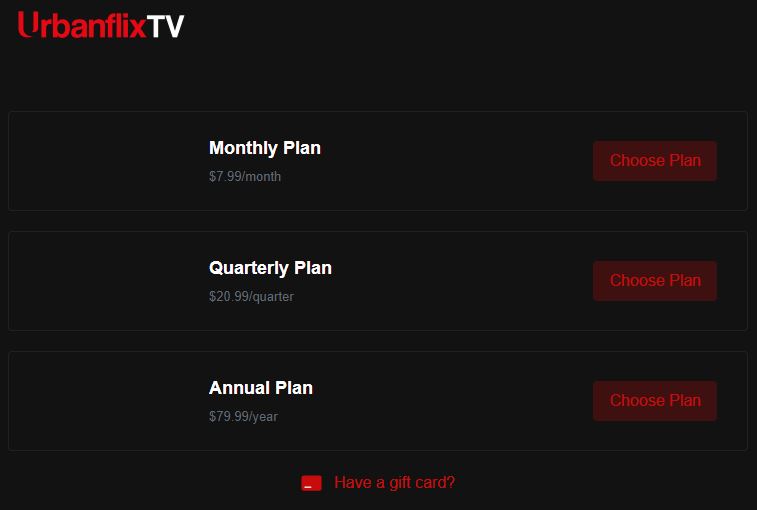
- Choose a subscription plan which offers Monthly, Quarterly, and Annual Plans.
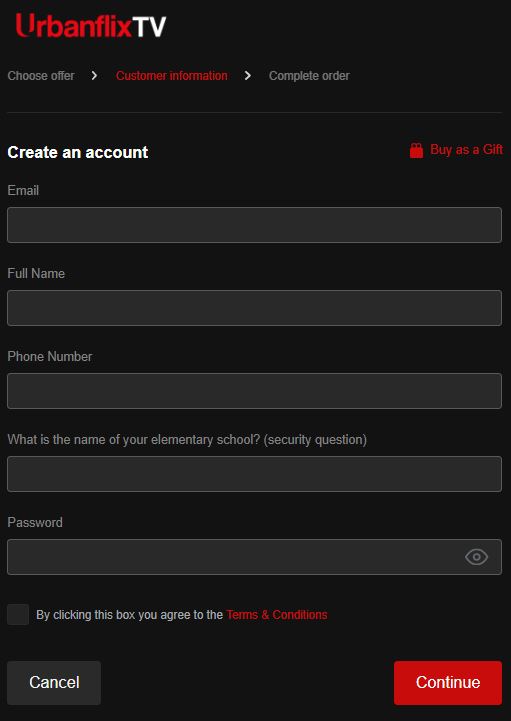
- Now Create an Account with the credentials asked and select Continue.
- Complete the payment procedure.
- You can now use these credentials to access Urbanflix TV on all of its supported devices.
NOTE: For Monthly Subscription, your bill payment will be automatically renewed untill it is cancelled.
How to Get Urbanflix TV on FireStick?

You can easily get the Urbanflix TV app on your FireStick device from its default app store. After installation, you have to activate it with your Urbanflix TV subscription account credentials to watch its contents on your Fire TV. Follow the simple procedure given here to install and activate the UrbanflixTV app on your FireStick.
How to Install Urbanflix TV on FireStick?
- Go to your FireStick device home page by pressing the Home button on the FireStick remote.
- Now select the Search icon.
- Type “urbanflixtv” with the help of the virtual keyboard.
- Start the search and select the UrbanflixTV app and reach its details page.
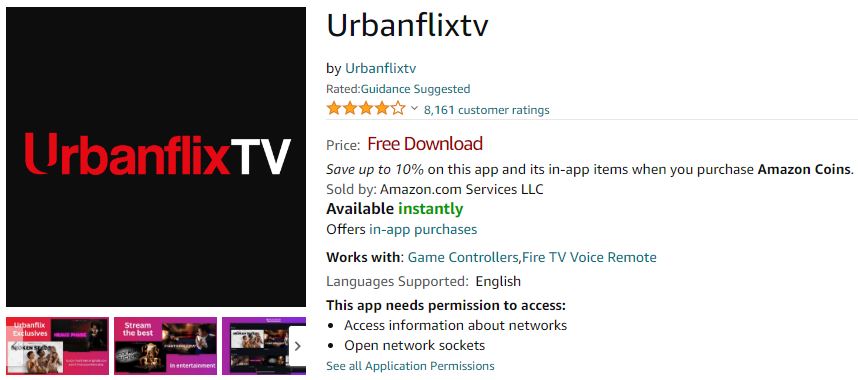
- Now tap on the Get or Download option and wait for a few seconds.
- The Urbanflix TV app is now installed on your FireStick device.
To learn about the other installation procedure, you can refer to How to Install Apps on Firestick?
How to Activate Urbanflix TV app?
- Launch the Urbanflix TV app on FireStick or any other supported device.
- Note down the UrbanflixTV Activation Code from your device screen.
- Now visit the urbanflixtv.com/activate page on any device at any web browser.
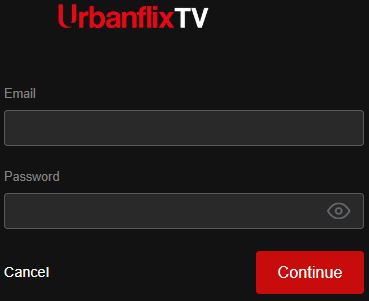
- Use your UrbanflixTV account credentials to Sign In.
- Enter the Activation Code here and tap on Activate.
- Complete the Activation Procedure with the on-screen prompts.
You have now successfully installed and activated the Urbanflix TV app on your FireStick devices. Now you can select any content from it and watch it on your Fire TV.
Alternate Ways to Watch Urbanflix TV on FireStick
If you are using a FireStick devices version that is not compatible with the Urbanflix TV app you need to look for alternate ways. Screencasting the Urbanflix TV app from other supported devices to your FireStick device-connected TV screen is better. Since the Urbanflix TV app gives a cast or airplay option in its video player making it easier to screencast. Follow the simple procedures to get Urbanflix TV on Fire TV.
NOTE: Connect the Urbanflix TV app installed device and your FireStick device to the same WiFi network to perform screencast or screen mirroring.
Cast Urbanflix TV App from Phone to FireStick
- Install and Sign In to the Urbanflix TV app on your iOS or Android phone or tablet.
- Select the content you want to watch and start to play it on your Phone.
- Now pause the content and tap on the cast or airplay option on the media player.

- From the available devices choose your FireStick device name.
- Wait for a few seconds and get Urbanflix TV on your FireStick device-connected screen.
Cast Urbanflix TV Site from Chrome Browser to FireStick
- Go to Chrome Browser on your Phone or PC.
- Visit the UrbanflixTV official site and Sign In with your credentials.
- Now select the three vertical dot icons to open the Menu.
- Select the Cast icon and wait for a few seconds.
- Choose your FrieStick device and select Cast.

- The Complete Chrome browser with Urbanflix TV is now cast to your Fire TV screen.
You may also like to learn about How to Get Pure Flix on FireStick?
Whats on UrbanflixTV?
You can watch Urbanflix TV Original Series, Movies, and shows by subscribing to its plan on its supported devices like FireStick. Some of the best UrbanflixTV originals you can watch now on your TV are as follows,
Broken Seeds | Cocaine Sisters | Heaux Phase | Fosters Law | Survival | Story | Jungle Juice | Seal of Desire | A Typical Wednesday | Am Radio | The Broken Rose | Trade | Bricked | Red Flags | The Blame Game | Pan De Salawal
How to Fix Urbanflix TV Not Working Issue?
Due to regular updates of the Urbanflix TV app, you might sometimes not access the Urbanflix TV app on yoru FireStick or other supported devices. If you ever face problems while using the Urbanflix TV app, follow the simple procedures given here to fix them.
- Restart your Device
- Check for Updates on Urbanflix TV on its supported device.
- Reinstall the app
- Clear Urbanflix TV App Cache on your FireStick
You may also like to learn about How to Fix ITVX Not Working on Firestick?
How to Watch Urbanflix TV offline on FireStick?
You can save up your data on watching your favorite series or movies from the Urbanflix TV app by downloading it on your FireStick and watching it offline. Once downloaded you can access the video for 30 days from the day of download. An internet speed of 20Mbps is required to download a video with 1080p from the Urbanflix TV app. Follow the procedure to download videos from Urbanflix TV to your device.
- Go to Urbanflix TV app on FireStick.
- Search and find the content you want to download.
- Select the download option and wait for the download to get completed.
- Disconnect your FireStick device from an internet connection.
- Go to Menu and select the downloaded video to watch it on your FireStick.
You can also delete completed series of movies that are downloaded to save space on your devices. To delete downloaded content, go to the menu and select the “X” option to remove it from your device.
Suggestions
If you had subscribed to the Monly Plan of UrbanflixTV, make sure to cancel the automatic payment option. Directly Using the Urbanflix TV app on FireStick takes more data than when you cast the app from other supported devices to your Fire TV. Make sure to update the app frequently to avoid errors due to bugs.
Frequently Asked Questions
How to reset your Password on UrbanflixTV?
When you reset your password on the Urbanflix TV app, you will get logged off on all the devices with this app. To reset your password, go to the My Account section and select the Security option. Now provide a new password and select the Update Pass word option to save the new password.
How to Change Plan on the Urbanflix TV app?
To change the subscription plan on the UrbanflixTV app, go to the My Account section and select the Billing option. Find your active plan and select the Change Plan option. Now on the plan you like tap on Choose Plan option and confirm it by pressing OK.