
![How to Watch TEA TV on Roku?[Movies | TV Shows]](https://techthanos.com/wp-content/uploads/2023/04/How-to-Watch-TEA-TV-on-RokuMovies-TV-Shows.jpg)
TEA TV is one of the best online video streaming service providers with the latest movies, TV shows, sports, live TV, and more content for free. You can access this application on a number of devices, but can TEA TV be used on Roku? If you have the same doubt, then you have come to the right place. Here, you can learn the different methods you can use to get TEA TV on your Roku devices.
Table of Contents
Can I Watch TEA TV on Roku?

The TEA TV app is not available on Channel Store, so it is not possible to get it on your Roku device. This third-party app can be screencast from your Andoird phone or cast the TEA TV site from your PC to your Roku TV screen.
How to Cast TEA TV to Roku?

You can easily get the TEA TV app on your Android device by sideloading it. On your PC you can access TEA TV on web browsers or get the exe file for TEA TV and use it to watch movies and TV shows. You can easily get the APK and exe file for TEA TV from its official site teatv.org. Once you get access to TEA TV on your devices, you can easily cast it to your Roku device screen. Follow the simple procedure given here and watch TEA TV on Roku.
How to Enable Screen Mirroring on Roku?
To cast any device screen to your Roku device screen you need to first enable the screen mirroring feature on your Roku device. After enabling screen mirroring on Roku, you can set prompts to allow and block the connections. The simple procedure to enable screen mirroring on Rokua are as follows,
Enable Screen Mirroring:
- On your Roku device home screen select the Settings option.
- Select System and tap on the Screen Mirroring option.
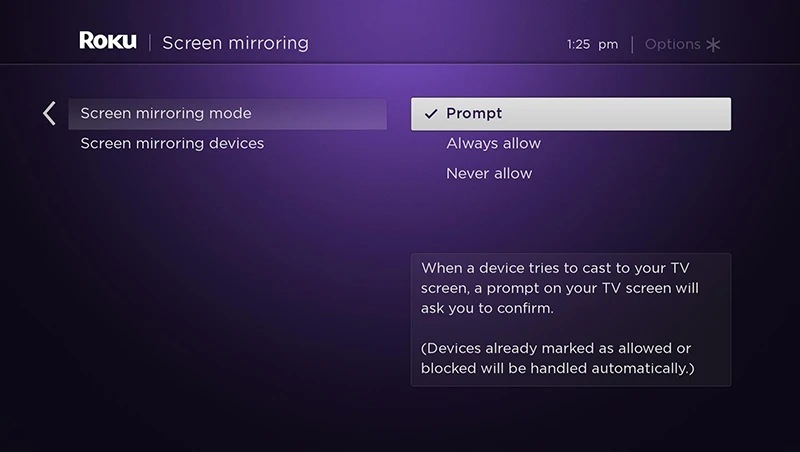
- Choose the Enable Screen Mirroring option and select either the Prompt or Always Allow option.
Enable AirPlay:
- On the Roku device Settings menu tap on Apple AirPlay and HomeKit option.
- Select Apple AirPlay and HomeKit Settings options.

- Now tap on the AirPlay option to turn it on.
Your Roku device is now ready to mirror connected devices screen to your TV screen.
NOTE: Your Roku device and the device with TEA TV, must be connected to the Same WiFi network.
How to Get TEA TV from Android on Roku?
After sideloading and installing the TEA TV app on your Android device, you can select the movie or TV show you want to watch and cast it on your Roku screen. Since there is no separate cast option available on the TEA TV video player, you need to cast your Andoird device screen fully to your big screen. Follow the procedures to cast TEA TV app from your Android device to Roku.
- Launch the TEA TV app on your Android device and start to play the content you want to watch.
- On the Andorid screen, swipe from top to bottom, to open the notification tab.
- Select the Cast option from the notification tab and make sure that the Wireless Display option is enabled.
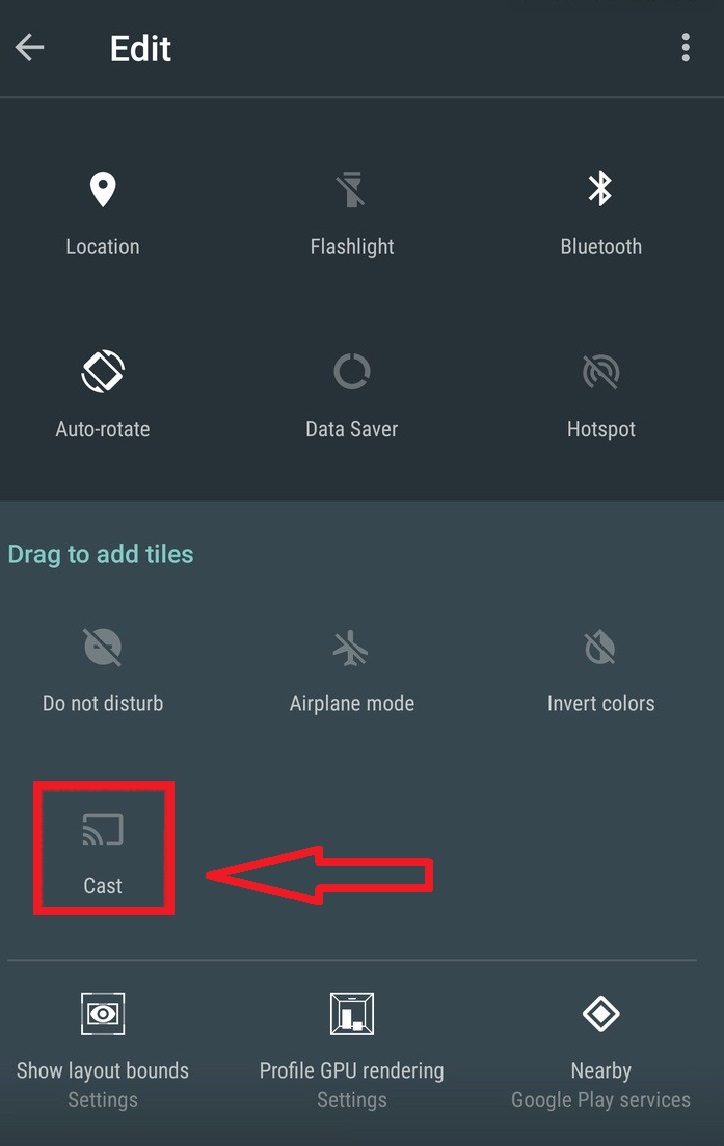
- Wait for your Roku device to show up and select it.
- Tap on the Start Now option to mirror your Android device screen with TEA TV to your Roku TV screen.
You may also like to learn about How to Watch TinyZoneTV on Roku?
How to Get TEA TV from Windows PC on Roku?
If you have got the TEA TV application on your Windows PC, then you have to project TEA TV to your Roku screen. Using a PC gives you better video quality than using an Android device when casting TEA TV to Roku. The step to get your favorite movies and TV shows from your PC to your Roku TV are as follows,
- Get the TEA TV app on Windows PC from its official site.
- Launch the application and select the entertainment you want.
- Now to your Windows PC notification panel.
- Tap on the Connect option and wait till your Roku device shows up on the list of available devices.

- Now select your Roku device and get your PC screencast to your Roku TV screen.
- Start playing the content on TEA TV and enjoy watching it on your TV.
You may also like to learn about How to Install Cinemax on Roku?
How to Get TEA TV from Mac on Roku?
Mac users can use the default AirPlay feature available on it to mirror its screen to any other AirPlay-supported devices. Make sure that you have enabled AirPlay on your Roku device and Mac before moving on to the procedures. Now the steps to mirror TEA TV from Mac to Roku screen are,
Enable AirPaly on Mac:
- Go to System Preferences on your Mac and select the Display option.
- Turn on the AirPlay Display option.

- Under the AirPlay Display option enable the “show mirroring option in the menu bar when available” option.
Mirror Mac to Roku:
- On your Mac screen select the AirPlay icon from the Menu bar.
- From devices available on the Network select your Roku device.
- Your Mac screen is not mirrored to your Roku TV screen.
- Access TEA TV on your Mac device and watch it on your Roku device screen.
How to Install TEA TV on Your Device?
You can get the TEA TV app from its official site, TeaTV.net, and get it on your Android, Microsoft PC, and Mac. The procedure to get this app varies with respect to the device you wish to access it. Follow the simple procedures given here for your device to get TEA TV on it.
- Visit the TEA TV official site.
- If you are using Android then select the APK file.
- For PC get the .exe file of the TEA TV application.
- From the downloads section select the application to install it on your device.
Enable Unknown Sources on Android: For Android devices, you need to enable Unknown Source to install third-party applications. The simple procedure to enable unknown sources on Android are as follows,
- On your Android device go to the Settings Menu.
- Select Security and find the Unknown Sources option.
- Tap on the Unknown Sources option to enable it and press OK.
You may also like to learn about How to Get Cinema Apk on Roku?
What are the Features of TEA TV?
- User Interface: The TEA TV app interface is easy to navigate and search for your favorite titles from its library.
- Huge Library: TEA TV has a vast library of your favorite movies and TV shows from all over the world. Classic movies not available on other applications can be found in this library.
- Video Quality: All content available on TEA TV is on high video quality screen. The movie and TV shows from TEA TV are good when streamed on a large screen.
- Personalize: You can bookmark your favorite movies and TV shows and watch them later at any time you want.
- Accessibility: On devices like Android, Windows PC, Mac, FireStick, and Android TV, you can easily access the TEA TV application.
Suggestions
You cannot use any third-party application on Roku and can only cast them from other supported devices to its TV screen. If you are about to buy a streaming device, go for FrieStick to access content from third-party apps. While screencasting or screen mirroring the quality of the video gets disrupted. So it is better to directly access TEA TV on its supported devices than on Roku.