

If your Samsung TV WiFi keeps Disconnecting, it is due to bugs, errors in DNS settings, modems and using old firmware, which can be solved by resetting your Router, Router, checking the WiFi signal, updating software and changing DNS settings.
Table of Contents
Why Does Samsung TV WiFi Keep Disconnecting?
Your WiFi connection to Samsung TV gets disconnected due to factors like,
- Bugs
- Error in DNS settings
- Old Firmware
- Error on Modem or Router.
Read Samsung TV Not Connecting to WiFi to know more about it.
What is the Solution for Samsung TV WiFi Keep Disconnecting Problem?
Here is the solution which you can use to remove the Samsung TV WiFi Keep Disconnecting problem. Try all the methods given here until the problem is solved.
WiFi Signal Strength on Samsung TV:
To know the WiFi signal strength on your Samsung TV, go through the following,
- Tap the Home button on the remote.
- Go to the Settings option and select the General option.
- Now Choose Network and go to the Open Network Settings option.
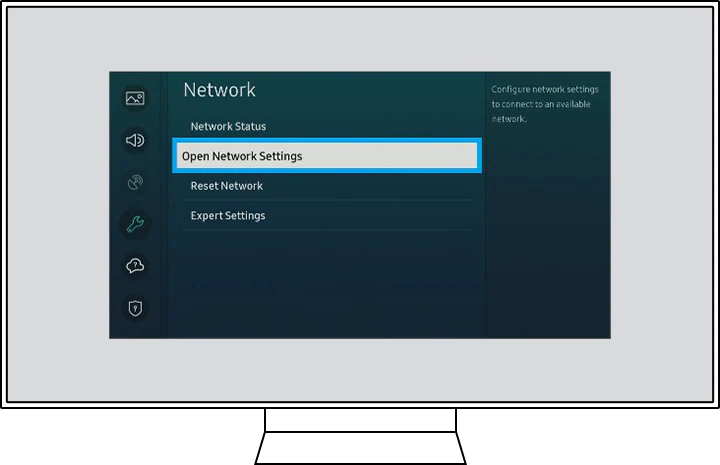
- Choose Wireless and check the bars to know the strength of the WiFi signal.
If the signal is very low, even when connected, you cannot access the internet.
Reset Network:
If your Samsung TV is not able to discover any WiFi network, then it might be due to some Network settings change, which can be reset by following these steps,
- Tap the Home button on the remote.
- Go to the Settings option and select the General option.
- Now Choose Network and go to the Reset Network option.

- Tap on Yes and restart your TV.
Restart Samsung TV:
You can restart your Samsung TV periodically to make it work properly; the steps to be followed to restart your Samsung TV are as follows,
- Click and hold the power button on your Samsung TV remote.
- Wait until the TV logo appears
- Your TV will now get restarted.
- Try connection to WiF again.
Change DNS Settigs on Samsung TV:
You can set up a DNS Server on your Samsugn TV by following the steps,
- Tap the Home button on the remote.
- Go to the Settings option and select the General option.
- Now Choose Network and go to the Network Status option.
- Select IP Settings, and on DNS Settings, choose Enter Manually.
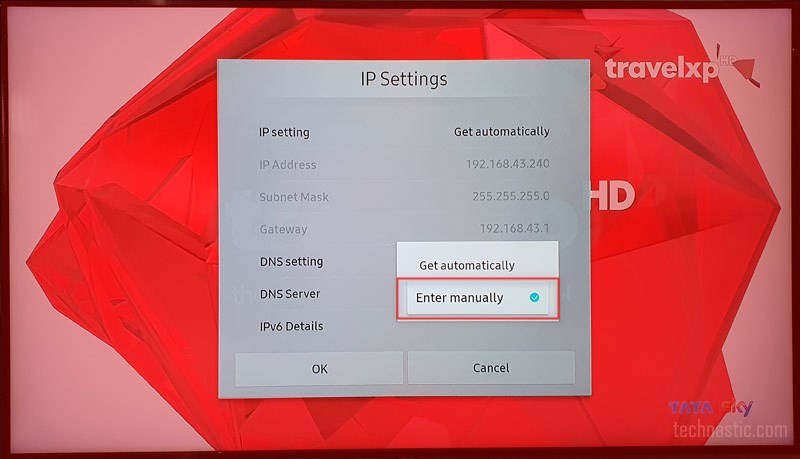
- Enter 8.8.8.8 and select the right navigation arrow.
- Try connection to WiF again.
Check WiFi Password:
To check your WiFi password, follow the steps,
- Tap the Home button on the remote.
- Go to the Settings option and select the General option.
- Now Choose Network and go to the Open Network Settings option.
- Choose Wireless and select the Network.
- Now enable Show Password to check the password you entered.
- If you have changed the password, try to enter the new correct password and connect to the WiFi network.
Factory Reset Samsung TV:
To do a Factory reset on your Samsung TV, go through the steps given,
- Tap the Home button on the remote.
- Go to the Settings option and select the General option.
- Now choose the Reset option and enter the PIN.
- If you don’t know the PIN, enter 0000, which is the default PIN number.
Now your Samsugn TV is set back to how it was when you first purchased it.
Update Samsung TV:
You can update your Samsung TV software by following the steps given,
- Connect your Samsung TV to Mobile Hotspot to Update its software.
- Tap the Home button on the remote.
- Go to the Settings option and select the Support option.
- Now tap on Software update and choose Update Now.
- To confirm an update, select OK.
Wait for the to update to its latest software. Your Samsugn TV will restart after updating to install the software to it.
Restart and Reset Router:
Restart your Router by disconnection the power supply and keeping the device idle for some time, and again connecting to a power source. Or you can select the Reset button on your Router box and wait for the device to reset itself.
When the light on your device is back to normal, you can connect your Samsung TV to the WiFi network again. Read TV Not Connecting to WiFi Issue to know more about it.
The End
With the contents of this article, you can now solve the Samsung TV WiFi keep disconnecting problem with ease. If you still encounter this problem, then it is best if you change your Router to a new one. If you want to have your doubts cleared, ask them in the comment section.
Frequently Asked Questions:
How to Solve Samsung TV WiFi Keep Disconnecting Problem?
- Update Samsung TV
- Restart and Reset Router
- Factory Reset Samsung TV
- Check WiFi Password
- Change DNS Settigs on Samsung TV
- Restart Samsung TV
- Reset Network
- WiFi Signal Strength on Samsung TV
Which is the Perfect Frequency of WiFi for your Samsung TV?
For your Samsung Smart TV, the best WiFi frequency would be 2.4Hz. If your WiFi is at a frequency of 5Hz, then change it to 2.4Hz for better streaming.