
To Reset FireStick without a remote or WiFi, you need to use the HDMI-CEC controller, where your TV remote can be used to control your FireStick device. The steps to activate HDMI-CEC and use it to reset your FireStick are given here and read till the end to get a grasp of it. This article will discuss,
- What is HDMI-CEC?
- Enable HDMI-CEC
- Reset Firestick Without Remote or WiFi Using HDMI-CEC.
- How to Reset Firestick Using Remote?
- Reset Firestick Without a Remote.
Table of Contents
How to Reset Firestick Without Using a Remote or WiFi?
You cannot reset your FireStick device without using a WiFi network. You can use the HDMI-CEC controller or your smartphone’s Hotspot to access the FireStick device using the FireStick app on your phone. This method is not yet been used, and it is not made sure if it works or not.
How Can I Reset Firestick Without Remote or WiFi Using HDMI-CEC?
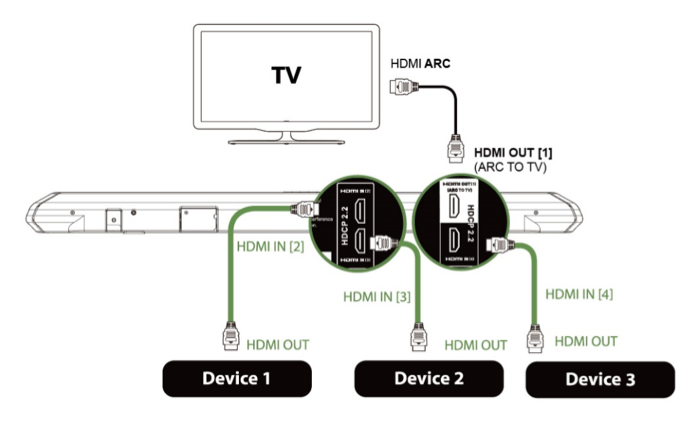
If your TV has an HDMI-CEC controller, then you can easily reset yoru FireStick device. When you use HDMI-CEC, you will be using your TV remote to access yoru FireStick device. Follow the steps to access your FireStick,
Enable HDMI-CEC:
- Go to your TVs Menu and navigate to Settings.
- Choose the HDMI-CEC option and choose System.
- You now choose any of the options, for example, “Anynet+ (HDMI-CEC).”
- Now use the TV remote and access your FireStick.
Reset FireStick:
- You need to go to FireStick “settings” menu from the home screen.
- Select “My Fire TV” or “device/system” option.
- Navigate to the “Factory Reset” option.

- Enter the pin you got during the initial setup of your Fire TV.
- Go through the on-screen instructions and finish the process.
How to Reset Firestick Using Remote?
Go through the steps to reset your FireStick device using a Remote.
- You need to go to FireStick “Settings” menu from the home screen or press the “Home” button for five seconds to go to settings.
- Select “My Fire TV” or “device/system” option.
- Navigate to the “Factory Reset” option.
- Enter the pin you got during the initial setup of your Fire TV.
- Go through the on-screen instructions and finish the process.
The FireStick reset process using the remote has been successfully completed.
How to Reset Firestick Without a Remote?
To reset FireStick without using a remote, you need to get the FireStick mobile app on your smartphone.
- You can download the FireStick app from the respective app store on your smartphone.
- Use the app and select the FireStick device.
- If you get the four-digit code on your TV screen, then you have selected the correct device.
- Use the code on your FireStick application to connect your FireStick device and your smartphone.
- Now open the app and get to the settings menu.
- Go to Factory Reset and choose to Confirm to reset your FireStick device.
You can now factory reset your FireStick without a remote using the FireStick app.
The End
You can now reset your FireStick device to its factory settings without using remote and WiFi with the help of the methods given in this article. If you have any different methods to do so, please share them with me through the comment section so that everyone can learn about them.
Frequently Asked Questions:
What is HDMI-CEC?
HDMI-CEC, which CEC is called Consumer Electronics Control. It is a feature available for only HDMI cables supported devices where you control one device with another device. For example, using your TV remote to control FireStick connected using an HDMI cable to their HDMI ports.
How to Reset Firestick Using Remote?
To reset your FireStick, you need to go through the following steps,
Home > Settings > My Fire TV > Device/System > Factory Reset