
Nowadays, technology has grown and improved drastically day by day. You no longer need to worry or miss your loved ones, even if you are far away from them, to see or contact them. From this guide, you will learn how to use and activate Skype on various devices, including Windows, Mac, Android, and iOS SmartPhone. Skype makes everything possible to contact a person even if you are so far and allows a video call to make using the Internet without any charge. Keep reading to get more info…
Table of Contents
Skype:

Skype is a software that offers to make a conversation over the world through internet access. Through this app, you can communicate via audio and video calls with single or group conversations. Even you can make calls worldwide. Since it has a technology called Voiceover IP (VoIP), it will help to transmit your voice through internet access.
You can use this app to work from home or online class to communicate through the internet using video conversation. However, it is a broken oldest barrier to making conversations with others. Using this app, you can make international video or audio calls since the user has an account. However, it doesn’t charge any cost, and it is totally free to access using the Internet.
Moreover, you can also contact your non-skype users through your smartphone by paying the cost. So if you want to know more information regarding Skype and its other features, scroll down.
History of Skype:
Skype was started in 2003, and it is owned by Microsoft access it, and it becomes more popular among VoIP since communications have grown widely over SmartPhone. There are many apps available similar to the app, such as Whatsapp
Features available on Skype
Skype includes many various services according to business, creative needs, personal conversation, office, work, and schools. Here we mention the following service available in this app.
- Skype using Outlook – With this service, you can able to use this app without getting off from the inbox.
- Meet Now – This service is available for creating and sharing meetings. Tap on the create button to create and share your page with others as a link to whom you want to speak.
- Skype using Alexa – These will let you use this app along with Alexa, and the digital assistant will help you with Amazon Echo devices as well.
- Skype Manager – It will allow you to specify the credits from nonusers of Skype and also manages the features that are included for business purposes or any other household uses.
How to Use Skype on Windows/ Mac?
You can use its account on your Windows PC or laptop following the given below instructions.
- Navigate to the web browser from your desktop or laptop.
- And then enter Skype’s official website.
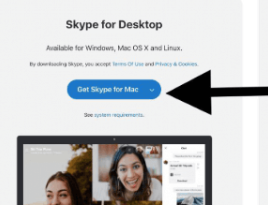
- Now tap on the Download Skype tab in order to get it on your Windows.
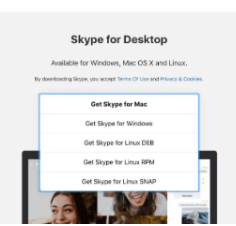
- Further, tap on the down arrow mark from the tile.

- There choose Get Skype for Windows option in order to install it on your desktop or laptop.
- Suppose you are using macOS, then choose the Get Skype for Mac option.
- Once you choose your device, it will start to download the app.
- Give access to YES in order to install the app from the permissions asked on your device.
- After downloading the app, you have to tap on the Skype symbol under the apps section.
- Now proceed to the sign-in process. If you don’t have an account, then create a new account.
Create a Skype Account on Desktop/ Windows:
- First of all, enter the log-in page and then choose the Create One option.
- You should want to enter a valid mobile number or email address in order to create a new Skype account.
- After that, you need to set a strong password to encrypt your app for your safety.
- Now register your name and other valid information in the respective field.
- Next, validate your account using your mobile number or email account.
- Further, copy the code which has been sent to your registered mobile number or email address.
- Paste the 4-digit activation code on your account activation page.
- Now your account has been created successfully on your Windows or Mac.
After that, you can make an audio or video call and also a group call for any other purposes such as meeting, chatting, business, personal, and so on.
How to Add Skype Contacts to Desktop/PC?
- Tap on the Contacts key from your home section, which is shown on the arrow icon.
- Hit the New Contact key and then look for your friends using the search tile.
- Next, tap on the Add tile in order to add their contact in your desktop or laptop.
- That’s it. Now you have added the contacts which you want to add to your device.
How to Make Video Calls on Skype from Desktop?
- Choose the contact whom you want to make a call from the contact list.
- Now tap on the Video Camera icon from the upper right edge of your screen.
- That’s it. Now you can able to talk to your desired person via Video conversation through the Internet.
How to Get and Activate Skype on Android SmartPhone?
Skype is mostly available on the Play Store and App Store to download and install the app to use on your SmartPhone. So let’s get into the steps to install the app on your mobile device from the given below.
- Enter into the App Store or Play Store from your SmartPhone device.
- Choose the right app from the search result and then tap on the Get option.
- Now it will start to install the app on your Android SmartPhone.
- After that, open it and then enter it into the login session.
- Suppose you are a new user. Then you need to create a new account on Skype.
- And then, enter your personal information, such as your mobile number, to create an account.
- Next, set your password to encrypt your app, and then register your name and other personal info.
- You should want to validate your Skype account using your Gmail account.
- Now you can sign in to your mail address and then do the instruction which is sent from the Microsoft account team.
- There you get an activation code, copy it, and then enter the code into the respective field.
- After that, enter the characters that appeared on the screen to make sure that you are not a robot.
- Now your Skype account has been created. You can now use and make conversations with audio or video with friends and family across the world.
Hint: Instead of using a mobile number, use a mail address to register your account with Skype. Because it will make you verify the account without hassle.
Closing Off:
Finally, we have come to the end of the session. Here, we have mentioned much information about Skype, including installation methods from Android, iOS SmartPhones, and Windows, macOS as well. This guide will help you to use and activate your Skype account. Suppose you are a new user. You can create a new account through this helpful guide. In case you have any doubts or questions regarding Skype, mention them using the below comment box.