

Use the Samsung TV power button to switch on or off your TV, and it can also use to do a reset without a remote and power cycle to remove bugs. To know more about the placement of the button on your Samsung TV, go through the contents of this article.
Table of Contents
How to Find the Samsung TV Power Button?
There are two power buttons to turn on your Samsung TV. One is on your Samsung TV Remote and another on the TV itself. The power button for different Samsung TVs is placed at different positions for different models.
Samsung TV Models:
The different models of TV offered by Samsung are,
- OLED TVs
- Neo QLED 8K
- QLED 8K TVs
- Neo QLED 4K
- Crystal UHD TVs
- 4K UHD TVs
- Lifestyle TVs
- QLED 4K TVs
- Full HD TVs
- 4K SUHD TVs
- HD TVs
Power Button:
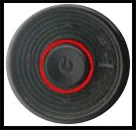
The familiar places where you can find the power button on any model of Samsung TV are,
- Center and Under the TV on the bottom side of the TV Screen.
- Right and Under the TV on the bottom side of the TV Screen.
- Bottom, front, left or right side with touch control on the TV.
- Behind the TV on the right side.
These are the major places where you can find the power button on any model of TV. If you still can find it go through your TV user manual, where you can find the power button described with a neat and clear picture presentation.
Read Samsung TV Not Connecting to WiFi
Navigate to Samsung TV Power Button:
Follow the instructions given to find the power button on your Samsung TV,
Bottom Side Center, Under the Samsung TV:
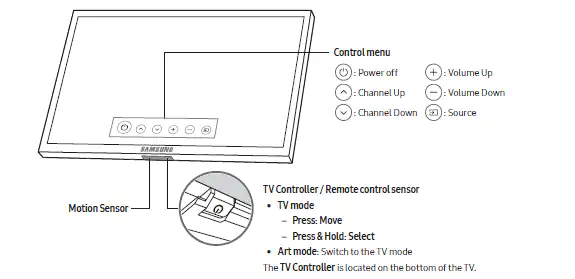
- Place your fingers on the bottom side of your TV.
- Move to the centre of your TV and feel the buttons present under.
- You can feel the big round button which is the Power button.
- Press that button to switch on or off your Samsung TV.
On the Bottom Side Right, Under the Samsung TV:
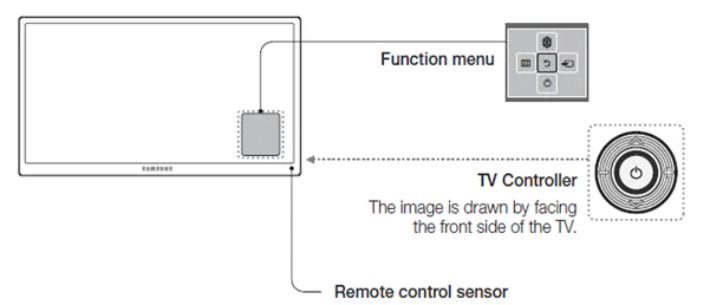
- Place your fingers at the bottom of your TV.
- Move to the right of your TV and feel the buttons present under.
- You can feel the big round button which is the Power button.
- Press that button to switch on or off your Samsung TV.
Bottom Side Front, Left or Right side of Samsung TV:
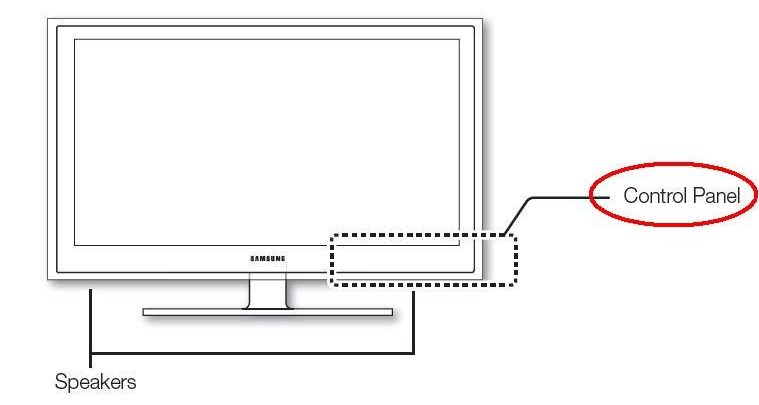
- On the front, the bottom side of your Samsung TV, either to the Left or Right side, you can find the Power Icon/CONTROL written.
- These types of TV have touch control power buttons.
- Simply tap your finger on the power icon to switch on or off your Samsung TV.
Behind and Right Side on Samsung TV:
- On the right side of your TV, place your fingers on the back side of the screen.
- You can find buttons present where you can find the Power Button.
- Now Press the Power button to switch on or off your TV.
Read Disney Plus Not Working on Samsung Tv and learn more about it.
The End
You can now find the Samsung TV power button and use it to switch on or off your TV, and you can also reset or power cycle your Samsung TV. If you have any doubts, go through the Manual that came along with your TV or move to the official website and download the Manual for your TV model.
Frequently Asked Questions:
How to Reset your Smart TV?
You can reset your TV by pressing and holding the power button for some time until the smart TV turns off and gets turned on again.
How to Power Cycle your Smart TV?
After removing the power supply, you can long press the power button to do a power cycle on your Smart TV.