

Nintendo Switch Lite has been and will be the best handheld game console. But, that does not mean that it works perfectly, there are some instances where the application can totally crash on your Switch Console. The final resort to save it is a Factory Reset of the Nintendo Switch Lite. If you are pushed down to take this extreme measure, then follow the simple steps here to return your Nintendo Switch lite and how to get Factory default settings on it. But keep in mind that all your data will disappear into thin air and there will be no way to recover it.
Table of Contents
How to Factory Reset Nintendo Switch Lite?
If you do a factory reset on a Nintendo Switch Lite Game console, all of your content and settings data will get erases. You can factory reset your Nintendo Switch when there are any errors or problems that appear on your devices. The simple procedure to do a factory reset on your Nintendo Swithc Lite console is as follows,
- Go to Nintendo Switch Lite Home Page.
- Select System Setting and choose the System option.
- Scroll to the “Formatting Options” and choose the “Restore Factory Settings” option.
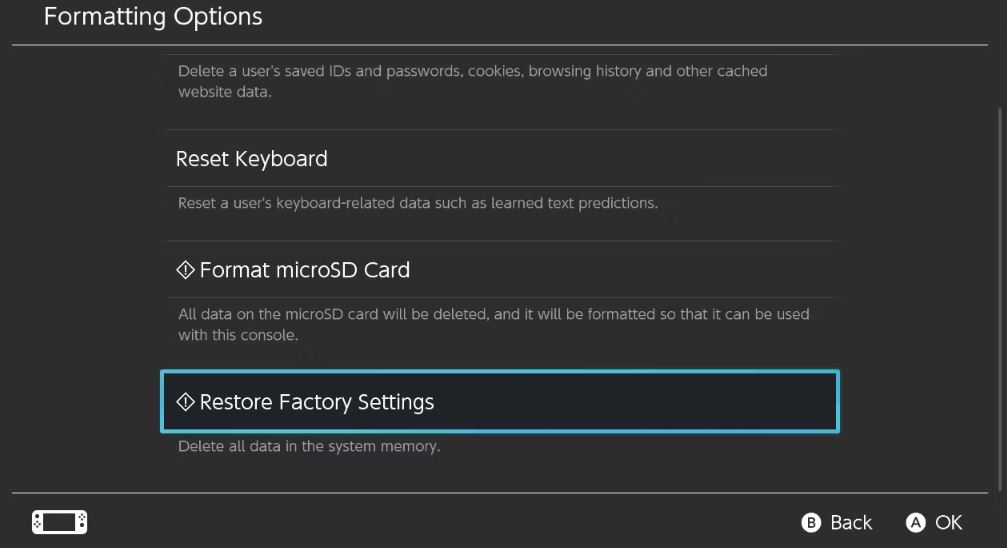
- Read the information on the screen and select Next.
- Again select the Restore Factory Settings option to confirm the process.
This will make your Nintendo Switch console as how it was during your time of purchase. You need to download games, and apps, and add media back to your console.
Homebrew your Nintendo Switch from How to Homebrew Switch in 2023?
How to Hard Reset Nintendo Switch Lite?
At times, when you are unable to access the Settings Menu of your Nintendo Switch Lite Game Console, you need to do a Hard Reset. Follow the simple steps provided here to do a hard reset on your Nintendo Switch Lite console.
NOTE: Remove your microSD card before doing a hard reset, because data saved on it will be deleted.
- Press and hold the power button to turn off the Nintendo Switch.
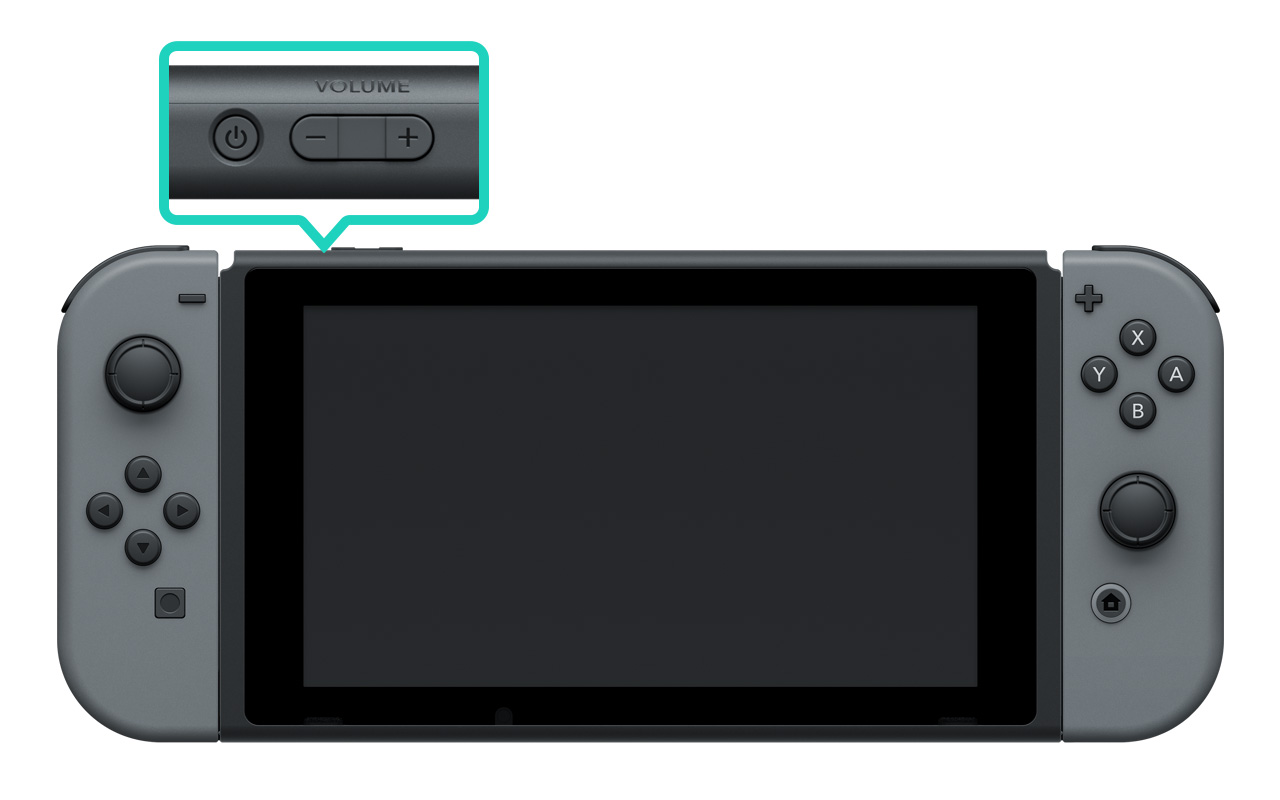
- Now hold both the Volume Up and Volume Down buttons and press the power button.
- You will be directed to your Nintendo Switch Lite Maintenance Mode.
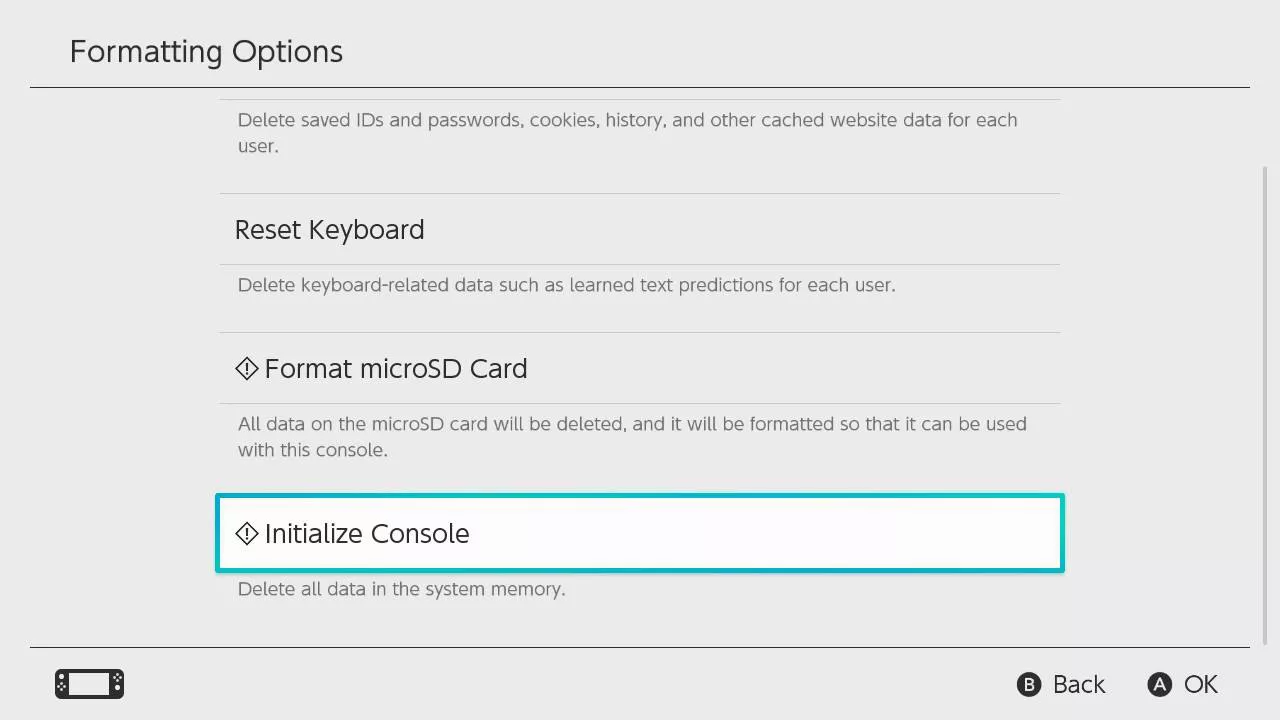
- Select Initialize Console option to delete all data from your system memory.
You can now restart your Nintendo Switch Lite device, which gives the same effect as a factory reset.
Have you tried jailbreaking your Nintendo Switch Lite console? It might be illegal, but to play your favorite games you can take risks, find out more about Nintendo Swithc Jailbreak from How to Jailbreak My Nintendo Switch Lite?
How to Soft Reset Nintendo Switch? [Power Cycle]
You can soft reset your Nintendo Switch Lite device to fix minor software issues. The procedure to do a soft reset on your console is quite simple, just follow the steps given here.
- Press and Hold the power butt on your Nintendo Switch Lite console.
- Wait for your Swithc console to turn off.
- Now wait for a few seconds, (latest 30 seconds)
- Press the power button and turn on the Nintendo console.
This marks the completion of the soft reset. The software that was causing errors and problems will work fine after this.
How to Reset Nintendo Switch Cache?
Nintendo Switch can save your User IDs, Passwords, and browsing history as cache files. Having a large amount of cache memory can make your game console face errors. You can easily delete cache from your Switch Lite device, but later on, you need to sign in to applications again, without the automatic fill option. The procedure to reset the Nintendo Switch Lite cache memory is as follows,
- Open Nintendo Switch Settings Menu from the Home screen.
- Go to the System option and select Formatting Options.
- Select the Reset Cache option.
- Tap on Reset on the warning pop-up screen.
Frequently Asked Questions
How to transfer my User and Save data?
To transfer data from one Nintendo Switch console to another, you will need a supported SD card. Go to the Users option from the System Settings menu and choose the Transfer your User data option. Follow the prompts and select Source Console and complete the process. Now on the other console follow the same steps, but select the Target Console option, You will be prompted to sign in with your account credentials. After that, you can select Transfer to get the data to your device.
How to Update Nintendo Switch?
From the Nintendo Switch home, go to the System Settings menu and choose the System option. Make sure your device is connected to the internet and select the System Update option. If there is an update your console will automatically update itself to its latest version.