
While being Lazy is not So Good, These Technologies and their Mind Blowing Features have made us Even More Lazy. So, In that Context, Let us well be Lazy Gazy by Saving some of our Stuff and Getting help from the techies – which indeed are us. Know How to Auto Save Chats on Snapchat in this Guide.

Table of Contents
Can you Auto Save Chats on Snapchat?
Yes, You can surely AutoSave Chats on Snapchat. Though this app is such a Notify App that Traces and Gives Notification for all your Action.
NOTE: Make sure you have an Updated and Latest Version of the Snapchat App.
- Internet Connect Should be Stable.
- Your User ID Logged in.
How to Auto Save Chats on Snapchat?
There are two Easy Ways to Auto Save your Chats and Conversations on Snapchat.
- First is the SAVE IN CHAT Option.
- Second is the Chat Settings After Viewing Option.
Save in Chat – AutoSave Chats on Snapchat
- Open your Snapchat App > Make sure you are logged in.
- Now, Open up a Chat with any of your Friends for Example try.
- Type a Message and Send it.
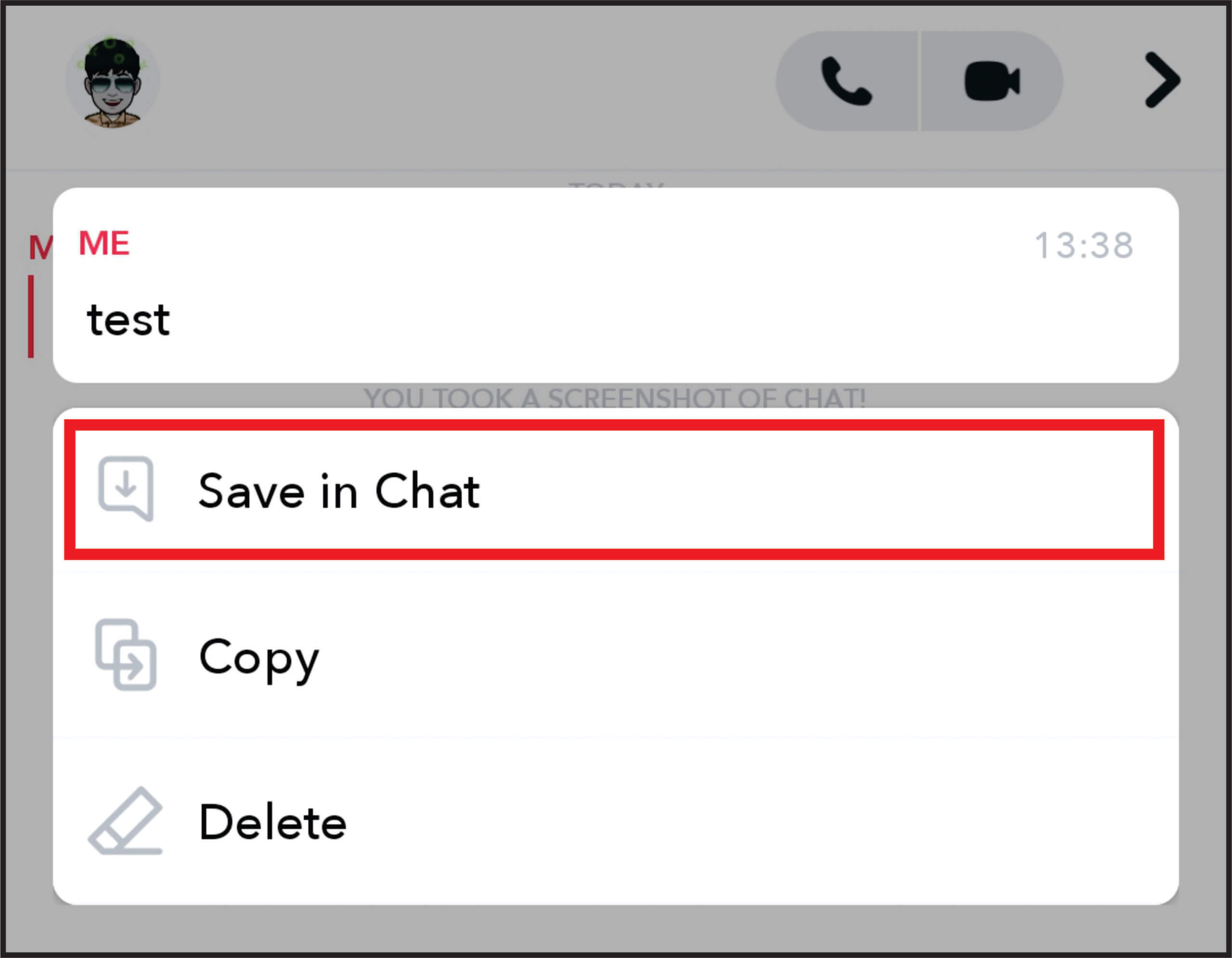
- Then, Press and Hold the Sent Message, You will see a Pop-up menu with Save in Chat Option.
- Click on Save in Chat and this will Save the Particular Message until you Unsave it.
You may also Know: What is Pending on Snapchat and How to Fix it?
After Viewing – Auto Save Snap – Chats
If you are in a hurry, Open up a text and the next time it is disappeared. Then this After Viewing Settings will help save you and your Chats.
- Access the Snapchat App and Go to the Chats Section.
- Choose a Conversation that you want to Autosave.

- Tap on the Avatar or the Name of the User to access the Profile.
- Click on the Three Dots on the Top Right Hand Side.
- Tap on the Chat Settings and then Select the Delete Chats Option.
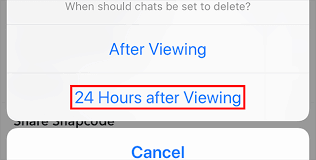
- Choose 24 Hours After Viewing – This will keep your Chats Auto Save for 24 Hours after you Open them.
These two methods are the easiest way to AutoSave. You can not only Auto Save Chats but also Photos, Snaps, Videos, and Voice Records on your Snapchat Conversations.
Other Ways to Auto Save Chats on Snapchat
Apart from the Direct, There are these Other ways that can also be as helpful to keep your Important texts Saved.
Archive Chats on Snapchat
The Archive Option will save for Conversations for a Longer time.
To Archive Chats on your Snapchat, Follow the Steps over here ;
- Launch the app and Go to the Chats Window.
- Find the Conversation that you want to Archive.
- Hold down the Message Button.
- This action will highlight the Messages in Gray Colour for Both you and the Other Person.
- But Only you will be able to Retrieve it Cause you are the one to Archive it.
Try Activating and Deactivating Temporary Messages Via the Chats or Groups on your Snapchat. This will save them for a Certain period.
Also, Know: How to Reactivate Snapchat
Snapchat Messages won’t Disappear
This is one of the Default Functions that make Some of the messages not Disappear. It can happen by the Previous Configurations made by the user or on the Group Chats. If you are in Group with me, and React to messages, Save Chats and Replies – and then Decide to Remove from the Group. Your Saved actions can stay by default for a Longer time.
How to Save Chats on Snapchat on Android?
Sometimes, users can choose to use some tips and tricks and Prevent the deletion of texts on the app.
- Firstly, Use the Save in Chat Option all time when you receive any important messages.
Take A Screenshot

When none of the ways help you, The best way is to take a Screenshot. Although, taking a Screenshot of a Chat, Video call will notify the user – If the text is Important you can consider this too.
How to Auto Save Photos on Snapchat?
The chats are done, and now the Photos. Obviously, Sometimes, we do forget to save the Snap that we click. So, It is always better to keep the Auto Save Option ON to Not Miss out on any of your Lovely Snappies.
Steps to Auto Save to Memories :
- On the app, Click on your Profile.
- Navigate and Open the Settings.
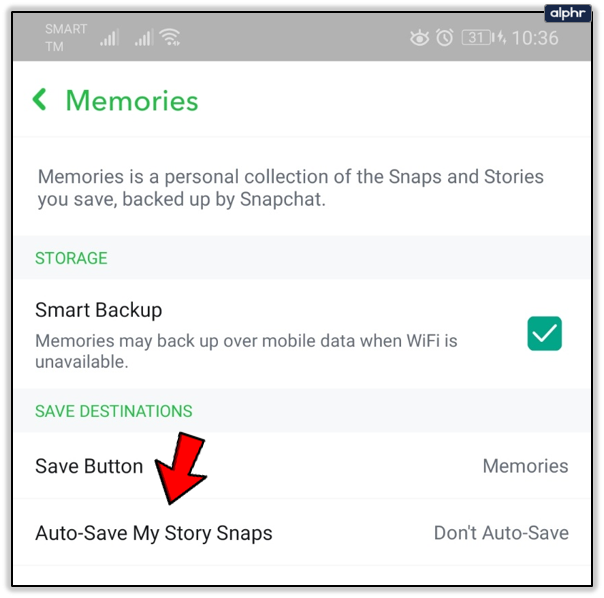
- Scroll and Tap on Memories.
- Click on Auto Save My Story Snaps.
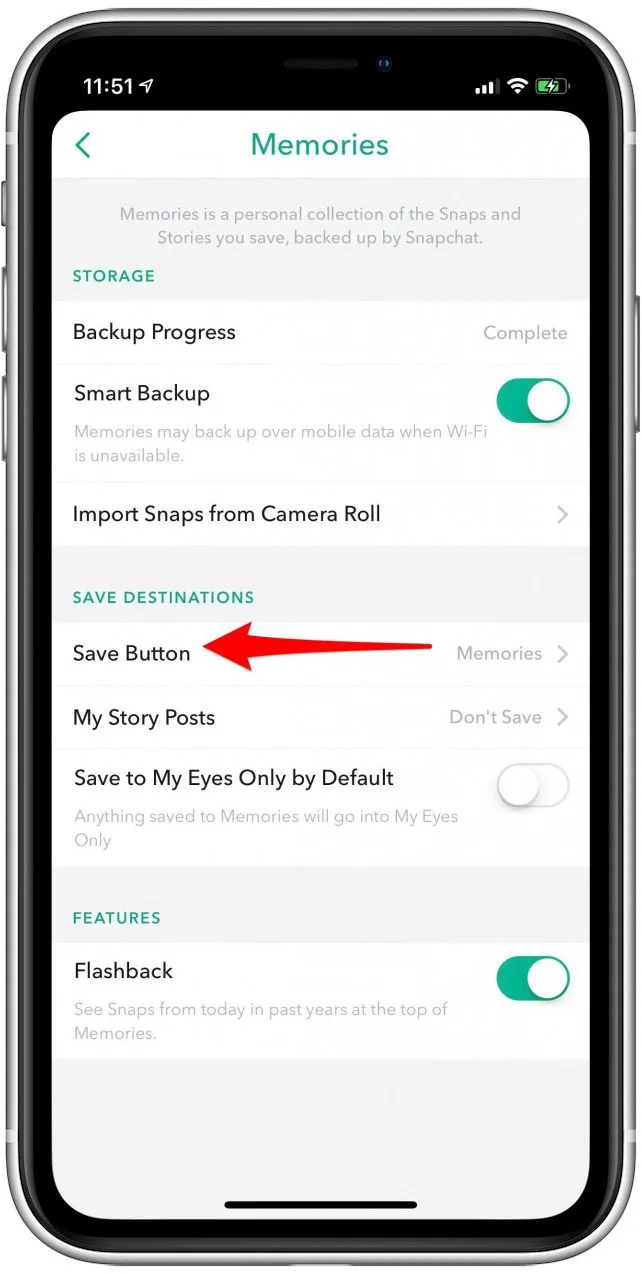
- and then Auto Save to Memories.
- Finally, This will enable you to Simply Click and the Snaps will be automatically saved in your Snap Cam.
- Make sure that you keep your Internet Turned ON While using Snapchat and also Turn ON the Back-Up Option.
Check Out: How to Pin Someone on Snapchat?
Why did All My Saved Chats Disappear on Snapchat?
No Matter, If you have saved the 24 Hours After Viewing Enabled.The Basic Snapchat Functions as a Default Settings that automatically deletes any Saved Conversations after 30 days After Saving.
Also, After 30 days – If you have Read / Viewed the Chats or not, It is intended to Disappear Default.
Here are some Troubleshooting ways if you are facing ” All my saved chats disappear on Snapchat”
- Use the Save in Chat Option.
- Take a Screenshot and Save it in Gallery.
- Troubleshoot your Network Connection.
- Update the App.
- Contact the Support.
Final Verdict
Life does have an Auto Save – It automatically saves all the Good and Bad Memories. So, Turning ON the Auto Save for Good Memories is what I Recommend. Anyway, Do Save your Chats, Gossip, Crush Pictures, Love Messages, and All that you wanna Read Later and Feel Happy about. Happy Saving Guys!