
On a Summer Afternoon, I was offered a Platter Full of my Favourite Food – and Trust me I had No Mood to Move, Work, and Function Normally – My Stomach was Crying at the Storage Full! And The Same is with your Firestick Now! If you have Stuffed it with N Number of Files, Data, and Apps – How is it Supposed to Work Normal? Yeah -It would not and When that happens. Read this Guide on How to Free Up Space on Firestick and Make it Work even on a Summer Afternoon.

Table of Contents
Storage Space Offered on the Amazon Firestick :
Amazon Fire TV Devices Models – Including the Firestick 4K Model and Other FireTV /FireStick Come up with a Total Device Storage of 8 GB Each.
Of that total Storage of 8 GB, Only 4.5 GB/ or 5.5 GB is for the Firestick Users to actually able to use as it is available for Internal Storage. And the Remaining goes taken up by the operating System Software on your Device.
In case, your Device’s Internal Storage shows up to be Red, then it is a sign to Free it up and make some Space.
Why Free Up Space on Firestick?
You may experience Many Sorts of Malfunctioning on your Device if there is No Storage Left, Which affects the Smooth Running of the Apps and Anything on the Firestick.
- Lagging, Buffering, Shuttering, and Glitches While using.
- Apps may take a longer time to Load Content.
- Often Facing Issues like App Installation Errors and Sideloading will not be possible too.
- Firestick Device Restart Randomly at any time.
- Difficulties in Updating the Fire OS to its latest Version.
Check the Remaining Storage Space on Firestick :

- On your Firestick, Go to the Home Screen.
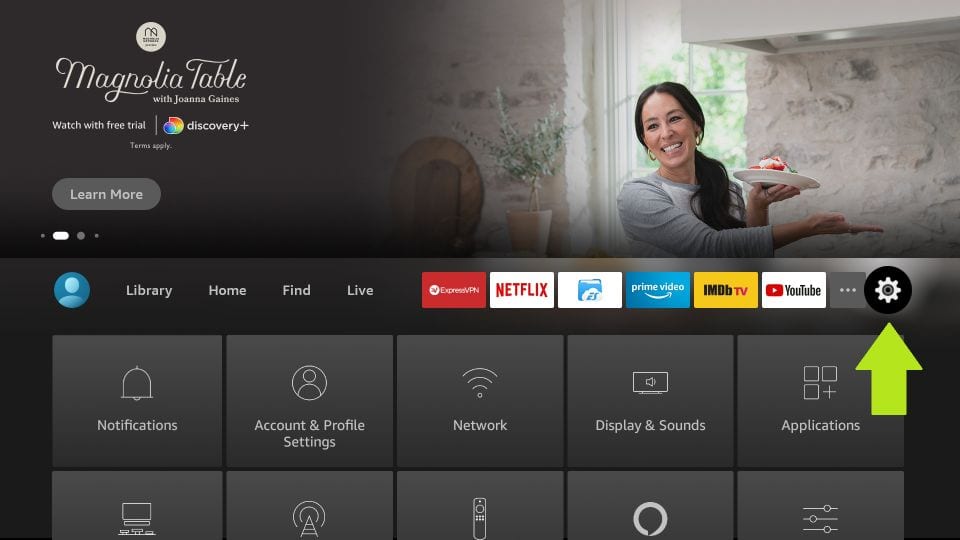
- Access the Right side of the Screen and Select the Settings Menu.
- Choose My Fire TV and then Select About Menu.
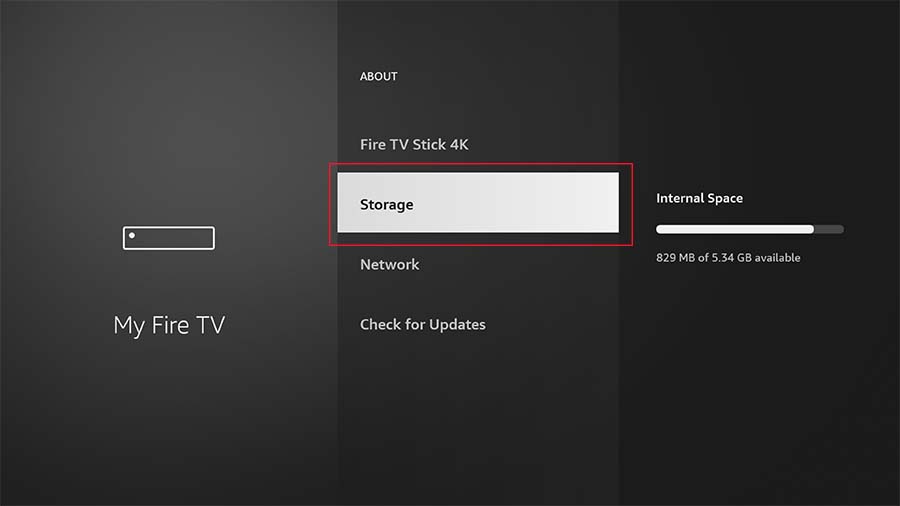
- Tap on the Storage option and then you will be able to see the Remaining Storage Left on your Amazon Firestick Device.
How to Free Up Space on Firestick?
In Case, you are really frustrated with the Storage Full Problem Persisting on your Device, You will need to Free up some space to deal with the Low Storage Error. There are Several Ways you can do this and a Few are Which we are going to discuss now.
So, Keep Reading and Get the Easy-Beasy Way to do the Same.
Uninstall or Delete Apps on your Firestick :
Too Many Apps? Yes! That is one of the Reasons Why your device lags on working and Why is your Space full. Sometimes we all just Randomly install an app on our Smartphones and then never use it – The same happens on Other devices. So, if there are apps that you have never used and Apps you do not use much, you can choose to delete them from your Firestick, this will free up space on your Firestick and your Device will Function Smoothly.
- Go to the Home Screen, Select Settings, and then select Applications.
- Tap on the Manage Installed Applications option.
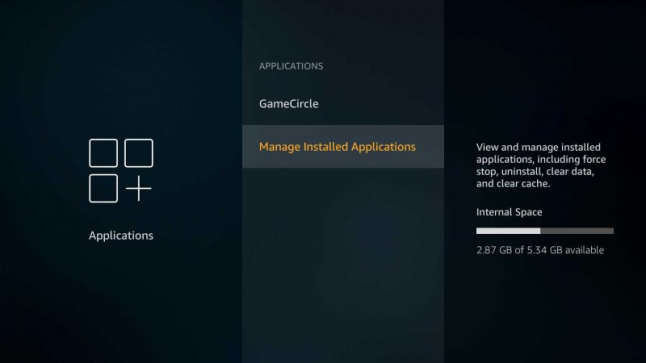
- Choose the App which you want to Remove /Uninstall from your Firestick Device.
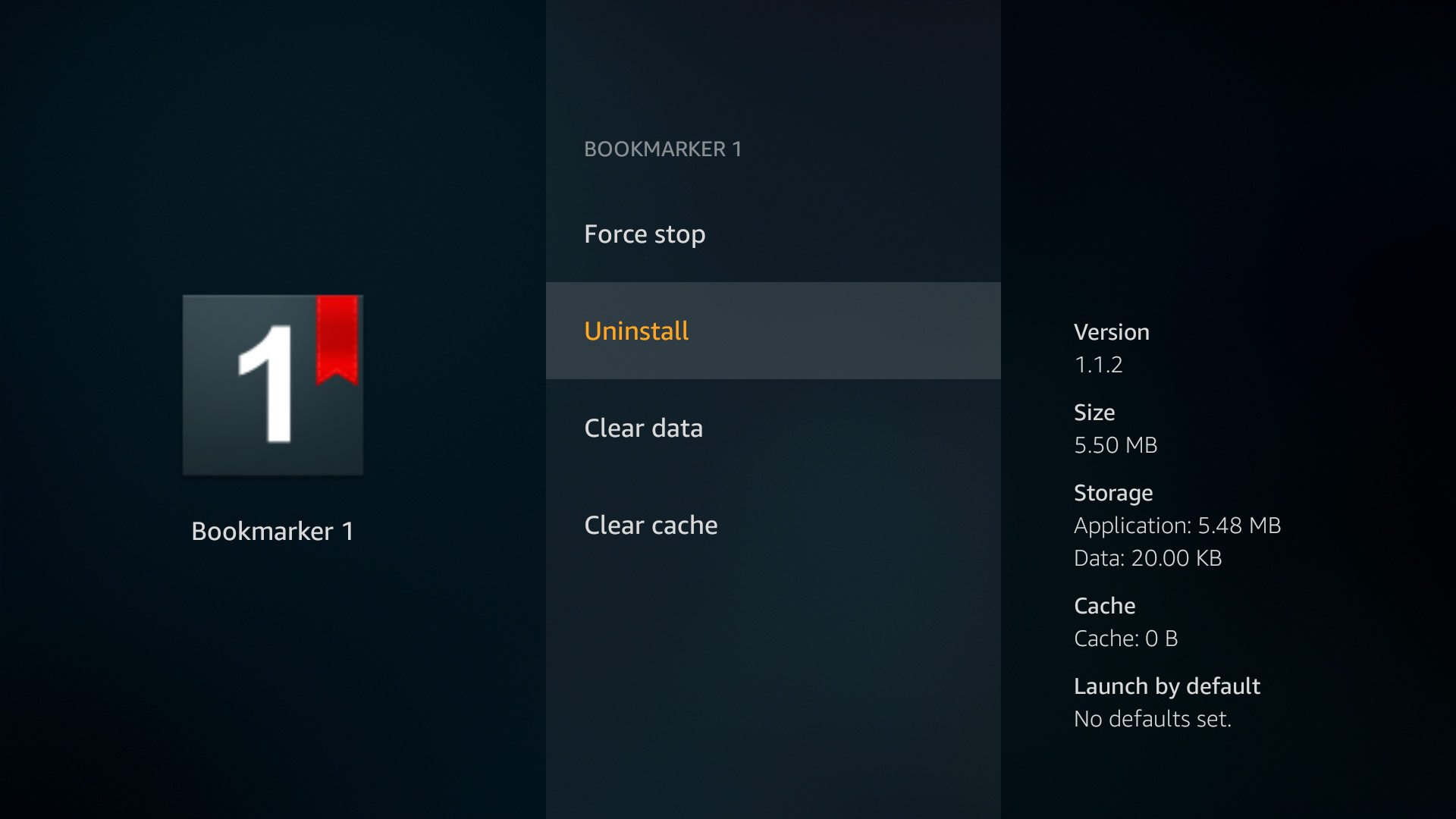
- Click on the App and then Tap on the Uninstall Button.
- Tap on Uninstall again and the app that you don’t want will be uninstalled from your Firestick Helping you to Free up Space on your Firestick.
For More Detailed Information, read: Uninstall Apps
If you ever get that Oh My God, I dont know How to Install the Apps again, Then Chill Do not Panic If we can teach you How to Uninstall, we can tell you, How you can get it back too. Visit: Install Apps on Firestick
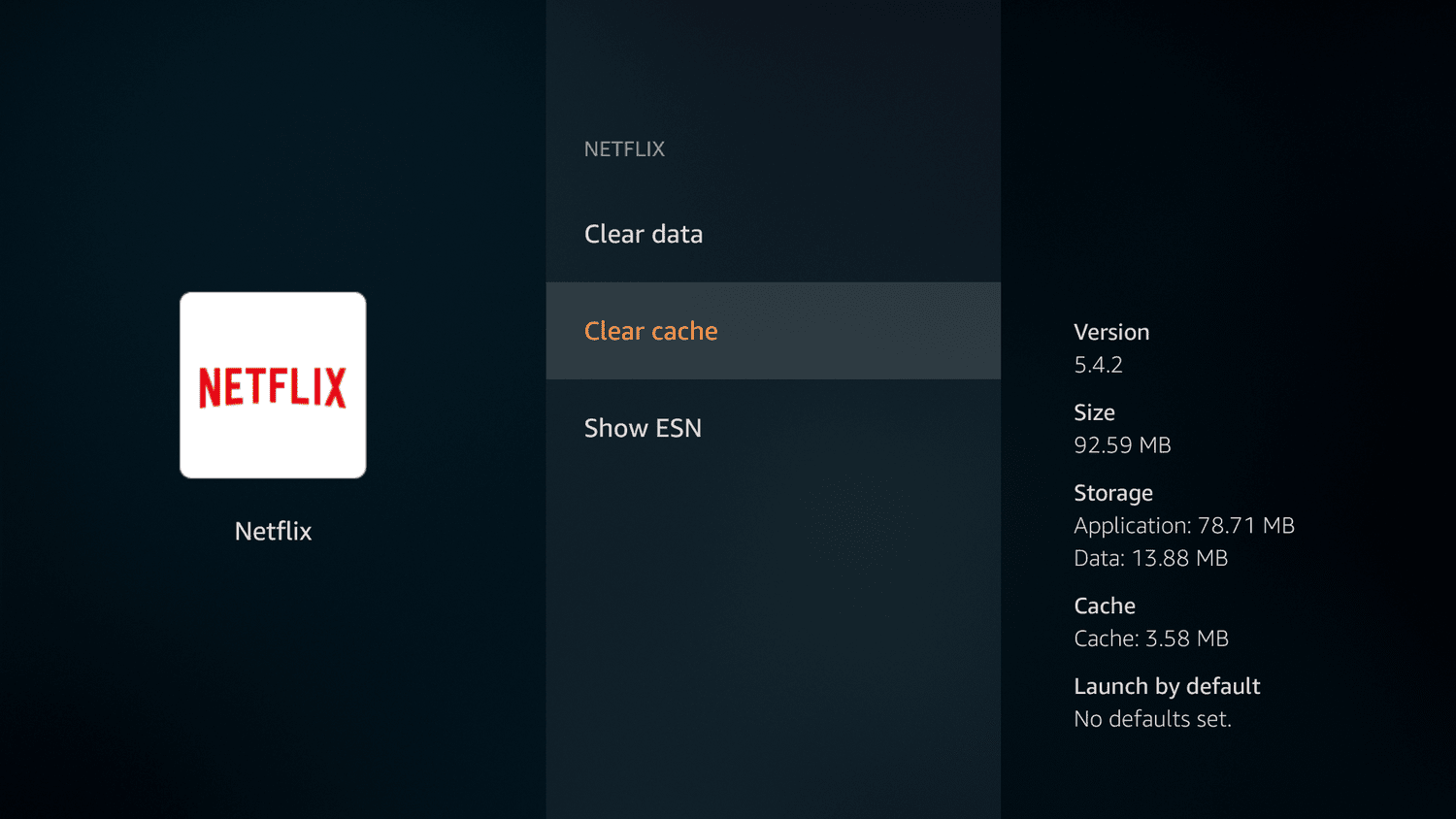
Clear Cache to Free Up Space on Firestick :
- Open Firestick Home Screen, Click on the Settings Icon.
- Select the Application option and then Get to the Manage Installed Application.
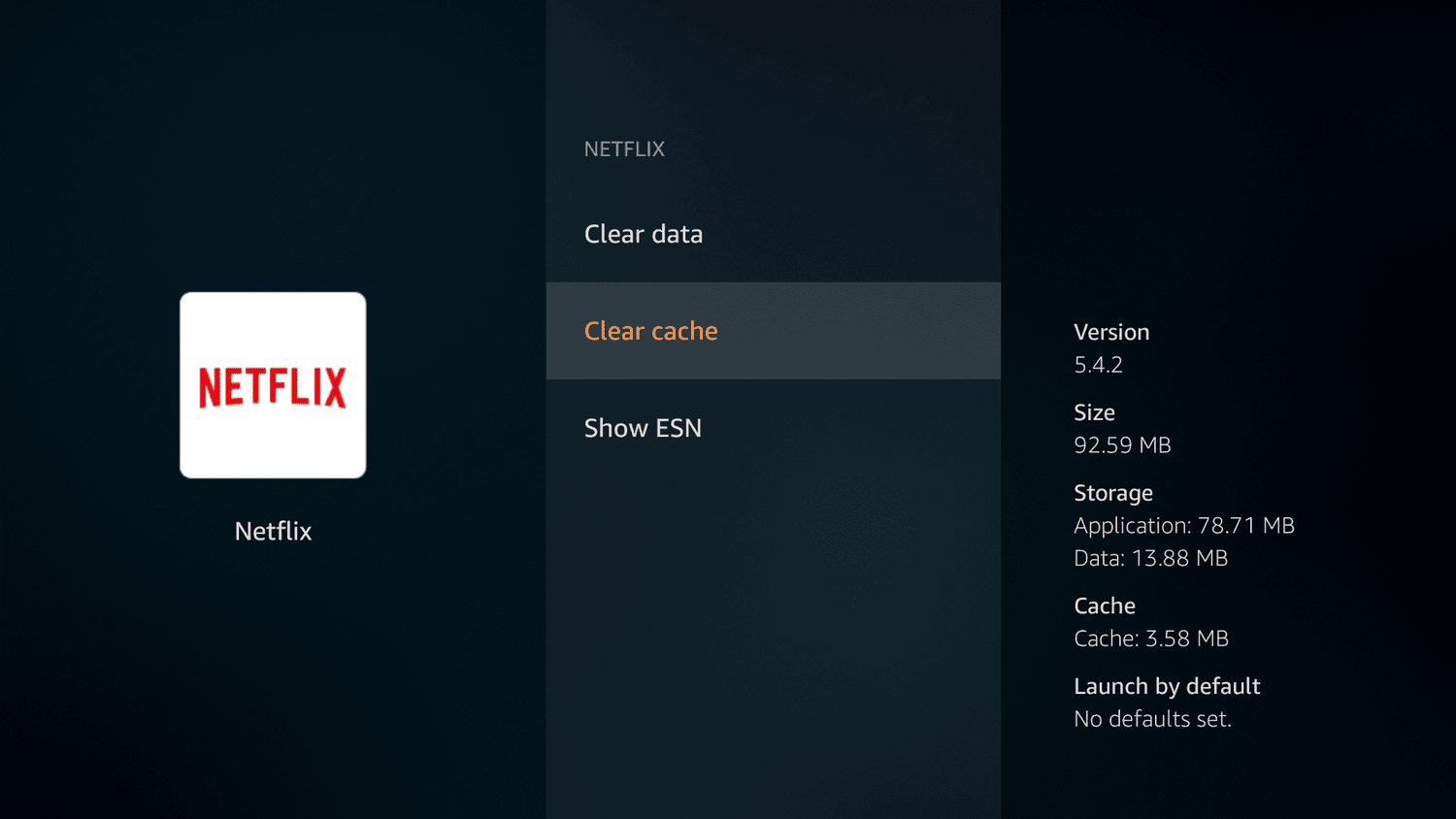
- Choose any app from the List that you want to Clear the Cache of.
- Select the App and Click on the Clear Cache option to Free up Space on your Firestick.
- Similarly, You can Choose any more Apps to Clear the Cache of the App and Remove Unwanted Files and Data to Free some Storage.
Free Up Space using the ES File Explorer :
- Access the Home Screen on your Firestick Device.
- Click on the Find tab and then Tap on the Search Icon.

- Using the Virtual Keyboard, Type ES File Explorer
- Select the App from the Search Results and Click on the Get or Download Button.
- If you already have the ES File Explorer in use, Skip the Installation Steps.
- Once Downloaded Press the Open Button to Launch the App.
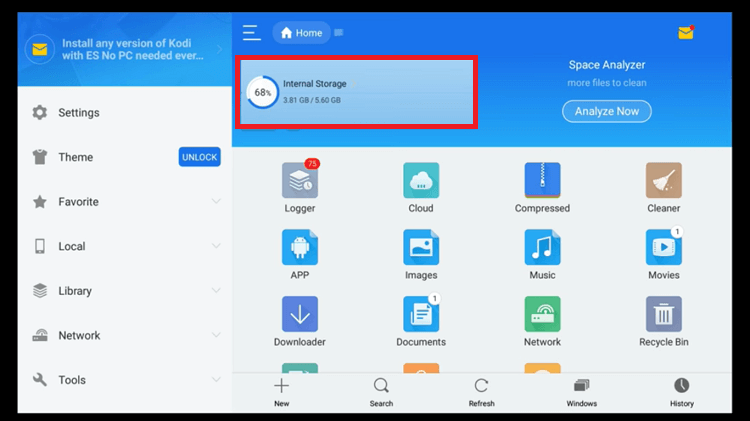
- Click on the Internal Storage Option.
- You can choose any Folder you want to. To Illustrate You can choose the Downloader if you download a lot of APK Files for apps Etc.
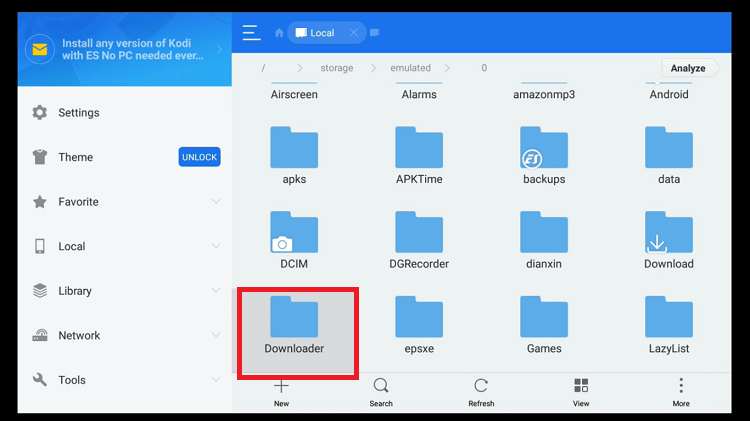
- Choose Downloader – If you Sideload Many Apps Often on your Amazon Firestick Device.
- On the Screen, You will see the List of APK Files, Long Press the select Button on your Firestick Remote to Select any of the APK files there you want to Delete.
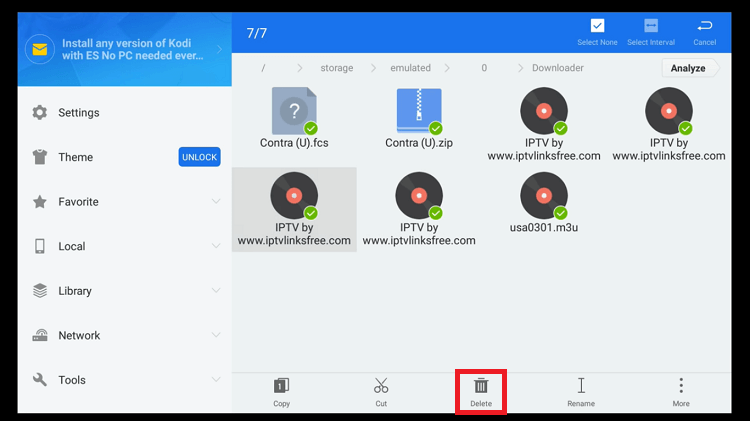
- Likewise, Choose all the APK App Files that you want to Delete from the ES File Explorer and Free Up Space on your Firestick.
Other Ways to Free Up Space on Your Device :
If you are Still Struggling with the Storage Full problem and are not able to make your Device Function Normally then you can go for a Hard and a Little Tough Method.
When Uninstalling Apps and Clearing Cache do not help you, You can make your Firestick run smoothly and Install Whichever app you want.
Try Factory Reset your Device – This is Usually done in Rare Case Scenarios. In Order to Factory Reset your Device, This is all you need to do – Follow the Instructions.
Factory Reset Amazon Firestick :
First of all, Press the Home Button on your Firestick Remote.
Navigate to Settings and then Select My Fire TV.
Under My Fire TV, Choose Reset to Factory Defaults and then Continue to Tap on the Reset Button.
Wait until the Factory Reset is done Completely and then you can start using the Firestick Device as the Malfunctioning will No Longer Occur.
Note that when you Factory Reset any of your Devices – You will need to Set up your Device and Download the Apps that you want as a New Purchased device. Unfortunately, when you do it, Everything gets deleted, So Make all the Set up you want.
People Also Search for NBC Sports
Jailbreak Amazon Firestick :
Another method that you can try to Free up Space on your Device is Jailbreaking your Firestick itself. This Might sound like the most difficult method of all, But Trust me when I say this, It is not! You can get this done in Fraction of Minutes.
What is all you need to have to Jailbreak your Firestick ;
- Remote of your Device.
- Amazon Firestick.
- A Strong and Stable Internet /Wifi Connection.
Steps to Jailbreak :
- Begin by Turning ON your Fire TV Stick and Accessing the Home screen.
- On the top of the Home Screen, Look for the Settings option on the Right.

- Under Settings, Select the My Fire TV and then Move to Developer Options.

- Now, Enable the ADB Debugging and then Turn ON the Apps from Unknown Sources to Enable it too.
- Go back to the Home Screen and Click on the Settings Gear icon.
- Choose Preferences and then Select Privacy Settings.
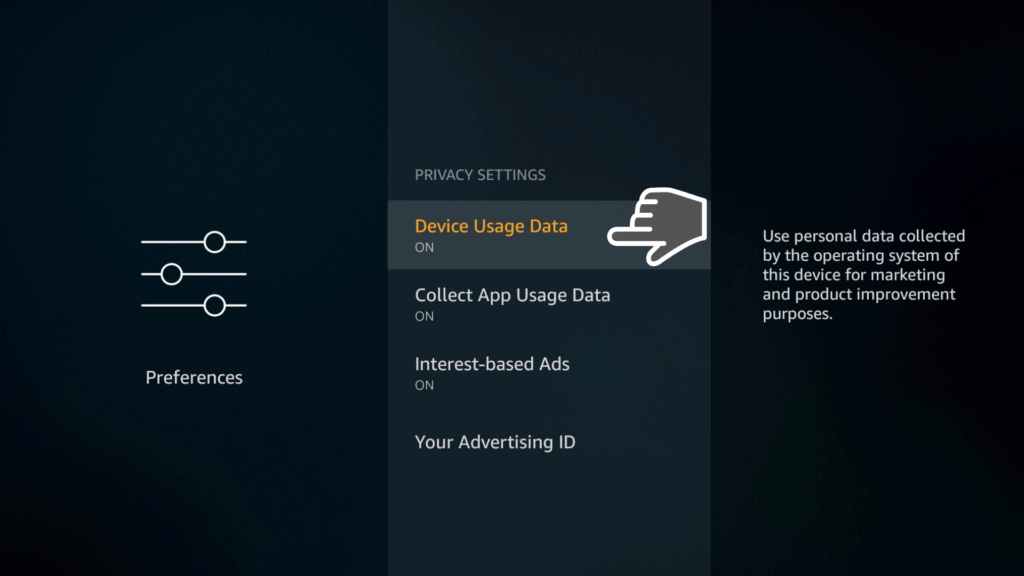
- Now, Click on the Device Usage Data and then Turn it OFF.
- Tap on Collect App Usage Data and then Turn it OFF too.
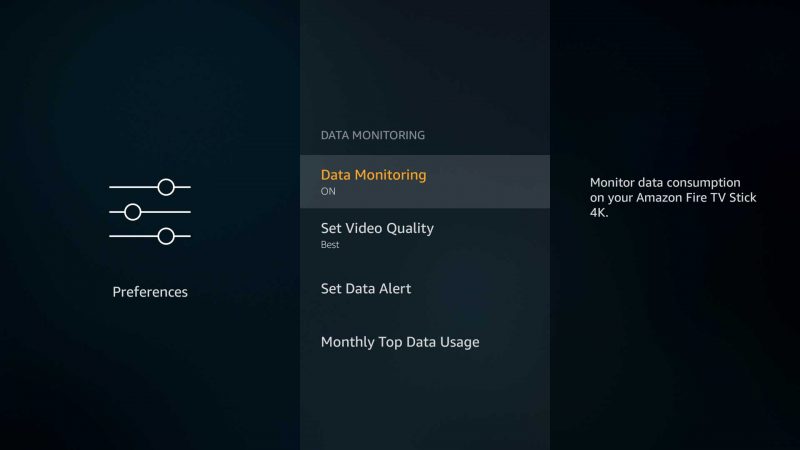
- Return Back and Click on the Data Monitoring.
- Turn OFF the Data Monitoring Option.
- This will avoid the Filling of the Data Storage through Unwanted Files and Free Up Space on Firestick.
Final Verdict :
Try all the Given Ways to tackle the Issue caused by the Storage Full on your Firestick. Be Careful when trying the Alternative Methods as they are a bit tricky but not risky. Free up your Device Space so that you can get rid of the Stubborn Error and Go Back to Installing any app you want and Streaming it with No Malfunctioning and Only Smooth Functioning.