
You can store Digital Media such as Videos, Audio, Documents, Pictures, and more like this on your Smart Devices. The Emby Media Server is available on all Streaming Platforms. If you have Roku, then here are the guidelines for you to Install the Emby on Roku.
Not only the installation but also can grab the details of Connecting the Emby application with your device. Scroll down and check all these details with a step-by-step guide along with the format of the picture, video, and audio supported with Emby Application Software. Here they are…
Table of Contents
About Emby:
Emby is a Media Server, Formerly Called a Media Browser. The Emby server is designed to Play, Organize, and Stream Video and Audio to many streaming devices. And Emby’s source code is accessible on a few Closed-Source Components. Also, the Emby is a Cross-Platform Streaming Service. You can access the Emby on some compatible streaming devices. On the Roku device, the Emby is Compatible with the Roku Model ( Version 7.5 4099 ) of the Roku Firmware. Check out your Roku device model and move to the next topic to grab whether it is officially available or not.
Is Emby on Roku?
YES, It is. That means the Emby Media Server App is available on the Roku Channel Store. Download it directly on your Roku device without taking risks on Screen Mirroring or sideloading using Third-Party apps. Emby is an Easy Access Server Media app. And, you can watch the Live TV on this Media Server app. Also, it allows you to Sync your Mobile with the app. Check out upcoming topics to know more about the Emby application and the installation on Roku. If you would like to check what are the Best Roku Channels, Click this link and Install the best app.
How to Install Emby on Roku?
So, the Media Server Application Software is Officially Available on the Roku Channel Store. Install it with the direct installation method. Here are the;
Steps to Install Emby on Roku:
1). Set Roku Device:
- Associate your Roku device with Smart TV HDMI Gateway.

- Switch On the Smart TV and Roku.
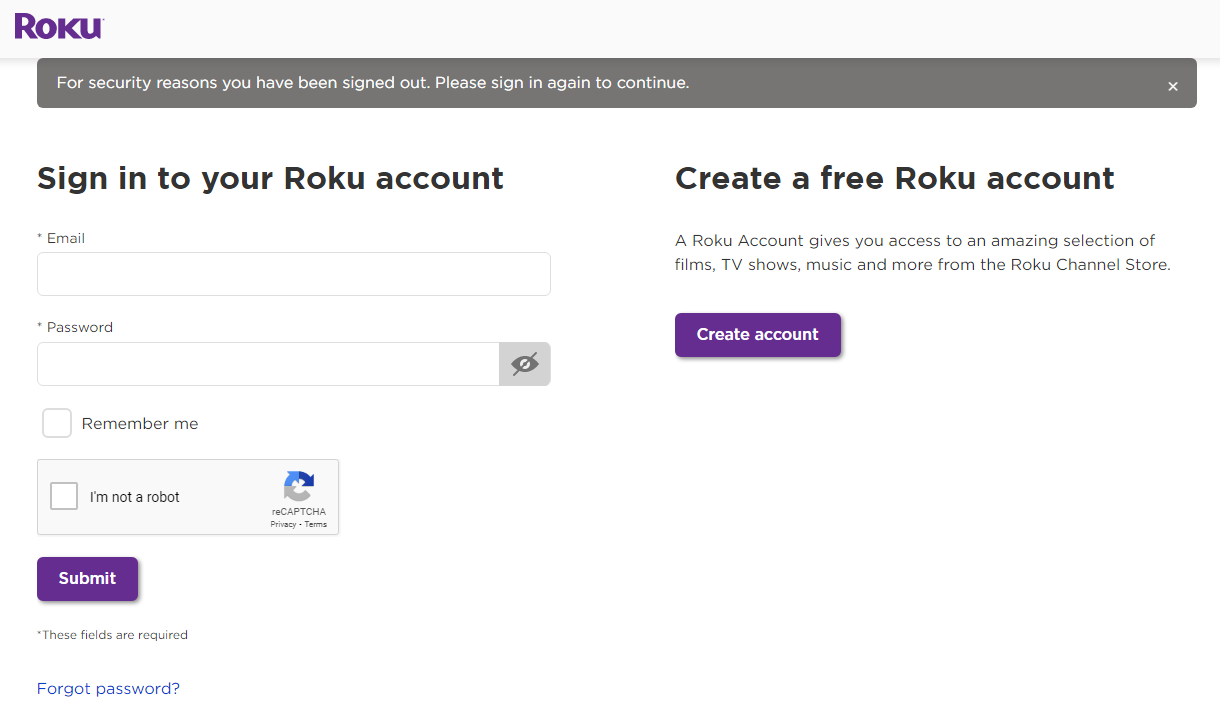
- Log in with your Roku user credentials.
- Use the Roku remote and click Home Button.

- Click the Left Directional Button on Remote.
- Select the Settings option.

- Move to System Network Section.

- Scroll down and select your home Wi-Fi network.
- Enter the right Wi-Fi Password in the given space.
Once, Wi-Fi gets connected to Roku, Follow the upcoming steps;
2). Install Emby on Roku:
- Again, tap the Home Button on Roku.
- Click the Left Directional Key to visit Menu Page.
- Now, select the Streaming Channels option.

- Then, tap the Search Channels menu from the list.

- Navigate to the Search panel on Roku Channel Store.
- And type “Emby” in the given search space.
- After that, select the Emby official app from the search result.
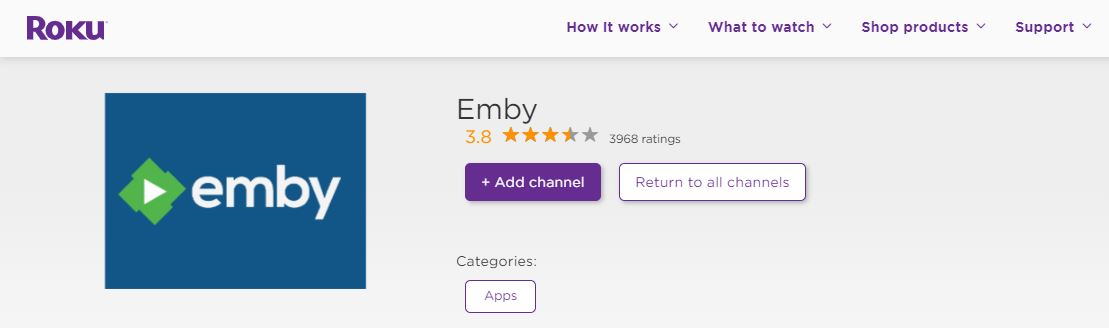
- Then, tap on Add Channel button.
Now, the Media Server Application Software is started to be added to your Roku device. Do not disturb your Roku device or do not click any buttons on Roku remote until the Media Server app gets installed on the device. And, Roku supported to watch live Tennis TV on Roku. Tap on it and Get the installation procedure.
How to Connect Emby on Roku?
So, the Emby Application Software installation process gets completed. Once, please check the app is on your device. Go to the Streaming Channels section. And search for the Media Server. If it is there, go through the upcoming steps to Connect the Emby on Roku.
We have Three Methods to Connect Emby on Roku. They are;
- Manually Adding Server.
- Using Emby Connect.
- Scan Network Option.
These three methods help us to connect the Emby Media Server app with the Roku device. Let us go through them one by one in the following;
1). Manually Adding Server
Before initiating the process, please check, that you have a Strong and Stable Wi-Fi Internet Connection. If not, please fix it right now. And start doing the procedure mentioned here;
#1). Get Emby Server Port Number:
- Go to the Configuration page on App Server.
- Now, click on the Advanced option.
- Click the Hosting tab.
- Following that, select the Local HTTP Port Number.
- The default App Server Port number is 8096.
Copy the Port Number or note down it on the device clipboard. And do the upcoming procedure continuously.
#2). Connect Emby on Roku | Manually |
- Visit Roku Home Screen.
- Go to the Streaming Channels page.
- Launch the Emby on Roku.
- Click the Skip option on the screen.
- Then, tap on the Connect to Server Manually button.
- Now, click the Change Host tab.
- Enter the Emby Server IP Address.
- Or, Enter the Host Name.
- Then, click on the OK button.
- Now, enter Default Port Number 8096.
- Finally, tap on the Connect button.
- Now, the App Server shows the List of Users on the page.
- Select any one and Enter the User Credentials to Sign In.
- Or, Select the Manual Login button.
- Now, Enter the Username and Password you have on the Emby app.
That’s all. This is the way to connect the Emby on Roku with the manual method. If it is not working, move to the second mentioned below. Frndly TV on Roku is one of the Free Streaming Services.
2). Connect Emby on Roku using Emby Connect
Using Emby Connect is the default method. Do you have the App’s User Credentials already? If Yes, follow the steps given in the following;
- Visit the Streaming Channels page on Roku.
- Launch the Emby on Roku.
- Now, you can see the Code has appeared on the Roku Screen.
- Launch the Web Browser on your Smart Device.
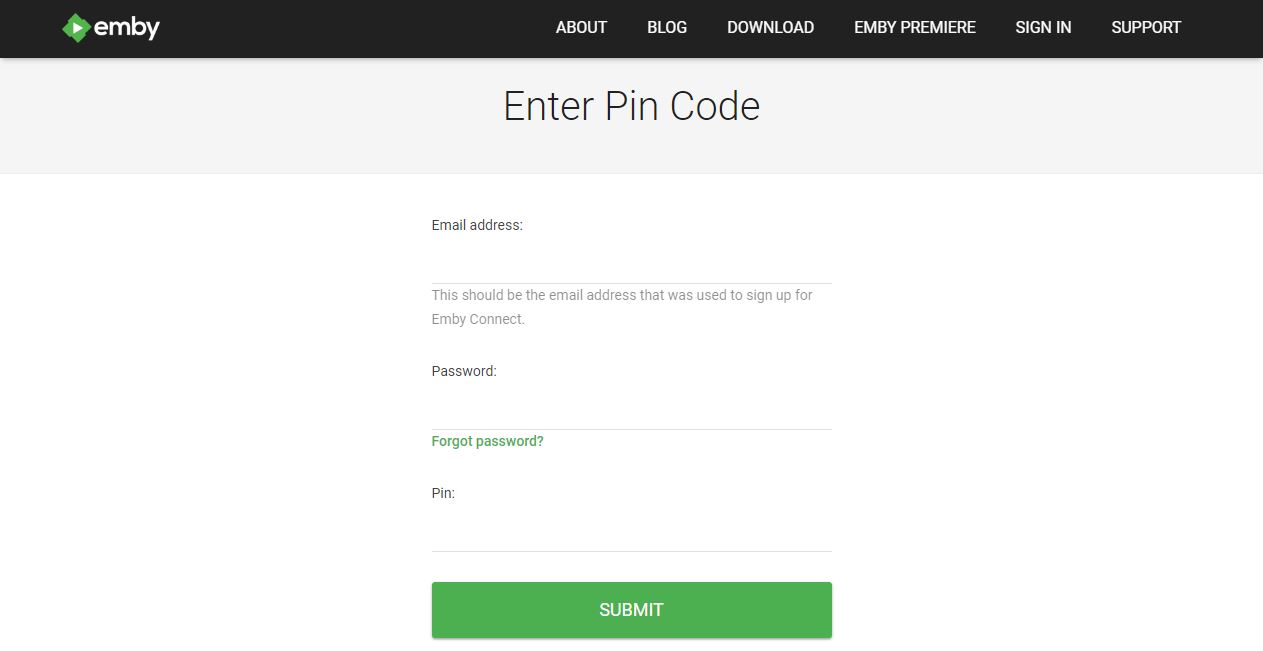
- Enter the URL, https://emby.media/pin.html in the given search space.
- Provide Your Emby Username and Password first.
- Then, Enter the Pin Code that you have received on Roku.
- And, click the Submit button.
- Go back to the Roku device and Launch the Emby App.
- Then, Sync your mobile, or watch Live TV.
- If you do not have a user account on Emby,
- Click the Sign-Up option.
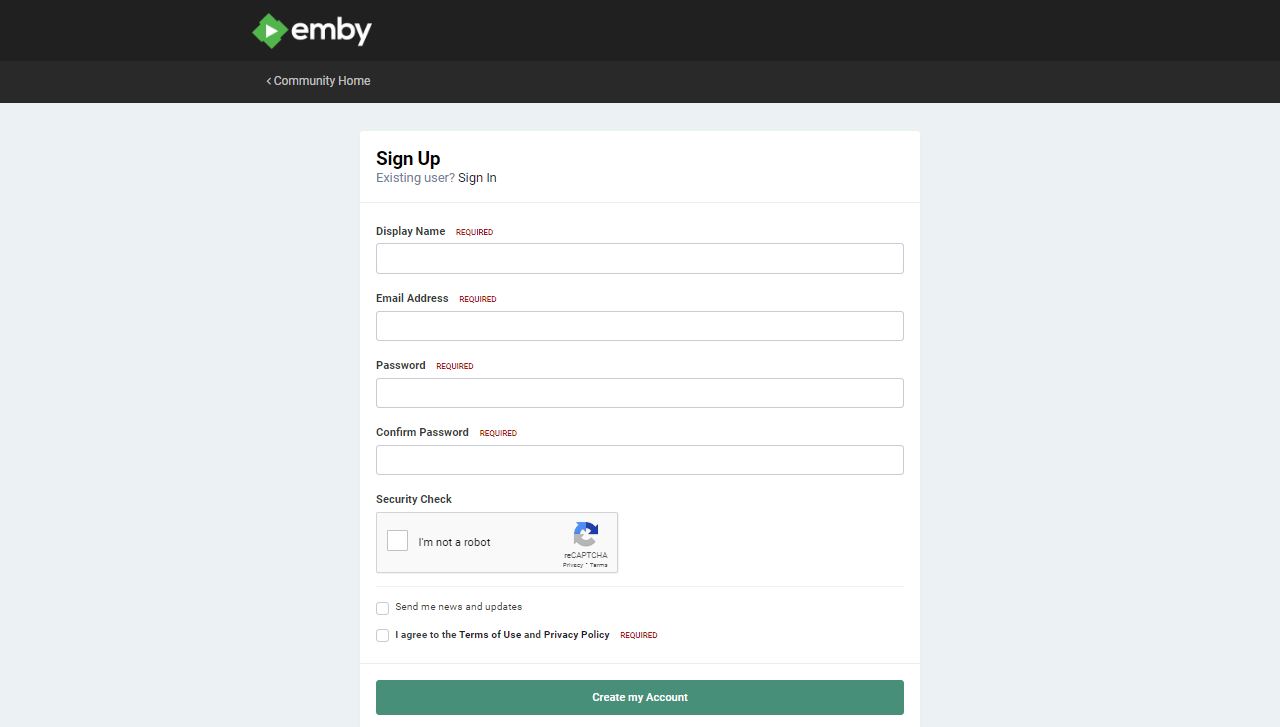
- And Provide All Details asked on the Page.
- Then, click the Create My Account button.
After creating the new user account on Emby, Relaunch the Emby Application Software. And get the code. Then, follow the steps given above.
3). Using Scan Network Option
For this Scan Network option, you have to connect your Emby server and Roku with the Same Wi-Fi Network. Ensure the connection and do the same steps given in the following;
- Click the Home Button on Roku remote.
- Go to the menu page.
- Select the Streaming Channels.
- Find and launch the Emby on Roku.
- Click on the Skip option first.
- Then, tap on the Connect to Server Manually option.
- Now, your Roku device has started finding your Emby app server.
- And show it on the screen.
- Select the Display Name on Emby.
- And then, tap the OK option.
- Now, click on the Continue topic.
On the next screen, provide your Emby User account Credentials. And start accessing the Media Server ( Emby on Roku ). Also, Cinemax on Roku is the best entertainment streaming service. Install the app and watch your favorite Movies on your TV.
Conclusion:
The Emby Media Server is Officially available on Roku devices. So, follow the usual installation procedure to install the Emby app software on Roku. Then, if you would like to connect your device to the Emby app, scroll up and check out the required topic. There you can find three amazing methods to connect the Emby server on a Roku device. Is there you have any confusion about it, please drop your doubts in the message box below.