

When trying to access the Disney Plus application and getting Disney Plus Error Code 73? If you are looking for a way to get over this error code, then this article can help you with it. Here you can know about why error code 73 is appearing and how to fix Disney Plus Error Code 73 on your device. In case you are not able to solve this error code, you can always contact the Disney+ help center.
Table of Contents
Disney Plus Error Code 73:
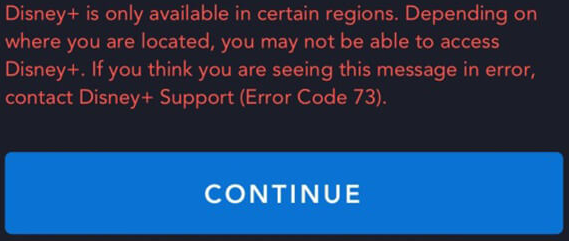
The Disney Plus app is a geo-restricted streaming service provider. The Error Code 73 on your Disney Plus app appears when your device is not present at the Disney Plus accessible location. Visit the official site of Disney Plus
What Causes Disney Plus Error Code 73?
When you are not within the location of Disney Plus application service access, you will be shown error code 73. To be precise, the IP address of your device must be within the service location. There are two reasons for this error code to appear on your Disney Plus application. They are,
- When you are physically not located in a region with access to Disney Plus content.
- If you have not yet turned off your VPN with a region without Disney Plus access.
How to Fix Disney Plus Error Code 73?

Without knowing the cause, you can never fix anything. Now that you know the watch causes the Disney+ Error Code 73 on your Device, it is time to fix it. Here are some of the methods you can use to get rid of the error code 73 from your Disney+ application.
- Refresh App: Due to momentary hiccups in the Disney+ service, you will show Error Code 73. You can just refresh the application on your device and get rid of the error code.
- Turn Off VPN: If you have installed a VPN on your device with Disney Plus app and have turned it on. Make sure the region at VPN has access to Disney Plus service. If not, then turn off the VPN, refresh the Disney Plus app, and access it again.
- But, when you are out of the access region of the Disney Plus app, turn on the VPN and connect to a region with access. With this, you can watch all the contents of Disney Plus from anywhere you want.
- IP Address: If there is any error with your ISP showing the wrong location, you need to check your device’s IP address. If the IP address is not in correspondence with your area or region, use a VPN. Contact your Internet service provider for further assistance.
Sometimes when you use VPN and turn it off, the IP address will not change to its original address, and you have to restart your device to get the correct IP address to get rid of Disney+ Error Code 73.
THE END
With the solution provided in this article, you can get rid of Disney+ Error Code 73 on your device. With the causes, you can make sure that the error code does not appear again. If you are still getting error code 73, make sure to contact the Disney Plus help center and get assistance. Check the validity of your subscription period for Disney Plus and ISP for better streaming.
Frequently Asked Questions:
What is Disney Plus Error Code 41?
If the content you are trying to access is not available on Disney Plus services, then you will see Error Code 41. Checking your connection can solve this error code. If this problem persists, contact the Disney Plus help center and get assistance.
What is Error Code 83 on the Disney Plus app?
When you try playing videos on Disney Plus, you might sometime come across Error Code 83. It is due to device and connectivity problems. Refreshing the application can solve this error code most of the time.