
Everything is Possible since you are trying to get it anyway. Besides, you can make everything possible in the smart world with the help of technology. So here is a great guide to let you know the various possible ways to Chromecast Opera on different devices to cast its content on the big screen. If you are looking for a way to browse on your TV, then this guide will help you to get using the Opera web browser since it is a great web browser for your TV to surf. Keep reading…
Opera is a faster, smarter, and safer web browser that comes as a default with your device. However, it is a multi-platform web browser that is created by Opera company. Though it is made up of Chromium, it is eminent from Chrome, Edge, and so on from the user interface and other specific features.
This web browser has been available since 1995, and it is one of the prominent and oldest web browsers for desktops. Moreover, it was used for commercial software, and it has been working for the first ten years. Additionally, Opera is mostly included in Android and iOS SmartPhones, as well as Windows, Linux, and macOS devices.
Google Chromecast is a streaming device that is used as a play dongle from Google. Moreover, it has rapidly increased and becomes more popular among users due to its budget-friendly price and also compatible with third-party apps. Most users don’t use the Chrome browser due to it occupies more RAM space from your background.
In addition, it also slows down the browsing speed often. For that reason, if you prefer some other web browsers to your device along with Google Chromecast. Will they work together? In this guide, you will get the answer to your question from the below session.
Table of Contents
How to Chromecast Opera Browser to a TV?

Since it offers an ad blocker and VPN support while using the Opera web browser from your device. In addition, it provides a great browsing experience along with being safe and secure from potential malware and fraudulent from online. Moreover, it also offers a casting feature from any other external device with the help of a Chromecast device while using Windows.
Let’s dig into the steps to Chromecast Opera browser from your desktop to your TV screen.
Mandatory Steps:
- Set up your Google Chromecast to your TV using an HDMI cable.
- Provide a reliable internet supply to your desktop and Chromecast-connected TV.
- Get Opera with its current version.
Chromecast Opera to TV:
- Head into the Chromecast Home page by turning it on with your TV.
- Now enter into the Opera web browser from your Windows screen.
- After that, tap on the opera icon, which is located in the above corner of your screen.
- Further, choose the Settings menu and then hit the Alt + P keys using the virtual keyboards.
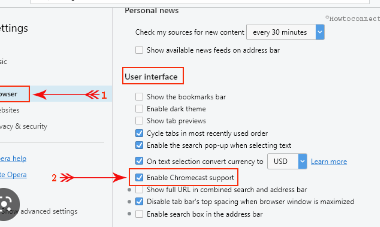
- Next, choose the Advanced menu and then move to the Browser option under Settings.

- Look for Enable Chromecast Support using the search tile from the right side of your screen.
- Now tap to enable it, and then you can start to cast your screen using Google Chromecast.

What are the Modes available for Casting on Opera?
Users can cast their content using Chromecast-compatible sites by opening the Opera tile in order to cast YouTube or any other content by using the desktop mode. Here are the steps to do in the below session.
- Open a New tab from the Opera browser and navigate to any of the sites as you prefer.
- After that, right-click the toggle from your site anywhere in order to open Quick Settings.
- Now tap on the Cast icon and then open Native Cast Settings.
- Further, choose the preferred device and then pick your mode of casting in order to cast your content.
- Next, your Chromecast-connected device will be casting the content from your desktop screen.
- Finally, you can view your preferable content on a big screen with the help of Chromecast.
Note: Suppose you are casting from the Opera web browser. Then it will no longer be available in the United States since it has a copyright issue. You can able to cast without any issue, excluding the US.
In case you want to use Chromecast Support from the US in any way, then use the given below steps as follows.
In order to use Chromecast Support from your Opera web browser, then you should want to edit your country according to the Local State file.
- Move to the Local State from the profile folder and then move to Opera://about/.
- Further search for the path of the profile folder from the path option.
- After getting into the Local State File and then tap to open it.
- Move to the Location and change your country to US and country from server US.
- Now edit them with your country name and server as your preference, and then you can use Chromecast Support even if you are around the US.
How to Chromecast Opera using a desktop or file?
Using these simple steps, you can easily cast the Sources tab on your Opera web browser. So without any delay, let’s enter into the steps to do as follows.
- First of all, right-click the page that you want to cast and then tap on the Cast option from the list.
- There you should choose your Chromecast device from the available devices.
- Further, tap on the Sources from the below tab and then choose the Cast Tab option. You can choose according to your preference.
- After that, choose your Chromecast device in order to cast the content from your specific tab.
- Correspondingly, you can choose cast desktop or cast file in order to cast its content on your Chromecast-connected TV.


How to Chromecast Opera to TV using Android SmartPhone?
In the given below session, you can use it to cast its content on your TV with the help of an Android device screen. Let’s get into the steps to Chromecast Opera web browser on your TV using a smartphone screen.
- Set up your Android SmartPhone and Google Chromecast to a high-speed internet source.
- Further, get install the Opera browser from Play Store on your Android SmartPhone.
- Once you have installed it on your device, then open it to browse.
- After that, swipe down to the Notification Panel and then choose the Cast option.
- Now choose your Chromecast device name on the listed devices.
- And then, your Android screen will be cast on your Chromecast-connected TV.
- That’s it. Now you can use the Opera web browser on your Chromecast-connected TV.
How to Chromecast Opera via Google Chrome Extensions?
You can use the Google Chrome Extensions in order to access Opera with the help of Google Chromecast. Get into the below steps to Chromecast Opera using Google Chrome extensions.
- Visit the Opera browser and then enter addons.opera.com on the search tile.
- Now enter the Chromecast extensions using the search bar from your Chrome web store.
- From your Opera web browser, you can add Google Chrome extensions.
- Now you can download any third-party extensions, for example, Play To for Chromecast.
- After that, you can start to play its content on your device, and it will be cast on your Chromecast-connected TV.
To Conclude:
To wrap up, here we have mentioned the possible and easy ways to use Chromecast Opera browser in four various ways in order to cast its content to the big screen using Android SmartPhone, Windows screen, Google Chrome Extensions, and using desktop files or tabs. Suppose you still have any questions or queries regarding Chromecast Opera, let me know in the comment section.