
Make your work quick and easy. Sometimes, we forget which site we refer yesterday. In that situation, Chrome Continue will help you. Let’s see how it works and how to use it on the Desktop PC or Laptop. Check the topics given in this article…
Table of Contents
What is Chrome Continue?
The Chrome Continue Where You Left Off is one of the features. This means you can access the last tab you have navigated on your system. On the next day, you Turned On the system, and the last tab you worked is pop-up on the screen. If you would like to use this feature, then enable it right now. To know, How to Enable ChromeContinue on your Desktop PC, refer to the next topic below.
How to Enable ChromeContinue?
The Chrome Continue is nothing but the tab which you have worked or streaming appears when you turn on the system. If you would like to enable it on your Chromium device, just follow the methods and the step-by-step guide given in the upcoming section.
Also, check: How to Use Chrome on Roku?
Trick 1: Use the Chrome in-built Function
So this section is to learn How to Enable Chrome Continue. Now, we are going to enable the ChromeContinue Where you left off from the Chrome browser in-built Functions. All you need to do is, just follow the instructions given in the following section.
- Turn On your Desktop PC, or any Android Supported device.
- Launch the Google Chrome Browser on your device.
- Click the + Icon to Open a New Tab.
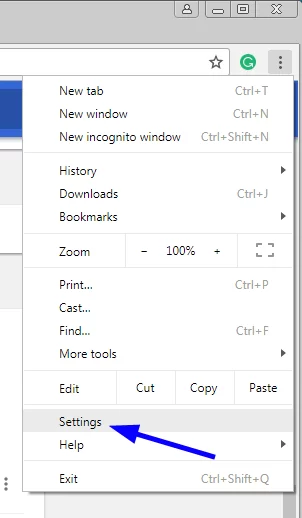
- Now, head to the Three Vertical Lines at the top right corner of the screen.

- Select the Settings button.
- Navigate to the On Startup option on the left side of the screen.
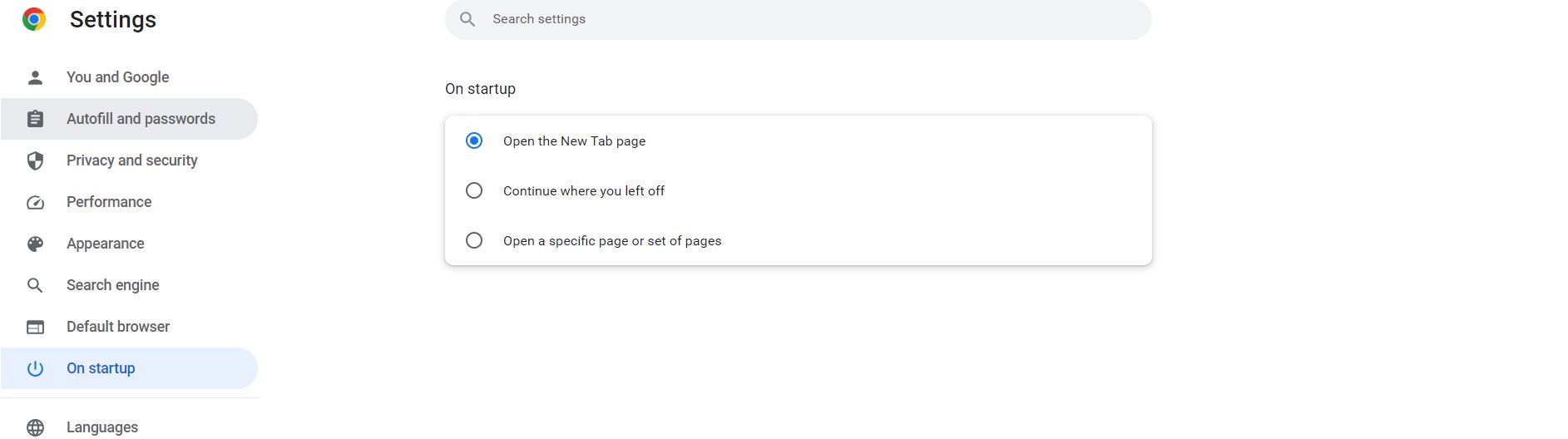
- Now, click on the Continue Where you Left Off button.
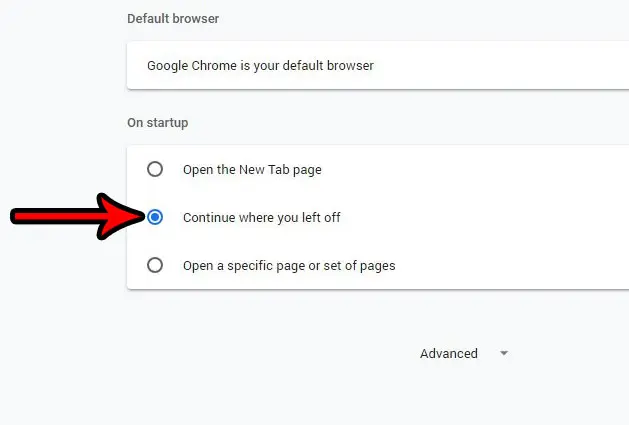
- Finally, close the tab which is active.
That’s all. Now Chrome Continue Where You Left Off is enabled on your PC. Hereafter when you have turned on the PC, the last tab which you have referred to appears first.
Trick 2: Use the Send to Phone Option
So, the second method to enable the ChromeContinue is Send to Phone Option. This method is not a Chrome Continue. But literally the same as. This is what you can send to the last tab you are surfing on Chrome that you can send to your phone. Here are the steps for it.
- Turn On the System.
- Launch the Google Chrome Browser on your device.
- Navigate to the Search section.
- Browse for “The Website Name” you want to stream now.
- Hit the search icon.
- Then, refer to the search result.
- Navigate to the website link and Right Click on the link.
- The Pop-up window will appear on the Screen.
- Now, click the Send Link to Phone Option.
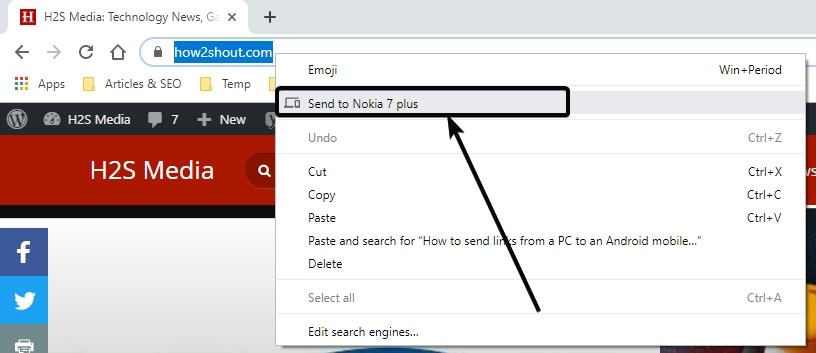
- You will receive the notification on your Smartphone.
- The link to the website is shown on the mobile screen.
- Just click the notification you have received.
It will redirect you to the Website you need to work on or stream. The second Chrome Continue method is completed. Also, check for the third one.
Also, refer: How to Get Google Chrome on FireStick?
Trick 3: Use the Third-Party App Integration
The Third-Party app integration is nothing but the Extension for Chrome Continue. Using this method, you can continue accessing the last tab you have worked on before shutdown. Refer to the steps given in the following;
- As usual Open the Chrome Browser app on your System.
- Click the + Icon on the top screen.
- And open the New Tab.
- Heads to the Three Vertical Lines on the top right corner of the screen.
- Select the Settings option from the list.
- Now, click on the More Tool tab.

- And tap the Extension button.
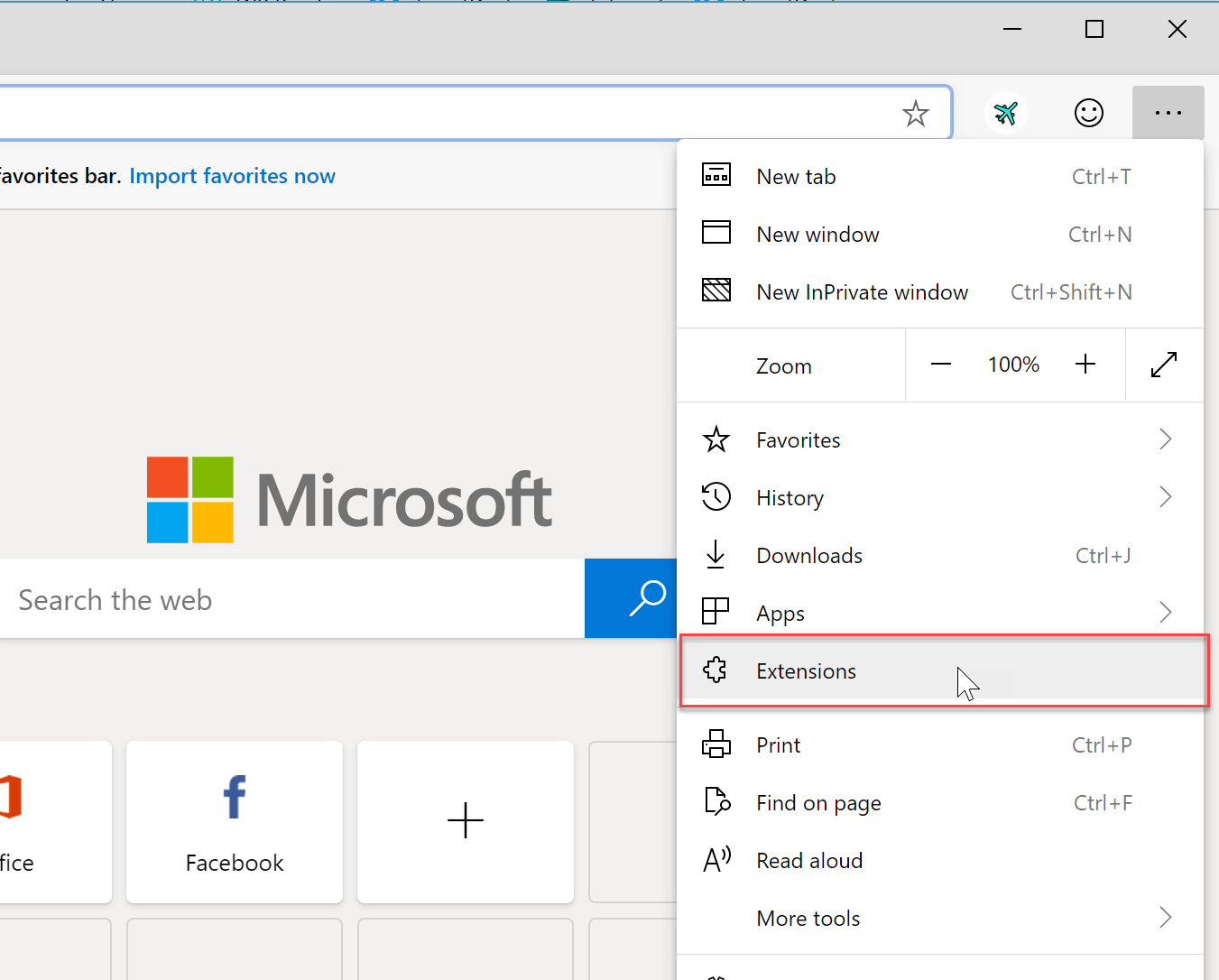
- The new page will appear on the screen.
- It is the Extension Store.
- There you can see many extensions for the Chrome Browser.
- Scroll and search for Continue Where You Left Off option.
- Tap on it.
- Then, select the Add to Chrome option.
- Within a while, the Chrome Continue option will be added to the browser.
Hereafter you can easily remain what you have work before shutdown. Also, it will help you to continue the paused work quickly. Try it.
How to Fix Chrome Continue Where is Left Off?
If the Chrome Continue feature is not working properly on your system, then follow the methods and the instructions given in the upcoming section, They are as follows ;
Update Chrome
If your System needs a Software version, Update it right now. It may also be the major reason the Continue Where is Left Off is not working on your system. To know How to Update Chrome Browser, Check the Steps given in the following;
- First, Turn On the System.
- Launch the Web Browser app.
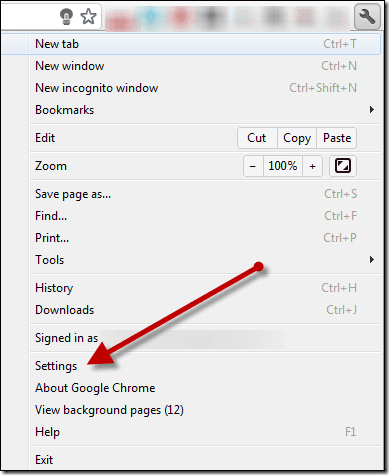
- Click the Three-Vertical Lines in the top right corner.
- Then, select the Settings option.
- Move to the top-left corner of the screen.
- And, click on the Three Lines.
- Scroll down and select the About Chrome option.
- If your system is connected to the Internet,
- It will automatically update.
- Or, connect your System with a high-speed Wi-Fi network.
- Now, your system shows you the System Update details.
- Click the Install/ Download button.
That’s it. Wait until your system update gets completed. Once the installation is completed, it will automatically restart. Or, Restart it manually.
Reinstall the App
No update is required for the Chrome browser, but still, Chrome Continue is not working, then Uninstall and reinstall the Chrome Browser on your device. Follow the steps given in the following section;
- Go to the Desktop.
- And, launch the Control Panel page.
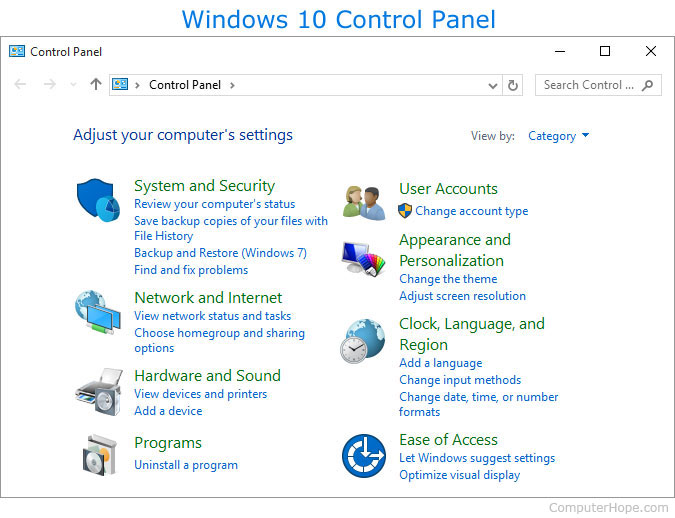
- Navigate to the search section.
- Find the Uninstall a Program tab.
- Click on it.
- Then, select Google Chrome.
- Now, tap the Uninstall button.
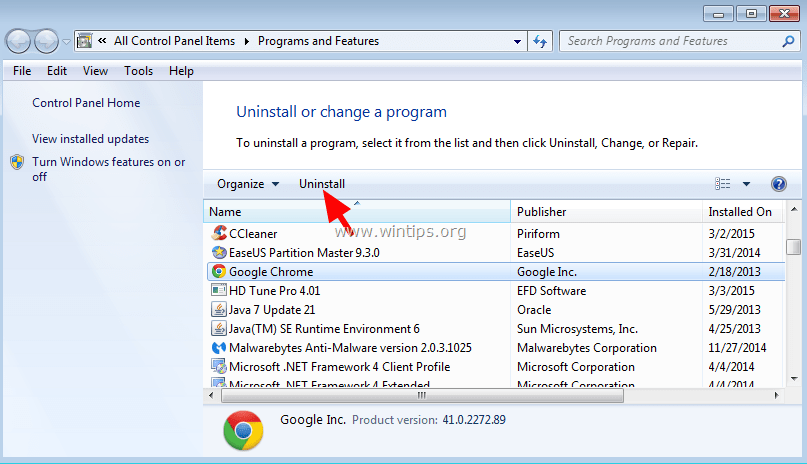
- The confirmation pop-up tab will appear on the screen.
- Just, click on Delete.
- It will delete your browsing history from Chrome Browser.
- Within a minute, the Chrome Browser app gets deleted.
Now, launch the Google Play Store. Or, any app stores your device have. Search for the Google Chrome app. Click the Reinstall button.
Also, check: How to Get Google Chrome on PS5?
Re-Enable the Chrome Continue Feature
You may make a mistake in enabling the Chrome Continue feature on your device. So, Re-enable it once. Follow the step-by-step procedure given in the above section.
Allow Chrome Browser to Run in the Background
If the Browser run in the background, it will be more than easier to access the last used tab. Here are the instructions;
- Press the Start button.
- Select the Settings icon or option.
- Now, select the Privacy tab.
- Heads to search for the Background Applications option.
- Scroll and click on the Chrome Browser.
- Now, Toggle it to Enable Chrome Browse to run in Background.
Clearing the Cache
Clear the unwanted apps and data stored on your device. Also, clear the cache file. Come back with the instructions given here;
- Go to the Desktop.
- And, go to the Settings page.
- Heads to the Privacy and Security option.

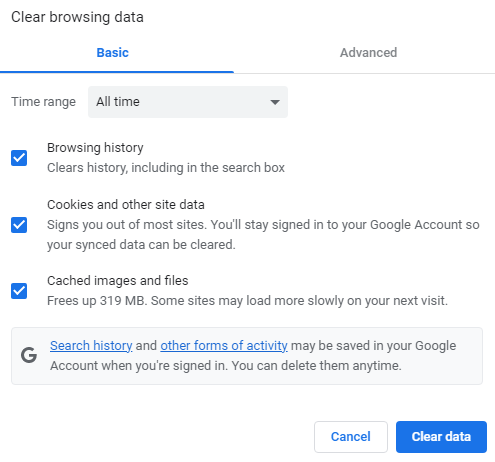
- Tap the Clear Browsing Data tab.

- Select the Time Range.

- And, set it with the All-Time option.
- Select the Checkboxes you want to clear.
- Finally, click the Clear Data tab.
Disable Extensions to Access Chrome Continue
If you have using more extensions on your device, it may also affect using the Chrome Continue feature. So, clear the unwanted/ unused Extensions. This is the procedure to Disable the Extensions.
- Launch the Chrome Browser on your System.
- Click the three-lined dot.
- Select the Settings option.
- Then, click on the Advanced Tools option.
- Move straight to the Extensions sections.
- Select the unused Extensions from the list.
- Click on it.
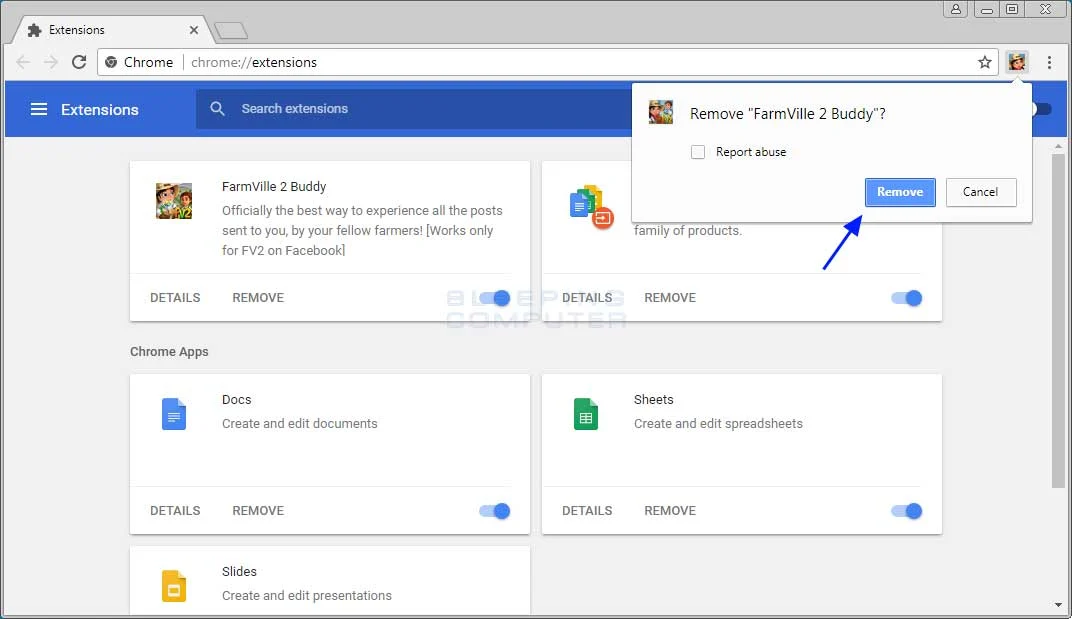
And, Toggle it to Disable it on the system. Or, click on the Deactivate All button.
Chrome Continue Alternatives
Also, Technology offers us another method to Chrome Continue. Using an app on both your Computer and Mobile, you can easily access the Chrome Browser Continue Where You Left Off feature. Follow the steps here;
- Launch the default App Store on your Smartphone.
- Search for “Your Phone” in the given search space.
- Select the “Link to Windows” app from the search result.
- Tap the icon and click the Install button.
- Also, you have to install the same app on your PC.
- Launch the App on both devices.
- Enter your Microsoft Login Credentials in the login section.
- Turn On the Bluetooth.
- Connect the Devices by following the on-screen instruction.
- Search for the Website you want to surf.
- Tap the Menu Button on the Website.
- Now, click the Share option.
- Tap the Send to PC Button.
Now, the website link is pop-up on your PC Screen. Tap it and you can surf the website on your PC. As well as you can share the website from your PC to Smartphone. And continue using the site on your handheld device.
Also, check: How to Get Google Chrome on Xbox One?
Finally…
The Chrome Continue feature is to access the website that you want to continue work the next day. When you have turned on the system. You can enable it on your system to work easily. Also, you can share the site you streaming or reading on your mobile. Just install the app I have mentioned in the above section. And connect your devices together. If you have any queries, mention your queries in the comment section.